Showing posts with label linux. Show all posts
Showing posts with label linux. Show all posts
Sunday, February 19, 2017
Install Android sdk emulator on linux ubuntu
Install Android sdk emulator on linux ubuntu
How to install android sdk emulator on ubuntu linux as well as how to install android sdk on windows operating system , there may be a slight difference, both android sdk in ubuntu linux as well as windows.
Android SDK emulator as an alternate, the other is to install BlueStacks Android emulator than if if it turns out the specifications we have a computer or laptop vga less than 512 HD or not to install the BlueStacks will find some problems like error 25000 which means that the driver vga or vga / graphic should be updated to the latest version .
I think this emulator using android sdk android emulator better than others because every time I install the application then the application can run properly. But while the other is virtually impossible according to different opinions depending on what they see and used.
Android sdk is android that can be used on a PC or laptop and it is an interesting thing, so we do not need to buy Android phone if we already have another phone but as long as we have a laptop or PC then it can be done on a PC / laptop and it is an excess of PC / laptop, which almost could install all kinds of operating systems.
In addition we can use android on ubuntu together we can also install applications such as WeChat , whatsapp and computer line so we can run android applications .
How to install android SDK emulator on ubuntu :
1. Download and install opn jdk di ubuntu dengan cara.
Her way is to install open jdk available in ubuntu software center or synaptic package manager. open ubuntu software center and then on the right there is a small box and write open JDK, and you will see open jdk 7 and open jdk 6 or you can see here OpnJDK 7
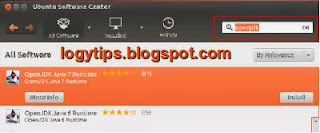
sudo apt-get install openjdk-6-jre
2. Download android sdk for linux here.
3. After downloaded extract on everywhere you like for example on Documents folder
4. Open terminal on ubuntu CTRL + Alt + T and type command :
sudo gedit ~ /. Bashrc
copy and paste this text at the very top - And type command text below :
#AndroidDev PATH export PATH=${PATH}:/home/???/Documents/android-sdk-linux/tools export PATH=${PATH}:/home/???/Documents/android-sdk-linux/platform-toolssave and close note :the red texts is the name android sdk folder that i store on my ubuntu, adjust to your android sdk folder that you store and saved.
sudo gedit /etc/udev/rules.d/51-android.rules
SUBSYSTEM=="usb", ATTRS{idVendor}=="0bb4", MODE="0666"Source that text is from Ubntu community.
SUBSYSTEM=="usb", ATTRS{idVendor}=="0502", MODE="0666"
SUBSYSTEM=="usb", ATTRS{idVendor}=="12d1", MODE="0666"
SUBSYSTEM=="usb", ATTRS{idVendor}=="1004", MODE="0666"
SUBSYSTEM=="usb", ATTRS{idVendor}=="22b8", MODE="0666"
SUBSYSTEM=="usb", ATTRS{idVendor}=="04e8", MODE="0666"
SUBSYSTEM=="usb", ATTRS{idVendor}=="0fce", MODE="0666"
SUBSYSTEM=="usb", ATTRS{idVendor}=="0489", MODE="0666"
SUBSYSTEM=="usb", ATTRS{idVendor}=="18d1", SYMLINK+="android_adb", MODE="0666"
SUBSYSTEM=="usb", ATTRS{idVendor}=="04e8", MODE="0666", GROUP="plugdev"
after the text above saved reboot or restart your laptop or computer
5. Open terminal CTRL + Alt + T and type "android" without quotes to open android sdk emulator
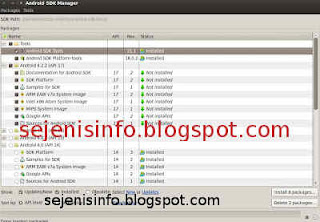
you can chooce android version that you will install
6. Click the install packages button on the right and accept license, wait after the downloaded done.
7. After all finish click tool tab is located at the top left.
8. A new windows will appear and click the manage avds button and click the new button to begin create android emulator on the right.
9. A new window will appear when the button is clicked and Insert your android name, select your choice according to size preference. If you want to change the size of the internal memory replace 200 to 512 and sd card to 1024 = 1GB and click OK.
10. Click start to open android will appear according to your choice.
To install Android sdk emulator on windows OS see here.
Go to link Download

Operational System Differences ‰ÛÒ Linux Windows Chrome Mac OS X
Operational System Differences ‰ÛÒ Linux Windows Chrome Mac OS X
No matter whether we have used or not, we must have heard these four operational systems, Linux, Windows, Chrome and Mac OS X. Maybe there are many opinions or deep understanding about them. So in this passage, I just introduce every operating system simply and make a summarization about differences between operating systems. And express my opinion about how to choose one suitable operational system for oneself.
1st OS: The older operational system Ð Linux
Linux is a free operational system with all of functions included in UNIX. Stable performances, high

But to be more, Linux is just the kernel. It is still difficult for common computer user to install and run it on computer. Because Linux traditional user interface is command interface based on text. And why it is different to computer hobbyist? There are mainly two reasons.
1. Linux is like free software.
1. Linux is like free software.
Anyone doesnÕt need to pay for it to get its original code and computer user could modify it according to their purpose. Free use and transfer it freely.
2. Linux includes all of functions of UNIX.
2. Linux includes all of functions of UNIX.
So for people who want to learn UNIX or use UNIX, Linux is the best platform.
Therefore, for computer hobbyist, there are still advantages in Linux.
- Openness.
- Multi-user and multi-task.
- Friendly user interface.
- Device independence.
- Kinds of Network function.
- Safe system security.
- Good portability.
Now see the differences between Linux and Windows/OS X:
- In development history, Linux is developed from a relatively mature operational system. And Windows is designed newly and independently.
- In cost, Linux is free. And Windows and OS X have to be paid for.
- In usability, Windows and OS X are friendlier than Linux for common computer users.
2nd OS: Google special operational system Ð Chrome OS
 Chrome OS is open operational system based on Linux, designed for netbook. Actually, Chrome OS
 is Web operating system. Most of data and files are dealt with on Internet. So how is Chrome OS?
- There is no ÒUserÓ in Chrome OS. Google account will be used to login into Chrome OS instead of ÒUserÓ.
- Network is needed when you access Chrome OS. Not like Windows, login Windows with user and do work on Windows computer without network are available.
- Chrome OS looks like a Chrome browser. No data are saved on local computer. All of them are stored in Cloud. And all of system applications are Web applications.
- Because of lack of local file system and desktop, security of Chrome OS is no match for Windows.
- Just about few seconds are needed to boot Chrome OS, but about a minute to boot Windows.
- Less demand in PC computer power if you use Chrome OS.
Even though there are so many advantages in Chrome OS, some questions are still asked usually. For example, Chrome OS couldnÕt be used when no network is available? Is Chrome OS free? PC users only install Chrome OS? To respond to these problems, Google also says, they will make progress in Wifi, data encryption, access Google Docs offline. But these would take time to achieve.
So if you want to experience how Chrome OS works, install Chrome browser to experience is a good choice.
3rd OS: Most humanized and comfortable operational system - Mac OS X
Mac OS X is designed especially for Mac series products. Based on UNIX, it seems to be simple and full of innovation. Mac OS X is friendly-use and it can be handled once people begin to try to use it.
So now see why we choose Mac OS X?
- System interface is beautiful than any other operational systems.
- Easy-of-use. Anyone could learn to use Mac OS X instantly. And it is no need to install other third-party software.
- More safe. Because of no need of downloading third-party software, netbook is not so dangerous.
- More stable.

Generally, it is not necessary to adjust system programs.
But why it is said Mac OS X is not suitable for general computer user?
- Mac OS X is special operating system only provided by Apple. It is hard to find one and install it.
- Lots of software available for other operational system is not available for OS X, such as games software. So its compatibility is not so good for general computer user.
So we can see the differences between Mac OS X and Windows. Try to understand why Windows is more suitable for common computer users and Mac OS X is not. And there is no doubt that Mac OS X is good operating system actually.
- Mac OS X runs faster than Windows.
- Mac OS X is more stable than Windows.
- Windows is better than OS X in compatibility.
- Mac OS X is hard to be poisoned than Windows because its fewer users and less chances to get touch with third-party software.
- It is easier to realize double system in Windows computer than Mac.
- Mac OS X is more humanized than Windows. But people who use Windows could become computer experts, but not for Mac users.
4th OS: Common operational system ÐWindows
Windows is one operational system which is used widely both for persons or corporations. From the above introduction, we could see, its easy-of-use and compatibility are two main reasons. Now letÕs see the advantages of Windows:

1. Intuitive and efficient object-oriented graphical user interface
Windows user interface is object-oriented. It works with way ÒChoose object Ð Operate objectÓ. For example, we choose document first with keyboard, and then choose ÒOpenÓ button in right-click menu. It imitates behaviors in real life, so it is easy to understand, learn and use.
2. Unified and friendly user interface
2. Unified and friendly user interface
Most of Windows programs meet standard of Common User Access. All of these programs have the similar appearance, including window, menu and toolbar. As long as user handles one of them, there would be no problem to use others.
3. Rich and device-independent graphics operations
3. Rich and device-independent graphics operations
Windows GDI provides rich graphics operations functions. So we can draw different kinds of graphics and different kinds of output devices are supported.
4. Multi-task
4. Multi-task
Windows permits user to run different kinds of tasks in the same time. Every program would run in window. Computer user could move these windows to change program running in different time.
Related articles:
- Comprehensive analysis of Windows system activation methods
- Three Major Differences between Windows 8 and Windows 7 Ð Security/Design/Version
- Configure Windows 7 Security Settings and Deployment
- How to Improve Windows 8 Picture Password Security