Showing posts with label system. Show all posts
Showing posts with label system. Show all posts
Sunday, May 14, 2017
Create A System Restore Point In XP
Create A System Restore Point In XP
Create A System Restore Point In XP
Introduction:
Windows backup and restore is a system that can save your machine to a specific time and load this backup to restore your computer in exactly the same state as when you saved it.
You can use a restore point when, for example, you have been infected by a destructive virus and can no longer serve you properly on your computer. The restore point, if you did, you will regain a healthy computer and working. Well, the theory generally just practice. The time has come for you to create a restore point (Windows XP).
You should know that Windows includes a restoration software that works perfectly well. It is this software that we will use in this tutorial
Create a restore point:
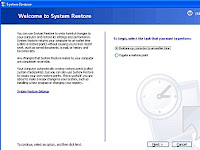
To begin, start Windows Restore: Button Start => All Programs => Accessories => System Tools => System Restore You should see a window offering you to restore your system or create a restore point. Select Create a restore point. and click nextyou must enter a description that will allow you to easily identify yours restore point.
Using a restore point:
Now that you have created you restore point, you need to know how to load.
If you clicked on the button Start, returned here on the main window of the assistant. Select Restore my computer to an earlier time. You now find yourself facing a schedule. This calendar is special; it lists all yours restore points. Thus, you should see youÕre in the right frame by clicking on the day you created.
Cancel restore:
Your system restores gone wrong? No problem, there is a simple and effective solution?
Start the Recovery Tool. You fall back on the main window (again!?). Select Undo my last restoration. Click Next. Once again, it summarizes the information you: what will change if you cancel the restoration, what restoration will be canceled ... Click Next to start the cancellation of a previous restoration. Click Cancel to cancel and exit the System Restore tool (theres still time to turn around!). Windows restarts and like magic your computer has resumed its old settings!
You May Like Also.......
(Offline) How To Install .Net Framework 3.5 On Windows 8/8.1/10
What Is The Difference Between FAT32, exFAT, and NTFS?
How To Show or Hide File Name Extensions in Windows 10/8.1/8/7/Xp
[Solved] Wifi Problem After Updating Windows 10, Limited Access or Not Connecting
Go to link Download

Thursday, April 6, 2017
Windows 10 will be the last version of the operating system
Windows 10 will be the last version of the operating system
Windows 10 will be the last version of the operating system
 According to Microsoft itself, the Windows 10 is the latest version of its flagship product and most used operating system in the world.
The Windows 10 will be released this year, probably in September and will be the last, according to Jerry Nixon, Microsoft executive who spoke at the conference of the company.
It seems that Microsoft is planning to launch a "Windows Service" where users could pay an annuity and regularly get system updates and new versions every one or two years.
Windows 10 has an advanced development architecture and because of this the company can separate the operating systems that are part of Windows, leaving the individual applications that can be updated independently without the need to change any software.
If all goes well with the project, it is likely that within a few years no one else worry if the version that uses a computer is Windows 7, 8, 10, being just "Windows".
Its an interesting idea and would not need to have to reinstall the operating system when a new version was launched and we could also keep computers updated with the latest versions of Windows easily.
For those who use Linux, such as Ubuntu, you know how much its easy and it works most of the time.
Go to link Download
Wednesday, March 15, 2017
System Mechanic Free 16 0 0 464
System Mechanic Free 16 0 0 464
iolo System Mechanic Free ce este o suit? complet? si puternic? de reparare a sistemului ?i cu instrumente de ”ntre?inere. C”teva instrumente de baz? sunt incluse ”n System Mechanic Free ?i sunt proiectate pentru a cre?te viteza, rezolva probleme ?i de a ”mbun?t??i performan?a PC-ului instantaneu.

Instrumente de baz? ”n System Mechanic Free sunt:
-Registry Tuner: cel mai eficient instrument de acest tip, Registry Tuner face o cercetare actualizat? ”n mod regulat pentru a repara erorile de registry ”n condi?ii de siguran?? ?i de a stabiliza computerele Windows
-Startup Optimizer: Elimin? cele mai frecvente blocaje de pornire, ”n scopul de a accelera considerabil timpul de pornire
-Memory Mechanic: reface memorie RAM ?i mai mult pentru un plus de performan?? instantanee
- PC Cleanup: Cur??? sistemul de ”nfundarea cu dosare junk ?i dezordinea
-Drive Accelerator: Defragmenteaza s? ”mbun?t??easc? viteza ?i performan?a
-Shortcut Repair: reconecteaza iconi?e sparte ?i comenzi rapide
-Internet Connection Repair: repara conexiuni defecte la internet pentru a ob?ine ”napoi PC-uri on-line
Pagina web
Descarca
Go to link Download
Tuesday, February 21, 2017
Upgrade to Which Windows System after without Windows XP
Upgrade to Which Windows System after without Windows XP
With the Microsoft announcement about stopping support Windows XP since April 8 in 2014, Windows XP users have to make hard decisions. Go on running Windows XP, turn to use Linux or upgrade to Windows new operational system? According to the survey, there are still many people choose to use Windows XP in later few years. The problems Windows XP users need to mention have introduced in where to go if without support for Windows XP.
For computer users who have been accustomed to using Windows XP in previous few years, suddenly turn to run Linux instead of Windows XP is hard to adapt. Believe more and more people would choose to upgrade Windows XP to new operational system, such as Windows 7 and Windows 8, except those persons who are obsessed with Windows XP.

Now, all PC computers and laptops can be upgraded to Windows 7/8. So now letÕs discuss the problems necessary to be thought about during choosing which Windows system instead of Windows XP.
First, consider computer hardware configurations.
Does Windows XP computer hardware configuration satisfy the conditions to upgrade to Windows 7 or Windows 8?
ThatÕs no doubt that Windows 7 and newer Windows systems need more advanced hardware configuration compared to Windows XP. If you want to upgrade Windows operational system to Windows 7, computer hardware configuration has to be mainstream configuration gotten after 2006.
Detailed configurations:
Detailed configurations:
- CPU: 1GHz or above; double kernel CPU;
- Memory: 1G or above (2G and above better)
- Disk: 16 G and above, suggest leave 100G and above and disk utilization had better not be higher than 75%.
- Graphic Card: WDDM driver available for DirectX 9
- Driver: Many OEM have not prepared drivers for new operational system in old device. Old device would affect use and stability of new Windows operating systems.
Windows 8/8.1 is not designed to run in Windows XP old computer. So if you prepare to upgrade to Windows 8, suggest run Windows 8 Upgrade Assistant to check whether old computer has achieve the lowest demand.
Second, consider choosing Windows system according to ease-of-use
After making sure computer hardware configuration, we should consider to select which operational system according to its ease-of-use. On similarity, Windows 7 is more similar to Windows XP on interface. It would be easy to know Windows 7 well more quickly than Windows 8. But it would take more time and disk to install nearly about 100 patches.

And Windows 8/8.1, there have been so many changes on interface. Computer users have to spend more time to be familiar with it. Compared with Windows 7, Windows 8 doesnÕt need to install many patches and Windows system boots more quickly.
Third, choose 32-bit or 64-bit Windows operating system
Now 64-bit operational system has become the trend, because most of 32-bit programs could run successfully in 64-bit operating systems, but 64-bit programs are hardly to run in 32-bit Windows systems. At the same time, 64-bit Windows system would occupy more memory and disk. So according to computer memory and disk, choose appropriate Windows operational system. Try hard to choose 64-bit operating system.
At last letÕs see how new Windows operational system would influence our computers after Windows 7 or Windows 8 installation.
Whether operating system would influence the programs running in previous Windows system?
This is the problem we always worry about after Windows system upgrade. CD-ROM or USB flash drive is needed to fully install Windows 7/8/8.1 in Windows XP old computer. Therefore, all the usersÕ files and programs previously installed on this computer could not be moved automatically. Computer users have to reinstall all programs new version manually applying to Windows 7/8, and copy user files to new operational system.
Tips: How to move files from old operational system to new one
Tips: How to move files from old operational system to new one
Related articles:
- Three Major Differences between Windows 8 and Windows 7 Ð Security/Design/Version
- Operational System Differences Ð Linux/Windows/Chrome/Mac OS X
- 10 New Features in Windows 8.1
- Configure Windows 7 Security Settings and Deployment
No matter whether we have used or not, we must have heard these four operational systems, Linux, Windows, Chrome and Mac OS X. Maybe there are many opinions or deep understanding about them. So in this passage, I just introduce every operating system simply and make a summarization about differences between operating systems. And express my opinion about how to choose one suitable operational system for oneself.
1st OS: The older operational system Ð Linux
Linux is a free operational system with all of functions included in UNIX. Stable performances, high

But to be more, Linux is just the kernel. It is still difficult for common computer user to install and run it on computer. Because Linux traditional user interface is command interface based on text. And why it is different to computer hobbyist? There are mainly two reasons.
1. Linux is like free software.
1. Linux is like free software.
Anyone doesnÕt need to pay for it to get its original code and computer user could modify it according to their purpose. Free use and transfer it freely.
2. Linux includes all of functions of UNIX.
2. Linux includes all of functions of UNIX.
So for people who want to learn UNIX or use UNIX, Linux is the best platform.
Therefore, for computer hobbyist, there are still advantages in Linux.
- Openness.
- Multi-user and multi-task.
- Friendly user interface.
- Device independence.
- Kinds of Network function.
- Safe system security.
- Good portability.
Now see the differences between Linux and Windows/OS X:
- In development history, Linux is developed from a relatively mature operational system. And Windows is designed newly and independently.
- In cost, Linux is free. And Windows and OS X have to be paid for.
- In usability, Windows and OS X are friendlier than Linux for common computer users.
2nd OS: Google special operational system Ð Chrome OS
 Chrome OS is open operational system based on Linux, designed for netbook. Actually, Chrome OS
 is Web operating system. Most of data and files are dealt with on Internet. So how is Chrome OS?
- There is no ÒUserÓ in Chrome OS. Google account will be used to login into Chrome OS instead of ÒUserÓ.
- Network is needed when you access Chrome OS. Not like Windows, login Windows with user and do work on Windows computer without network are available.
- Chrome OS looks like a Chrome browser. No data are saved on local computer. All of them are stored in Cloud. And all of system applications are Web applications.
- Because of lack of local file system and desktop, security of Chrome OS is no match for Windows.
- Just about few seconds are needed to boot Chrome OS, but about a minute to boot Windows.
- Less demand in PC computer power if you use Chrome OS.
Even though there are so many advantages in Chrome OS, some questions are still asked usually. For example, Chrome OS couldnÕt be used when no network is available? Is Chrome OS free? PC users only install Chrome OS? To respond to these problems, Google also says, they will make progress in Wifi, data encryption, access Google Docs offline. But these would take time to achieve.
So if you want to experience how Chrome OS works, install Chrome browser to experience is a good choice.
3rd OS: Most humanized and comfortable operational system - Mac OS X
Mac OS X is designed especially for Mac series products. Based on UNIX, it seems to be simple and full of innovation. Mac OS X is friendly-use and it can be handled once people begin to try to use it.
So now see why we choose Mac OS X?
- System interface is beautiful than any other operational systems.
- Easy-of-use. Anyone could learn to use Mac OS X instantly. And it is no need to install other third-party software.
- More safe. Because of no need of downloading third-party software, netbook is not so dangerous.
- More stable.

Generally, it is not necessary to adjust system programs.
But why it is said Mac OS X is not suitable for general computer user?
- Mac OS X is special operating system only provided by Apple. It is hard to find one and install it.
- Lots of software available for other operational system is not available for OS X, such as games software. So its compatibility is not so good for general computer user.
So we can see the differences between Mac OS X and Windows. Try to understand why Windows is more suitable for common computer users and Mac OS X is not. And there is no doubt that Mac OS X is good operating system actually.
- Mac OS X runs faster than Windows.
- Mac OS X is more stable than Windows.
- Windows is better than OS X in compatibility.
- Mac OS X is hard to be poisoned than Windows because its fewer users and less chances to get touch with third-party software.
- It is easier to realize double system in Windows computer than Mac.
- Mac OS X is more humanized than Windows. But people who use Windows could become computer experts, but not for Mac users.
4th OS: Common operational system ÐWindows
Windows is one operational system which is used widely both for persons or corporations. From the above introduction, we could see, its easy-of-use and compatibility are two main reasons. Now letÕs see the advantages of Windows:

1. Intuitive and efficient object-oriented graphical user interface
Windows user interface is object-oriented. It works with way ÒChoose object Ð Operate objectÓ. For example, we choose document first with keyboard, and then choose ÒOpenÓ button in right-click menu. It imitates behaviors in real life, so it is easy to understand, learn and use.
2. Unified and friendly user interface
2. Unified and friendly user interface
Most of Windows programs meet standard of Common User Access. All of these programs have the similar appearance, including window, menu and toolbar. As long as user handles one of them, there would be no problem to use others.
3. Rich and device-independent graphics operations
3. Rich and device-independent graphics operations
Windows GDI provides rich graphics operations functions. So we can draw different kinds of graphics and different kinds of output devices are supported.
4. Multi-task
4. Multi-task
Windows permits user to run different kinds of tasks in the same time. Every program would run in window. Computer user could move these windows to change program running in different time.
Related articles:
- Comprehensive analysis of Windows system activation methods
- Three Major Differences between Windows 8 and Windows 7 Ð Security/Design/Version
- Configure Windows 7 Security Settings and Deployment
- How to Improve Windows 8 Picture Password Security
With disappear of Windows XP on PC, Windows 7 and Windows 8 are becoming more and more popular for computer users. Especially with the development of technology and popularity of PC tablet, more and more people have installed Windows 8. But whatever, Windows system activation is still common problem after installation all the time.
In generally, if having purchased Windows full version, just type product key to activate Windows operational system after installation. If not, it is necessary to read this article, because three different kinds of Windows system activation methods are introduced.
- Method 1: Activate Windows with activation tool
- Method 2: Activate Windows with key online
- Method 3: Activate Windows system by phone
Method 1: Activate Windows with activation tool
Windows activation tool is a special way for computer users to activate Windows operational system. Because it is free, and Windows could be used and updated for a long time after activation, and when it becomes unavailable, just need to activate Windows with tool again. So a lot of computer users choose to activate Windows with tool.
How does activation tool work for Windows activation?
Windows activation tool could activate Windows because it makes full use of KMS (Key Management Service). Bypass Windows full version verification with fake KMS server.
Naturally, there are several kinds of tools designed for Windows system activation. For example, Microsoft Toolkit is one of them available for Windows and Office 2013 activation.

Receive detailed introduction about how to download Microsoft Toolkit and activate Windows 8 with it, turn to: How to activate Windows 8 Pro without product key
Such Windows system activation tool could activate Windows 8.1/8/7/Vista and Windows server 2008/2012(R2) too. Moreover, Windows will keep activated for 180-days and receive updates from Microsoft like Windows full version.
Method 2: Activate Windows with key online
This method would be available when you have purchased Windows system full version and have a product key. After Windows installation, check computer properties first and activate Windows then.
Detailed steps are introduced below:
Step 1: Check computer properties.
Step 1: Check computer properties.
- In Windows 7 and previous Windows systems, right click ÒComputerÓ and choose ÒPropertiesÓ.
- But in Windows 8, we should move the mouse to the right upper side of start screen. Charm bar appears and choose ÒPC infoÓ. Windows activation status is shown in the bottom of PC information window.
Step 2: Activate Windows with product key.
- In Windows 7, click ÒInstantly activate WindowsÓ and ÒActivate Windows online nowÓ. And then type Windows product key.
- Or in Windows 8, click ÒView details in Windows ActivationÓ and ÒActivate with a new keyÓ. Type ÒProduct keyÓ and click ÒActivateÓ bottom.

In few minutes, there will be a message prompting that Windows is activated.
Method 3: Activate Windows by phone
In order to make Windows activation available without network, Microsoft also provides another way to activate Windows, such as activate Windows by phone. This is one method that most computer users take into use.
But apparently, activate Windows by phone is more complicated than activate Windows online. When we meet the problems below, we should use phone to activate Windows instead.
- Network is unavailable or there are some activation errors.
- Hardware has been changed before reinstalling Windows.
Now we take Windows 8 activation by phone as example. The following will introduce two ways to activate Windows 8 by phone.
1. Press Win + X and menu appears. Click ÒCommand Prompt (Admin)Ó. Type in command Òslmgr.vbs Ðipk Product IDÓ. Press Enter and it will prompt that whether this Product ID has been installed.
First way to activate Windows 8 by phone:
1. Press Win + X and menu appears. Click ÒCommand Prompt (Admin)Ó. Type in command Òslmgr.vbs Ðipk Product IDÓ. Press Enter and it will prompt that whether this Product ID has been installed.
2. Install Windows Product ID
If there has been Product ID in your Windows, unload it first with command Òslmgr/upkÓ.
And then access PC info window, a new option ÒActivate Windows by phoneÓ appears. Click it and choose Language ÒUnited StatesÓ in new pop-up window.

3. Make a call to activate Windows
If you have chosen ÒUnited StatesÓ in Language option, suggest you installing Skype to make a free call.
We can see there are 9 groups of number and input box from A to H9 in the page. What we should do now is to send these 9 groups of number to Microsoft service hotline with activation call. And then type 9 new group numbers received from Microsoft in input box. Click ÒActivateÓ and wait for few minutes. At last, messages about whether Windows has been activated successfully will be prompted.

Second way to activate Windows 8 by phone:
1. Press Win + R to open Run dialog, type slui.exe 4, press Enter, and go to next step.
2. Click/tap on the drop down menu, select the nearest location to you for a toll free number to call, then click/tap on Next.
3. If prompted by UAC, then click/tap on Yes.
4. Follow the instructions below and phone.
Step 1: Call the toll free activation phone.
Step 2: Enter the ID numbers on your phone keypad when asked to do so over the phone.
Step 3: Enter the confirmation ID numbers given to you over the phone into the "Windows Activation" wizard.
Step 4: When finished, click/tap on Activate.
5. If activation was successful, then all are done.
If activation failed, then you will be told that activation cannot proceed. DO NOT hang up. Wait to be automatically transferred to a Microsoft Activation Team operator that will go through these steps again to help you activate Window 8.
The above are the comprehensive activation methods after Windows first installation. No matter whether you have a key or not, there must be one way available to activate Windows computer effectively.
If this is Windows reinstallation and there is not a product key. The operation is not too different. But if we want to activate Windows online directly, it would be impossible. Even though, because of Windows reinstallation, another chance becomes available. That is find product key with Product Key Finder first before reinstalling Windows. And then activate Windows with product key online.
Related articles:
Related articles:
- Analysis and Comparison of Windows 8/8.1 Activation Methods
- How to Activate Office 2013 without Product Key
- How to Find Windows 8.1 Activation Key
- Windows Server 2012 R2 Activation Key Recovery Finder
Go to link Download
Subscribe to:
Posts (Atom)