Showing posts with label asus. Show all posts
Showing posts with label asus. Show all posts
Wednesday, February 1, 2017
Top 5 Tricks to Reset Asus Account Passwords on Windows 7 When Locked Out
Top 5 Tricks to Reset Asus Account Passwords on Windows 7 When Locked Out
Question 1: I have an Asus laptop on Windows 7 and the only administrator user is me. I forgot the password. Is there any way I can get it back because all my photos and music are on the administrator user account?
Question 2: Hi. My daughter changed her password for her Asus windows 7 laptop and has forgotten the password. We have tried everything we can think of and cannot access the laptop making it useless and it is only 2 years old. Needless to say I am very frustrated please can anybody help.
ItÕs common that Asus computer users forget their login account password. However most of them have a little knowledge of fixing the Asus login account password forgotten problems. As a result they often have a data loss for improper ways like reinstalling the system. Here I summarize 5 tricks on how to reset or remove Windows 7 account password on Asus according to different situations.

Trick 1: Reset Asus User Password on Windows 7 from an Administrator Account
If you forgot your user account password but you have another admin account which has access to the computer. Then you can reset the user account password with the admin account. There are 2 ways to achieve it.
A: Go to the Control Panel to Reset the User Account Password
1. Login your Windows 7 Asus computer with the admin account.
2. Start the Run box (Win+R) and then type in "control userpasswords2" in the box and click Ok.
3. Then the User Accounts window will appear, select the user account you want to reset password of and click ÒReset PasswordsÓ button.
4. Input a new password for the target user account, and then key in the password again to confirm it, press ÒOkÓ button.
5. Click ÒOkÓ button on the User Account window to save and finish your operations.
2. Start the Run box (Win+R) and then type in "control userpasswords2" in the box and click Ok.
3. Then the User Accounts window will appear, select the user account you want to reset password of and click ÒReset PasswordsÓ button.
4. Input a new password for the target user account, and then key in the password again to confirm it, press ÒOkÓ button.
5. Click ÒOkÓ button on the User Account window to save and finish your operations.
B: Reset the User Account Password from Safe Mode
l Enter into Advanced Boot Options by pressing F8 key before Windows 7 loading screen appears.
l Choose Safe Mode at the Advanced Boot Options screen and login with the accessible admin account.
l Click to Start and enter lusrmgr.msc into the Search box.
l Double-click ÒLocal Users and GroupsÓ, and then click ÒUsers in the Local Users and GroupsÓ.
l Right-click the target account we want to reset, and then click ÒSet PasswordÓ.
After finishing the process you can access your computer with the new password.
Trick 2: Reset Asus Password on Windows 7 with Default Administrator Account
If you donÕt have another account with privilege right to login then this trick will help you. Windows 7 has a built-in admin account which is disabled by default. Before using this trick you should have enabled the default account in advance, or else it will not work. In case that you have enabled the built-in administrator account you can go straight to Part 2.
Part 1: How to Enable Windows 7 Default Administrator Account
At first itÕs necessary for you to aware that running your computer under the built-in administrator account maybe a risk. If you still insist to enable the build-in Administrator account, follow these steps:
1. Type ÒcmdÓ in the start search box and then press ÒEnterÓ. In the search results list, right-click ÒcmdÓ, and then click ÒRun as AdministratorÓ.
2. At the command prompt window, type net user administrator /active: yes, and then press ÒEnterÓ.
3. Type net user administrator <Password>, and then press ENTER.
Note: Please replace the <Password> tag with your passwords which you want to set to administrator account.
Note: Please replace the <Password> tag with your passwords which you want to set to administrator account.
Type exit and then press ÒEnterÓ. Log off the current user account. Then youÕre sure to succeed to enable the default administrator account.
Part 2: Reset Asus Password on Windows 7 with Enabled default Administrator Account
1. Start your computer and press "F8" while the computer boots up. The Advanced Boot Options screen appears.
2. Scroll down to "Safe Mode with Command Prompt" with the arrow keys on the keyboard and press "Enter." Your computer starts in Safe Mode with Command Prompt.
3. Select the Administrator account that appear in the screen, then enter command prompt.
4. Type: net user Mosoh 123456 and enter, it will show you a message that" the command completed successfully.
5. Restart your computer, then you can log in as Mosoh with the password 123456.
Trick 3: Remove Your Asus Account Password on Windows 7 With System Repair Disc
1. Put a CD/DVD disc into a CD-RW, DVD-Combo, and DVD-RW device.
2. Find "Create a system repair disc" by pressing Windows key on the keyboard and typing "create a" in the search box. Next run it.
3. Select the right drive for the disc and click Create disc. You are recommended to use a high-quality CD/DVD burner. It might take a few minutes since 142MB of data will be written into the disc.
4. Insert the repair disc and boot the password-lost computer from it.
5. On the Windows Boot Manager screen, choose ÒWindows SetupÓ
6. Next, choose ÒCommand PromptÓ.
7. Execute the command line: net user [existingusername] [newpassword] Example: "net user jack 123456".
8. Restart your PC and log back into your Windows with the new password.
Trick4: Use a Windows 7 Password Reset Disk to Help Reset Windows 7 Password on Asus
1. Insert a CD/DVD/USB into the drive.
2. Click Start Ð> Control Panel Ð> User Accounts and Family Safety Ð> User Accounts.
3. On the left pane, click ÒCreate a password reset diskÓ. Then click ÒNextÓ and follow the Wizard to create a password reset disk.
Part 2: Reset the Password with the Reset Disk
Now, the Windows 7 password reset disk is created. When we forgot ASUS Windows 7 PC password on the login screen and input an incorrect password, click ÒReset Windows PasswordÓ and insert the password reset disk. The Password Reset Wizard will guide you create a new password.
Trick 5: Remove Asus Password on Windows 7 with Windows Password Key(lostwindowspassword.com)
Windows Password Key is a professional tool to reset Windows 7 password. It can help people reset any account passwords for all brands of computers within just 4 minutes. WhatÕs more, it can make sure that you remove the password without any data loss. You can follow the steps below:
Step 1: Download and install the program on a workable computer. Insert a CD/DVD or USB flash drive. Launch this software and click "Burn" to burn a password reset disk.
Step 2: Plug the newly burned disk into your computer. Set BIOS to make this computer to boot from CD/DVD or USB. It will reboot. (Check how to reset BIOS password first if your BIOS is protected with a password)
Step 1: Download and install the program on a workable computer. Insert a CD/DVD or USB flash drive. Launch this software and click "Burn" to burn a password reset disk.
Step 2: Plug the newly burned disk into your computer. Set BIOS to make this computer to boot from CD/DVD or USB. It will reboot. (Check how to reset BIOS password first if your BIOS is protected with a password)
Step 3: After it fully loads, Windows password key appears. Follow the wizard to reset Asus password on Windows 7.
That is the top 5 tricks to reset Asus account passwords on Windows 7 I want to share with you. Hope to help you well.
Go to link Download

Saturday, January 28, 2017
Asus Laptop Forgot Password on Windows 8 or Windows 8 1
Asus Laptop Forgot Password on Windows 8 or Windows 8 1
I got Asus Transformer Book Trio a month ago, which can be used as laptop, PC and tablet. During the transfer from PC or tablet to laptop, I found Asus Windows 8 login password forgotten. How can I do to solve this problem with any powerful methods?

Solution 1:
Password hint may be the direct way for you to think of forgotten Asus password on Windows 8, if password hint has set for user password.
Solution 2:
However, if you couldnt guess forgotten password out, there are still other choices you can choose on logon screen to access Windows 8 first and then reset Asus Windows 8 forgotten password. For example, PIN code and Picture password could be used to login Windows 8 computer. Or if you have password reset disk available, click "Reset Password" button to follow Windows 8 password reset wizard.

However, if you couldnt guess forgotten password out, there are still other choices you can choose on logon screen to access Windows 8 first and then reset Asus Windows 8 forgotten password. For example, PIN code and Picture password could be used to login Windows 8 computer. Or if you have password reset disk available, click "Reset Password" button to follow Windows 8 password reset wizard.
But if you have no reset disk, or other logon ways are not created, how do you reset Windows 8 password? Actually it has become a topic about how to create a Windows 8/8.1 password reset disk.
Solution 3:
At this moment, we could choose a tool to burn a password reset disk when computer is locked. Ophcrack is one of free password recovery tools, but is it a pity that it couldnt promise to recover Windows 8 password. Offline NT and Registry Editor is the same. So now I try to use Windows Password Genius Advanced.
Step 1: Install Windows Password Genius Advanced on available computer.
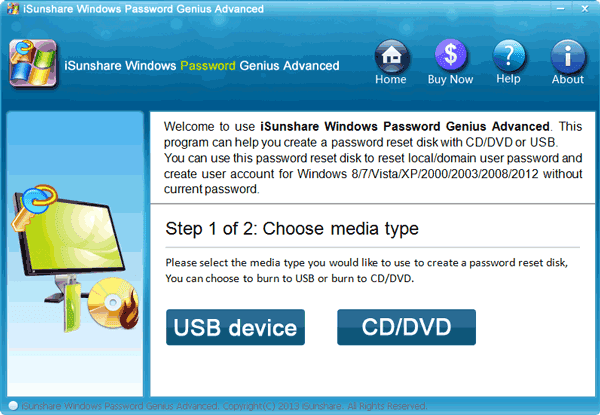
Step 2: Plug prepared USB drive into available computer and run password recovery software.
USB drive should be bootable and empty. So if you have something in this USB, back up it first.
Step 3: Choose USB as password reset disk burning media, and then click ÒBegin burningÓ. When you see message prompt you burning successfully, exit USB and get ready to reset Windows 8 password.
Step 4: Start Asus Windows 8 or Windows 8.1 laptop, when vendor logo appears on screen, press ESC repeatedly until Boot Option Menu appears. When Boot Option Menu appears, choose USB drive to boot your computer.
Step 5: When Asus laptop boots from USB successfully, you will see Windows system and all users on Windows password recovery program screen, choose Windows system Ð Windows 8 and select user you forgotten password or administrator. And click ÒReset PasswordÓ to remove forgotten password.
Step 6: At last, reboot Windows 8 laptop is necessary after remove Windows 8 password if you want to access Windows 8 without password. But just remember, exit USB drive from Asus laptop before Asus computer boots up.
You could find Windows 8 password reset with reset disk or password recovery tool is similar, because they are based on password reset disk. The truth we remove Windows 8 password is editing registry file. So we had better create one password reset disk when we could access computer, not limited to laptop, PC with Windows 8 or 8.1.
Tips: Restore BIOS settings to default is one way to remove BIOS password, and reset laptop Asus to factory settings is one of effective ways to remove Windows password.
Related Articles:
- How to Reset Laptop to Factory Settings without Disc
- How to Factory Reset Windows 8 without Password
- Asus Laptop Forgot Password on Windows 8 or Windows 8.1
- Factory Reset Laptop with OneKey Recovery Program
Go to link Download
Subscribe to:
Posts (Atom)