Showing posts with label forgot. Show all posts
Showing posts with label forgot. Show all posts
Sunday, May 21, 2017
Top 3 Ways to Fix Windows 7 Homegroup Password Forgot
Top 3 Ways to Fix Windows 7 Homegroup Password Forgot
"Have you ever met the trouble of Windows 7 password forgot, then you cant surf the Internet to play game, working or reading?" If the answer is below. Lucky to you is that you can learn how to recover Windows 7 password easily as below.
Top1: To solve Windows 7 Homegroup password forgot in common way
Familiar Windows 7 system users are aware, in Windows 7 system comes with a family group of functions, we can easily access the same network share pictures, music and so on with other people, so sharing more convenient, but sometimes not very many users often use this function, leading to forget Windows 7 homegroup password so that you cannot connect, and encountered such a problem how to deal with it? Here to share with you Windows 7 family group Password Forgot specific solutions are as follows.
Step 1: Click the Start menu on Windows 7 system, find and click on "Control Panel".
Step 2: In the "Control Panel" select view "category", then click below the "Network an internet".
Step 3: In the "Network and Internet" window, click on the "family group".
Step 4: In the "family group" interface, we need to share in the below check the option "shared libraries and printers" (without checking the printer can cause other computers on the same LAN cant use the printer), and then click the "view or print homegroup password ".
Step 5: Since you can see the password of our family group, we can click on the print, or Write down your password, and then click "Cancel", and then click to save your changes, you can.

Top 2: To fix Windows 7 homegroup password forget
Step 1: Type "family group" in the Start Search box, and press Enter to open the HomeGroup window.
Step 2: Click "Change Password" link in other family groups operating options.
Step 3: Change homegroup password pop-up dialog box, click the "Change Password".
Step 4: Type the password you want to set in the text box, click "Next".
Step 5: After setting the others to access the shared content family, you must type a password to enter.
Mounted directly on a PE U disk, to PE: Open C: Windows System32 config, which has one called "SAM" file, which is stored in the account information and password under windows.
In the PE system! ! ! remember! ! Use Notepad to open it, usually it appears garbled, do not control him, to delete all garbage, save and exit.
Windows 7 re-enter the system, and will certainly be an error to restart, this is a must. Let him auto repair, after entering the login screen, what you lose the password, the password is what he does not lose is not!
Top 3: Using Windows Password Recovery to recover Windows 7 forgot password
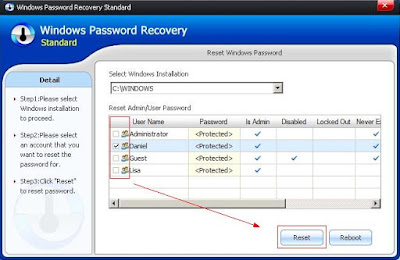
Step 1: Download and install Windows password recovery on any accessible computer.
Step 2: Using a blank CD/DVD or USB to Burn Windows password recovery on it. Then insert the newly created disk to Windows 7 password forgot computer.
Step 3: Choose Windows 7 account to reset the password, after that, restart your computer. There is no password requirements.
Top 3 methods to teach you how to crack Windows 7 forgot password in shortest time. If you have any problem about this field, you can send comments to our site.
Go to link Download

Friday, May 19, 2017
Forgot Windows 8 Password No Reset Disk How to Recover it
Forgot Windows 8 Password No Reset Disk How to Recover it
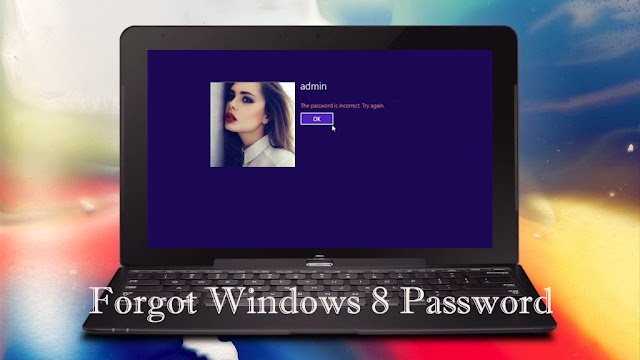
Forgot Windows 8 password?http://www.lostwindowspassword.com/forgot-windows-8-password.html? and have no reset disk? Unable to gain access to your computer? Is there any way we can do to recover Windows 8 password? Some of you may get panicked, lost or frustrated. Dont be sorry. I will do some analysis for you and introduce you 3 effective options on how to reset Windows 8 password without disk.
Option 1: Use Default Windows 8 Administrator Account
Each version of Windows since Windows XP has a default Windows administrator account that allows you to login with a blank password. In order to login in, you need to boot in Windows 8 safe mode because itÕs disabled in normal mode. HereÕs how:
Step 1: Press ÒWin+RÓ combination and enter ÒmsconfigÓ in the run box, hit the enter button.
Step 2: Switch over to the boot tab, check ÒSafe bootÓ. Choose ÒMinimalÓ-normal safe mode, click ÒOkayÓ button and restart your computer.
If you want to cancel booting into safe mode, uncheck ÒSafe bootÓ and restart your computer.
However, for the sake of computer security, most people have changed the built-in administrator password.
Option 2: Reset Windows 8 password with picture password or PIN
Windows 8 is different from other systems in that it allows you to create picture password and PIN besides classic text passwords. So if you forgot your windows 8 text passwords, previously-created picture password or PIN is helpful to reset Windows 8 login password.
Detailed steps are as follows:
Step 1: Start your locked PC and select the targeted user account.
Step 2: Choose picture password or PIN to access Windows 8
Step 3: Change your user password in ÒControl PanelÓ.
Option 3: Use Windows Password Reset as Windows 8 Password Recovery
Both methods above require some premises and may cause data loss. Fortunate enough, we can reset Windows 8 login password, theres another door to regain access to your computer without any data loss, which is to reset Windows 8 login password with Windows Password Reset(lostwindowspassword.com). It is an user-friendly tool that allows you to reset Windows 8 admin password and user password. Moreover, It wonÕt cause loss of any data. You can download free version and try its function before making the decision to buy.
Heres a simple tutorial on how to reset Windows 8 password with Windows Password Reset.
Without any doubt, as Windows 8 password reset, Option 3 is the best one because unlike other two methods, it has no premise if you want to reset password for your Windows 8 system.
Related Posts:
How to Hack Windows 8 Password?
How to Crack Windows 8 Password?
Go to link Download
Sunday, May 7, 2017
Windows 8 Forgot Administrator Password on Microsoft Surface Pro
Windows 8 Forgot Administrator Password on Microsoft Surface Pro
Microsoft Surface Pro administrator password forgot, how to reset Windows 8 password?
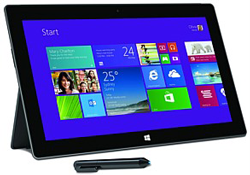
If it is domain administrator password, contact system administrator and then reset Windows password.
If it is just your personal PC and Surface Pro is not connected to a domain, and no Microsoft account, even you donÕt want to factory reset Surface Pro, how should you do?
Effective password reset disk should be your first choice. If it has not been created when Surface Pro laptop is accessible, Windows Password Genius Advanced can help instead create one for Windows password reset.
1. Prepare Windows password reset disk creation tool.
Windows Password Genius Advanced, available computer and bootable USB drive.

2. Create Windows password reset disk.
- Run Windows Password Genius on available computer.
- Insert bootable USB drive into computer.
- Click Begin burning to burn password reset disk into USB drive.
3. Reset Surface Pro Windows 8 Administrator Password.
- Boot Surface Pro from password reset disk successfully.
Tips: How to Boot Surface from USB Device - Select Windows system and administrator.
- Click Reset Password to remove forgotten Windows 8 password.
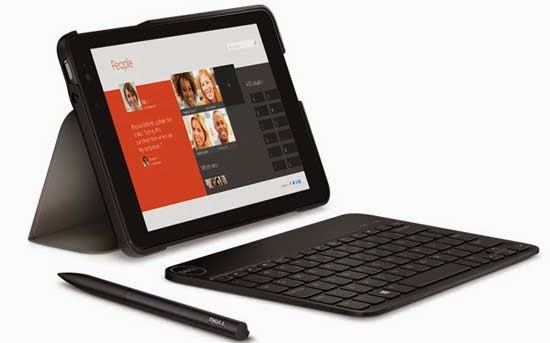
Unlock Windows 8.1 Dell computer with administrator or password reset disk probably are the most effective and easy way to reset forgotten Windows 8.1 password. However, even though they are easy and convenient for Windows 8.1 forgotten password, we still couldnÕt make sure we have prepared it. So what is the universal way or tool for Windows 8.1 computer unlock?
There is such a tool, Windows password recovery tool integrating the principle of how password reset disk recovering Windows password, and making this principle run in easier way. So if we can take Windows password recovery tool to unlock Windows 8.1 Dell tablet, it would be better than we try other uncertain ways to recover Windows password.
Now follow the below steps to burn a password reset disk for Dell Venue computer password recovery.
Step 1: Prepare Windows password recovery tool advanced version, available computer, bootable USB drive or CD-ROM.
Step 2: Install and run password recovery tool on available computer. And choose bootable USB device and then insert it into computer.
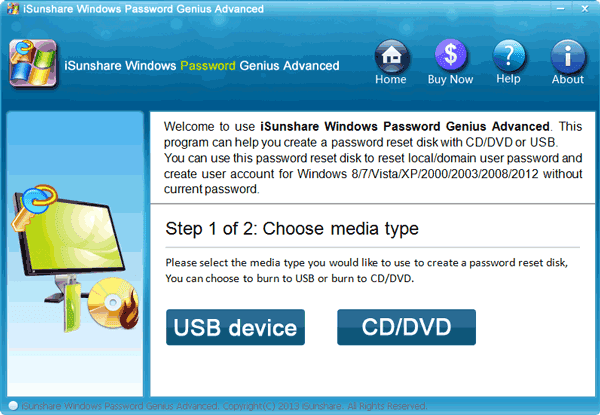
Step 3: Select inserted USB flash disk from drop down box and click "Begin burning".
Step 2: Install and run password recovery tool on available computer. And choose bootable USB device and then insert it into computer.
Step 3: Select inserted USB flash disk from drop down box and click "Begin burning".
Few seconds later, a new window would pops up with message "Burning successfully". Just click "OK" and exit USB device from this computer.
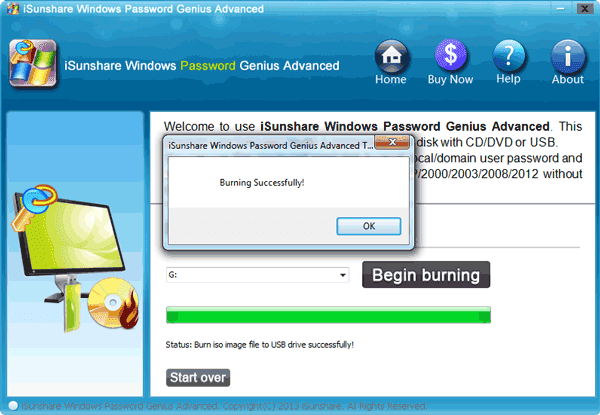
Step 4: Boot locked Dell Venue computer from USB or CD-ROM.
If you have prepared password reset disk which is burned in USB drive, plug it into locked Dell Venue computer. Start Dell computer and set it boot from USB.
Tips:
If you have prepared password reset disk which is burned in USB drive, plug it into locked Dell Venue computer. Start Dell computer and set it boot from USB.
Tips:
If you have taken CD/DVD-ROM to burn a reset disk, you have to set Dell computer boot from CD-ROM.
- How to Set Computer Boot from USB
- How to Set Computer Boot from CD-ROM
Until Dell computer boots from password reset disk and Windows Password Genius Advanced program runs, you would see Windows system and all user accounts listed there.
Step 5: Reset Windows 8.1 password for Dell Venue computer.
Select the Windows system and administrator you forgot password, and be ready to reset its password by clicking "Reset Password".
After forgotten Windows 8.1 password is removed, you just need to exit password reset disk and reboot your computer, and you would find Dell computer has been unlocked.
Surely, Windows Password Genius is not the only way to unlock Windows 8.1 computer, but it is certainly the most effective and safest tool for Windows forgotten or lost password reset.
Surely, Windows Password Genius is not the only way to unlock Windows 8.1 computer, but it is certainly the most effective and safest tool for Windows forgotten or lost password reset.
The above passage introduces how to create password reset disk to reset Windows password. If without reset disk, you could follow information told here:
How to reset Windows 8 password without reset disk
Related Links:
Related Links:
- How to Find Windows 8.1 Activation Key
- How to Reset Admin Password in Windows 8.1 Tablet
- How to Clear BIOS Password on Dell Computer
- How to Reset 2008 Password on Dell Raid Server
- Lost iPod Backup Password - How to Use Locked iPod Normally
Go to link Download
Sunday, February 12, 2017
Forgot Windows 8 Password No Reset Disk
Forgot Windows 8 Password No Reset Disk
Windows 8 password forgot, but I have not experienced Windows 8 better. How to reset Windows 8 forgotten password without reset disk? Now please follow three parts below to go on Windows 8 password reset.
- Part 1: Windows Recovery Disk Available for Windows 8 Password Reset
- Part 2: Password Reset Tool for Windows 8 Forgotten Password Reset
- Part 3: New Ways and Tips for Windows 8 Password Forgot
Part 1: Windows Recovery Disk Available for Windows 8 Password Reset
Though without password reset disk available, Windows recovery disc is still useful for resetting forgotten Windows 8 password.
- Windows 8 system recovery drive
- Installation disk Ð Windows 8 installation CD
1. Windows 8 Recovery Drive
A Recovery Drive will allow you to boot your system and easily access a number of recovery and troubleshooting tools that you can use to revive an ailing Windows 8 system, including remove Windows 8 registry files. And it should be created when Windows 8 computer is accessible.
Step 1: Boot Windows 8 computer from Recovery Drive
YouÕll see Windows logo displayed on black screen, actually computer boots in Windows PE. And then you could see "Choose your keyboard layout" screen. Click "US".
Step 2: In the following screen, there are three tiles for you. To access tools in Recovery Drive, please choose "Troubleshoot".

Step 2: In the following screen, there are three tiles for you. To access tools in Recovery Drive, please choose "Troubleshoot".
Step 3: In Troubleshoot screen, three tiles are displayed. According to your computer situation, choose "Refresh your PC", "Reset your PC" or "Advanced options".

Refresh your PC: It would find and backup all the data, settings and apps. It will then install a fresh copy of Windows and restore all of your data, settings and apps. When your PC restarts, you can login Windows with the same username and password. So it couldnÕt reset your Windows 8 forgotten password.
Reset your PC: It will erase and reformat the hard drive and then reinstall a new fresh copy of Windows.
In this case, your compute will come back to the same condition it was in when you started Windows 8 first time. You had better backup all the data on Windows 8 you donÕt want to lose before reset Win 8 PC.
In this case, your compute will come back to the same condition it was in when you started Windows 8 first time. You had better backup all the data on Windows 8 you donÕt want to lose before reset Win 8 PC.
Advanced options: When you click "Advanced options", you could see System Restore, System Image Recovery, Automatic Repair and Command Prompt.
System Restore:
System Restore:
System Restore will automatically create a restore point anytime you install a new application or perform a major Windows Update operation. With it, you can restore all system files and settings to the state that it was in at an earlier restore point in time, when you know user password or there is no password set for user account.
System Image Recovery:
System Image Recovery:
You could recover Windows 8 system with System Image Recovery. As you know, a system image includes operating system, and all the settings, all the programs and all your files. So when you choose it, it actually performs a complete restoration of your entire system.
Step 4: Restart Windows 8 and now you could login Windows 8 without password.
2. Installation disk Ð Windows 8 installation CD
Windows 8 installation CD could be used to clear all Windows system information after last Windows system installation. Therefore, forgotten Windows 8 password would be removed after Windows 8 reinstallation.
But when you still have other ways available for Windows 8 forgotten password reset, donÕt choose this way. If there is no other ways for Windows 8 password reset actually, Windows 8 installation CD would be helpful for you.

Step 1: Insert Windows 8 installation CD into locked computer and boot computer from CD-ROM.
Step 2: Format disk and install Windows 8 again.
Step 3: After Windows 8 reinstallation, data on Windows 8 is still on computer, but Windows settings has been changed. Password is not necessary to login Windows 8 at first time, but you can access Windows 8 with new password.
Step 3: After Windows 8 reinstallation, data on Windows 8 is still on computer, but Windows settings has been changed. Password is not necessary to login Windows 8 at first time, but you can access Windows 8 with new password.
Part 2: Password Reset Tool for Windows 8 Forgotten Password Reset
When no reset disk, create password reset disk with password reset tool is another way to reset Windows 8 forgotten password. Compared to Windows recovery disc, password reset disk is lot easier way. If not, there would no such program set in Windows operational system.
Not like password reset disk created in Control Panel, reset disk created with tool could reset Windows password directly and add new user account in locked Windows computer. And no data would be lost or damaged. Now in order to make a password reset disk for Windows 8 computer forgotten password in details, take Windows Password Genius Advanced to show.
The following are detailed steps to reset Windows 8 password with Windows password recovery software Ð Windows Password Genius Advanced.
Step 1: Find an accessible computer, download and install Windows Password Genius Advanced on it.
Step 2: Run password recovery program and insert bootable USB flash drive or CD/DVD-ROM into computer.
Step 3: Choose USB or CD/DVD-ROM from drop-down box in program screen, click "Begin Burning" and wait for password reset disk burned into inserted device.

Step 4: After successfully burning password reset disk, exit device, and then plug it into locked Win 8 computer. Set Win 8 computer boot from created password reset disk.
Step 5: In Windows Password Genius Advanced program screen, choose user account and click Reset PasswordÓ. About few seconds later, its password becomes blank.

Now you can choose to add new account for locked Windows 8 or reboot Win 8 computer later. But remember eject password reset disk before Windows 8 successfully restarts.
Step 1: Find an accessible computer, download and install Windows Password Genius Advanced on it.
Step 2: Run password recovery program and insert bootable USB flash drive or CD/DVD-ROM into computer.
Step 3: Choose USB or CD/DVD-ROM from drop-down box in program screen, click "Begin Burning" and wait for password reset disk burned into inserted device.
Step 4: After successfully burning password reset disk, exit device, and then plug it into locked Win 8 computer. Set Win 8 computer boot from created password reset disk.
Step 5: In Windows Password Genius Advanced program screen, choose user account and click Reset PasswordÓ. About few seconds later, its password becomes blank.
Now you can choose to add new account for locked Windows 8 or reboot Win 8 computer later. But remember eject password reset disk before Windows 8 successfully restarts.
Part 3: New Ways and Tips for Windows 8 Password Forgot
The above are professional methods for Windows 8 password forgot. Besides, if you have paid attention to new features in Windows 8, you will find there are some new ways or tips to reset Windows 8 password.
- Windows 8 Password Hint
- Windows 8 Picture Password
- Windows 8 PIN Code
- Windows 8 Microsoft Account
- Windows 8 Another Available Administrator
1. Windows 8 Password Hint
If you have set password hint for login user, on the Windows 8 logon window, that will prompt you a hint, after you type incorrect password.
Believe password hint could remind you of forgotten user password if it is related with user password so much. At the same time, this tip suggests we had better set a hint for user password when we could access to Windows 8, and it should be unknown by other people. Otherwise, it could not be used when you truly forget Windows administrator.
2. Windows 8 Picture Password

Picture password is another kind of password to sign in to Windows 8, only with three gestures on a picture. If you have created one, click it under password box, and make three gestures on picture to log into Windows 8.

Compared to text password, picture password would be easy to remember for someone. In addition, it provides us another chance to access Win 8 computer and reset Windows 8 password in Control Panel or with Command Prompt.
3. Windows 8 PIN Code

PIN code is 4-digit code. So it may be the simplest way to login Windows 8. Click "Sign-in options" first and type PIN code. Then run Command Prompt to reset Windows 8 forgotten password with user command. net user <user name> <new password>.

4. Windows 8 Microsoft Account

If your computer has been set up to sign in to Windows 8 with Microsoft account, switch user account to Microsoft account and login Windows with it. And then create a PIN that any user who has a password must enter it when waking this PC, and then login with PIN code, reset password with Command Prompt.

5. Windows 8 Another Available Administrator
After you type incorrect password, and there is no PIN code, picture password to login into Windows 8 at the same time, click arrow at the left side of user picture to change to use another available administrator to sign in. And then change forgotten Windows 8 password with user command.
Related Posts:
- How to Reset Windows 8 Password without Reset disk
- Four Ways to Create Windows 8 Logon Password and How to Use
- How to Find Windows 8.1 Activation Key
- How to Reset Admin Password in Windows 8.1 Tablet
Go to link Download
Tuesday, January 31, 2017
How to Unlock iOS Device If Forgot Passcode
How to Unlock iOS Device If Forgot Passcode
No matter from the research results from Apple, or from the questions asked in Internet, we can find that passcode forgot and no access to iOS device are problems that iDevices users usually encounter.
And this is why iOS device needed to be unlocked. After having searched, understood and checked the solutions for locked iOS device, we make a summary about the effective ways to unlock iOS device.
Way 1: Try possible passcodes to unlock iOS device
According to Apple usersÕ anonymous research, we know most of people would like to use simple numbers as passcode. Besides, iPhone will not be disabled if you have not tried 6 times. However, it is still not really disabled at this moment, because one minute later, you can try again, until it prompts you that connect iOS device to iTunes.
Therefore, this way can gives you a higher chance to unlock your iOS device and access it after you forgot passcode.
Way 2: Unlock iOS device with Siri
If you have set Siri enable when iPhone locked beforehand, now you can use Siri to bypass passcode and use iPhone 4S, 5, 5C, or 5S (if Touch ID is disable). Certainly, if Touch ID is not disabled, you can use your fingerprint to access iOS device without passcode.
So now what can you do after you know that Siri helps you do the things you do every day?
If it is really so, you can just press down on the Home button and ask Siri to make a phone call, send a text, or send an email etc. Moreover, if you donÕt know how to use Siri, you can ask it ÒWhat can you do?Ó And then Siri will tell you exactly.
Way 3: Reset iOS device to unlock it
Take iOSBoot Genius to help iOS device enter recovery mode first. Until iTunes logon appears in your iOS device, your device has been prepared to be restored to factory default.
Open iTunes in Windows computer. And your device will be open in iTunes. In the Summary option of device, click ÒRestore iPhone/iPad/iPodÓ. It will help device restore to factory settings. When this process completes, iOS device will be set a new one if there is no backup for it.
So resetting iOS device should be the last way to unlock iOS device. Otherwise, all of data will be lost when no backup is available after factory reset.
Way 4: Use Passcode-Hacking app to unlock iOS device
You can unlock iOS device with Redsn0w, which can jailbreak locked device without data loss. If you are not Mac user, please choose Redsn0w for Windows version, if not, download Redsn0w for Mac.
It bypasses the code and doesnÕt delete any information stored on the iOS device. This could potentially also work with jailbreak for iOS 7 devices.
So how can you choose one way from them to unlock your iOS device? If you have no other ways, above are worth trying.
Related Articles:
- How to Factory Reset iPad with or without iTunes
- How to Unlock iOS Backup after Password Forgot
- How to Exit Recovery Mode Easily without Data Loss fromiPhone/iPad/iPod
- How to Upgrade to iOS 8 without Losing Data
Go to link Download
Saturday, January 28, 2017
Asus Laptop Forgot Password on Windows 8 or Windows 8 1
Asus Laptop Forgot Password on Windows 8 or Windows 8 1
I got Asus Transformer Book Trio a month ago, which can be used as laptop, PC and tablet. During the transfer from PC or tablet to laptop, I found Asus Windows 8 login password forgotten. How can I do to solve this problem with any powerful methods?

Solution 1:
Password hint may be the direct way for you to think of forgotten Asus password on Windows 8, if password hint has set for user password.
Solution 2:
However, if you couldnt guess forgotten password out, there are still other choices you can choose on logon screen to access Windows 8 first and then reset Asus Windows 8 forgotten password. For example, PIN code and Picture password could be used to login Windows 8 computer. Or if you have password reset disk available, click "Reset Password" button to follow Windows 8 password reset wizard.

However, if you couldnt guess forgotten password out, there are still other choices you can choose on logon screen to access Windows 8 first and then reset Asus Windows 8 forgotten password. For example, PIN code and Picture password could be used to login Windows 8 computer. Or if you have password reset disk available, click "Reset Password" button to follow Windows 8 password reset wizard.
But if you have no reset disk, or other logon ways are not created, how do you reset Windows 8 password? Actually it has become a topic about how to create a Windows 8/8.1 password reset disk.
Solution 3:
At this moment, we could choose a tool to burn a password reset disk when computer is locked. Ophcrack is one of free password recovery tools, but is it a pity that it couldnt promise to recover Windows 8 password. Offline NT and Registry Editor is the same. So now I try to use Windows Password Genius Advanced.
Step 1: Install Windows Password Genius Advanced on available computer.
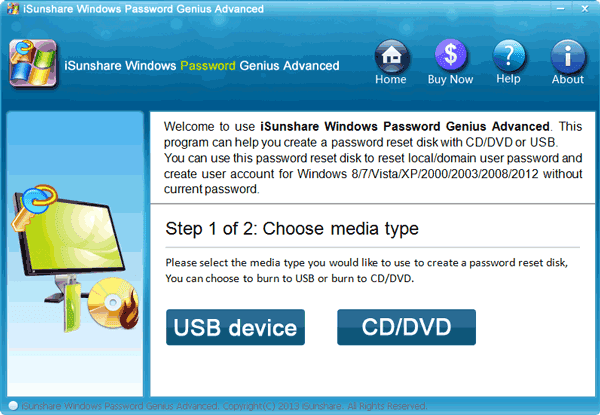
Step 2: Plug prepared USB drive into available computer and run password recovery software.
USB drive should be bootable and empty. So if you have something in this USB, back up it first.
Step 3: Choose USB as password reset disk burning media, and then click ÒBegin burningÓ. When you see message prompt you burning successfully, exit USB and get ready to reset Windows 8 password.
Step 4: Start Asus Windows 8 or Windows 8.1 laptop, when vendor logo appears on screen, press ESC repeatedly until Boot Option Menu appears. When Boot Option Menu appears, choose USB drive to boot your computer.
Step 5: When Asus laptop boots from USB successfully, you will see Windows system and all users on Windows password recovery program screen, choose Windows system Ð Windows 8 and select user you forgotten password or administrator. And click ÒReset PasswordÓ to remove forgotten password.
Step 6: At last, reboot Windows 8 laptop is necessary after remove Windows 8 password if you want to access Windows 8 without password. But just remember, exit USB drive from Asus laptop before Asus computer boots up.
You could find Windows 8 password reset with reset disk or password recovery tool is similar, because they are based on password reset disk. The truth we remove Windows 8 password is editing registry file. So we had better create one password reset disk when we could access computer, not limited to laptop, PC with Windows 8 or 8.1.