Showing posts with label top. Show all posts
Showing posts with label top. Show all posts
Sunday, May 21, 2017
Top 3 Ways to Fix Windows 7 Homegroup Password Forgot
Top 3 Ways to Fix Windows 7 Homegroup Password Forgot
"Have you ever met the trouble of Windows 7 password forgot, then you cant surf the Internet to play game, working or reading?" If the answer is below. Lucky to you is that you can learn how to recover Windows 7 password easily as below.
Top1: To solve Windows 7 Homegroup password forgot in common way
Familiar Windows 7 system users are aware, in Windows 7 system comes with a family group of functions, we can easily access the same network share pictures, music and so on with other people, so sharing more convenient, but sometimes not very many users often use this function, leading to forget Windows 7 homegroup password so that you cannot connect, and encountered such a problem how to deal with it? Here to share with you Windows 7 family group Password Forgot specific solutions are as follows.
Step 1: Click the Start menu on Windows 7 system, find and click on "Control Panel".
Step 2: In the "Control Panel" select view "category", then click below the "Network an internet".
Step 3: In the "Network and Internet" window, click on the "family group".
Step 4: In the "family group" interface, we need to share in the below check the option "shared libraries and printers" (without checking the printer can cause other computers on the same LAN cant use the printer), and then click the "view or print homegroup password ".
Step 5: Since you can see the password of our family group, we can click on the print, or Write down your password, and then click "Cancel", and then click to save your changes, you can.

Top 2: To fix Windows 7 homegroup password forget
Step 1: Type "family group" in the Start Search box, and press Enter to open the HomeGroup window.
Step 2: Click "Change Password" link in other family groups operating options.
Step 3: Change homegroup password pop-up dialog box, click the "Change Password".
Step 4: Type the password you want to set in the text box, click "Next".
Step 5: After setting the others to access the shared content family, you must type a password to enter.
Mounted directly on a PE U disk, to PE: Open C: Windows System32 config, which has one called "SAM" file, which is stored in the account information and password under windows.
In the PE system! ! ! remember! ! Use Notepad to open it, usually it appears garbled, do not control him, to delete all garbage, save and exit.
Windows 7 re-enter the system, and will certainly be an error to restart, this is a must. Let him auto repair, after entering the login screen, what you lose the password, the password is what he does not lose is not!
Top 3: Using Windows Password Recovery to recover Windows 7 forgot password
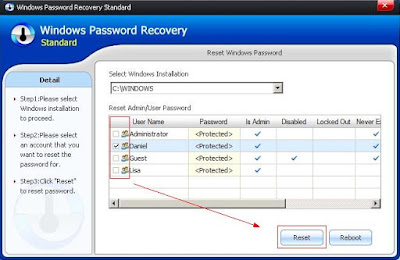
Step 1: Download and install Windows password recovery on any accessible computer.
Step 2: Using a blank CD/DVD or USB to Burn Windows password recovery on it. Then insert the newly created disk to Windows 7 password forgot computer.
Step 3: Choose Windows 7 account to reset the password, after that, restart your computer. There is no password requirements.
Top 3 methods to teach you how to crack Windows 7 forgot password in shortest time. If you have any problem about this field, you can send comments to our site.
Go to link Download

Wednesday, April 19, 2017
Top 3 Tricks about How to Bypass Windows 7 Professional Login Screen
Top 3 Tricks about How to Bypass Windows 7 Professional Login Screen
"How do I bypass the Windows 7 login password without password recovery disk? My sister has passed away & Ive been copying her pictures off of her laptop for the family & I havent finished. It logged off last night and now its asking for password & no one knows the password. Im almost positive there is a way to go around this password but I cant seem to figure it out on my own! Please help ASAP THANX."
It comes out a common sense to create a Windows 7 password for laptop protected. At the same time, a feasible advice is to create a Windows 7 password reset disk in case that you forgot password on Windows 7 laptop. But without password reset disk, how to bypass Windows 7 password? Are there any other good and convenient ways to bypass Windows 7 password? Now, its time to learn how to bypass Windows 7 professional login screen password with the following three tips and tricks.

Trick 1: Bypass Windows 7 Professional Login Screen with Command Prompt
By using this method, all you need is a copy of the Windows 7 Professional installation disk and Sticky Keys trick (an accessibility feature that allows a user to tap the Shift, Ctrl, Alt, or Windows key once to achieve the same effect as holding the key down).
Step 1. Boot your computer from the installation disk.
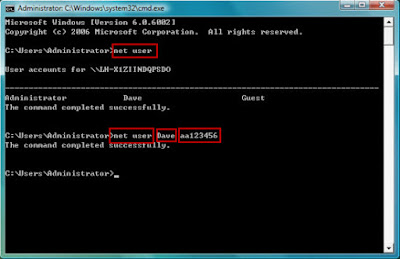
Step 2. After loading the setup files, select your language and click Next > click the "Repair your computer" link on the Install Windows screen > select the system to repair and click Next > click "Command Prompt" to open command prompt window.
Step 3. Now you can reset the password. Just type "net user UserName Password" (replace UserName and Password with the combination you want) and press Enter key.
Step 4. Close command prompt window, restart the computer, and then you can login with new password on login screen.
By taking this method, you will lose access to encrypted files, encrypted email messages, and the stored passwords in Internet Explorer and network resources. Remember to back up your important data regularly.
Trick 2: Windows 7 password Bypass with Ophcrack
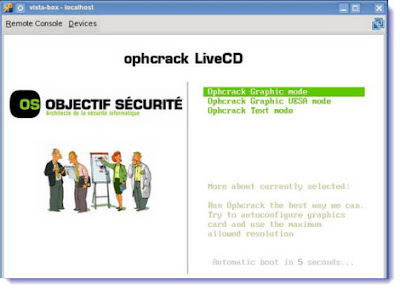
Ophcrack is a freeware that is able to bypass password in Windows 7 local login screen. As it is free, you dont need to spend any money on it. However, it is also hard to use, and some of the users feedback it doesnt work sometimes. So you can also try to use this free way. And if it is not working, get to another methods.
Trick 3:Bypass Windows 7 Admin Password with USB Drive
If you dont have an installation disk, you can use Windows Password Buster to bypass Windows 7 admin password. This software can help you reset administrator password with USB flash drive or CD/DVD. Even if you are a computer newbie, its possible for you to bypass the password in minutes.
Step 1. Download and install Windows Password Key Professinoal on an accessible computer from http://www.lostwindowspassword.com.
Note: When you are trying to run some programs, the computer will ask for the permission. So please install the software on a computer that has administrator privileges.
Step 2. Run the software to make a bootable USB flash drive.
Step 3. Boot the locked computer from the USB flash drive and bypass admin password.

Though you can bypass Windows 7 Professional login screen password and login screen through Windows Password Key, you had better create a password reset disk when you are able to login computer in case that you forget the password again.
Go to link Download
Sunday, April 2, 2017
Top 25 Fun Google Tricks
Top 25 Fun Google Tricks
The Top 25 Fun Google Tricks

Maybe to help dispel the wacky notion that geeks are boring, or maybe to prove that Search isnÕt all work and no play and Sergei and Larry are by no means dull boys, Google every-once-in-a-Google-Moon leavens their spam-fighting and user experience-enhancing with some honest-to-goodness, good clean Fun Google Tricks.
You probably know a few of these memes already Ñ passed around the intarwebz ad infinitum as they often are Ñ those quirky little tricks and pranks you never thought youÕd see from such a serious search engine. Occasionally, we searchers stumble upon some quietly placed ÒGoogle Easter Egg,Ó or sometimes GoogleÕs PR peeps publicize some brand spanking new Fun Google trick that spices up the user experience as much as it enhances it. Whichever it is, these Google Tricks are fun darnit, so have fun with them.
Meme junkies and time-wasters that we are here at Google Tricks, weÕve had our fair share of good times. And because weÕre not greedy, and because we like to organize as a way to procrastinate, weÕve done the heavy lifting of gathering what we consider to be the Top 25 Fun Google tricks right here in one glorious and easy-to-read location on this page. If you like the cut of our jib, perhaps youÕd be so kind as to like us on the you-know-what-book, or add a one to our G+ thingie. WeÕd be so happy and thankful if you did.
 1. Google Gravity
Quite simply, this is Earth-bound physics ÒinfusedÓ into GoogleÕs interface: with Ògravity,Ó the visual elements you commonly find on the interface, such as the search bar, the ÒIÕm feeing luckyÓ button, and everything else fall down like a stack of bricks on the bottom of the browser. You can even Òpick upÓ and ÒthrowÓ the search results at the ÒwallsÓ or just simply mess with them. This is no longer implemented on Google, but you can still see how it worked through the link below.
2. Let me Google that for you
LMGTFY or Let Me Google That for You is a somewhat tongue-in-cheek service made for those of us who are too lazy to use Google. Upon entering a search query, instead of results, you get a link that you can then mail to your lazy recipient.
LMGTFY or Let Me Google That for You is a somewhat tongue-in-cheek service made for those of us who are too lazy to use Google. Upon entering a search query, instead of results, you get a link that you can then mail to your lazy recipient.
Clicking on the link launches the actual search: thus, in this perigrinatory manner, you have Googled it for them. All they have to do is click the link. A beautiful example of technology making things more complicated for us.
3. Google Chuck Norris
There was a time when the internet raged with all imaginable Chuck Norris jokes. So naturally, Google itself dipped its hand in the meme with the Chuck Norris Google Trick. Search ÒChuck Norris,Ó and Google returns a familiar Chuck Norris joke: ÒGoogle wonÕt search for Chuck Norris because it knows you donÕt find Chuck Norris, he finds you.Ó
There was a time when the internet raged with all imaginable Chuck Norris jokes. So naturally, Google itself dipped its hand in the meme with the Chuck Norris Google Trick. Search ÒChuck Norris,Ó and Google returns a familiar Chuck Norris joke: ÒGoogle wonÕt search for Chuck Norris because it knows you donÕt find Chuck Norris, he finds you.Ó
4. God on Google Earth
Sometime in 2010, people around the world went ÒGod crazyÓ when Google Earth supposedly had taken a ÒsnapshotÓ of Òdivine beingsÓ while crossing a mountain zone in Switzerland. ThereÕs no definite answer, of course, but the buzz it created was testament to how the entire online community could get excited over a blurry photo, like they do with pictures of cats.
Sometime in 2010, people around the world went ÒGod crazyÓ when Google Earth supposedly had taken a ÒsnapshotÓ of Òdivine beingsÓ while crossing a mountain zone in Switzerland. ThereÕs no definite answer, of course, but the buzz it created was testament to how the entire online community could get excited over a blurry photo, like they do with pictures of cats.
5. Google Pac-man
A treasure-trove of fun Google tricks wonÕt be complete without mentioning GoogleÕs Pac-Man doodle. On May 22, 2010, the 30th anniversary of the classic game, people around the world woke up to a search engine sporting an actually playable mini-version of Pac-Man. And naturally, hundreds of millions of people spent hours playing the game, basically slowing down productivity to a halt.
A treasure-trove of fun Google tricks wonÕt be complete without mentioning GoogleÕs Pac-Man doodle. On May 22, 2010, the 30th anniversary of the classic game, people around the world woke up to a search engine sporting an actually playable mini-version of Pac-Man. And naturally, hundreds of millions of people spent hours playing the game, basically slowing down productivity to a halt.
6. Google Mirror
This fun Google trick simply displays a mirror image of everything you might see when doing a search on Google.
This fun Google trick simply displays a mirror image of everything you might see when doing a search on Google.
 7. Google Hacker
Those who are familiar with the so-called language of hackers (1337 5p3@k or Òleet speakÓ) may love using this Google trick to amuse haxor pals or confound the squares. Sure, the trick isnÕt much trickier than swapping letters for moderately analogous numbers or ASCII characters Ñ e.g. ÒGÓ becomes Ò6?, ÒEÓ becomes Ò3?, ÒNÓ becomes Ò||Ó, etc Ñ But itÕs still fun symbol-play, and still somehow feels like a secret language, despite that we all now w00t every time we are overcome with joy.
8. Google Barrel Roll
A Fun Google trick that is still accessible today, the barrel roll means exactly as it says: make Google do a barrel roll. Simply type ÒDo a barrel rollÓ into the search bar and Google dutifully obeys. Warning: This Especially Fun Google Trick is known to make babies cry and grown men squeal with delight.
A Fun Google trick that is still accessible today, the barrel roll means exactly as it says: make Google do a barrel roll. Simply type ÒDo a barrel rollÓ into the search bar and Google dutifully obeys. Warning: This Especially Fun Google Trick is known to make babies cry and grown men squeal with delight.


Like a handful of the other Fun Google Tricks included in this list, this third-party website that has no official affiliation with Google but only offers its two cents in letting people experience the search engine in a delightful way. If you like colors, this site delivers itÑalthough it may remind you more of the internet circa early-1990s, with all its animated GIFs.
10. Google Sphere
Google Sphere turns every little element you commonly see on GoogleÕs homepage into a swirling Òsphere.Ó ItÕs pretty cool, but itÕs no longer implemented on Google. To see how it once worked, just visit the link below.
Google Sphere turns every little element you commonly see on GoogleÕs homepage into a swirling Òsphere.Ó ItÕs pretty cool, but itÕs no longer implemented on Google. To see how it once worked, just visit the link below.
11. Google Spam
Probably not an actual Google trick but more a manifestation of how Google offers users related information. In the folders in your Gmail account, you usually see a one-line text advertisement from Adsense. But in the Spam folder, what youÕll see is a real Spam recipeÑyes, itÕs a recipe for something you can actually eat.
Probably not an actual Google trick but more a manifestation of how Google offers users related information. In the folders in your Gmail account, you usually see a one-line text advertisement from Adsense. But in the Spam folder, what youÕll see is a real Spam recipeÑyes, itÕs a recipe for something you can actually eat.
 12. Google Tilt or Askew
Typing the word ÒtiltÓ or ÒaskewÓ on Google (specifically if youÕre using the Chrome or Safari browser) commands the search engine to ÒtiltÓ the whole screen slightly to the right.
13. Dragon Slayer
Those who use Google Docs will find this mildly amusing. If you create or open any spreadsheet, pressing Shift+F12 pops up a message that says: ÒDragon slain! Congratulations, youÕve slain the dragon! ]B=8}Ó.
Those who use Google Docs will find this mildly amusing. If you create or open any spreadsheet, pressing Shift+F12 pops up a message that says: ÒDragon slain! Congratulations, youÕve slain the dragon! ]B=8}Ó.
14. Google Ninja
Who doesnÕt love ninjas? Google definitely does. If youÕre using your Google Reader feed, press the keys Òup, up, down, down, left, right, left, right, B, AÓ and a ninja (or a couple of them) appear!
Who doesnÕt love ninjas? Google definitely does. If youÕre using your Google Reader feed, press the keys Òup, up, down, down, left, right, left, right, B, AÓ and a ninja (or a couple of them) appear!
15. All the Google Doodles
Over the years, Google has released several of its ÒdoodlesÓÑa temporary re-design of the Google logo made as a tribute to a historical event or the birthday of someone who has changed the world for the better. Through the link below, youÕll find all of the Google Doodles, not only the American versions.
Over the years, Google has released several of its ÒdoodlesÓÑa temporary re-design of the Google logo made as a tribute to a historical event or the birthday of someone who has changed the world for the better. Through the link below, youÕll find all of the Google Doodles, not only the American versions.
16. Recursion
Type ÒrecursionÓ into the Google search bar and Google in return asks, rather recursively: ÒDid you mean recursion?Ó
Type ÒrecursionÓ into the Google search bar and Google in return asks, rather recursively: ÒDid you mean recursion?Ó
17. GoogleÕs Nessie
Use the beach theme with your iGoogle homepage, then very patiently sit there and wait until the clock strikes 3:14 AM. Or you can just more the clock forward and see the monsterÓ that comes out. If you actually waited several hours until 3:14 AM, finally seeing the monster might not totally amuse you.
Use the beach theme with your iGoogle homepage, then very patiently sit there and wait until the clock strikes 3:14 AM. Or you can just more the clock forward and see the monsterÓ that comes out. If you actually waited several hours until 3:14 AM, finally seeing the monster might not totally amuse you.
18. Flight Simulator
What started as an Easter egg became so well-loved that Google eventually turned it into a regular feature of Google Earth. Just click Tools > Enter Flight Simulator, and youÕre off to make a round-the-world tour. It would have been more awesome if Google Earth also has a Òrocket launcherÓ feature with unlimited ammo to go with it, but maybe next time.
What started as an Easter egg became so well-loved that Google eventually turned it into a regular feature of Google Earth. Just click Tools > Enter Flight Simulator, and youÕre off to make a round-the-world tour. It would have been more awesome if Google Earth also has a Òrocket launcherÓ feature with unlimited ammo to go with it, but maybe next time.
19. Google MentalPlex
One of the earliest (if not, the earliest) Google April FoolÕs joke (this one surfaced in 2000) is the Google MentalPlex. Instead of typing their queries into the search bar, unwitting users were ÒinvitedÓ to just ÒthinkÓ their questions while gazing intently into the MentalPlex circle (apparently to allow Google enough time to ÒreadÓ your brain signals and transform them into actual search engine queries), then click into the circle to see the results. Even GoogleÕs CEO and co-founder Larry Page called MentalPlex Òa quantum leap in finding what you are looking for on the Internet. Typing in queries is so 1999.Ó It was fun. Especially if you remember that this was the early days of Google, long before the billion-dollar behemoth called Adsense and what-have-you.
One of the earliest (if not, the earliest) Google April FoolÕs joke (this one surfaced in 2000) is the Google MentalPlex. Instead of typing their queries into the search bar, unwitting users were ÒinvitedÓ to just ÒthinkÓ their questions while gazing intently into the MentalPlex circle (apparently to allow Google enough time to ÒreadÓ your brain signals and transform them into actual search engine queries), then click into the circle to see the results. Even GoogleÕs CEO and co-founder Larry Page called MentalPlex Òa quantum leap in finding what you are looking for on the Internet. Typing in queries is so 1999.Ó It was fun. Especially if you remember that this was the early days of Google, long before the billion-dollar behemoth called Adsense and what-have-you.
20. Google Anagram
Step 1: Type ÒanagramÓ into the Google search bar. Step 2: Google asks if you in fact mean Ònag a ram.Ó Step 3: Proceed to LOL.
Step 1: Type ÒanagramÓ into the Google search bar. Step 2: Google asks if you in fact mean Ònag a ram.Ó Step 3: Proceed to LOL.
21. The disappearing ÒOOÓ
This is not really a Google fun trick per se, but you can wow your clueless friend with this little Òmagic.Ó Click anywhere on the white space of the Dark Arts page (URL in linked title above), then pretend to rub your two fingers on the two OOÕs on the Google logo for 2 to 3 seconds, and the OÕs will vanish. To bring it back, do the same thing: Click anywhere again and the OOÕs will reappear, after which you will be redirected to the real Google.
This is not really a Google fun trick per se, but you can wow your clueless friend with this little Òmagic.Ó Click anywhere on the white space of the Dark Arts page (URL in linked title above), then pretend to rub your two fingers on the two OOÕs on the Google logo for 2 to 3 seconds, and the OÕs will vanish. To bring it back, do the same thing: Click anywhere again and the OOÕs will reappear, after which you will be redirected to the real Google.
22. Annoying Google
The ÒAnnoying GoogleÓ trick is not really annoying under normal circumstances. Even if youÕre in a hurry, Annoying GoogleÕs way of messing up the words as you type them (randomly changing from upper-case to lower-case) is not really annoying. But if you want to see this in action and determine for yourself if itÕs really annoying or simply mildly amusing, visit the link below.
The ÒAnnoying GoogleÓ trick is not really annoying under normal circumstances. Even if youÕre in a hurry, Annoying GoogleÕs way of messing up the words as you type them (randomly changing from upper-case to lower-case) is not really annoying. But if you want to see this in action and determine for yourself if itÕs really annoying or simply mildly amusing, visit the link below.
23. Epic Google
Epic Google is Google on steroids Ñ not the enhanced performance however, just the obscene bulk. Once the page loads, the logo, search bar, ÒSearchÓ and ÒIÕm Feeling ExcessiveÓ buttons, all swell until they either float off the page or you type a search and get the heck outta there.
Epic Google is Google on steroids Ñ not the enhanced performance however, just the obscene bulk. Once the page loads, the logo, search bar, ÒSearchÓ and ÒIÕm Feeling ExcessiveÓ buttons, all swell until they either float off the page or you type a search and get the heck outta there.
24. Weenie Google
Weenie Google is the flip side of Epic Google. Once the page loads, the logo, search bar, ÒSearchÓ and ÒIÕm Feeling InadequateÓ buttons,immediately begin to shrink to inscrutable and barely-usable sizes. Is fun, no?
Weenie Google is the flip side of Epic Google. Once the page loads, the logo, search bar, ÒSearchÓ and ÒIÕm Feeling InadequateÓ buttons,immediately begin to shrink to inscrutable and barely-usable sizes. Is fun, no?
25. Chicken Rolling
ÒRick-rollingÓ is a popular prank that involves redirecting the unwitting user to a video of music artist Rick Astley singing one of his hit songs (most often ÒNever Gonna Give You UpÓ). Chicken-rolling, on the other hand, is like Rick-rolling, but with one dancing man eating fried chicken legs. To subject your unwitting friend to this prank, type the code Ò2204355Ó then click ÒIÕm feeling lucky.Ó See what happens.
ÒRick-rollingÓ is a popular prank that involves redirecting the unwitting user to a video of music artist Rick Astley singing one of his hit songs (most often ÒNever Gonna Give You UpÓ). Chicken-rolling, on the other hand, is like Rick-rolling, but with one dancing man eating fried chicken legs. To subject your unwitting friend to this prank, type the code Ò2204355Ó then click ÒIÕm feeling lucky.Ó See what happens.
Go to link Download
Wednesday, March 29, 2017
Top 4 Options to Unlock Forgotten Windows 8 Login Password
Top 4 Options to Unlock Forgotten Windows 8 Login Password
After a shining interface of a new system, which is fairly different from any previous system, appears to us. Most of us have bought Windows 8 computers or have updated their computers from Windows 7 to Windows 8. For the sake of numerous of hackers itÕs essential for us to set a strong password to protect our computer data. Meanwhile, some precautionary measures should also be taken in case that the password we have created on Windows 8 is forgotten or lost. However, all the Windows 8 users donÕt know and remember to take these preventive measures. If you are a green hand with Windows 8, there are still 4 common options for you to unlock forgotten Windows 8 login password.

Option 1: Unlock Windows 8 Password with Another Accessible Administrator Account.
Please click the links below according to the following sequence.
Windows 8 Control Panel>> User Accounts and Family Safety>> User Accounts>> Manage another account>> ...user you would like to change>> Change password
Enter a new password in both the first and second text boxes and then click "Change password" button. Password change operation then will be completed successfully.
Option 2: Use a Previous Created Windows 8 Password Reset Disk.
Step 1: Click ÒReset passwordÓ after it says Windows 8 password incorrect.
Step 2: After the password reset wizard appears, insert your password reset disk and click "Next".
Step 4: Select the drive where the password reset disk is located.
Step 5: Type in your new password and password hint then click "Next"
Option 3: Unlock forgotten Windows 8 Login Password with Your Microsoft Account Password Online.
Windows 8 gives you an option to sign up for a Microsoft account. If you have forgotten your Windows 8 password, you can unlock your Microsoft Account password online on any accessible computer or device, including your smart phone.
Note: If you login with something other than an email address, like your name or some other handle, then youre using a local account and this method wont work.
Option 4: Take Use of Windows 8 Password Unlocker-Windows Password Key.
Windows Password Key is a professional Windows 8 password unlocker. It is able to unlock computer passwords for local administrator and local user accounts and support all computer brands, such as HP, Dell, Acer, Lenovo, Toshiba, Asus, Samsung, Sony and so on. HereÕs how to unlock Windows 8 password with this software:
1. Download Windows Password Key in another accessible computer;
2. Run the downloaded file to install Windows Password Key;
3. Burn a boot-able CD/DVD or USB Flash Drive with Windows Password Key;
4. Unlock Windows 8 password with the burned CD/DVD or USB Flash Drive.
Have you got some advice after reading the top 4 options to unlock Windows 8 login password? As far as IÕm concerned, a password reset disk is the easiest way to unlock a forgotten Windows 8 password. But what to do if you donÕt have created a reset disk in advance. Hey! Take it easy. Windows Password Key is just intended to solve your problem.
Go to link Download
Tuesday, March 21, 2017
Top 5 Methods to Reset an Unknown or Forgotten Bios Password
Top 5 Methods to Reset an Unknown or Forgotten Bios Password
BIOS is a kind of software situated as a chip in the motherboard of your computer. It is necessary to create a Bios password because it is able to stop someone booting up your computer system or making changes in your computer. But you may come cross the similar problem to ÒI made a password to get into my BIOS. How do I get into my BIOS if I cant remember my password?Ó There is no need to worry. There are many known ways to reset an unknown Bios password. Here I will share 5 effective methods with you:

Method 1: Reset Lost Bios Password by Removing CMOS Battery
Removing the CMOS battery is the simplest way to remove a BIOS password. A computer will remember its settings and keep the time even when it is turned off and unplugged because these parts are powered by small battery inside the computer called a CMOS battery. If we pull out this battery, the computer will forget a lot of its hardware settings, including its BIOS password. Please follow the instructions below:
Take out the CMOS battery and wait 10 Ð 25 minutes before putting it back in. The reason for this wait is because the computer can still store power in its capacitors even though everything is unplugged. The waiting period allows enough time for them to discharge. Plug everything back in, power up the computer and enter the BIOS again. If everything went well there should be no more password. In some cases, if you get weird error messages during boot up now, you will need to go to ÒLoad BIOS DefaultsÓ in BIOS and save the changes to fix them.
If this method didnÕt work, try one of the methods below.
Note: This should not be performed on Laptops if you are not experienced working with laptop hardware. Make sure to power down the computer, unplug the power cables and unplug any USB devices if they are powered. The computer must not be able to get power from anywhere for this to work.
Method 2: Use Motherboard Jumper to Remove Forgotten Bios Password
Almost all motherboards contain a jumper that can clear all CMOS settings including the BIOS password. The location of this jumper varies depending upon the motherboard brand. You should read your motherboard manual to check its location. If you dont have the manual then look for the jumpers near the CMOS battery. Most of the manufacturers label the jumper as CLR, CLEAR, CLEAR CMOS, etc.
When you find the jumper, look carefully. There will be 3 pins and the jumper will be joining the center pin to either left or right pin. What you need to do, is remove the jumper and join the center pin to the opposite pin. e.g. if the jumper joins center pin to left pin, then remove it and join center pin to right pin. Now wait for a few seconds and then again remove the jumper and join the center pin to left pin.
Note: Make sure to turn the PC off before opening the cabinet and resetting the jumper.
Method 3: Performing the Process of Resetting Bios Password with MS DOS Command
The precondition of this method is that you can get into the system when itÕs turned on, because this method requires MS DOS.
Open Command Prompt from Programs menu and type in following commands according to the sequence below:
Debug
o 70 2E
o 71 FF
quit
After type in the commands above and restart your system. You will reset the CMOS Settings along with the BIOS password successfully.
NOTE: The first character in the above commands is English alphabet "o" and not the number Ò0Ó.
Method 4: Take Use of CMOSPwd to Reset Unknown Bios Password
CmosPwd can help us to remove the password directly from the command prompt. It works under Dos, Windows 98, Windows NT, Windows 2000, Windows XP, Windows 2003, Windows Vista, Windows 7, Windows 2008, Linux, FreeBSD, and NetBSD. Detailed steps are as follows:
Step 1: Down CmosPwd and unpack the contents of the file in C disk.
Step 2: Get into Windows Start menu, input cmd in the search box and then press enter.
Step 3: When the Dos prompt appears, type in Òc:cmospwd-5.0windowsÓ, and then press enter.
Step 4: Type ÒiopermÐiÓ and press enter.
Step 5: Now write the command Òcmospwd_win /kÓ and press enter.
Step 6: Choose the second option by pressing 2, and then enter again.
Note: This program only works with the following BIOS:
ACER/IBM BIOS, AMI BIOS, AMI WinBIOS 2.5, Award 4.5x/4.6x/6.0, Compaq (1992), Compaq (New version), IBM (PS/2, Activa, Thinkpad), Packard Bell, Phoenix 1.00.09.AC0 (1994), a486 1.03, 1.04, 1.10 A03, 4.05 rev 1.02.943, 4.06 rev 1.13.1107, Phoenix 4 release 6 (User), Gateway Solo - Phoenix 4.0 release 6, Toshiba, Zenith AMI.
Method 5: With Backdoor BIOS Password
It is said that many computer manufacturers create backdoor passwords for their own technicians to use so they can access the BIOS when the hardware is being serviced. Here are some backdoor bios passwords that have been reported:
AMI BIOS Passwords:
A.M.I.
AAAMMMIII
AMI?SW
AMI_SW
AMI
BIOS
CONDO
HEWITT RAND
LKWPETER
MI
Oder
PASSWORD
AWARD BIOS Passwords:
01322222
589589
589721
595595
598598
ALFAROME
ALLy
aLLy
aLLY
ALLY
aPAf
_award
award
AWARD_SW
AWARD?SW
AWARD SW
AWARD PW
AWKWARD
awkward
BIOSTAR
CONCAT
CONDO
Condo
d8on
djonet
HLT
J64
J256
J262
j332
j322
KDD
Lkwpeter
LKWPETER
PINT
pint
SER
SKY_FOX
SYXZ
syxz
shift + syxz
TTPTHA
ZAAADA
ZBAAACA
ZJAAADC
PHOENIX BIOS Passwords:
BIOS
CMOS
phoenix
PHOENIX
Misc Common Passwords:
ALFAROME
BIOSTAR
biostar
biosstar
CMOS
cmos
LKWPETER
lkwpeter
setup
SETUP
Syxz
Wodj
Other Manufacturer BIOS Passwords:
Biostar - Biostar
Compaq - Compaq
Dell - Dell
Enox - xo11nE
Epox - central
Freetech - Posterie
IWill - iwill
Jetway - spooml
Packard Bell - bell9
QDI - QDI
Siemens - SKY_FOX
TMC - BIGO
Toshiba - Toshiba
VOBIS & IBM - merlin
Note: All these passwords are case-sensitive and are changed from time to time by manufacturers.
You can choose one from the five methods above to reset or remove your lost bios password. Please read the notes with care before performing the instructions. If you forgot your Windows 7 login password, then you can get Windows Password Key to remove lost or forgotten Windows 7 login password.
Go to link Download
Monday, March 6, 2017
World Top 15 Best Websites that can make you a Web Designer
World Top 15 Best Websites that can make you a Web Designer
http://m14hackersworld.blogspot.com
World Top 15 Best Websites that can make you a Web Designer

It is very easy to say that i want to make my own website but Friends its a very difficult job if you dont know about programming and such famous languages HTML,JavaScript,Css are the basic building of a webpage.ÊIf you want a real and good web designer and also want a ful Grip on web designing so have a good knowledge of this languages which names is mentioned above. This article is for those who wants to learn how to make a website, all the websites listed below have very accurate information and you can easily learn web designing step by step.
Read more È
Go to link Download
Wednesday, February 1, 2017
Top 5 Tricks to Reset Asus Account Passwords on Windows 7 When Locked Out
Top 5 Tricks to Reset Asus Account Passwords on Windows 7 When Locked Out
Question 1: I have an Asus laptop on Windows 7 and the only administrator user is me. I forgot the password. Is there any way I can get it back because all my photos and music are on the administrator user account?
Question 2: Hi. My daughter changed her password for her Asus windows 7 laptop and has forgotten the password. We have tried everything we can think of and cannot access the laptop making it useless and it is only 2 years old. Needless to say I am very frustrated please can anybody help.
ItÕs common that Asus computer users forget their login account password. However most of them have a little knowledge of fixing the Asus login account password forgotten problems. As a result they often have a data loss for improper ways like reinstalling the system. Here I summarize 5 tricks on how to reset or remove Windows 7 account password on Asus according to different situations.

Trick 1: Reset Asus User Password on Windows 7 from an Administrator Account
If you forgot your user account password but you have another admin account which has access to the computer. Then you can reset the user account password with the admin account. There are 2 ways to achieve it.
A: Go to the Control Panel to Reset the User Account Password
1. Login your Windows 7 Asus computer with the admin account.
2. Start the Run box (Win+R) and then type in "control userpasswords2" in the box and click Ok.
3. Then the User Accounts window will appear, select the user account you want to reset password of and click ÒReset PasswordsÓ button.
4. Input a new password for the target user account, and then key in the password again to confirm it, press ÒOkÓ button.
5. Click ÒOkÓ button on the User Account window to save and finish your operations.
2. Start the Run box (Win+R) and then type in "control userpasswords2" in the box and click Ok.
3. Then the User Accounts window will appear, select the user account you want to reset password of and click ÒReset PasswordsÓ button.
4. Input a new password for the target user account, and then key in the password again to confirm it, press ÒOkÓ button.
5. Click ÒOkÓ button on the User Account window to save and finish your operations.
B: Reset the User Account Password from Safe Mode
l Enter into Advanced Boot Options by pressing F8 key before Windows 7 loading screen appears.
l Choose Safe Mode at the Advanced Boot Options screen and login with the accessible admin account.
l Click to Start and enter lusrmgr.msc into the Search box.
l Double-click ÒLocal Users and GroupsÓ, and then click ÒUsers in the Local Users and GroupsÓ.
l Right-click the target account we want to reset, and then click ÒSet PasswordÓ.
After finishing the process you can access your computer with the new password.
Trick 2: Reset Asus Password on Windows 7 with Default Administrator Account
If you donÕt have another account with privilege right to login then this trick will help you. Windows 7 has a built-in admin account which is disabled by default. Before using this trick you should have enabled the default account in advance, or else it will not work. In case that you have enabled the built-in administrator account you can go straight to Part 2.
Part 1: How to Enable Windows 7 Default Administrator Account
At first itÕs necessary for you to aware that running your computer under the built-in administrator account maybe a risk. If you still insist to enable the build-in Administrator account, follow these steps:
1. Type ÒcmdÓ in the start search box and then press ÒEnterÓ. In the search results list, right-click ÒcmdÓ, and then click ÒRun as AdministratorÓ.
2. At the command prompt window, type net user administrator /active: yes, and then press ÒEnterÓ.
3. Type net user administrator <Password>, and then press ENTER.
Note: Please replace the <Password> tag with your passwords which you want to set to administrator account.
Note: Please replace the <Password> tag with your passwords which you want to set to administrator account.
Type exit and then press ÒEnterÓ. Log off the current user account. Then youÕre sure to succeed to enable the default administrator account.
Part 2: Reset Asus Password on Windows 7 with Enabled default Administrator Account
1. Start your computer and press "F8" while the computer boots up. The Advanced Boot Options screen appears.
2. Scroll down to "Safe Mode with Command Prompt" with the arrow keys on the keyboard and press "Enter." Your computer starts in Safe Mode with Command Prompt.
3. Select the Administrator account that appear in the screen, then enter command prompt.
4. Type: net user Mosoh 123456 and enter, it will show you a message that" the command completed successfully.
5. Restart your computer, then you can log in as Mosoh with the password 123456.
Trick 3: Remove Your Asus Account Password on Windows 7 With System Repair Disc
1. Put a CD/DVD disc into a CD-RW, DVD-Combo, and DVD-RW device.
2. Find "Create a system repair disc" by pressing Windows key on the keyboard and typing "create a" in the search box. Next run it.
3. Select the right drive for the disc and click Create disc. You are recommended to use a high-quality CD/DVD burner. It might take a few minutes since 142MB of data will be written into the disc.
4. Insert the repair disc and boot the password-lost computer from it.
5. On the Windows Boot Manager screen, choose ÒWindows SetupÓ
6. Next, choose ÒCommand PromptÓ.
7. Execute the command line: net user [existingusername] [newpassword] Example: "net user jack 123456".
8. Restart your PC and log back into your Windows with the new password.
Trick4: Use a Windows 7 Password Reset Disk to Help Reset Windows 7 Password on Asus
1. Insert a CD/DVD/USB into the drive.
2. Click Start Ð> Control Panel Ð> User Accounts and Family Safety Ð> User Accounts.
3. On the left pane, click ÒCreate a password reset diskÓ. Then click ÒNextÓ and follow the Wizard to create a password reset disk.
Part 2: Reset the Password with the Reset Disk
Now, the Windows 7 password reset disk is created. When we forgot ASUS Windows 7 PC password on the login screen and input an incorrect password, click ÒReset Windows PasswordÓ and insert the password reset disk. The Password Reset Wizard will guide you create a new password.
Trick 5: Remove Asus Password on Windows 7 with Windows Password Key(lostwindowspassword.com)
Windows Password Key is a professional tool to reset Windows 7 password. It can help people reset any account passwords for all brands of computers within just 4 minutes. WhatÕs more, it can make sure that you remove the password without any data loss. You can follow the steps below:
Step 1: Download and install the program on a workable computer. Insert a CD/DVD or USB flash drive. Launch this software and click "Burn" to burn a password reset disk.
Step 2: Plug the newly burned disk into your computer. Set BIOS to make this computer to boot from CD/DVD or USB. It will reboot. (Check how to reset BIOS password first if your BIOS is protected with a password)
Step 1: Download and install the program on a workable computer. Insert a CD/DVD or USB flash drive. Launch this software and click "Burn" to burn a password reset disk.
Step 2: Plug the newly burned disk into your computer. Set BIOS to make this computer to boot from CD/DVD or USB. It will reboot. (Check how to reset BIOS password first if your BIOS is protected with a password)
Step 3: After it fully loads, Windows password key appears. Follow the wizard to reset Asus password on Windows 7.
That is the top 5 tricks to reset Asus account passwords on Windows 7 I want to share with you. Hope to help you well.
Go to link Download
Wednesday, December 28, 2016
Daily Mail on top form
Daily Mail on top form
A rising star hedge fund manager won £110million by betting against the pound ahead of BritainÕs vote on the European Union.
James Hanbury, who manages £1.1billion for Odey Asset Management, went against complacency in the rest of the market which assumed Remain would win the historic referendum.
He guessed that Britain might shock the world by voting to Leave Ð and that the value of sterling would plunge as a result. Mr Hanbury, 36, commissioned a private poll which put Remain narrowly ahead.
But he decided to take a risk on the basis there was a lot to gain and little to lose, given the pound might drop massively if Britain quit but was unlikely to rise much higher if it voted to stay.
And the father-of-three, who lives in a £3.4million house in LondonÕs super-rich West Kensington neighbourhood, won big.
Go to link Download
Subscribe to:
Posts (Atom)