Showing posts with label how. Show all posts
Showing posts with label how. Show all posts
Monday, May 29, 2017
How to Change Admin Account with Windows 8 Disk
How to Change Admin Account with Windows 8 Disk
We all know that we could change admin account in Control Panel via User Account Control. But if we couldnÕt access Windows 8 computer, how should we go to Control Panel and change administrator? Now this article will introduce how to change admin account with Windows 8 disk.
Maybe installation disk or recovery disk help. But here we take easy Windows 8 password reset disk into practice.
One: Change Admin Account with Created Password Reset Disk
This reset disk is created before Windows 8 computer is locked. So in Windows 8 logon screen, after you type wrong password and see a message link ÒReset PasswordÓ, click it and follow the instructions.

- Windows password reset wizard appears. Click next and insert password reset disk into computer, and click next again.
- Choose inserted reset disk as password reset key from the drop-down box.
- Click Next and type new password for forgotten user account. Or you can let it blank and click Next to finish Windows 8 password reset.
- Reboot computer and login Windows 8 with admin account which just has been reset password.
- Start the MS Explorer and enter in the address bar enter the address:
Control PanelAll Control Panel ItemsUser AccountsManage Accounts
Or you can open Windows 8 Control Panel and click on (open) Manage accounts. - Click the text ÒChange the account typeÓ in the Window ÒChange an AccountÓ.
- Change Account type to the Administrator. Or change an admin account to Standard User.
Besides, in Control Panel, you can change or remove admin account password or delete/add new administrator.
Two: Change Admin Account with Burned Password Reset Disk
This password reset disk is burned with Windows password recovery tool. Please see here learn how to create Windows password reset disk.
1. Plug password reset disk into Windows 8 locked computer.
2. Boot computer from reset disk.
Password reset disk can be burned with bootable USB or CD/DVD ROM, so you should set computer boot from USB or boot from CD ROM.
3. When computer boots from disk successfully, password recovery program runs too.
Select Windows system and user account. And then click ÒReset PasswordÓ to let forgotten account password be blank.
4. Eject disk and reboot Windows 8 computer.
5. Sign in to Windows 8 without any password. Press Windows + R and command control.exe nusrmgr.cpl and click on the text ÒManage another accountÓ.
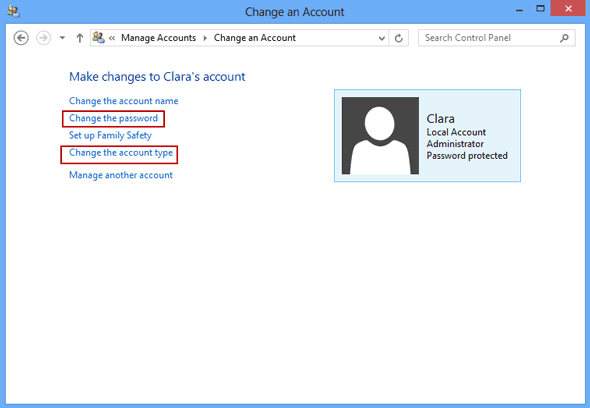
6. Choose an administrator and click ÒChange the account typeÓ or "Change the password" in new pop-up window.
6. Choose an administrator and click ÒChange the account typeÓ or "Change the password" in new pop-up window.
The last step is to change its account type to Standard user. Or do other things for it, such as ÒChange the passwordÓ, ÒCreate a passwordÓ, ÒChange the account nameÓ or ÒDelete the accountÓ.
With the ways provided above, we can change user account type including change admin account in Windows 8 computer.
Tips:
How to create or get a Windows 8 password reset disk?
Actually, Windows 8 password reset disk can be created by two ways. The first way is create it in in Control Panel when you can access computer. The second way is burn it with Windows password recovery tool.
Without disk, how to change admin account or its password? Turn to see this article.
How to reset Windows 8 password without disk
When you forgot Windows Vista password and no installation CD image and password reset disk are available, how should you do to reset forgotten Windows password?
From the beginning of Windows password recovery, password reset disk and convenient installation CD are computer usersÕ favorite tools to recover forgotten or lost Windows login or admin password. But now, you donÕt have them longer. As soon as you are complaining about this, you have to thank for this chance, which makes you find another more effective ways to reset Windows Vista password Ð Windows password recovery tool.
Now, in this passage, we mainly talk about two tools for Windows Vista password recovery.
1. Offline NT Password Registry Editor - Old and Freeware Program
2. Windows Password Genius - Easy and Effective Program
1. Offline NT Password Registry Editor - Old and Freeware Program
2. Windows Password Genius - Easy and Effective Program
1. Offline NT Password and Registry Editor Ð Old and Freeware Program
Offline NT Password and Registry is a utility to reset password of any user that has a valid local account on Windows system from NT3.5 to Win7, including Windows Vista. You do not need to know the old password to set a new one. It works offline, that is, you have to shut down your computer and boot off a CD or USB disk to do the password reset.
Step 1: Get Offline NT Password and Registry Editor.
Just get password reset CD/USB boot disk Ð Offline Windows Password and Registry Editor
Step 2: Insert the CD and convince your BIOS that should boot from it.
Step 2: Insert the CD and convince your BIOS that should boot from it.
You will see Windows Vista computer boots and outputs a lot of kernel messages about your hardware and such.
Tip: How to set computer boot from CD/DVD ROM
Step 3: Select disk where the Windows installation is.
Here we only have one partition, so we just press Enter to select it.

Step 4: Select PATH and registry files.

The registry is usually system32/config under WINDOWS or WINNT directory, depending on the windows version (and it may be changed during installation).
If the correct partition has been selected, the default prompt will be adjusted to match if it can find one of the usual variants.
And the select which part of registry to load, use predefined choices or list the files with space as delimiter.

Choice 1 is for password edit, most used. So now just press Enter to select it.
Step 5: Password or registry edit.
After we choose password reset, chntpw runs and its main interactive menu appears.

Just select 1 to edit user data and passwords. But you can also do other things.
And then that will list user info and passwords. Choose user you want to reset its password and go on.
About details on how Chntpw disk reset Windows password, please turn to:
How to Reset Your Windows password without an install CD
2. Windows Password Genius Ð Easy and Effective Program
Does the first program help you? If not, go to see how this easy and effective program works. Compared to Offline NT Password and Registry, Windows Password Genius with user-friendly interface, becomes easier for Windows Vista user to use, and whose concise function design makes operation effective.
Step 1: Get Windows Password Genius to install on your available computer.
There are four versions of Windows Password Genius for you to choose. Except raid version, other three versions apply to Windows Vista computer. Now download Windows Password Genius Professional.
Step 2: Burn a Windows Password Reset Disk.
Step 2: Burn a Windows Password Reset Disk.
When it runs normally, insert bootable USB drive into available computer. And then choose media type Ð USB. At last, click ÒBegin burningÓ to create password reset disk. Few seconds later, a message ÒSuccessfully burningÓ will tell you password reset disk has been created.
Step 3: Set Windows Vista Computer Boot from USB.
Plug USB reset disk into Vista computer first. How to boot from USB various from computer make to computer make. Some BIOS shows a boot device select menu if you press ESC, F8, F11 or F12 or something like that during the self-test. Some even tell you on the screen what to press.
How to set computer boot from USB
Step 4: Reset Windows Vista Forgotten Password.
If it boots from USB reset disk, you should see this:

Select Windows Vista and user you have forgotten password. Click ÒReset PasswordÓ and ÒYesÓ to make sure remove its password.

The last step is to reboot locked Windows Vista computer, and exit USB drive during start-up. Now you will see you donÕt need to type any password to login Windows Vista.
Which one can help you in short time? Which one could reset Windows password even you have no knowledge about computer? Make a try, and you will know.
Which one can help you in short time? Which one could reset Windows password even you have no knowledge about computer? Make a try, and you will know.
Go to link Download

Subscribe to:
Posts (Atom)