Showing posts with label disable. Show all posts
Showing posts with label disable. Show all posts
Friday, February 10, 2017
How to Enable or Disable Windows 8 Admin Account
How to Enable or Disable Windows 8 Admin Account
It is known that new Windows 8 operational system uses standard user default. But when we want to run some programs, we always need administrator privileges. In Windows 8 computer, we have to set administrator by ourselves. Learn how to enable and disable admin account.
1. How to enable administrator account?
- Press combination keys Win + X to open run box and type following command:
net user administrator /active: yes - Click OKand press ALT + F4 later. Choose log off and you will see administrator.
Tip:
If you donÕt want to access computer with administrator automatically next time, remember exit and enter computer with your previous account. Otherwise, when you enter computer, it will run programs with administrator.
2. How disable/forbidden administrator account?
- Press Win +X again, choose Command Prompt (Admin) and type:
net user administrator /active: no - Logout system and administrator will lose.
If you donÕt want to enable administrator and wish to run programs with administrator automatically, please do following this.
<1> Press Win + R and type gpedit.msc, and press Enter. Local Group Policy Editor will be open.
<1> Press Win + R and type gpedit.msc, and press Enter. Local Group Policy Editor will be open.
<2> Turn to Computer Configuration Ð Windows Settings ÐSecurity Settings Ð Local Policy Ð Security Options.
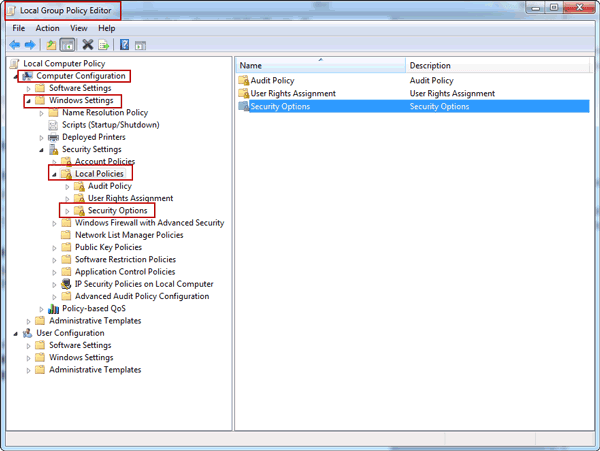
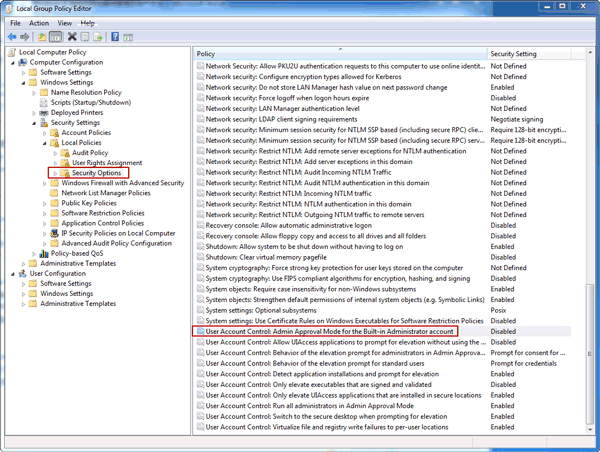
<3> Double-click Security Options, and find User Account Control: Use Admin Approval Mode for the built-in Administrator account
Double-click it to enable it, exit and then reboot computer after confirmation changes.
Related Articles:
- How to Change Admin Account with Windows 8 Disk
- Lost Windows 8.1 Admin Password and No Disk
- 10 General Secure Settings Options for Windows 8
- How to Reset Forgotten Admin Password on Windows 8
- How to enable or disable Windows server 2012 (r2) built-in administrator
Go to link Download

Thursday, November 17, 2016
How to Disable Password Reveal Button on Windows 8 8 1 Logon Screen
How to Disable Password Reveal Button on Windows 8 8 1 Logon Screen
When we start Windows 8/8.1 computer and after typing user password in text password box in logon screen, there is an image just like an eye, Password Reveal Button, representing Òdisplay passwordÓ. When you click the image, you could see password you have typed in.
 On one hand, it allows computer users the opportunity to check the spelling of password before clicking the arrow button to log in. On the other hand, there is a potential security problem. So in the consideration of computer security, you can choose to disable Password Reveal Button or let it be default settings. Now this article mainly introduce two ways to disable password reveal button. The main steps to enable Òdisplay password reveal buttonÓ are similar.
 You can disable the Password Reveal Button on the Windows 8 logon screen with a registry tweak or with an edit by the Local Group Policy.
Way 1: Disable password reveal button in Local Group Policy
If you are using Windows 8 professional, you can disable Password Reveal Button by changing a Group Policy setting.
1. Press Win + R to open Run box and type in Ògpedit.mscÓ, press Enter to open Local Group Policy Editor.
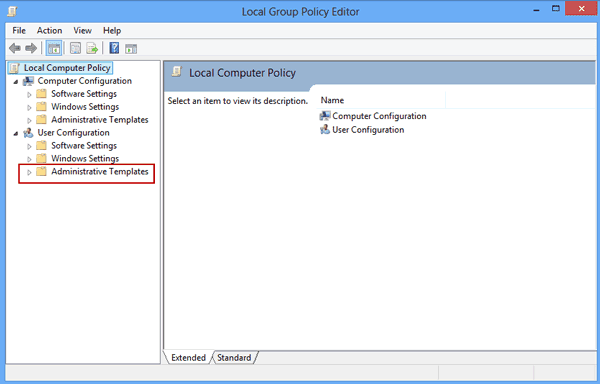
2. Navigate to: Computer Configuration - Administrative Templates Ð Windows Components Ð Credential User Interface
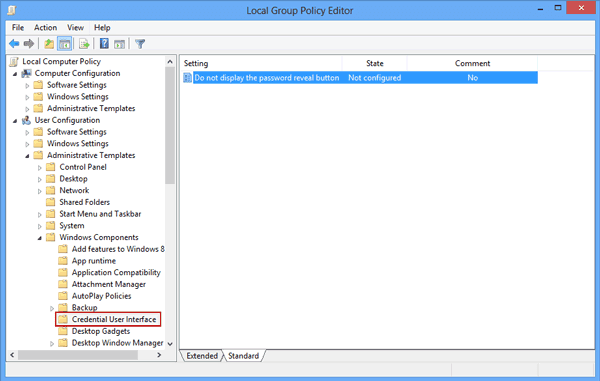
3. On the right side of Local Group Policy Editor window, there is one option ÒDo not display the password reveal buttonÓ. Double click it and a new window would appear, which is about Òpassword reveal buttonÓ configuration.
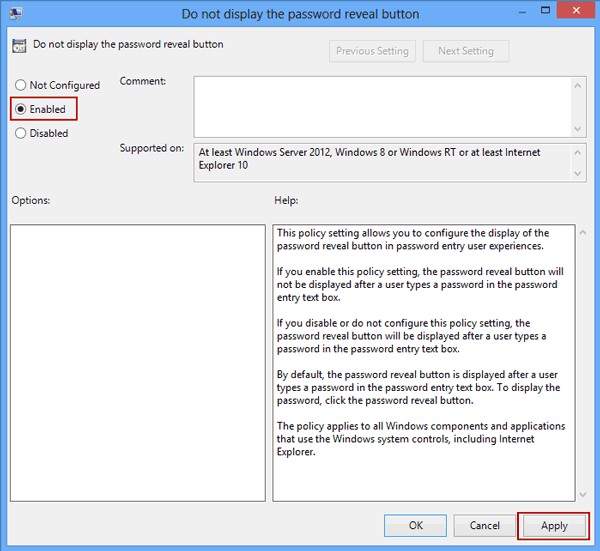
4. Choose ÒEnabledÓ option to disable the password reveal button. And then click ÒApplyÓ and ÒOKÓ and close Local Group Policy Editor.
If your Windows comes with Local Group Policy Editor, you can disable password reveal button there. If not, you can disable the Password Reveal Button with registry tweak.
Way 2: Disable password reveal button in registry editor
1. Suppose you are using the standard version of Windows 8, press Win + R to access Run dialog box, typing ÒRegeditÓ and click OK. And then open following:
HKEY_ LOCAL_MACHINESoftwarePoliciesMicrosoftWindows
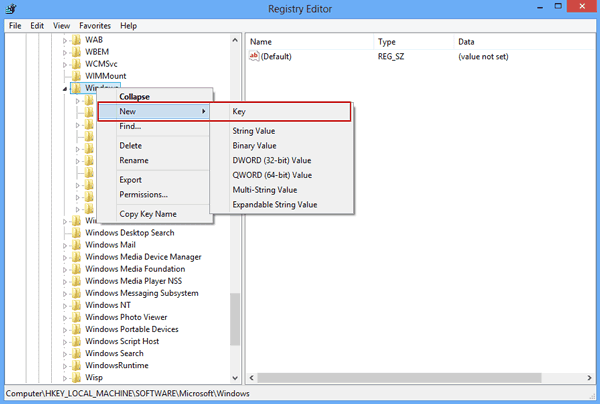
2. When you access the Windows subkey, youÕll add a new key called CredUI. Right click Windows and then select New-Key, name new key CredUI.
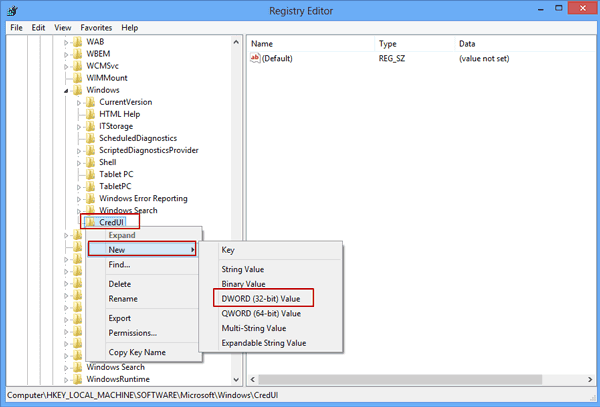
3. Right click the CredUI key and select New-DWORD. When the new value appears, name it DisablePasswordReveal.
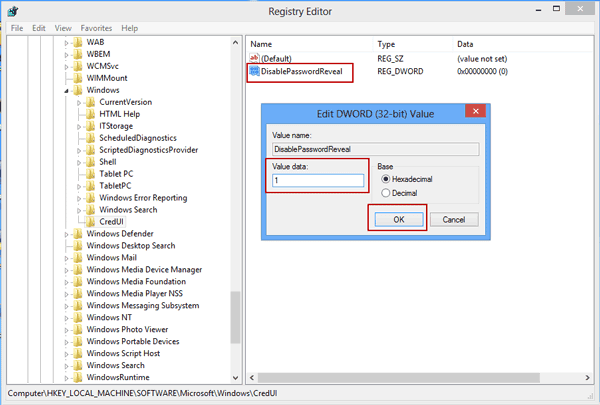
4. Double click the new value and set value data to 1. To put the new setting into action, click ÒOKÓ and close Registry Editor. Restart your system.
After you disable Password Reveal Button, no matter which method you use, when you login in to Windows 8 again, you would find the difference on Windows 8 password box. There is no image eye in the text password box after typing user password.
More articles to read:
More articles to read:
- How to Create, Delete or Format Disk Partition in Windows 8 Computer
- How to Improve Windows 8 Picture Password Security
- How to Bypass or Disable Lock Screen for Windows 8
- 10 General Secure Settings Options for Windows 8
- Configure Windows 7 Security Settings and Deployment
Go to link Download
Subscribe to:
Posts (Atom)