Showing posts with label logon. Show all posts
Showing posts with label logon. Show all posts
Saturday, May 27, 2017
Is There Available Default Administrator for Windows 10 Logon
Is There Available Default Administrator for Windows 10 Logon
If you remember when we forgot password to login windows 8/7/vista/xp, built-in administrator is always used to login Windows computer in safe mode. Believe you would ask whether there would be also available default administrator for Windows 10.
Q 1: Is there default administrator available in Windows 10?
To be honest, there is default administrator for Windows 10, but it is not available default. If we want it available, we have to enable it by ourselves.
Refer to: 3 Ways to Enable and Disable Built-in Administrator in Windows 10
Until default administrator is enabled in Windows 10, we can see it on logon screen and choose it to login into Windows 10 without password.
Q 2: When Windows 10 default administrator is available?
When Windows 10 default administrator can be seen even if it is not enabled manually?
It is like previous Windows systems, default administrator is available when Windows 10 is in safe mode. From the point of view, there would be another way resetting Windows 10 password after Windows 10 administrator password forgot. This way is called reset Windows 10 password in safe mode with default administrator.
Q 3: How to make full use of Windows 10 default administrator?
As soon as Windows 10 default administrator is realized and is available, what can we make it do for us during Windows 10 computer use?
- Login Windows 10 in safe mode when other user accounts are locked.
- Run programs with admin privileges.
- Reset Windows 10 user password in safe mode.
Go to link Download

Thursday, November 17, 2016
How to Disable Password Reveal Button on Windows 8 8 1 Logon Screen
How to Disable Password Reveal Button on Windows 8 8 1 Logon Screen
When we start Windows 8/8.1 computer and after typing user password in text password box in logon screen, there is an image just like an eye, Password Reveal Button, representing Òdisplay passwordÓ. When you click the image, you could see password you have typed in.
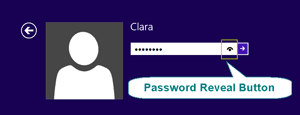 On one hand, it allows computer users the opportunity to check the spelling of password before clicking the arrow button to log in. On the other hand, there is a potential security problem. So in the consideration of computer security, you can choose to disable Password Reveal Button or let it be default settings. Now this article mainly introduce two ways to disable password reveal button. The main steps to enable Òdisplay password reveal buttonÓ are similar.
 You can disable the Password Reveal Button on the Windows 8 logon screen with a registry tweak or with an edit by the Local Group Policy.
Way 1: Disable password reveal button in Local Group Policy
If you are using Windows 8 professional, you can disable Password Reveal Button by changing a Group Policy setting.
1. Press Win + R to open Run box and type in Ògpedit.mscÓ, press Enter to open Local Group Policy Editor.
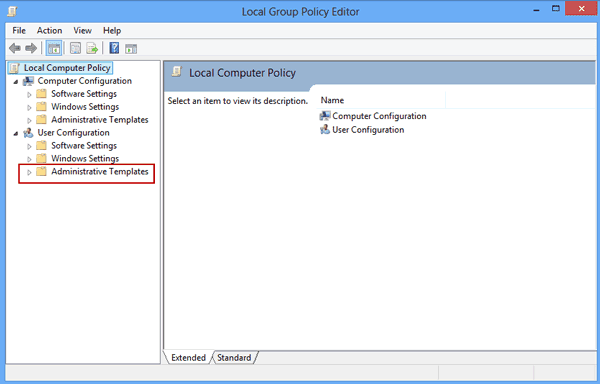
2. Navigate to: Computer Configuration - Administrative Templates Ð Windows Components Ð Credential User Interface
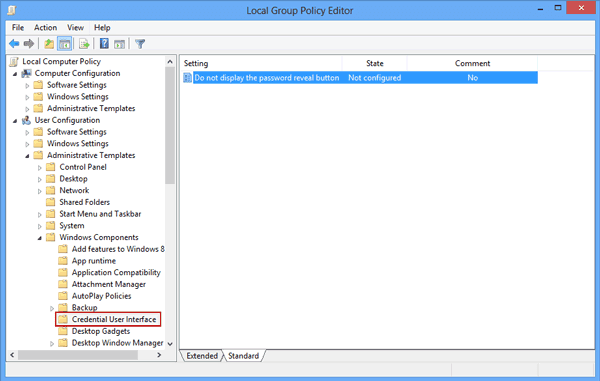
3. On the right side of Local Group Policy Editor window, there is one option ÒDo not display the password reveal buttonÓ. Double click it and a new window would appear, which is about Òpassword reveal buttonÓ configuration.
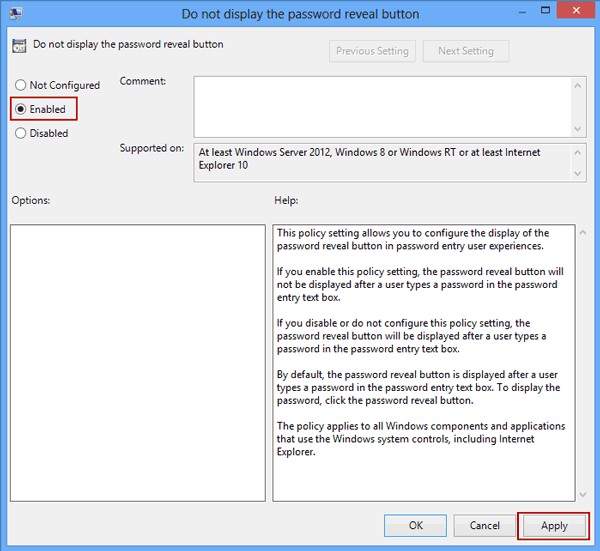
4. Choose ÒEnabledÓ option to disable the password reveal button. And then click ÒApplyÓ and ÒOKÓ and close Local Group Policy Editor.
If your Windows comes with Local Group Policy Editor, you can disable password reveal button there. If not, you can disable the Password Reveal Button with registry tweak.
Way 2: Disable password reveal button in registry editor
1. Suppose you are using the standard version of Windows 8, press Win + R to access Run dialog box, typing ÒRegeditÓ and click OK. And then open following:
HKEY_ LOCAL_MACHINESoftwarePoliciesMicrosoftWindows
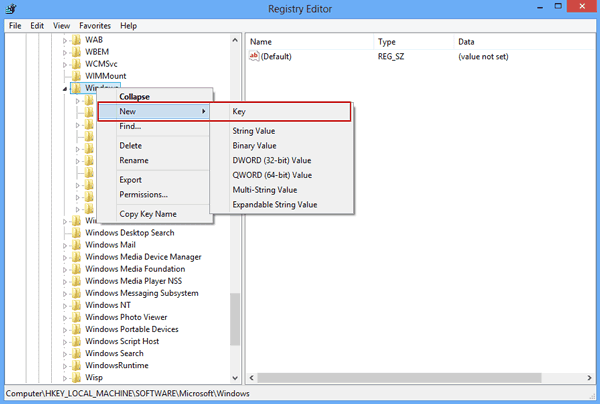
2. When you access the Windows subkey, youÕll add a new key called CredUI. Right click Windows and then select New-Key, name new key CredUI.
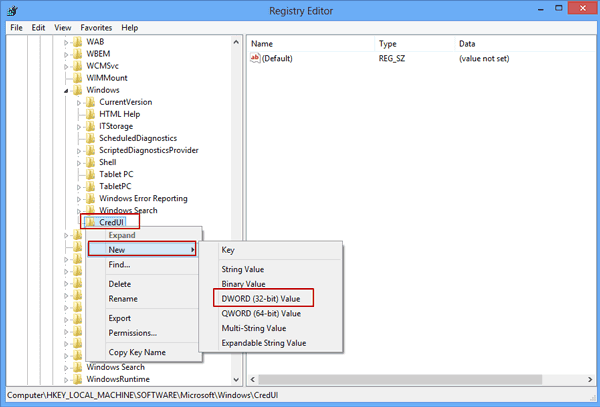
3. Right click the CredUI key and select New-DWORD. When the new value appears, name it DisablePasswordReveal.
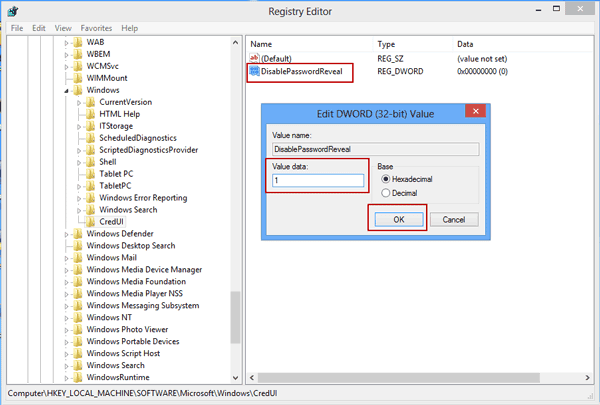
4. Double click the new value and set value data to 1. To put the new setting into action, click ÒOKÓ and close Registry Editor. Restart your system.
After you disable Password Reveal Button, no matter which method you use, when you login in to Windows 8 again, you would find the difference on Windows 8 password box. There is no image eye in the text password box after typing user password.
More articles to read:
More articles to read:
- How to Create, Delete or Format Disk Partition in Windows 8 Computer
- How to Improve Windows 8 Picture Password Security
- How to Bypass or Disable Lock Screen for Windows 8
- 10 General Secure Settings Options for Windows 8
- Configure Windows 7 Security Settings and Deployment
Go to link Download
Sunday, October 23, 2016
How to Change Windows 8 Logon Way between Local Account and Microsoft Account
How to Change Windows 8 Logon Way between Local Account and Microsoft Account
Different from previous Windows operational systems, there are two main kinds of ways to login in to Windows 8, local accounts and Microsoft account.
Microsoft account is the special characteristic for Windows 8 and Windows 8.1. With it, computer user could access data and files in Windows 8 remotely. And just because of this feature, one more way is available for Windows 8 password reset.
Now this passage mainly introduces how to change Windows 8 logon way between local account and Microsoft account.
- Change Windows 8 logon way in Start Screen
- Change Windows 8 logon way in Change PC Settings
1. Change Windows 8 logon way in Start Screen
On Start Screen, you could see your account just singing into Windows 8. Click it and choose ÒSign outÓ option to turn to logon screen. Choose local user account or Microsoft account you want to login in to Windows 8 with.
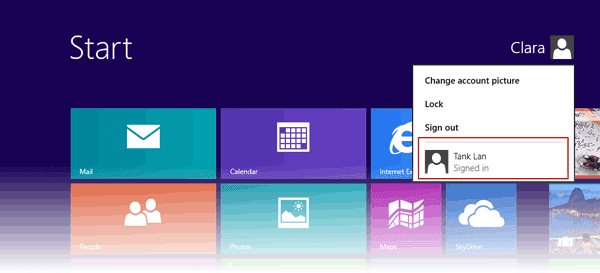 For example, you change Windows 8 logon way from local user account to Microsoft account. Choose Microsoft account, generally taken with email address. Type in password and click OK.

2. Change Windows 8 logon way in Change PC Settings
Move the mouse to the right-upper side of window, choose Settings and select ÒChange PC SettingsÓ at the bottom side of window. On the PC settings window, click Users, you would see which kind of account you have used to login into Windows 8.
If you have signed in to Windows 8 with Microsoft account, there will be an option ÒSwitch to a local accountÓ.
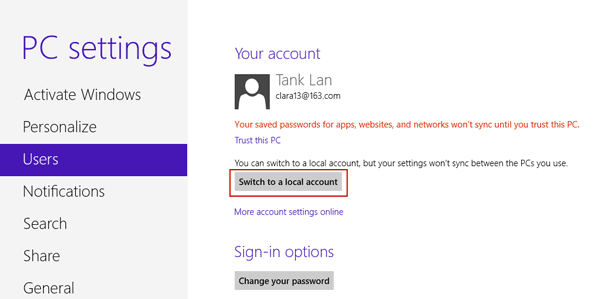
Click it and a window pops up. Current account password has to be typed in.
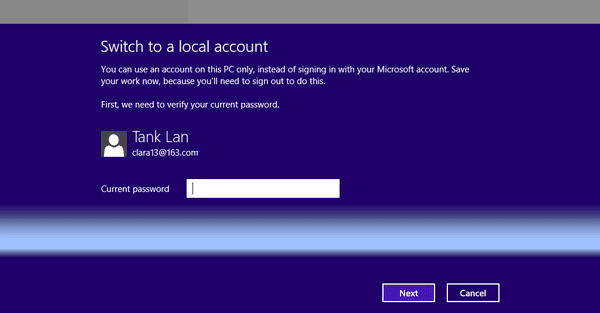
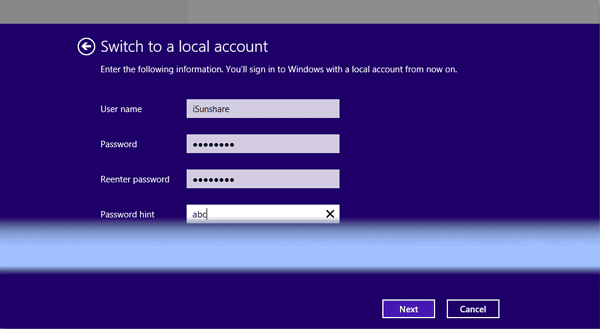
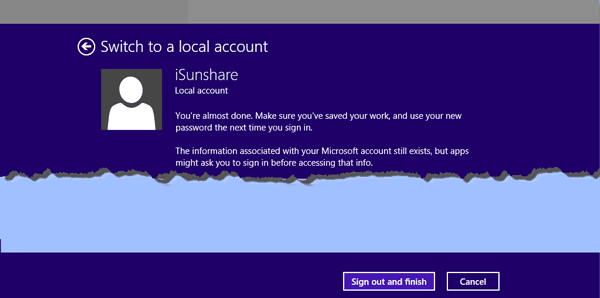
A new window pops up, and user name and password are needed. At this time, you have to create new local account actually.
- Four ways to create Windows 8 logon password and how to use
- How to enable or disable Windows 8 admin account
- How to enter Windows 8 safe mode with four effective ways
- How to find administrator password in Windows 8/8.1 laptop
- How to login into Windows computer with default administrator
- Change domain administrator password Windows server 2012 r2