Showing posts with label protected. Show all posts
Showing posts with label protected. Show all posts
Thursday, March 30, 2017
How to Open Password Protected Excel Worksheets without Password
How to Open Password Protected Excel Worksheets without Password
"My Excel Worksheets are encrypted with strong password. But now the password used to open Excel Worksheets has been forgotten or lost."
How can I open the password protected Excel worksheets when no password available?
Should I get a password recovery tool to recover lost or forgotten excel worksheets password?
Now we make an example in following passage, introducing the steps for Excel password recovery in two parts. After the detailed introductions, believe you could find the appropriate way to open your protected Excel worksheets.
How can I open the password protected Excel worksheets when no password available?
Should I get a password recovery tool to recover lost or forgotten excel worksheets password?
Now we make an example in following passage, introducing the steps for Excel password recovery in two parts. After the detailed introductions, believe you could find the appropriate way to open your protected Excel worksheets.
- Part 1: Prepare Excel Password Genius and make settings for recovering Excel password.
- Part 2: Recover Excel password and open password protected excel worksheets.
Part 1: Prepare Excel Password Genius and make settings for recovering Excel password.
1. Get Excel Password Genius and install it on your computer.
There are two versions, trial version and full version for selection. The Excel Password Genius trial version only could recover password less than 3 characters. While full version could recover all kinds of excel password no matter how complex forgotten excel password is.
2. Run password recovery tool and import password protected excel worksheets.


2. Run password recovery tool and import password protected excel worksheets.
Double-click Excel Password Genius to run it on your computer. And then click "Open" button to browse encrypted excel worksheets on your computer. Select password protected worksheet and open it. It would appear in "Encrypted File" box then.
3. Make password attack settings.
3. Make password attack settings.
In drop-down box of "Type of attack", select the most appropriate password attack type for imported excel worksheets. And then make detailed settings for password attack type, Brute-force, Mask, Dictionary and Smart.
- Brute-force: set password range and length.
- Mask: mainly set "Mask" parameter.
- Dictionary: set dictionary path or confirm default dictionary path.
Part 2: Recover Excel password and open password protected excel worksheets.
1. After all necessary settings have been made, click "Start" button to recover imported Excel worksheet password.

Copy recovered excel password, and open encrypted Excel worksheets with it. And then choose to save excel worksheets password on safe place or change Excel password for easy-to-remember, or remove Excel worksheets password protection. No matter which kind of password is set for excel, it should be back up.
Related video for reference:
Remove Excel Forgotten or Lost Password Effectively and Easily
Related Articles:
- How to Open Password Protected Access Database without Password
- Could I Open Encrypted Outlook Data File without Password
- Can I Decrypt Encrypted PowerPoint File in Your Computer
- How to Open Password Protected Word Document
Go to link Download

Wednesday, November 23, 2016
How to Open Password Protected Office File without Password
How to Open Password Protected Office File without Password
I am trying to open password protected Doc file and Excel file, but I have forgotten their open password, how to recover them or find out them easily and effectively?
Now there is an effective Office password recovery tool for MS Office file or document password recovery, Office Password Genius. Recover forgotten or lost password with it, and then you could open password protected Office file.
Now there is an effective Office password recovery tool for MS Office file or document password recovery, Office Password Genius. Recover forgotten or lost password with it, and then you could open password protected Office file.
Step 1: Install Office Password Genius on your computer.
Download it from www.isunshare.com and install it on your computer.
Two versions are provided, and trial version only recovers Office password less than 3 characters, while full version could recover any Office password.
Step 2: Import password protected Office document.
Click ÒOpenÓ button to open Office file. For example, if you forgot Word document password, import it into Office Password Genius, you would find it appearing in Encrypted Filebox.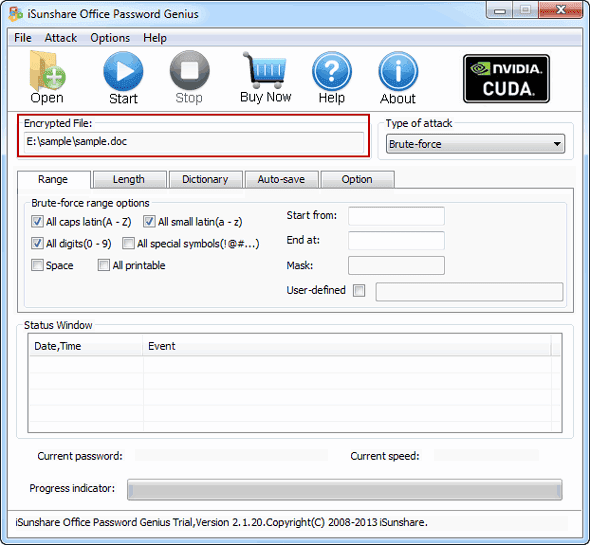
Step 3: Select appropriate way to recover Word/Excel password.
There are four password attack ways to recover forgotten Office file password, Brute-Force attack, Mask attack, Dictionary attack and Smart attack.Brute-Force is the most powerful password attack type, applied to all kinds of situation. But Mask attack requires you remember part of forgotten password clearly. If you want to select Dictionary attack, your forgotten password should be regular. And Smart attack isnÕt used usually, but when you couldnÕt choose other three options, Smart attack can be another try.
Step 4: Recover Office document forgotten password
When you finish setting parameters for following password recovery ways or password attack types, just click ÒStartÓ to recover Office password.
- Brute-Force: Set the password range and length.
- Mask: Set the password range, length and Mask.
- Dictionary: Set the dictionary path or default.
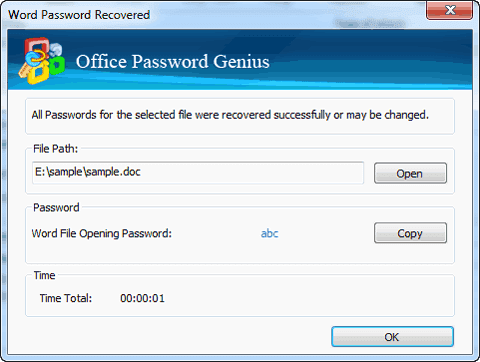
About few seconds later, a new window would pop up, which lists forgotten Word or Excel password. Copy it and Open your Word document or Excel spreadsheet.
So even though you dont have password to open Office file, such as Word/Excel/PowerPoint/Access/Outlook file, you still could use Office Password Genius to help open them.Related posts:
- Office Open XML file creation and How to open
- Protect Office Files with Password Ð Set/Reset Password
- Unlock Excel Worksheet without Password
- Three Ways to Remove Word Password
- How to Crack Locked Office Document Password
Go to link Download
Thursday, November 3, 2016
How to Open Password Protected Access Database without Password
How to Open Password Protected Access Database without Password
In order to protect data in Access Database, setting password for database seems to be common. But something would not always be inevitable, such as access database password lost or forgotten. If it really happens, how can we open password protected access database?
Having browsed and searched password recovery tool for encrypted access database, we have found a tool worth to be tried to recover access database password.
iSunshare Access Password Genius is such password recovery tool. Just need to import password protected access database file into Access Password Genius, and select suitable password attack type, and then click ÒStartÓ button. Lost or forgotten access file password would be found. Now, with access password in hand, whether opening password protected access database becomes easy? Take a try, you would find.
So go on following to get detailed introductions about access password recovery with Access Password Genius.
The advantage of this way is convenient, effective and easy-to-use. Just access password recovery software is enough for access database file. And the software full version guarantees different kinds of access forgotten password could be recovered.
After the software is installed and run successfully on your computer, click "Open" button on program screen to browse and import access database file with password protection.


Having browsed and searched password recovery tool for encrypted access database, we have found a tool worth to be tried to recover access database password.
iSunshare Access Password Genius is such password recovery tool. Just need to import password protected access database file into Access Password Genius, and select suitable password attack type, and then click ÒStartÓ button. Lost or forgotten access file password would be found. Now, with access password in hand, whether opening password protected access database becomes easy? Take a try, you would find.
So go on following to get detailed introductions about access password recovery with Access Password Genius.
1. Install Access Password Genius full version on your computer and run it.
The advantage of this way is convenient, effective and easy-to-use. Just access password recovery software is enough for access database file. And the software full version guarantees different kinds of access forgotten password could be recovered.
2. Import the access database file into password recovery program.
After the software is installed and run successfully on your computer, click "Open" button on program screen to browse and import access database file with password protection.
3. Select password attack method for access password recovery.
Four different kinds of password attack methods are provided in this software, Brute-force, Mask, Dictionary and Smart. Which one should be chosen based on what have been known about access password. For example:
- If part of access password is still remembered, select Mask attack please, and set "Mask" parameter for it.

- If having no idea about forgotten access password, Brute-force is suggested. Set password length and password range for it in purpose of reducing password recovery time.
4. Recover access database file password.
No matter imported access database file is MDB file or ACCDB file, click "Start" button and wait for access database file password being recovered.

Is it easy or effective enough? Believe the truth you see. Maybe there are other questions you want to know about access password recovery or Access Password Genius, now please go to following references to find answers.
- FAQ about Access Password Genius
- Video about How to Crack Access MDB/ACCDB File Password
- How to Import External Data into Access 2013 App or DesktopDatabase
Go to link Download
Subscribe to:
Posts (Atom)