Showing posts with label access. Show all posts
Showing posts with label access. Show all posts
Wednesday, April 19, 2017
How to Import External Data into Access 2013 App or Desktop Database
How to Import External Data into Access 2013 App or Desktop Database
While you want Access database referring to your important excel file, the introduction about importing external data into Access 2013 App or desktop database in this passage would tell you how to do. So whether you have such a problem, go on to read.
- S1: Import external file into an Access 2013 app
- S2: Import external data into Access 2013 desktop database
S1: Import external file into an Access 2013 app
Available external file type: Excel workbooks, ODBC data sources, text/CSV files, SharePoint lists, and other Access databases.
Preparation: Access 2013 has been installed and opened on your computer and imported files have been prepared on computer or connected storage devices.
Step 1: On the Add Tables page, you can import data from Excel workbooks, ODBC data resources, text/CSV files, SharePoint lists, and other Access databases.
Tips: You can see Add Tables page when creating a new custom app. But if you have already started an app, open it in Access, then click Home - Table.
Step 2: Near the bottom of the Add Tables page, click the type of data source you want to import, and follow the instructions in the Get External Data wizard.
Tips: Imported data is always added to new table with default List and Datasheet views.
S2: Import external data into Access 2013 desktop database
Imported data can be added to existing table. And sometimes, when you couldnÕt import data directly into an app, you might be able to import it into a desktop database first, and then import desktop database table into the app.
For example: import external excel file into Access 2013 desktop database
For example: import external excel file into Access 2013 desktop database
Step 1: Open Access 2013. On the External Data tab, in the Import & Link group, click the file type you want to import.

Step 2: Follow the instructions in the Get External Data Wizard. For example, click "Browse" button next to "File name" box, to specify the source of the definition of the objects. Now we choose to import Excel file.

Step 3: Follow "Import Spreadsheet Wizard" to do.
 |
| 3-1 Choose Show Worksheet you like and click Next |
 |
| 3-2 Check "First Row Contains Column Headings" and click Next |
 |
| 3-3 Set "Field Name" and "Data Type" |
 |
| 3-4 Set datasheet primary key |
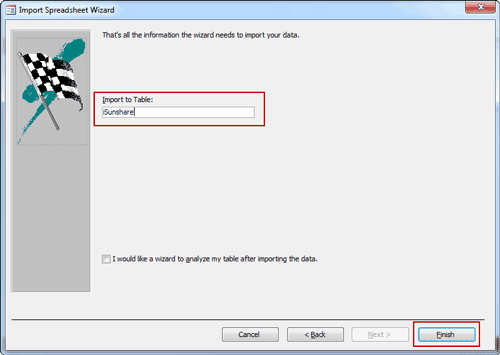 |
| 3-5 Set a name for imported Excel file in Access and click Finish |
 |
| 3-6 Exit "Import Spreadsheet Wizard" |
 |
| or Save Excel import steps |
Step 4: External Excel file has been successfully imported into Access 2013.

Summary:
The beginning of importing different external data into Access is the same. But it would be different after you choose the file type you want to import. For example, if you want to import SQL database into Access database, it would be more complex than importing Excel or access database file into Access.
Related Articles:
Related Articles:
- 3 Ways to Create Access 2007-2013 Database
- How to Encrypt and Decrypt Access Database
- How to Access Locked Access 2013 Database
- Access Database Password Reset
- What Errors Lead to Access DataImport from Excel or Export Failure
Go to link Download

Sunday, April 9, 2017
Access Database Password Reset with Access Password Recovery Tool
Access Database Password Reset with Access Password Recovery Tool
How is access password recovery tool? Is it really available for Access database password reset? When encountering access password problem, this tool is always mentioned. So we should have to realize and understand it eventually if we wish the problem solved effectively.
As soon as you search the Internet, you would find there are so many access password recovery tools, seeming to be available all. But we canÕt promise all of them are powerful or safe just by looking at them. So, which one is really effective tool for access password reset?
Now letÕs see two popular ones, Access Password Genius and Office Password Genius and use them for access password reset.
Access Database Password Reset with Access Password Genius
See the detailed steps to reset Access database password with Access Password Genius, you would know whether it is or not.

Step 1: After running Access Password Genius, click "Open" button and you can browse access database file and import it into password tool. See the image.
Conclusion: You can import access database file into Access Password Genius successfully.
Step 2: In "Type of attack", select one of password attack types and set password range, length, dictionary etc for it.
Conclusion: You can choose password reset method for access database file.
Step 3: Click "Start" button and instantly access database password pops up in a window.
Conclusion: Access password reset program is so easily to be startup only needing to click one button.
Even though the above three steps looks simple, they are enough to reset access database file password.
Access Database Password Reset with Office Password Genius
After you run Office Password Genius, you would find its interface is similar to Access Password Genius.
Actually, the steps to reset Access password with Office Password Genius is similar to with Access Password Genius too. The only difference is that Office Password Genius could import more kinds of files, such as Word, Excel, PowerPoint and Outlook file. Moreover, these files password can be reset like access database file.

With more functionality but the same cost, I think Office Password Genius is more worthwhile than Access Password Genius at this angle.
Summary:
Access Password Genius is surely effective tool for access password reset. But compared with Office Password Genius, Office Password Genius seems to be better because more file password can be reset.
Related Articles:
- How to Import External Data into Access 2013 App or Desktop Database
- How to Open Password Protected Access Database without Password
Go to link Download
Friday, April 7, 2017
How to Set or Reset Access 2016 ACCDB Database Password
How to Set or Reset Access 2016 ACCDB Database Password
When access 2016 database is not encrypted, you can set a password to protect it for security.
When access 2016 database has been encrypted, but the password is too simple, you also can reset access 2016 database password to protect it again with powerful one.
- How to set Access 2016 ACCDB database password
- How to reset Access 2016 ACCDB database password
No matter you want to set or reset access 2016 database password, you should open access 2016 database with Open Exclusive mode. Otherwise, encryption or decryption will not be available.

Steps to set Access 2016 database password
1. Click File > Open > Browse in Access 2016 to find access 2016 database you want to open.

2. Select right database file and choose "Open Exclusive" mode in Open window.

3. Click File > Info > Encrypt with Password, type and confirm password twice on pop-up dialog and click OK. Your access database has been encrypted with a password.


1. Run Access 2016, and click File > Open > Browse, to search Access 2016 database.
2. Select database and Open Exclusive mode in Open window.

3. Type access 2016 database old password and click OK.

4. Click File > Info > Decrypt with Password, and type password again in Unset Database Password dialog, click OK at last to remove old simple password from access 2016 database.


5. Click File > Info > Encrypt with Password, type password and verify it on Set Database Password dialog.
Related Articles:
- How to Remove Password Protection from Access 2016 ACCDBDatabase
- Best Way to Open Access 2016 ACCDB Database without Password
- Failed to Encrypt or Decrypt Access 2007-2016 Database
Go to link Download
Monday, March 13, 2017
How to Reset SQL Server Password without Access
How to Reset SQL Server Password without Access
Two authentication modes are available to access SQL Server, Windows Authentication mode and SQL Server Authentication mode. When you forgot or lost SQL Server SA password, if you have Windows Built-in Administrator privileges for SQL Server, you can access SQL Server using Windows Authentication mode first. And then reset SQL password.
But if you always couldnÕt login into SQL Server with Windows Authentication mode successfully, how do you reset forgotten SA password for SQL Server?
Now, we have to make use of third-party software and Command Prompt.
But if you always couldnÕt login into SQL Server with Windows Authentication mode successfully, how do you reset forgotten SA password for SQL Server?
Now, we have to make use of third-party software and Command Prompt.
- Reset SQL Password with SQL Password Genius
- Reset Forgotten SQL Password with Command
Way 1: Reset SQL Password with SQL Password Genius
SQL Password Genius full version could help to reset all user passwords set for SQL database file, master file. Just with master.mdf file and SQL Password Genius, SQL password could be reset or changed.
1. Get SQL Password Genius and install it on your computer.
Tips: Please remember to stop SQL Server Service before SQL Password Genius resets SA password.
2. Run it and open SQL Server master file in it.
2. Run it and open SQL Server master file in it.
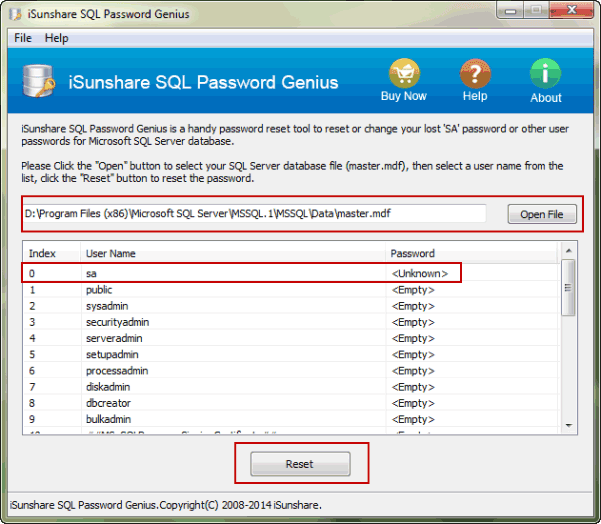
Click ÒOpen FileÓ button on password software, to browse master file on your computer. Open it and it would appear in this software. At the same time, all the users for master file are listed.
3. Reset SQL SA Password.
3. Reset SQL SA Password.
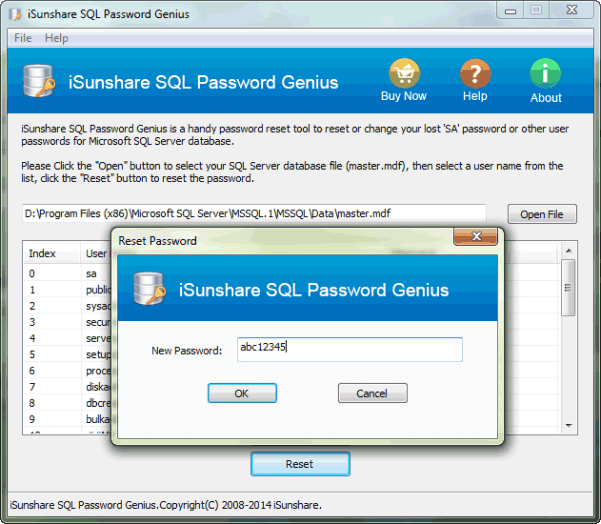
Select the user you want to reset password and whose password is unknown. Now, we select ÒsaÓ account and click ÒResetÓ button. Instantly, a window pops up with a box. Type a new password in box and click ÒOKÓ.
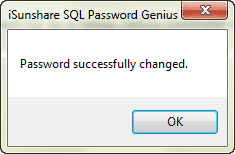
Message ÒPassword successfully changedÓ would tell you SA password has been reset. And then you can see it in user list.
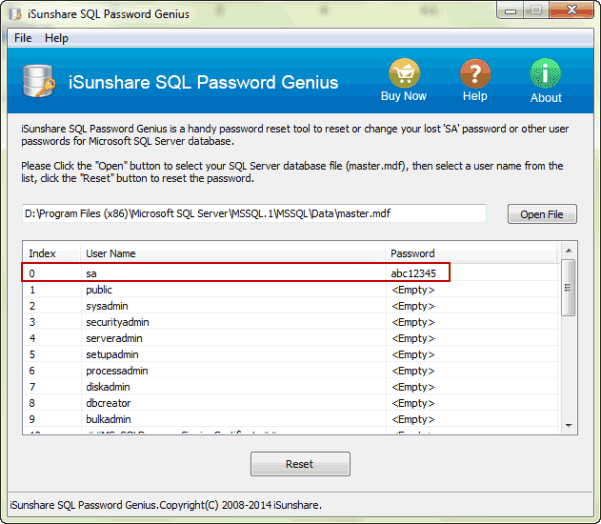
After SA password is reset, exit SQL Password Genius and start SQL Server Service. And then turn to open SQL Server Management Studio to login with SA account and new password.
Message ÒPassword successfully changedÓ would tell you SA password has been reset. And then you can see it in user list.
After SA password is reset, exit SQL Password Genius and start SQL Server Service. And then turn to open SQL Server Management Studio to login with SA account and new password.
Way 2: Reset Forgotten SQL Password with Command
1. Click Start Ð Run, and then type ÒcmdÓ in Run box. Press Enter to run Command Prompt.
2. Type following commands, and press Enter after each command line.
Osql CS yourservername CE
1> EXEC sp_password NULL, yourpassword, sa
2> GO
Above commands could help you to reset SA password in SQL Server. But if you donÕt have Windows administrator privileges, you couldnÕt reset SQL password with commands.
2> GO
Above commands could help you to reset SA password in SQL Server. But if you donÕt have Windows administrator privileges, you couldnÕt reset SQL password with commands.
Go to link Download
Sunday, March 5, 2017
How to Import Existing Access or SQL Database into Access
How to Import Existing Access or SQL Database into Access
SQL Server and Access are undoubtedly two important database services. So import and export data between them are usual. In this passage, we will mainly talk about something about data import, for example, how to import access or sql database into Access.
- Part 1: Import existing access database into new Access database
- Part 2: Import SQL database into Access
Part 1: Import existing access database into new Access database
When you are using database in Microsoft Access 2000/2002/2003/2007/2010/2013 etc, you can import tables, queries, and macros from that database into a Microsoft Office Access 2007/2010/2013 database (.accdb). We also can say import data from MDB database file into ACCDB database file.
Step 1: Click the Microsoft Office button, and then click Open.
Step 2: In the Open dialog box, select and open the access database that you want to import the tables, queries, or macros into.

Step 3: On the External Data tab, in the Import or Import & Link group, click Access.

Step 4: Click Browsebutton to specify the source of access database in Get External Data window. Click OK.

Step 5: In Import Objects window, tab Tables, Queries, Forms, Reports, Macros and Modules. Select what you want to import into opening access database. Then click OK.

To make additional settings, click Options to specify them.
Step 6: You will instantly get a message "All objects were imported successfully".

Click Close directly or check "Save import steps" to save the process of importing access database into Access database. So you can follow the import steps to import data more quickly when you want to import access database again.
After that, you can open and edit import datasheet now in current access database.

After that, you can open and edit import datasheet now in current access database.
Part 2: Import SQL database into Access
Besides access database, there is no doubt that SQL Server database data also can be imported into Access desktop database or Access apps. Now please see how to import sql database into Access desktop database.
Step 1: Open Access desktop database you want to import SQL database in Microsoft Access.
Step 2: On External Data tab, click ODBC Database.

Step 3: When you see "Get External Data" wizard, check "Import the source data into a new table in the current database". Click OK.

Step 4: In pop-up Select Data Source window, if you can find .dsn file, select the file in the list. If not, it will be necessary to create a new .dsn file.

Follow introductions show how to create a new DSN file in details.
1. Click New and go to Create New Data Source.
2. Select "SQL Server" in the driver list and click Next.

3. Type a name for .dsn file and click Browse to save the file in computer.

4. Click Next, review the data source information, then click Finish to complete creation wizard.

Then you can see a new dialog "Create a New Data Source to SQL Server". The "Description" is optional. But we have to set the SQL Server we want to connect to.

5. Type the SQL Server or select one from Server drop-down list. Click Next.
6. Confirm the authenticity of the SQL Server login ID.
7. If you want to connect to a specific database, ensure that the Change the default database to check box is selected. Then select the database that you want to work with, and then click Next.
8. Click Finish.
9. Review the summary information and click Test Data Source.
10. Review the test results, and then click OK to close the dialog box.
Step 5: Click OK to close the Select Data Source dialog box.
Step 6: In Import Objects dialog box, tab Tables, and click each table or view what you want to import into Access database. Click OK.
Step 7: If the Select Unique Record Identifier dialog box appears, select the field or combination of fields that is unique for each row, and then click OK. If you are not sure, contact to the administrator of SQL Server database.
Step 8: Click Close under Save Import Steps in the Get External Data - ODBC Database dialog box. Access finishes the import operation and displays the new table or tables in the Navigation Pane.
Or check "Save import steps". If you plan to repeat the import operation later, you can check it and easily rerun the same import steps later.
Related Articles:
Related Articles:
- How to Encrypt and Decrypt Access Database
- SQL Server Forgot SA Password
- How to Open Password Protected Access Database without Password
- Access Database Password Reset
Go to link Download
Sunday, February 26, 2017
What Errors Lead to Access Data Import from Excel or Export Failure
What Errors Lead to Access Data Import from Excel or Export Failure
 Even though data transfer between Access and Excel is usual now, errors are still occurring during data import or export. If you have tried to import data into Access from Excel or export data from Access database, believe you can understand it.
Now the following are some errors probably you would encounter during Access data import or export. Hope the solutions can give you a hand when you really meet Access import or export errors.
Error 1: Excel XLS cell data is over maximum limits
- Import Error: The wizard is unable to access information in the file <filename>. Please check that the file exists and is in correct format.
- Export Error: External table is not in the expected format.
This is an error during Access import/export to Excel XLS. Actually, the reason is that the Excel XLS file has cells containing more than 8224 bytes of data.
So, how to correct errors if you still want to import data from excel xls to Access or export data from Access to excel xls?
1. Use the *.xlsx format instead of *.xls.
2. Restrict any memo/long text fields to a length less than 8224 bytes.
3. When exporting, delete the existing .xls file before performing the export using the same file name.
4. Open the .xls file in Excel before performing the import/export from Access.
Error 2: Imported Excel file field is out of range
When I try to import data into a table of Access database, I am getting "Field "F42" Doesnt Exist in Destination Table" error. I have a "client lists" table, and I am trying to add additional records to it.
If you see this error, it is because your excel file field is out of range and the extra fields cannot be imported into Access database table.
Now you would have to give up something, so you can import Excel data into Access successfully. Here are some suggestions for you.
Solution 1: Go to Excel file and hit Ctrl + End to see whether it is much further than you expect. If it is, delete all extra rows and columns, save, and try again.
Solution 2: Name the range in Excel that you wish to import into Access. Then, as you are importing the file into Access, you can elect to import that named range instead of the whole sheet. That should ensure that you are only going to import what you want.
Solution 3: Delete all the extra columns and a lone variable in a distant cell. Then you can import data into Access.
Error 3: Too much rows are in Excel spreadsheet
When you are using Access data import wizard to import data from Excel spreadsheet, you receive this prompting message:
Not all of your data was successfully imported into Access. Errors descriptions with associated row numbers of bad records can be found in the Microsoft Access table <>.
Actually, this is far from unique. When you open ImportErrors table, you would find it is Type Conversion Failure. When Access scans the data in spreadsheet, row value in spreadsheet cannot be confirmed.
Whether we can make row value verified correctly? The answer is surely yes.
Because the value is stored in registry, so it can be easily changed. Then it can be confirmed when import spreadsheet into Access.
Now see how to change the registry key?
1. In Windows desktop computer or laptop, click Start and type regedit in search or Run box. Press Enter to display Registry Editor.
2. In the registry tree, select HKEY_LOCAL_MACHINE - Software - Microsoft - Office - 15.0* - Access Connectivity Engine - Engines.
Or if your Access is not the latest version, you would not navigate to HKEY_LOCAL_MACHINE - Software - Microsoft - Office - 15.0*, it would probably be Office - 14.

3. Double-click the Excel node.
4. In the right panel, double-click the TypeGuessRowsentry.
5. Change the value data to be 0.
6. Click OK.
7. Select File -Exit to exit the Registry Editor window.
After setting the registry key to 0, Access will now scan the entire spreadsheet. This registry change works effectively especially when you frequently import huge spreadsheets into Access databases. But not all of spreadsheet row value should be changed. You can obviously set this value to whatever number of rows makes sense for you.
Tips:
When importing data into an MS Access database, sometimes there are errors in the formatting of the data source. When this happens, MS Access will put the offending row into a separate table. In Access 2010, the file is called <name of import file>_ImportErrors. For example, importing try.txt, it would give try_ImportErrors.
Related Articles:
- How to Import Existing Access or SQL Database into Access
- How to Import External Data into Access 2013 App or Desktop Database
- 3 Ways to Create Access 2007-2013 Database
- How to Backup Access Database and Restore Data or Objects
Go to link Download
Thursday, February 16, 2017
Solved Wifi Problem After Updating Windows 10 Limited Access or Not Connecting
Solved Wifi Problem After Updating Windows 10 Limited Access or Not Connecting
![[Solved] Wifi Problem After Updating Windows 10, Limited Access or Not Connecting](https://blogger.googleusercontent.com/img/b/R29vZ2xl/AVvXsEg56qupAcjSZyzI6lzTXaCyE12W9hhdqG4PdW7Ob04aho9sNgLr_T9P-RN4MmVx-uvrjGtr4nEinqT9oMNR1k8iZEKFkZYTbNiLtRpW_y5uJGeytF6VdZVJH-FW65tpygua9LPgOeM6aQvP/s1600/Wifi+Problem.png "[Solved] Wifi Problem After Updating Windows 10, Limited Access or Not Connecting")
[Solved] Wifi Problem After Updating Windows 10, Limited Access or Not Connecting.
Hello friend!
How are you? Hope you are very well. Today I am going to show you after updating windows 10 how to solve wifi problem (Limited Access)?
There are two methods to solve this problem. If first method is failure, then we can try 2nd method. I hope one of them will work for you.
Method-1:
1) Write in the search box CMD.
2) Right click on Command Prompt.
3) Click Run As Administrator.
4) Click Yes.
5) Now will open Command Prompt.
6) Enter the following command in the command prompt Ònetsh int ip resetÓ and press Enter.
7) Now restart your computer for finishing the first method.
If first one is failure to fix your wifi problem, please follow the second methodÉÉ
Method-2:
1) Write in the search box CMD.
2) Right click on Command Prompt.
3) Click Run As Administrator.
4) Click Yes.
5) Now will open Command Prompt.
6) Enter the following command in the command prompt Ònetsh int tcp set heuristics disabledÓ and press Enter.
7) Write another New command Ònetsh int tcp set global autotuninglevel=disabledÓ press Enter.
8) Write another New command Ònetsh int tcp set global rss=enabledÓ press Enter.
9) Write another New command Ònetsh int tcp show globalÓ press Enter.
10) After enter the above four command, close the command prompt and restart your computer.
Hope your problem is solved.
Video Of This Article:
Video Of This Article:
Thanks to all of my friendsÉÉ
Md. Manjurul Islam (Rubel)
You May Like Also......
How To Create A Video From Your MS PowerPoint
How To Install A Display Language On Windows 8.1
(Solved) How To Solve HP Pavilion 14-ab012TU WIFI Driver Problem
After Updating Windows 10, How To Delete Windows.old (Previous Windows)
Go to link Download
Monday, February 13, 2017
How to Get a Windows 7 Reset Disk without Access ‰ÛÒ Windows 7 Administrator Password Reset
How to Get a Windows 7 Reset Disk without Access ‰ÛÒ Windows 7 Administrator Password Reset
If you have ever forgotten Windows 7 administrator password, and looked for some ways to reset Windows 7 admin password, believe you have known that password reset disk is a general and effective recovery way for Windows operational systems, including Windows 8/7/Vista/XP and Windows server 2000/2003/2008/2012.
And there are two methods creating password reset disk. One is to create one when you can access Windows computer. The other is to create it with password recovery tool. Now when you couldnÕt access Windows 7 computer, the only way you can choose is get a Windows 7 reset disk with recovery tool.
But how to choose one effective even powerful tool for reset disk creation? Here, take Windows 7 Password Genius to go on. Why we choose it?
- It is a small but effective Windows password reset tool for Windows 7, all kinds of password can be removed.
- It is easy for everyone to use, even for computer newbie.
- Besides these, once this password reset disk is created, it can be used to recover Windows 7 password for other computers.
Step 1: Find Windows 7 Password Genius.
Get a trial one to have a try. Just search ÒWindows 7 Password GeniusÓ and download it.
Step 2: Look for an accessible computer and install Windows 7 Password Genius on this computer.
When it finishes installation, let it run and insert bootable USB drive or CD/DVD ROM for Windows password reset disk creation.
Step 3: Choose inserted USB drive or CD/DVD ROM into optical drive of computer. And then click ÒBegin burningÓ to burn password reset disk into it. Be patient to wait for several seconds, a bootable drive with Windows reset disk will be burned successfully. Exit it from computer to prepare for Windows 7 admin password reset.
So far, you have gotten a Windows 7 reset disk successfully. But if you want to reset Windows 7 forgotten administrator password really, you have to insert it into locked Windows 7 computer and boot it from reset disk in order to run Windows 7 Password Genius.
Related Articles:
How to Create Recovery Disc for Windows Forgotten Admin Password Reset
Recovery Disc for Windows 7 Home Premium Admin Password ResetHow to Bypass Password for Acer Laptop Windows 7 | Forgot Windows 7 Password
Go to link Download
Tuesday, December 27, 2016
Cara Mengatasi Access is Denied ketika Install Aplikasi
Cara Mengatasi Access is Denied ketika Install Aplikasi
Cara mengatasi Access is Denied ketika menginstall aplikasi atau program pada windows 7. Bisa disebabkan karena kurangnya hak administrasi. Anda harus login sebagai Administrator Lokal (Local administrator) dan pada komputer jaringan (domain) Anda perlu login sebagai administrator lokal (bukan administrator Domain).
Cara Mengatasi Access is Denied ketika Install Aplikasi. Silakan anda aktifkan akun Administrator di windows 7. Kesalahan pada User Account Control, kadang UAC juga akan membatasi anda dalam mengakses lokasi file/registri tertentu. Sebaiknya saat anda akan menginstal aplikasi gunakan ÒRun as AdministratorÓ untuk bisa menggunakan hak akses admin secara penuh.
Dalam kasus tertentu, perlu menonaktifkan sementara UAC, yaitu dengan cara:
- Klik start menu, pada kolom ÒSearchÓ ketik UAC
- Klik ÒChange User Account Control settingsÓ
- Geser slider ke ÒNever NotifyÓ lalu OK.
- Restart komputer dan anda bisa coba instal lagi aplikasi yang tadi gagal.
- Kembalikan ke pengaturan UAC semula, jika sudah berhasil.
Apakah masih gagal dengan cara diatas? kita coba cara berikutnya yaitu menonaktifkan "security software" seperti antivirus, windows defender, windows firewall, Mc security dan security software sejenis lainnya. Setelah berhasil kembalikan(aktifkan) lagi perangkat keamanan Anda. Lokasi umum yang ditolak perizinannya (denied permissions) ada pada folder Temp dan Installer pada Windows anda.
Anda bisa baca Cara mengambil izin kepemilikan (take ownership) file atau folder di windows. Perlu ketelitian dalam mengatasi masalah Access is Denied ketika Install Aplikasi atau program. Semoga bermanfaat dan sukses untuk anda.
Go to link Download
Tuesday, December 20, 2016
How to Remove Password Protection from Access 2016 ACCDB Database
How to Remove Password Protection from Access 2016 ACCDB Database
If you remember Access 2016 database password, it would be easy to remove password protection from Access 2016 ACCDB database.
If you forgot Access 2016 database password, probably it would be difficult to remove Access 2016 database password protection while you cannot find forgotten database password.
But donÕt worry about that, even though you couldnÕt recover access database password with the ways you have used, there is also one access password recovery tool Access Password Genius that can easily recover forgotten or lost access MDB/ACCDB database password.
Steps to remove Access 2016 database password protection
Step 1: Get iSunshare Access Password Genius and install.
Prepare Access Password Genius trial or full version first according to database password length you forgot or lost. Generally, if the forgotten access password contains no more than 3 characters, trial version is OK and free for you to choose. If not, only full version could help to successfully recover Access database password.
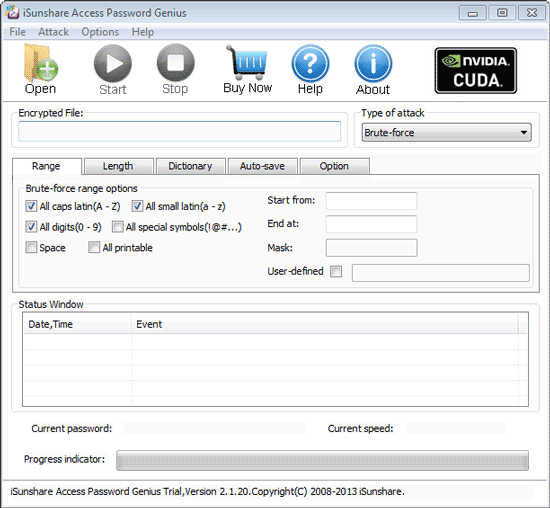
Step 2: Add access 2016 database into Access Password Genius.
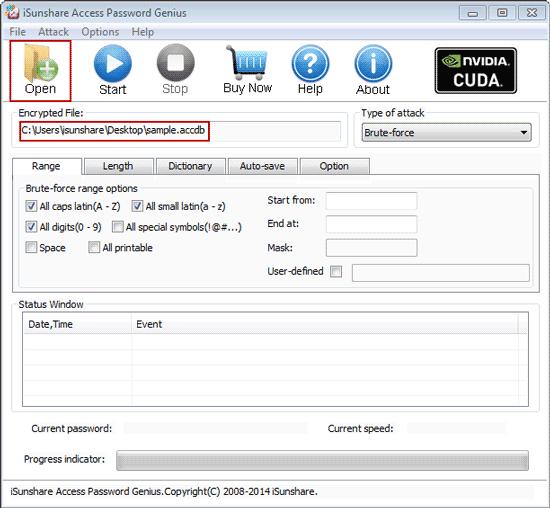
Tap on Open button after launching Access Password Genius, and browse computer to search encrypted Access 2016 database you want to remove password protection.
While you find it, select and click open button to import into Encrypted File box.
Step 3: Set password recovery options and recover Access 2016 database password.
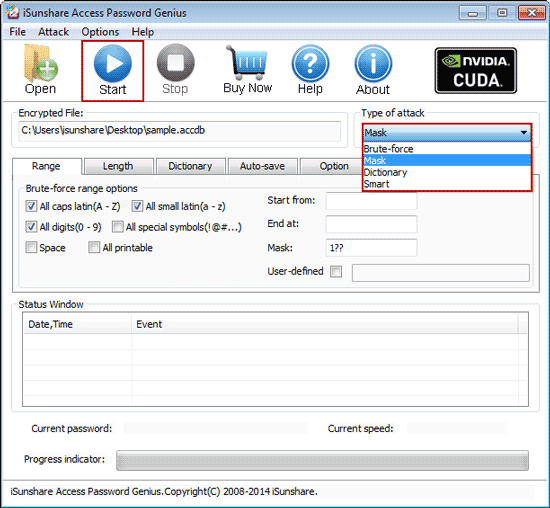
1. Click Type of attack and select one appropriate password attack type from drop-down list.
2. Under "Type of attack", set different kinds of password recovery options, including password range, length, Mask, Dictionary path etc. Surely not all of them just only password attack type related options are needed to set.
3. Tap on Start button to begin recovering Access 2016 database password.
If there is no settings wrong above, instantly imported Access 2016 database password will be recovered successfully, about few seconds later.
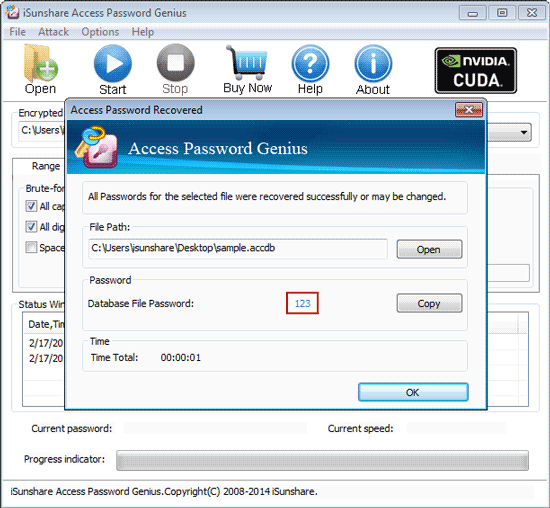
On pop-up dialog with Access 2016 database password, click Copy and Open button, and you can open Access 2016 database password with recovered password.
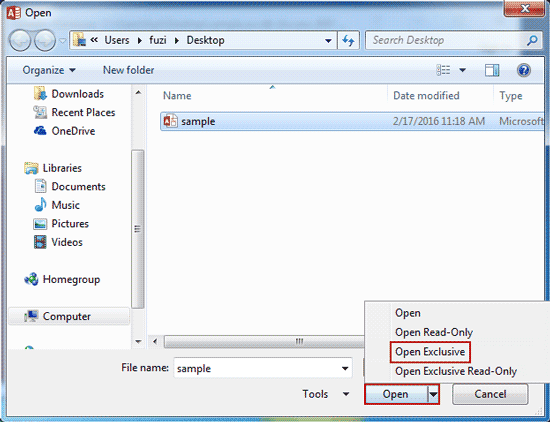
However, if you remove password protection from Access 2016 database right now when you open it, it would be failed. Only Access database is open with Open Exclusive mode, can you successfully remove database password or unset access database password.
So the right way to remove Access 2016 database password protection should be like this.
1. Copy and save access database password after recovering with Access Password Genius.
2. Run Access 2016 and click File > Open > Browse to search encrypted access 2016 database on computer.
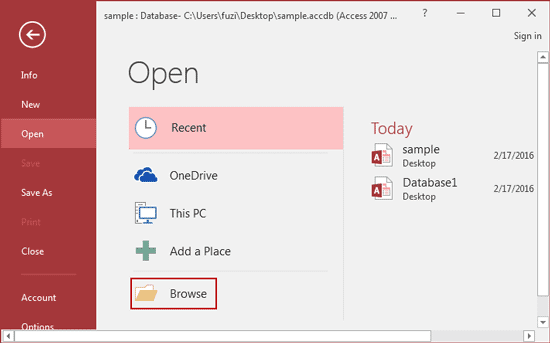
3. Select access 2016 database and open mode Open Exclusive in Open window.
4. Type recovered password while Access 2016 asks.

5. Click File > Info > Decrypt Database, and type recovered password again on Unset Database Password dialog and click OK.
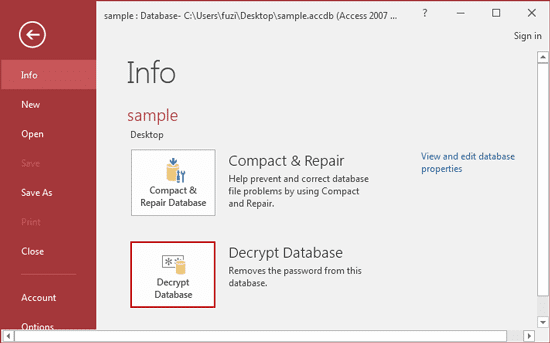
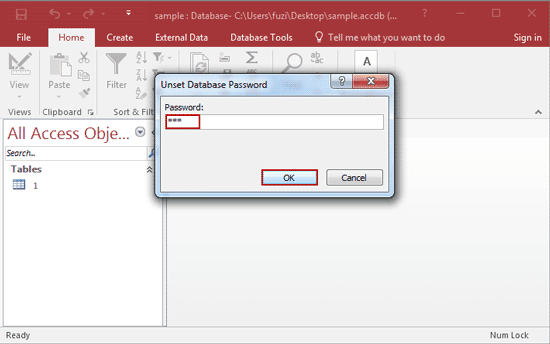
If there is no message prompting you, it means that you have successfully removed password from Access 2016 database.
Tips:
It is worth mentioning that, Access Password Genius also helps to recover Access 2013/2010/2007/2003 database password. So if you want to remove password protection from Access 2003-2016 database, no matter it is .mdb or .accdb file, you could use Access Password Genius.
Related Articles:
- How to Open Password Protected Access Database without Password
- How to Open Password Protected Excel Worksheets without Password
- Could I Open Encrypted Outlook Data File without Password
- Failed to Encrypt or Decrypt Access 2007-2016 Database
Go to link Download
Subscribe to:
Posts (Atom)