Showing posts with label database. Show all posts
Showing posts with label database. Show all posts
Wednesday, April 19, 2017
How to Import External Data into Access 2013 App or Desktop Database
How to Import External Data into Access 2013 App or Desktop Database
While you want Access database referring to your important excel file, the introduction about importing external data into Access 2013 App or desktop database in this passage would tell you how to do. So whether you have such a problem, go on to read.
- S1: Import external file into an Access 2013 app
- S2: Import external data into Access 2013 desktop database
S1: Import external file into an Access 2013 app
Available external file type: Excel workbooks, ODBC data sources, text/CSV files, SharePoint lists, and other Access databases.
Preparation: Access 2013 has been installed and opened on your computer and imported files have been prepared on computer or connected storage devices.
Step 1: On the Add Tables page, you can import data from Excel workbooks, ODBC data resources, text/CSV files, SharePoint lists, and other Access databases.
Tips: You can see Add Tables page when creating a new custom app. But if you have already started an app, open it in Access, then click Home - Table.
Step 2: Near the bottom of the Add Tables page, click the type of data source you want to import, and follow the instructions in the Get External Data wizard.
Tips: Imported data is always added to new table with default List and Datasheet views.
S2: Import external data into Access 2013 desktop database
Imported data can be added to existing table. And sometimes, when you couldnÕt import data directly into an app, you might be able to import it into a desktop database first, and then import desktop database table into the app.
For example: import external excel file into Access 2013 desktop database
For example: import external excel file into Access 2013 desktop database
Step 1: Open Access 2013. On the External Data tab, in the Import & Link group, click the file type you want to import.

Step 2: Follow the instructions in the Get External Data Wizard. For example, click "Browse" button next to "File name" box, to specify the source of the definition of the objects. Now we choose to import Excel file.

Step 3: Follow "Import Spreadsheet Wizard" to do.
 |
| 3-1 Choose Show Worksheet you like and click Next |
 |
| 3-2 Check "First Row Contains Column Headings" and click Next |
 |
| 3-3 Set "Field Name" and "Data Type" |
 |
| 3-4 Set datasheet primary key |
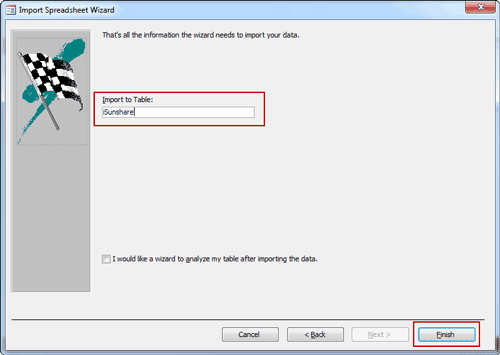 |
| 3-5 Set a name for imported Excel file in Access and click Finish |
 |
| 3-6 Exit "Import Spreadsheet Wizard" |
 |
| or Save Excel import steps |
Step 4: External Excel file has been successfully imported into Access 2013.

Summary:
The beginning of importing different external data into Access is the same. But it would be different after you choose the file type you want to import. For example, if you want to import SQL database into Access database, it would be more complex than importing Excel or access database file into Access.
Related Articles:
Related Articles:
- 3 Ways to Create Access 2007-2013 Database
- How to Encrypt and Decrypt Access Database
- How to Access Locked Access 2013 Database
- Access Database Password Reset
- What Errors Lead to Access DataImport from Excel or Export Failure
Go to link Download

Saturday, April 15, 2017
SQL Database in Recovery after SA Password Locked Out
SQL Database in Recovery after SA Password Locked Out
Locked out of SQL Server because of SA password locked out, and couldnÕt login SQL Server with Windows Authentication mode? What can we do to make SQL database recovery or password recovery?
Once SQL database recovery is mentioned, something always impresses us. Whenever you bring a database online, SQL Server goes through a recovery process. It seems to be boring if we want to access SQL database instantly at that moment.
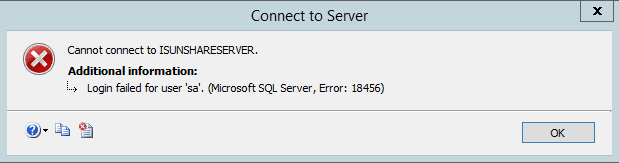
However, if SA password has been locked out, we could make SQL database in recovery to reset SA password. And then login into SQL Server with new SA password. All these just need a tool, SQL Password Genius.
SQL Password Genius is a powerful tool to reset user password for SQL database in few seconds. No matter it is SA or other users with different privileges, just select it in SQL Password Genius and, click "Reset" button, it could be set with new password.
Now letÕs go to see how this SQL password recovery tool makes SQL database/password recovery successful. This way applies to SQL Server all versions, including SQL Server 2014.
Precondition: SQL master database, SQL Password Genius, accessible computer with admin privileges.
1. Install SQL Password Genius (full version) on accessible computer.
This computer has been installed with Microsoft SQL Server 2000/2005/2008/2012/2014. And SQL master database can be found.
Once SQL database recovery is mentioned, something always impresses us. Whenever you bring a database online, SQL Server goes through a recovery process. It seems to be boring if we want to access SQL database instantly at that moment.
However, if SA password has been locked out, we could make SQL database in recovery to reset SA password. And then login into SQL Server with new SA password. All these just need a tool, SQL Password Genius.
SQL Password Genius is a powerful tool to reset user password for SQL database in few seconds. No matter it is SA or other users with different privileges, just select it in SQL Password Genius and, click "Reset" button, it could be set with new password.
Now letÕs go to see how this SQL password recovery tool makes SQL database/password recovery successful. This way applies to SQL Server all versions, including SQL Server 2014.
Precondition: SQL master database, SQL Password Genius, accessible computer with admin privileges.
Process of SQL Database in Recovery with Tool
1. Install SQL Password Genius (full version) on accessible computer.
This computer has been installed with Microsoft SQL Server 2000/2005/2008/2012/2014. And SQL master database can be found.
Why we take full version? Because trial version only could import master database, but still could not reset password for database recovery.
2. Browse master database in computer and import it into tool.
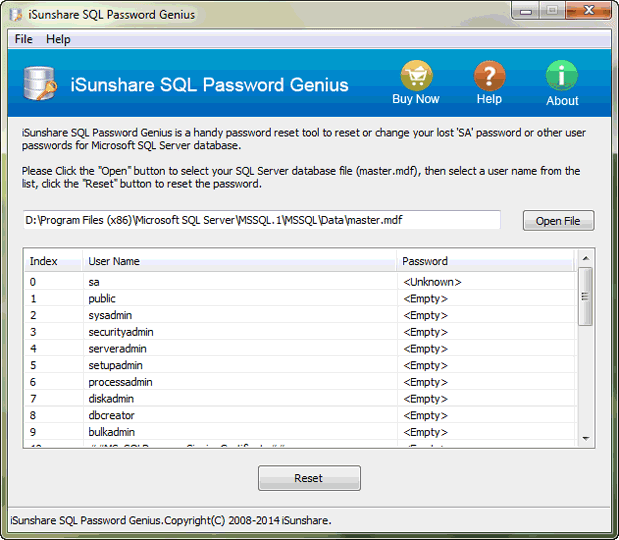
By clicking "Open File" button in tool, you would access to computer and could browse SQL master database in computer. When you find it, click "Open" button to import it into SQL Password Genius.
3. Recover SQL Server Master Database.
As soon as master database is imported, all of its users for it also appear in this tool.
How to recover SQL master database and make it accessible? Just select user, general SA account in user list, and click "Reset" button to type new login password for SA. Master database file is also recovered at the same time. Its logon user, SA password has changed.
Related Articles:
- Transaction and Commands for SA Account and Password in SQL Server
- How to Install SQL Server 2012 on Windows Server 2012 R2
- Forgot Windows 8 Password No Reset Disk
- SQL Database Password Recovery
Go to link Download
Sunday, April 9, 2017
Access Database Password Reset with Access Password Recovery Tool
Access Database Password Reset with Access Password Recovery Tool
How is access password recovery tool? Is it really available for Access database password reset? When encountering access password problem, this tool is always mentioned. So we should have to realize and understand it eventually if we wish the problem solved effectively.
As soon as you search the Internet, you would find there are so many access password recovery tools, seeming to be available all. But we canÕt promise all of them are powerful or safe just by looking at them. So, which one is really effective tool for access password reset?
Now letÕs see two popular ones, Access Password Genius and Office Password Genius and use them for access password reset.
Access Database Password Reset with Access Password Genius
See the detailed steps to reset Access database password with Access Password Genius, you would know whether it is or not.

Step 1: After running Access Password Genius, click "Open" button and you can browse access database file and import it into password tool. See the image.
Conclusion: You can import access database file into Access Password Genius successfully.
Step 2: In "Type of attack", select one of password attack types and set password range, length, dictionary etc for it.
Conclusion: You can choose password reset method for access database file.
Step 3: Click "Start" button and instantly access database password pops up in a window.
Conclusion: Access password reset program is so easily to be startup only needing to click one button.
Even though the above three steps looks simple, they are enough to reset access database file password.
Access Database Password Reset with Office Password Genius
After you run Office Password Genius, you would find its interface is similar to Access Password Genius.
Actually, the steps to reset Access password with Office Password Genius is similar to with Access Password Genius too. The only difference is that Office Password Genius could import more kinds of files, such as Word, Excel, PowerPoint and Outlook file. Moreover, these files password can be reset like access database file.

With more functionality but the same cost, I think Office Password Genius is more worthwhile than Access Password Genius at this angle.
Summary:
Access Password Genius is surely effective tool for access password reset. But compared with Office Password Genius, Office Password Genius seems to be better because more file password can be reset.
Related Articles:
- How to Import External Data into Access 2013 App or Desktop Database
- How to Open Password Protected Access Database without Password
Go to link Download
Friday, April 7, 2017
How to Set or Reset Access 2016 ACCDB Database Password
How to Set or Reset Access 2016 ACCDB Database Password
When access 2016 database is not encrypted, you can set a password to protect it for security.
When access 2016 database has been encrypted, but the password is too simple, you also can reset access 2016 database password to protect it again with powerful one.
- How to set Access 2016 ACCDB database password
- How to reset Access 2016 ACCDB database password
No matter you want to set or reset access 2016 database password, you should open access 2016 database with Open Exclusive mode. Otherwise, encryption or decryption will not be available.

Steps to set Access 2016 database password
1. Click File > Open > Browse in Access 2016 to find access 2016 database you want to open.

2. Select right database file and choose "Open Exclusive" mode in Open window.

3. Click File > Info > Encrypt with Password, type and confirm password twice on pop-up dialog and click OK. Your access database has been encrypted with a password.


1. Run Access 2016, and click File > Open > Browse, to search Access 2016 database.
2. Select database and Open Exclusive mode in Open window.

3. Type access 2016 database old password and click OK.

4. Click File > Info > Decrypt with Password, and type password again in Unset Database Password dialog, click OK at last to remove old simple password from access 2016 database.


5. Click File > Info > Encrypt with Password, type password and verify it on Set Database Password dialog.
Related Articles:
- How to Remove Password Protection from Access 2016 ACCDBDatabase
- Best Way to Open Access 2016 ACCDB Database without Password
- Failed to Encrypt or Decrypt Access 2007-2016 Database
Go to link Download
Sunday, March 5, 2017
How to Import Existing Access or SQL Database into Access
How to Import Existing Access or SQL Database into Access
SQL Server and Access are undoubtedly two important database services. So import and export data between them are usual. In this passage, we will mainly talk about something about data import, for example, how to import access or sql database into Access.
- Part 1: Import existing access database into new Access database
- Part 2: Import SQL database into Access
Part 1: Import existing access database into new Access database
When you are using database in Microsoft Access 2000/2002/2003/2007/2010/2013 etc, you can import tables, queries, and macros from that database into a Microsoft Office Access 2007/2010/2013 database (.accdb). We also can say import data from MDB database file into ACCDB database file.
Step 1: Click the Microsoft Office button, and then click Open.
Step 2: In the Open dialog box, select and open the access database that you want to import the tables, queries, or macros into.

Step 3: On the External Data tab, in the Import or Import & Link group, click Access.

Step 4: Click Browsebutton to specify the source of access database in Get External Data window. Click OK.

Step 5: In Import Objects window, tab Tables, Queries, Forms, Reports, Macros and Modules. Select what you want to import into opening access database. Then click OK.

To make additional settings, click Options to specify them.
Step 6: You will instantly get a message "All objects were imported successfully".

Click Close directly or check "Save import steps" to save the process of importing access database into Access database. So you can follow the import steps to import data more quickly when you want to import access database again.
After that, you can open and edit import datasheet now in current access database.

After that, you can open and edit import datasheet now in current access database.
Part 2: Import SQL database into Access
Besides access database, there is no doubt that SQL Server database data also can be imported into Access desktop database or Access apps. Now please see how to import sql database into Access desktop database.
Step 1: Open Access desktop database you want to import SQL database in Microsoft Access.
Step 2: On External Data tab, click ODBC Database.

Step 3: When you see "Get External Data" wizard, check "Import the source data into a new table in the current database". Click OK.

Step 4: In pop-up Select Data Source window, if you can find .dsn file, select the file in the list. If not, it will be necessary to create a new .dsn file.

Follow introductions show how to create a new DSN file in details.
1. Click New and go to Create New Data Source.
2. Select "SQL Server" in the driver list and click Next.

3. Type a name for .dsn file and click Browse to save the file in computer.

4. Click Next, review the data source information, then click Finish to complete creation wizard.

Then you can see a new dialog "Create a New Data Source to SQL Server". The "Description" is optional. But we have to set the SQL Server we want to connect to.

5. Type the SQL Server or select one from Server drop-down list. Click Next.
6. Confirm the authenticity of the SQL Server login ID.
7. If you want to connect to a specific database, ensure that the Change the default database to check box is selected. Then select the database that you want to work with, and then click Next.
8. Click Finish.
9. Review the summary information and click Test Data Source.
10. Review the test results, and then click OK to close the dialog box.
Step 5: Click OK to close the Select Data Source dialog box.
Step 6: In Import Objects dialog box, tab Tables, and click each table or view what you want to import into Access database. Click OK.
Step 7: If the Select Unique Record Identifier dialog box appears, select the field or combination of fields that is unique for each row, and then click OK. If you are not sure, contact to the administrator of SQL Server database.
Step 8: Click Close under Save Import Steps in the Get External Data - ODBC Database dialog box. Access finishes the import operation and displays the new table or tables in the Navigation Pane.
Or check "Save import steps". If you plan to repeat the import operation later, you can check it and easily rerun the same import steps later.
Related Articles:
Related Articles:
- How to Encrypt and Decrypt Access Database
- SQL Server Forgot SA Password
- How to Open Password Protected Access Database without Password
- Access Database Password Reset
Go to link Download
Tuesday, December 20, 2016
How to Remove Password Protection from Access 2016 ACCDB Database
How to Remove Password Protection from Access 2016 ACCDB Database
If you remember Access 2016 database password, it would be easy to remove password protection from Access 2016 ACCDB database.
If you forgot Access 2016 database password, probably it would be difficult to remove Access 2016 database password protection while you cannot find forgotten database password.
But donÕt worry about that, even though you couldnÕt recover access database password with the ways you have used, there is also one access password recovery tool Access Password Genius that can easily recover forgotten or lost access MDB/ACCDB database password.
Steps to remove Access 2016 database password protection
Step 1: Get iSunshare Access Password Genius and install.
Prepare Access Password Genius trial or full version first according to database password length you forgot or lost. Generally, if the forgotten access password contains no more than 3 characters, trial version is OK and free for you to choose. If not, only full version could help to successfully recover Access database password.
Step 2: Add access 2016 database into Access Password Genius.
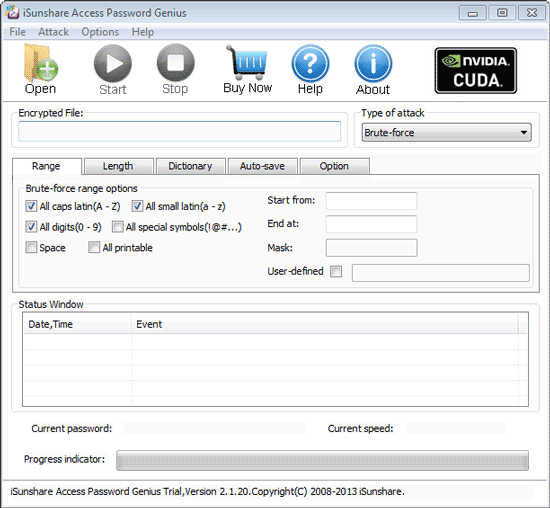
Tap on Open button after launching Access Password Genius, and browse computer to search encrypted Access 2016 database you want to remove password protection.
While you find it, select and click open button to import into Encrypted File box.
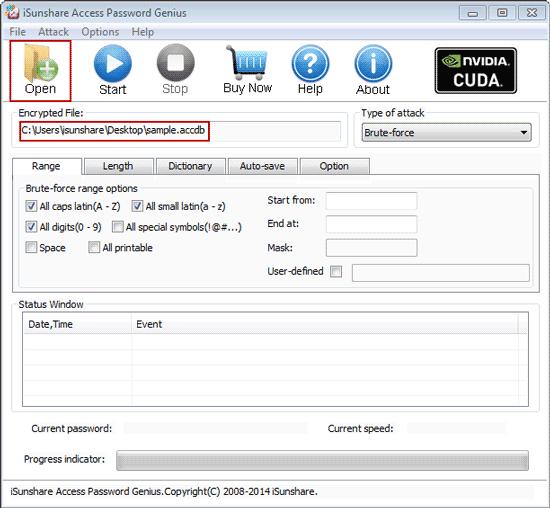
Step 3: Set password recovery options and recover Access 2016 database password.
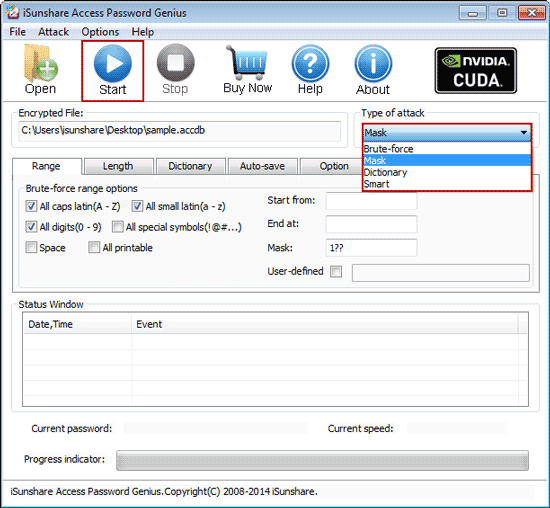
1. Click Type of attack and select one appropriate password attack type from drop-down list.
2. Under "Type of attack", set different kinds of password recovery options, including password range, length, Mask, Dictionary path etc. Surely not all of them just only password attack type related options are needed to set.
3. Tap on Start button to begin recovering Access 2016 database password.
If there is no settings wrong above, instantly imported Access 2016 database password will be recovered successfully, about few seconds later.
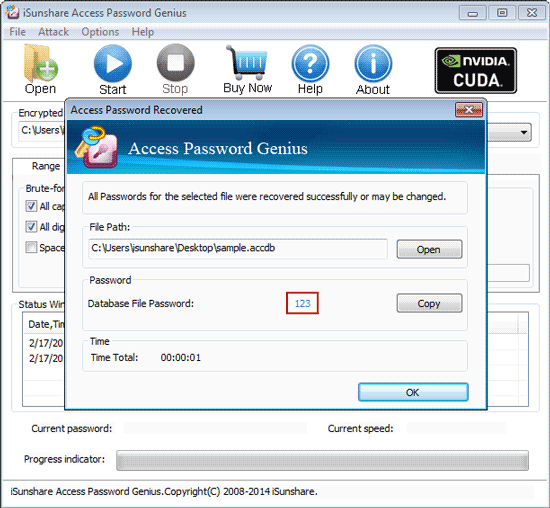
On pop-up dialog with Access 2016 database password, click Copy and Open button, and you can open Access 2016 database password with recovered password.
However, if you remove password protection from Access 2016 database right now when you open it, it would be failed. Only Access database is open with Open Exclusive mode, can you successfully remove database password or unset access database password.
So the right way to remove Access 2016 database password protection should be like this.
1. Copy and save access database password after recovering with Access Password Genius.
2. Run Access 2016 and click File > Open > Browse to search encrypted access 2016 database on computer.
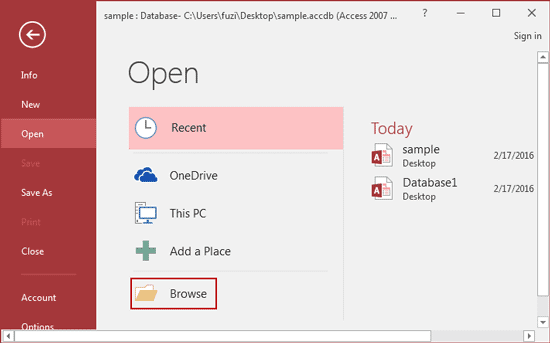
3. Select access 2016 database and open mode Open Exclusive in Open window.
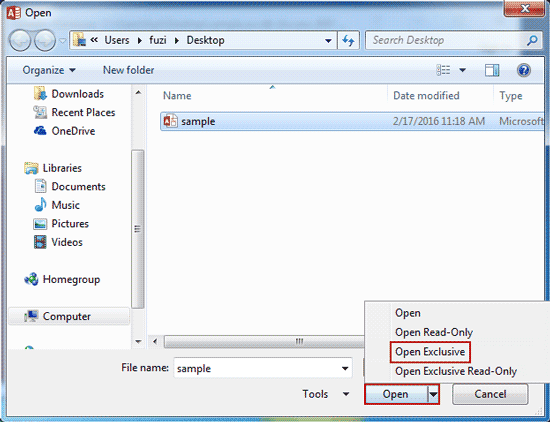
4. Type recovered password while Access 2016 asks.

5. Click File > Info > Decrypt Database, and type recovered password again on Unset Database Password dialog and click OK.
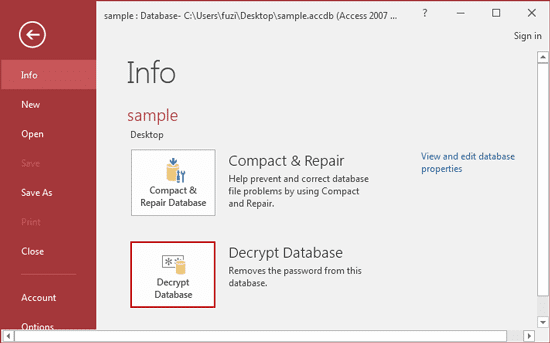
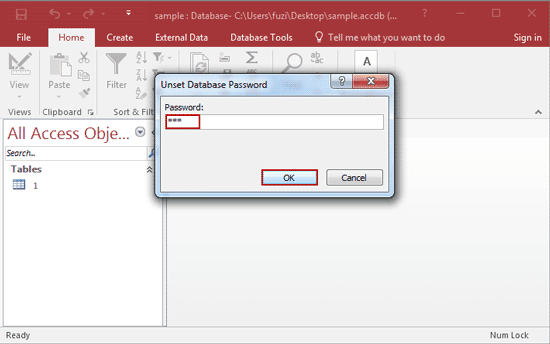
If there is no message prompting you, it means that you have successfully removed password from Access 2016 database.
Tips:
It is worth mentioning that, Access Password Genius also helps to recover Access 2013/2010/2007/2003 database password. So if you want to remove password protection from Access 2003-2016 database, no matter it is .mdb or .accdb file, you could use Access Password Genius.
Related Articles:
- How to Open Password Protected Access Database without Password
- How to Open Password Protected Excel Worksheets without Password
- Could I Open Encrypted Outlook Data File without Password
- Failed to Encrypt or Decrypt Access 2007-2016 Database
Go to link Download
Thursday, November 3, 2016
How to Open Password Protected Access Database without Password
How to Open Password Protected Access Database without Password
In order to protect data in Access Database, setting password for database seems to be common. But something would not always be inevitable, such as access database password lost or forgotten. If it really happens, how can we open password protected access database?
Having browsed and searched password recovery tool for encrypted access database, we have found a tool worth to be tried to recover access database password.
iSunshare Access Password Genius is such password recovery tool. Just need to import password protected access database file into Access Password Genius, and select suitable password attack type, and then click ÒStartÓ button. Lost or forgotten access file password would be found. Now, with access password in hand, whether opening password protected access database becomes easy? Take a try, you would find.
So go on following to get detailed introductions about access password recovery with Access Password Genius.
The advantage of this way is convenient, effective and easy-to-use. Just access password recovery software is enough for access database file. And the software full version guarantees different kinds of access forgotten password could be recovered.
After the software is installed and run successfully on your computer, click "Open" button on program screen to browse and import access database file with password protection.


Having browsed and searched password recovery tool for encrypted access database, we have found a tool worth to be tried to recover access database password.
iSunshare Access Password Genius is such password recovery tool. Just need to import password protected access database file into Access Password Genius, and select suitable password attack type, and then click ÒStartÓ button. Lost or forgotten access file password would be found. Now, with access password in hand, whether opening password protected access database becomes easy? Take a try, you would find.
So go on following to get detailed introductions about access password recovery with Access Password Genius.
1. Install Access Password Genius full version on your computer and run it.
The advantage of this way is convenient, effective and easy-to-use. Just access password recovery software is enough for access database file. And the software full version guarantees different kinds of access forgotten password could be recovered.
2. Import the access database file into password recovery program.
After the software is installed and run successfully on your computer, click "Open" button on program screen to browse and import access database file with password protection.
3. Select password attack method for access password recovery.
Four different kinds of password attack methods are provided in this software, Brute-force, Mask, Dictionary and Smart. Which one should be chosen based on what have been known about access password. For example:
- If part of access password is still remembered, select Mask attack please, and set "Mask" parameter for it.

- If having no idea about forgotten access password, Brute-force is suggested. Set password length and password range for it in purpose of reducing password recovery time.
4. Recover access database file password.
No matter imported access database file is MDB file or ACCDB file, click "Start" button and wait for access database file password being recovered.

Is it easy or effective enough? Believe the truth you see. Maybe there are other questions you want to know about access password recovery or Access Password Genius, now please go to following references to find answers.
- FAQ about Access Password Genius
- Video about How to Crack Access MDB/ACCDB File Password
- How to Import External Data into Access 2013 App or DesktopDatabase
Go to link Download
Thursday, October 13, 2016
SQL Database Password Recovery with SQL Password Genius
SQL Database Password Recovery with SQL Password Genius
Forgot SQL database open password, how to recover SQL Server database password? Now get one powerful password recovery tool for SQL database password recovery.
SQL Password Genius is one of the powerful tools to recover SQL password. With one in your hand, you would donÕt need to worry about that whether SQL database user password could be recovered.
Step 1: Download and install SQL Password Genius
1. Turn to www.isunshare.com or search ÒSQL Password GeniusÓ on Google, you would find SQL Password Genius. Download trial version or purchase full version. But please pay attention to this only full version could recover all user passwords for locked SQL database.
2. Double-click program you have gotten, and install it like other programs on your computer, such as on server, PC or laptop, generally where SQL database file is.
Step 2: Recover SQL Server Database Password.
1. Find SQL Server database file in computer. Click ÒOpen FileÓ button on program and look for SQL database file. Generally, it is located at C:Program FilesMicrosoft SQL ServerMSSQL.1MSSQLData
When find it, click ÒOpenÓ button to import it into SQL Password Genius.
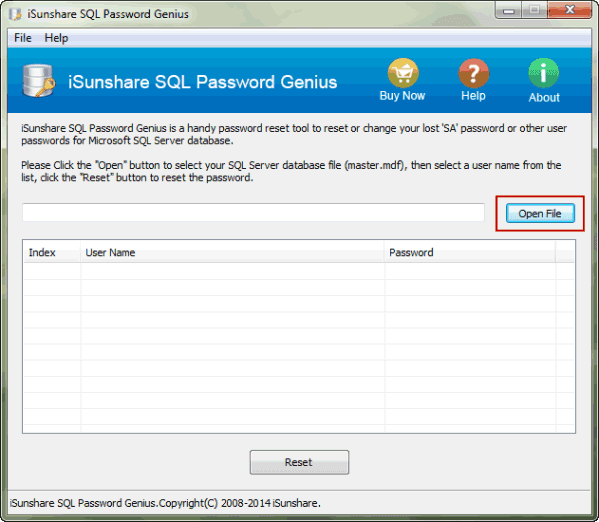
2. Choose database user whose password is unknown.
2. Choose database user whose password is unknown.
When SQL database is imported into SQL Password Genius, all the users for database are listed. And their password status is shown there. If the user password status is ÒUnknownÓ, select the user and click ÒResetÓ button. For example, if SA password is unknown, select ÒsaÓ account.
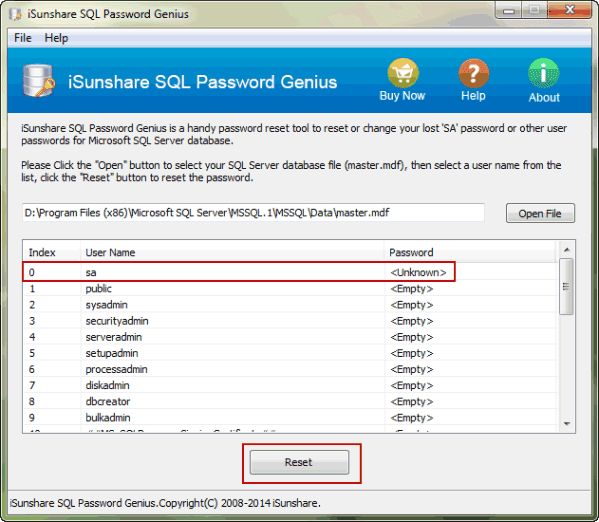
3. Recover a new password for database user.
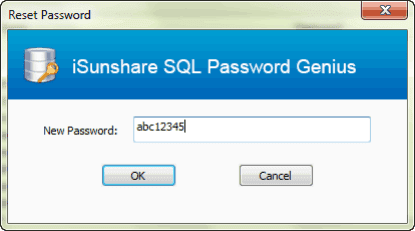
Type new password for user in pop-up dialog, click ÒOKÓ and instantly a message ÒPassword successfully changedÓ prompts you SQL database password recovered successfully.
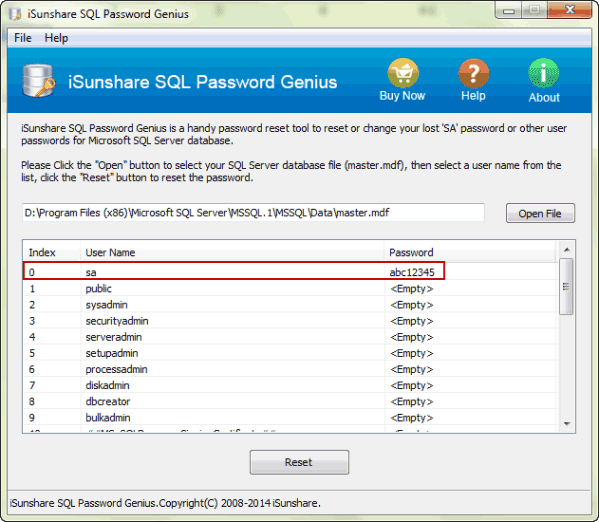
After SQL password recovery, exit SQL Password Genius and then restart SQL Server Services, because SQL Server Services has been stopped when SQL Password Genius is running.
Tips: How to Start/Stop/Pause/Restart SQL Server Service
But SQL Server Services needs to be started if we want to access SQL Server. So restart it in SQL Server Configuration Management. And then start SQL Server and login into it with SA user and new password.
Related Articles:
3. Recover a new password for database user.
Type new password for user in pop-up dialog, click ÒOKÓ and instantly a message ÒPassword successfully changedÓ prompts you SQL database password recovered successfully.
Step 3: Restart SQL Server Services and access SQL database.
After SQL password recovery, exit SQL Password Genius and then restart SQL Server Services, because SQL Server Services has been stopped when SQL Password Genius is running.
Tips: How to Start/Stop/Pause/Restart SQL Server Service
But SQL Server Services needs to be started if we want to access SQL Server. So restart it in SQL Server Configuration Management. And then start SQL Server and login into it with SA user and new password.
Related Articles:
- Transaction and Commands for SA Account and Password in SQL Server
- Dell PC Locked Out of Windows 8 Ð Password Recovery without Administrator
- Windows Server 2012 R2 Activation Key Recovery Finder
- Password Utility/Genius for Windows server Password Recovery
Go to link Download
Subscribe to:
Posts (Atom)