Showing posts with label reinstall. Show all posts
Showing posts with label reinstall. Show all posts
Friday, May 5, 2017
How to Reinstall Office without Disk or Product Key
How to Reinstall Office without Disk or Product Key
After we buy a new computer, besides Windows installation, there are still other programs having to be installed on new computer, such as common Microsoft Office. Almost all of computer users use it to work or write something, or do with data. But unfortunately, we always encounter some problems when we prepare to install full version of Microsoft Office. How to reinstall Office successfully becomes a new problem for us after we get new computer and Windows system.
We can discuss this problem on three occasions:
- How to reinstall Office without disk
- How to reinstall Office without product key
- How to reinstall Office without disk and product key
1. How to reinstall Office on new computer without disk
Maybe you have purchased Microsoft Office at a store or from the web, or it has come with your PC. You are given a 25-digit Microsoft Office product key. It is very important to keep the product key in safe place or write it down.
But now you lost or misplaced your Microsoft Office Disc even though you have product key. So you are unable to reinstall Office on your new computer.
Actually, at this time, you just need a personal computer and an internet connection, and you can go to Microsoft Office download page to choose the right version of Microsoft Office for you.
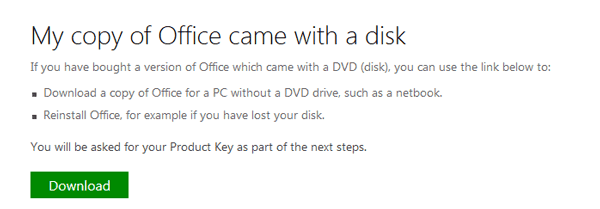
Step 1: Click on the green Download button under the main heading "My copy of Office came with a disk".
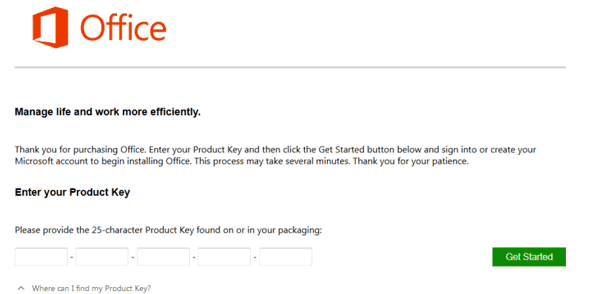
Step 2: Type in product key in the product key box.
2. How to reinstall Office without product key
When you have purchased Microsoft Office, there would be Office product key for you. But now Office product key has been lost and only Microsoft Office disc is saved in computer. How to reinstall Office on another new computer?
At this moment, the main step is to find out Office product key. According to the previous installation of Office in your old computer, you could find its product key with software, iSunshare Product Key Finder.
Step 1: Run Product Key Finder on your old computer. And click ÒStart RecoveryÓ to recover product keys for programs installing on computer now.
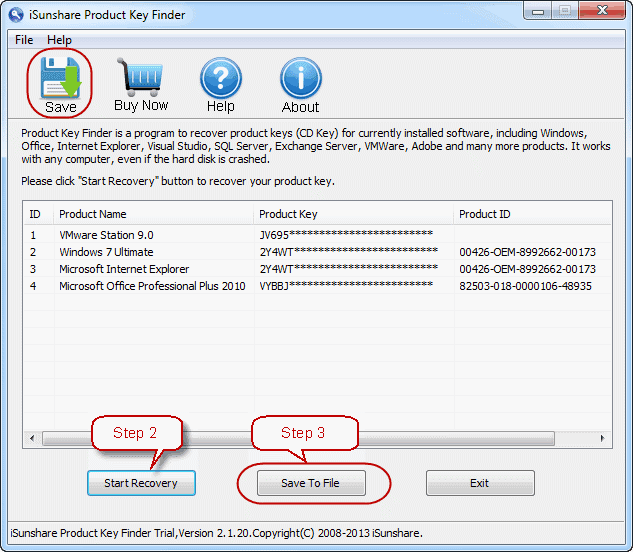
Save Office product key to a text file after all the product keys appear in software window.
Save Office product key to a text file after all the product keys appear in software window.
Step 2: Install Microsoft Office on new computer and type in product key just found to complete Office reinstallation.
Tips: How to Reinstall Microsoft Office without Product Key
Tips: How to Reinstall Microsoft Office without Product Key
3. How to reinstall Office without disc and product key
From the above introductions on two different situations, we can know if you donÕt have Office disk, you can download it from:
http://office.microsoft.com/en-gb/products/download-backup-restore-microsoft-office-products-FX103427465.aspx
If you have lost Office product key, Product Key Finder could help you find it out on your old computer.
After all Office disk and product key has been prepared, begin to reinstall Office on your new computer.Related articles:
- How to activate Office 2013 without product key
- What matters needed attention if reinstall Windows 7 after forgot password
- Find Lost Windows/Office Product Key easily with one click
- How to Find Windows 8.1 Activation Key
Go to link Download

Monday, January 9, 2017
How to Reinstall Microsoft Office without Product Key
How to Reinstall Microsoft Office without Product Key
After installing some software, such as Microsoft Office, we always think everything has been OK and probably donÕt save its product key. So when we want to reinstall Microsoft Office again on another computer, we find we have forgotten or lost office product key. Can we install it again? How to reinstall Office without product key?
For these series problems, I think what we have to solve is tofind Office product key. Once we find it out, everything will be OK. And there is just such a tool designed for this function. iSunshare Product Key Finder is an easy and effective product key finder tool. With it, only two clicks and few seconds are needed. Now follow me to learn how it does these.
1. Download iSunshare Product Key Finder.
Search Òisunshare product key finderÓ on Google, and you will find this software. Click the link and download it from website. And this is trial version, only finding part of product key. If you want to get all product keys, you should get product key finder full version.
2. Install it on the computer you have installed Microsoft Office.
Attention:
Only you install it on the computer you have installed Microsoft Office, could you find product key for Office.
3. Run it and click ÒStart RecoveryÓ.
After you run product key finder, you will find there are only three buttons at the bottom of software screen. And only one really does work for finding product key, ÒStart RecoveryÓ. Click it, and the tool will work. Few seconds later, product keys for Windows, Office, IE, VMWare Station etc will appear in a form of product key finder software screen.
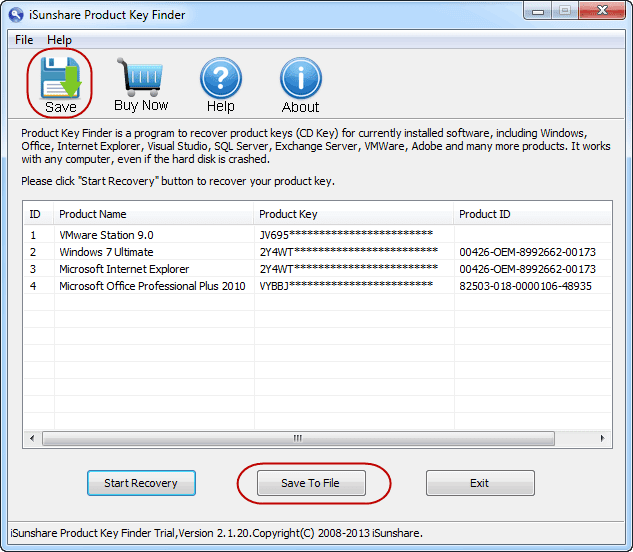
4. Click ÒSave to FileÓ or ÒSaveÓ menu to save product keys.
When the above works are finished, Microsoft Office product key has been found. Now you can prepare to reinstall Microsoft Office on another computer.
Related Articles:
- Windows 7 Ultimate product finder
- How to recover Windows server 2012 product key
- Find Lost Windows/Office Product Key easily with one click
- Tips on Office password encryption and decryption
Go to link Download
Subscribe to:
Posts (Atom)