Showing posts with label product. Show all posts
Showing posts with label product. Show all posts
Thursday, May 11, 2017
How to Activate Office 2013 without Product Key
How to Activate Office 2013 without Product Key
 No matter this is your first time or second time to install Microsoft Office 2013, without product key, how to activate Office 2013?
As we all know, Microsoft 2013 has two editions, VOL and Retail. The VOL edition is also called batch authorized version. The other is Retail edition, which is provided in computer shop with Office installation CD. And there are several benefits if you get Office 2013 VOL edition. For example, one key of VOL edition could activate a lot of computers through KMS server, while one key of Retail only activates a computer installed with Office 2013 by calling Microsoft service during installation. You would find Office 2013 VOL is convenient than Retail edition to activate.
So when we get ready to activate Office Professional 2013, we have to know which edition our computer is installed with.
Maybe you know that when we want to see the product version, we just need to open ÒFileÓ Ð ÒAccountsÓ, and you will find product information showing product version. But this does not applies to Office 2013. No matter how many times you try, you could only see Microsoft Office Professional Plus 2013. So how to look for what Office 2013 Edition is on your computer?
Step 1: Confirm Office 2013 Edition on Computer
After you access Windows 8 computer, run CMD with administrator or account with admin privileges. Turn to installation directory of Office, and type command: cscript ospp.vbs /dstatus
If what you see is ÒLICENSE DESCRIPTION: Office 15, RETAIL(Grace) channel, it means your computer is installed with Retail edition, otherwise, it will show ÒLICENSE DESCRIPTION: Office 15, VOLUME_KMSCLIENT channel to let you know this is Office 2013 VOL edition.
If what you see is ÒLICENSE DESCRIPTION: Office 15, RETAIL(Grace) channel, it means your computer is installed with Retail edition, otherwise, it will show ÒLICENSE DESCRIPTION: Office 15, VOLUME_KMSCLIENT channel to let you know this is Office 2013 VOL edition.
When you have understood which edition your computer Office is, activation will become easy. But you have to make sure Windows 8 has been activated before you active Office 2013. Because Office 2013 Retail is activated by call, so now I mainly introduce how to activate Office 2013 VOL with KMS.

However, if now the KMS server couldnÕt work, take Microsoft Toolkit to activate Microsoft Office 2013.
However, if now the KMS server couldnÕt work, take Microsoft Toolkit to activate Microsoft Office 2013.
Step 2: Activate Office 2013 VOL with Toolkit
- Get Microsoft Toolkit first.
Download here: http://goo.gl/bfl56m - After Microsoft Office 2013 installation, run Microsoft Toolkit.

ERROR CODE: 0x4004F00C
ERROR DESCRIPTION: The Software Licensing Service reported that the application is running within the valid grace period.
Even though they are error message prompting you, actually Office 2013 is activated successfully. Now you can try to run Office 2013 and experience function on it.

The above activation method is used when you first install Microsoft Office really without product key. When you want to install it on another computer, it is an available way too.
But besides this, there is another effective and guaranteed tool for you to find out product key after you forget or lost Office product key. And then activate Office with forgotten product key. It is called Product Key Finder. You dont need to know anything about command or complex programs. Just get product key finder and click one button to find product key.
Related Articles:
- Office 2013 Product Key Finder
- Find Lost Windows/Office Product Key easily with one click
- How to Find Windows 8.1 Activation Key
Go to link Download

Friday, May 5, 2017
How to Reinstall Office without Disk or Product Key
How to Reinstall Office without Disk or Product Key
After we buy a new computer, besides Windows installation, there are still other programs having to be installed on new computer, such as common Microsoft Office. Almost all of computer users use it to work or write something, or do with data. But unfortunately, we always encounter some problems when we prepare to install full version of Microsoft Office. How to reinstall Office successfully becomes a new problem for us after we get new computer and Windows system.
We can discuss this problem on three occasions:
- How to reinstall Office without disk
- How to reinstall Office without product key
- How to reinstall Office without disk and product key
1. How to reinstall Office on new computer without disk
Maybe you have purchased Microsoft Office at a store or from the web, or it has come with your PC. You are given a 25-digit Microsoft Office product key. It is very important to keep the product key in safe place or write it down.
But now you lost or misplaced your Microsoft Office Disc even though you have product key. So you are unable to reinstall Office on your new computer.
Actually, at this time, you just need a personal computer and an internet connection, and you can go to Microsoft Office download page to choose the right version of Microsoft Office for you.
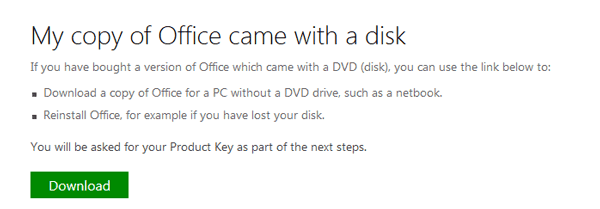
Step 1: Click on the green Download button under the main heading "My copy of Office came with a disk".
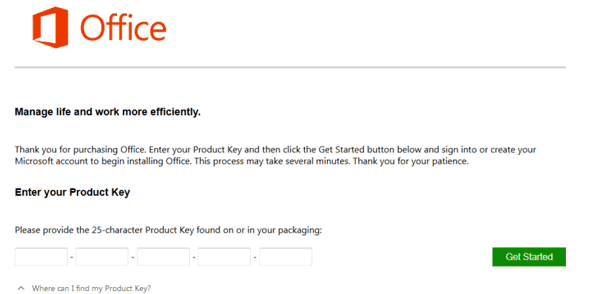
Step 2: Type in product key in the product key box.
2. How to reinstall Office without product key
When you have purchased Microsoft Office, there would be Office product key for you. But now Office product key has been lost and only Microsoft Office disc is saved in computer. How to reinstall Office on another new computer?
At this moment, the main step is to find out Office product key. According to the previous installation of Office in your old computer, you could find its product key with software, iSunshare Product Key Finder.
Step 1: Run Product Key Finder on your old computer. And click ÒStart RecoveryÓ to recover product keys for programs installing on computer now.
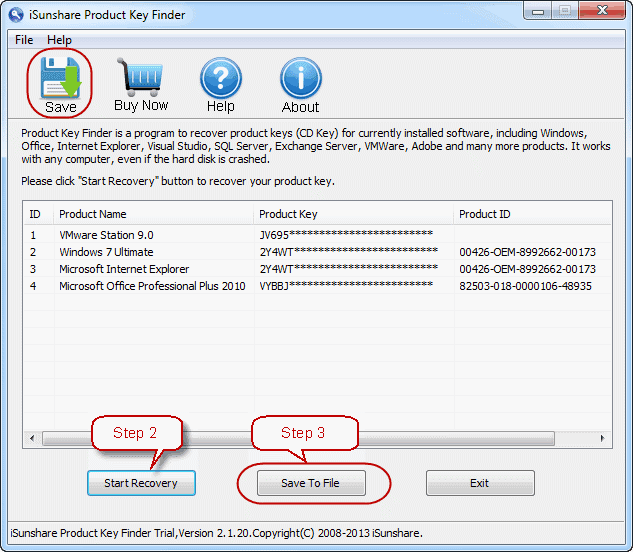
Save Office product key to a text file after all the product keys appear in software window.
Save Office product key to a text file after all the product keys appear in software window.
Step 2: Install Microsoft Office on new computer and type in product key just found to complete Office reinstallation.
Tips: How to Reinstall Microsoft Office without Product Key
Tips: How to Reinstall Microsoft Office without Product Key
3. How to reinstall Office without disc and product key
From the above introductions on two different situations, we can know if you donÕt have Office disk, you can download it from:
http://office.microsoft.com/en-gb/products/download-backup-restore-microsoft-office-products-FX103427465.aspx
If you have lost Office product key, Product Key Finder could help you find it out on your old computer.
After all Office disk and product key has been prepared, begin to reinstall Office on your new computer.Related articles:
- How to activate Office 2013 without product key
- What matters needed attention if reinstall Windows 7 after forgot password
- Find Lost Windows/Office Product Key easily with one click
- How to Find Windows 8.1 Activation Key
Go to link Download
Monday, May 1, 2017
How to Activate Windows 8 Pro without Product Key
How to Activate Windows 8 Pro without Product Key
When Windows 8 releases, I got Windows 8 to have a try on VMware Workstation. And I activated it with KMS. But now Windows 8 has become not activated because time is up.
You could see the details in PC info.
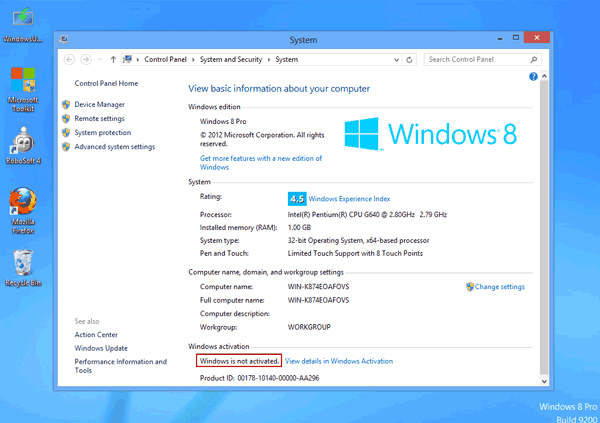
At this time, we could choose to activate Windows 8 with key directly. Or if we donÕt have key, letÕs learn to activate Windows 8 with Microsoft Toolkit like the following introductions.
1. Find and download appropriate Microsoft Toolkit.
Here we get Microsoft Toolkit 2.4.8, which is available for Windows 8.1/8/7/Vista and Windows server 2008/2012 (R2).
2. Run Microsoft Toolkit as administrator in Windows 8 virtual machine.
Microsoft Toolkit could activate Windows and Office without product key. Now we choose Windows system to activate.
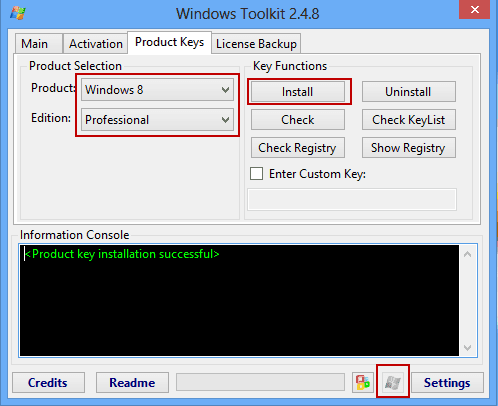
3. In "Product Keys" option, select Windows system type and version in "Product" and "Edition". And then click "Install" button.
4. When product key has been installed successfully, click "Activate" button to make Windows 8 pro activated.
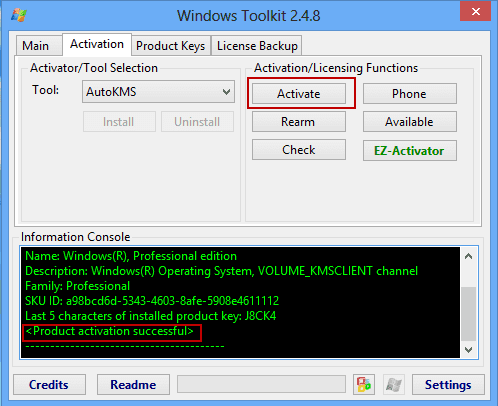
Few seconds later, message "Product activation successful" would appear in Information Console box at the bottom side of Microsoft Toolkit program window. Windows 8 has been activated at this time.
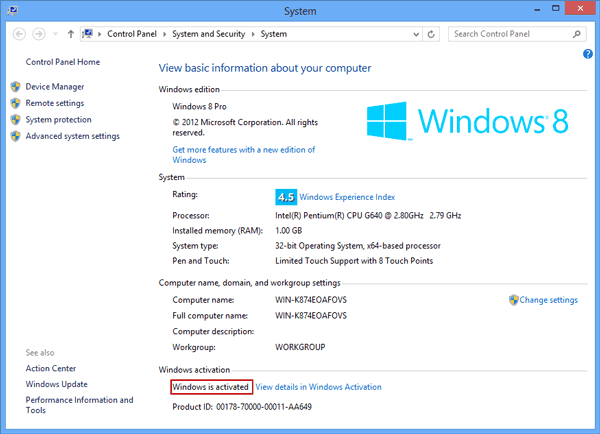
Now, if you open PC info, you could see Windows has been activated.
Related Passages:
Related Passages:
- How to Activate Office 2013 without Product Key
- How to Find Windows 8.1 Activation Key
- How to Factory Reset Windows 8 without Password
- Windows Server 2012 R2 Activation Key Finder
- Four Ways to Create Windows 8 Logon Password and How to Use
Go to link Download
Wednesday, February 22, 2017

Monday, January 9, 2017
How to Reinstall Microsoft Office without Product Key
How to Reinstall Microsoft Office without Product Key
After installing some software, such as Microsoft Office, we always think everything has been OK and probably donÕt save its product key. So when we want to reinstall Microsoft Office again on another computer, we find we have forgotten or lost office product key. Can we install it again? How to reinstall Office without product key?
For these series problems, I think what we have to solve is tofind Office product key. Once we find it out, everything will be OK. And there is just such a tool designed for this function. iSunshare Product Key Finder is an easy and effective product key finder tool. With it, only two clicks and few seconds are needed. Now follow me to learn how it does these.
1. Download iSunshare Product Key Finder.
Search Òisunshare product key finderÓ on Google, and you will find this software. Click the link and download it from website. And this is trial version, only finding part of product key. If you want to get all product keys, you should get product key finder full version.
2. Install it on the computer you have installed Microsoft Office.
Attention:
Only you install it on the computer you have installed Microsoft Office, could you find product key for Office.
3. Run it and click ÒStart RecoveryÓ.
After you run product key finder, you will find there are only three buttons at the bottom of software screen. And only one really does work for finding product key, ÒStart RecoveryÓ. Click it, and the tool will work. Few seconds later, product keys for Windows, Office, IE, VMWare Station etc will appear in a form of product key finder software screen.
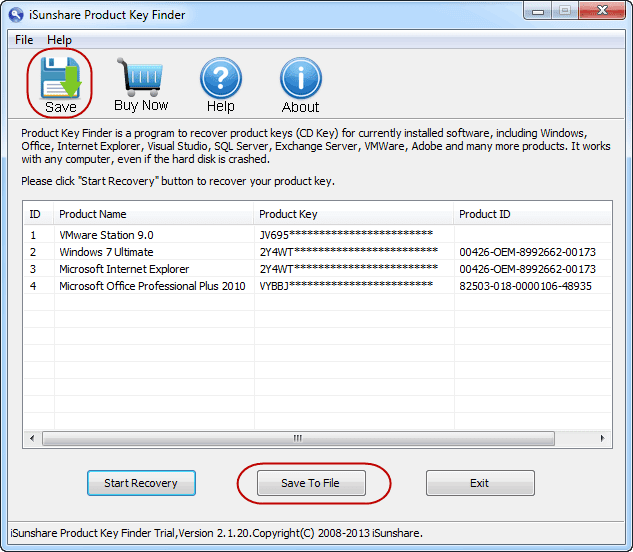
4. Click ÒSave to FileÓ or ÒSaveÓ menu to save product keys.
When the above works are finished, Microsoft Office product key has been found. Now you can prepare to reinstall Microsoft Office on another computer.
Related Articles:
- Windows 7 Ultimate product finder
- How to recover Windows server 2012 product key
- Find Lost Windows/Office Product Key easily with one click
- Tips on Office password encryption and decryption
Go to link Download
Thursday, December 22, 2016
How to Recover Your Windows 8 7 Product Key on Lenovo Laptop
How to Recover Your Windows 8 7 Product Key on Lenovo Laptop
I have ever installed Windows 7 and Windows 8 on my Lenovo laptop, and now I want to reinstall them because I want to get fresh Windows system. But unfortunately, I couldnÕt find Windows 7 and Windows 8 product key on my computer or other places. How can I find Windows 8/7 product key easily and quickly?
The easiest way probably is to recover Windows 8/7 product key with product key finder. Product key finder tool reads Windows registry file and load Windows cd-key from it. With product key finder, forgotten or lost product keys could be found out instantly. While if you find keys by yourself, more time would probably be wasted or Windows product key could not be found at last. But with Product Key Finder tool, the installation or activation keys of programs Microsoft Office, IE, SQL Server etc would be found too.
Start to recover Windows product key on Lenovo laptop following the below steps and introduction.
Step 1: Download and install iSunshare product key finder.
Search ÒiSunshare product key finderÓ in the Google search box. You would find it appearing in the first place of results. Open it and download product key finder trial version.
Double-click to install it on your Lenovo laptop. But we have to notice that the trial version only finds part of product key for Windows 8/7. If we want to see all of product keys, full version is necessary.
Double-click to install it on your Lenovo laptop. But we have to notice that the trial version only finds part of product key for Windows 8/7. If we want to see all of product keys, full version is necessary.

Step 2: Run it and recover product key
Run product key finder on Lenovo laptop, click ÒStart RecoveryÓ to recover product key for Windows 8/7 and other programs.
Few seconds later, all the product keys will be listed in the software window, including Windows 8/7. But only part of them will be found if you use product key finder trial version.
Few seconds later, all the product keys will be listed in the software window, including Windows 8/7. But only part of them will be found if you use product key finder trial version.

Step 3: Save Windows 8/7 product key
After Windows and other software product keys are found, you can click ÒSave to FileÓ or ÒSaveÓ button to make a backup for them. Keep it stored safely and you will find it afterwards when you want it.
Taking Product Key Finder, Only with three steps, actually two steps, you will find out product key for Windows 8/7 and other programs.
Related posts:
- How to Recover Windows Server 2012 Product Key
- How to Find Windows Server 2008 R2 Product Key
- Lost MS Word 2010 Product Key - How to Recover
- Office 2013 Product Key Finder
Go to link Download
Subscribe to:
Posts (Atom)