Showing posts with label disk. Show all posts
Showing posts with label disk. Show all posts
Monday, May 29, 2017
How to Change Admin Account with Windows 8 Disk
How to Change Admin Account with Windows 8 Disk
We all know that we could change admin account in Control Panel via User Account Control. But if we couldnÕt access Windows 8 computer, how should we go to Control Panel and change administrator? Now this article will introduce how to change admin account with Windows 8 disk.
Maybe installation disk or recovery disk help. But here we take easy Windows 8 password reset disk into practice.
One: Change Admin Account with Created Password Reset Disk
This reset disk is created before Windows 8 computer is locked. So in Windows 8 logon screen, after you type wrong password and see a message link ÒReset PasswordÓ, click it and follow the instructions.

- Windows password reset wizard appears. Click next and insert password reset disk into computer, and click next again.
- Choose inserted reset disk as password reset key from the drop-down box.
- Click Next and type new password for forgotten user account. Or you can let it blank and click Next to finish Windows 8 password reset.
- Reboot computer and login Windows 8 with admin account which just has been reset password.
- Start the MS Explorer and enter in the address bar enter the address:
Control PanelAll Control Panel ItemsUser AccountsManage Accounts
Or you can open Windows 8 Control Panel and click on (open) Manage accounts. - Click the text ÒChange the account typeÓ in the Window ÒChange an AccountÓ.
- Change Account type to the Administrator. Or change an admin account to Standard User.
Besides, in Control Panel, you can change or remove admin account password or delete/add new administrator.
Two: Change Admin Account with Burned Password Reset Disk
This password reset disk is burned with Windows password recovery tool. Please see here learn how to create Windows password reset disk.
1. Plug password reset disk into Windows 8 locked computer.
2. Boot computer from reset disk.
Password reset disk can be burned with bootable USB or CD/DVD ROM, so you should set computer boot from USB or boot from CD ROM.
3. When computer boots from disk successfully, password recovery program runs too.
Select Windows system and user account. And then click ÒReset PasswordÓ to let forgotten account password be blank.
4. Eject disk and reboot Windows 8 computer.
5. Sign in to Windows 8 without any password. Press Windows + R and command control.exe nusrmgr.cpl and click on the text ÒManage another accountÓ.
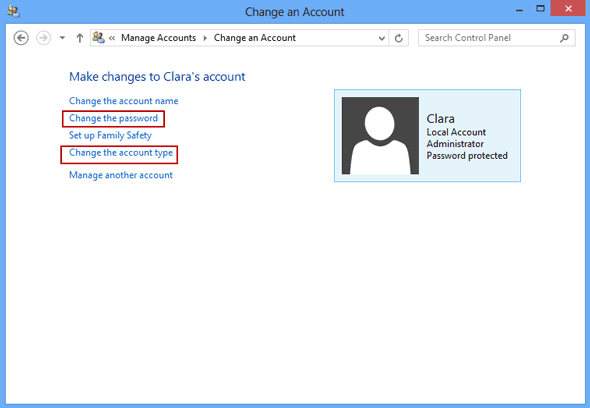
6. Choose an administrator and click ÒChange the account typeÓ or "Change the password" in new pop-up window.
6. Choose an administrator and click ÒChange the account typeÓ or "Change the password" in new pop-up window.
The last step is to change its account type to Standard user. Or do other things for it, such as ÒChange the passwordÓ, ÒCreate a passwordÓ, ÒChange the account nameÓ or ÒDelete the accountÓ.
With the ways provided above, we can change user account type including change admin account in Windows 8 computer.
Tips:
How to create or get a Windows 8 password reset disk?
Actually, Windows 8 password reset disk can be created by two ways. The first way is create it in in Control Panel when you can access computer. The second way is burn it with Windows password recovery tool.
Without disk, how to change admin account or its password? Turn to see this article.
How to reset Windows 8 password without disk
When you forgot Windows Vista password and no installation CD image and password reset disk are available, how should you do to reset forgotten Windows password?
From the beginning of Windows password recovery, password reset disk and convenient installation CD are computer usersÕ favorite tools to recover forgotten or lost Windows login or admin password. But now, you donÕt have them longer. As soon as you are complaining about this, you have to thank for this chance, which makes you find another more effective ways to reset Windows Vista password Ð Windows password recovery tool.
Now, in this passage, we mainly talk about two tools for Windows Vista password recovery.
1. Offline NT Password Registry Editor - Old and Freeware Program
2. Windows Password Genius - Easy and Effective Program
1. Offline NT Password Registry Editor - Old and Freeware Program
2. Windows Password Genius - Easy and Effective Program
1. Offline NT Password and Registry Editor Ð Old and Freeware Program
Offline NT Password and Registry is a utility to reset password of any user that has a valid local account on Windows system from NT3.5 to Win7, including Windows Vista. You do not need to know the old password to set a new one. It works offline, that is, you have to shut down your computer and boot off a CD or USB disk to do the password reset.
Step 1: Get Offline NT Password and Registry Editor.
Just get password reset CD/USB boot disk Ð Offline Windows Password and Registry Editor
Step 2: Insert the CD and convince your BIOS that should boot from it.
Step 2: Insert the CD and convince your BIOS that should boot from it.
You will see Windows Vista computer boots and outputs a lot of kernel messages about your hardware and such.
Tip: How to set computer boot from CD/DVD ROM
Step 3: Select disk where the Windows installation is.
Here we only have one partition, so we just press Enter to select it.

Step 4: Select PATH and registry files.

The registry is usually system32/config under WINDOWS or WINNT directory, depending on the windows version (and it may be changed during installation).
If the correct partition has been selected, the default prompt will be adjusted to match if it can find one of the usual variants.
And the select which part of registry to load, use predefined choices or list the files with space as delimiter.

Choice 1 is for password edit, most used. So now just press Enter to select it.
Step 5: Password or registry edit.
After we choose password reset, chntpw runs and its main interactive menu appears.

Just select 1 to edit user data and passwords. But you can also do other things.
And then that will list user info and passwords. Choose user you want to reset its password and go on.
About details on how Chntpw disk reset Windows password, please turn to:
How to Reset Your Windows password without an install CD
2. Windows Password Genius Ð Easy and Effective Program
Does the first program help you? If not, go to see how this easy and effective program works. Compared to Offline NT Password and Registry, Windows Password Genius with user-friendly interface, becomes easier for Windows Vista user to use, and whose concise function design makes operation effective.
Step 1: Get Windows Password Genius to install on your available computer.
There are four versions of Windows Password Genius for you to choose. Except raid version, other three versions apply to Windows Vista computer. Now download Windows Password Genius Professional.
Step 2: Burn a Windows Password Reset Disk.
Step 2: Burn a Windows Password Reset Disk.
When it runs normally, insert bootable USB drive into available computer. And then choose media type Ð USB. At last, click ÒBegin burningÓ to create password reset disk. Few seconds later, a message ÒSuccessfully burningÓ will tell you password reset disk has been created.
Step 3: Set Windows Vista Computer Boot from USB.
Plug USB reset disk into Vista computer first. How to boot from USB various from computer make to computer make. Some BIOS shows a boot device select menu if you press ESC, F8, F11 or F12 or something like that during the self-test. Some even tell you on the screen what to press.
How to set computer boot from USB
Step 4: Reset Windows Vista Forgotten Password.
If it boots from USB reset disk, you should see this:

Select Windows Vista and user you have forgotten password. Click ÒReset PasswordÓ and ÒYesÓ to make sure remove its password.

The last step is to reboot locked Windows Vista computer, and exit USB drive during start-up. Now you will see you donÕt need to type any password to login Windows Vista.
Which one can help you in short time? Which one could reset Windows password even you have no knowledge about computer? Make a try, and you will know.
Which one can help you in short time? Which one could reset Windows password even you have no knowledge about computer? Make a try, and you will know.
Go to link Download

Friday, May 5, 2017
How to Reinstall Office without Disk or Product Key
How to Reinstall Office without Disk or Product Key
After we buy a new computer, besides Windows installation, there are still other programs having to be installed on new computer, such as common Microsoft Office. Almost all of computer users use it to work or write something, or do with data. But unfortunately, we always encounter some problems when we prepare to install full version of Microsoft Office. How to reinstall Office successfully becomes a new problem for us after we get new computer and Windows system.
We can discuss this problem on three occasions:
- How to reinstall Office without disk
- How to reinstall Office without product key
- How to reinstall Office without disk and product key
1. How to reinstall Office on new computer without disk
Maybe you have purchased Microsoft Office at a store or from the web, or it has come with your PC. You are given a 25-digit Microsoft Office product key. It is very important to keep the product key in safe place or write it down.
But now you lost or misplaced your Microsoft Office Disc even though you have product key. So you are unable to reinstall Office on your new computer.
Actually, at this time, you just need a personal computer and an internet connection, and you can go to Microsoft Office download page to choose the right version of Microsoft Office for you.
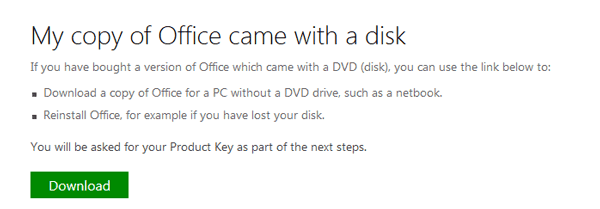
Step 1: Click on the green Download button under the main heading "My copy of Office came with a disk".
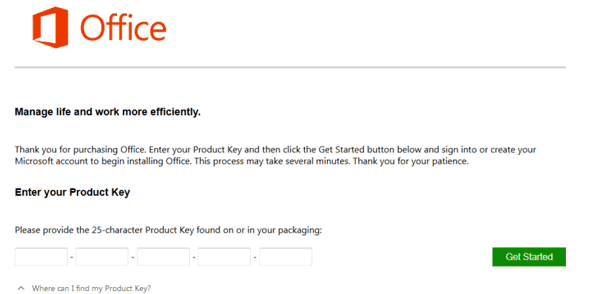
Step 2: Type in product key in the product key box.
2. How to reinstall Office without product key
When you have purchased Microsoft Office, there would be Office product key for you. But now Office product key has been lost and only Microsoft Office disc is saved in computer. How to reinstall Office on another new computer?
At this moment, the main step is to find out Office product key. According to the previous installation of Office in your old computer, you could find its product key with software, iSunshare Product Key Finder.
Step 1: Run Product Key Finder on your old computer. And click ÒStart RecoveryÓ to recover product keys for programs installing on computer now.
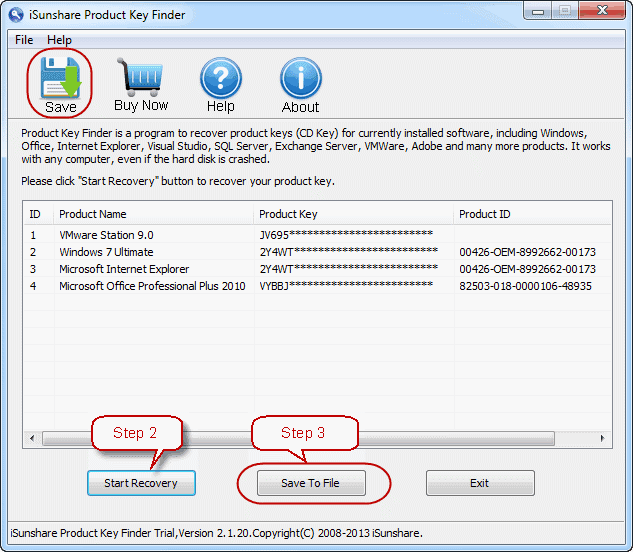
Save Office product key to a text file after all the product keys appear in software window.
Save Office product key to a text file after all the product keys appear in software window.
Step 2: Install Microsoft Office on new computer and type in product key just found to complete Office reinstallation.
Tips: How to Reinstall Microsoft Office without Product Key
Tips: How to Reinstall Microsoft Office without Product Key
3. How to reinstall Office without disc and product key
From the above introductions on two different situations, we can know if you donÕt have Office disk, you can download it from:
http://office.microsoft.com/en-gb/products/download-backup-restore-microsoft-office-products-FX103427465.aspx
If you have lost Office product key, Product Key Finder could help you find it out on your old computer.
After all Office disk and product key has been prepared, begin to reinstall Office on your new computer.Related articles:
- How to activate Office 2013 without product key
- What matters needed attention if reinstall Windows 7 after forgot password
- Find Lost Windows/Office Product Key easily with one click
- How to Find Windows 8.1 Activation Key
Go to link Download
Friday, April 28, 2017
How to Make a Boot Disk for Windows 7
How to Make a Boot Disk for Windows 7
I want to reinstall Windows 7 but no installation disk. How do I get or make Windows 7 boot disk free by myself?
For Windows 7, you could create Windows USB installation disk and Windows CD/DVD disk with Finalbooster. Finalbooster is powerful install tool, which could create Windows installation disk with ISO image file. And then you could boot computer from it and install Windows operational system on computer, such as Windows 8/7/Vista and Windows server 2012/2008.
So now create Windows 7 boot disk with Finalbooster in two ways, bootable USB drive and CD/DVD-ROM.
- Create Windows 7 Boot Disk with Bootable USB Drive
- Make a Boot Disk for Windows 7 with CD/DVD-ROM
Step 1: Get Finalbooster and install it on accessible computer.
Step 2: Run it after installation, you would see following in screen.
Step 2: Run it after installation, you would see following in screen.
- Select an ISO image file
- Burn ISO image file to CD/DVD disc
- Burn ISO image file to USB flash drive

Step 3: Click ÒBrowseÓ button to import Windows 7 ISO image file.
And then prepare bootable USB flash drive or CD/DVD-ROM and insert it into computer.
Step 4: Burn Windows 7 ISO image file into USB flash drive or CD/DVD-ROM.

1. Create Windows 7 boot disk with USB drive
1. Create Windows 7 boot disk with USB drive
After insert USB flash drive into computer, choose it from drop-down box of ÒBurn ISO image file to USB flash driveÓ. And then click ÒBurn to USBÓ.
2. Make a boot disk for Windows 7 with CD/DVD-ROM
After insert CD/DVD device into computer, select it from drop-down box of ÒBurn ISO image file to CD/DVD discÓ. And then click ÒBurn to CD/DVDÓ.
Step 5: When the Progressbar becomes full, it means ISO image file has been successfully burned into USB drive or CD/DVD-ROM.

The method of making Windows installation disk or boot disk above applies to Windows 7/8/Vista/2008/2012. And the most important is that you could burn Windows boot disk with Finalbooster free and easily. So donÕt worry about no Windows installation or boot disk.
Related Articles:
- Ways to Boot and Use HP Laptop Successfully if Lost Windows 7 Password
- How to Boot Dell Windows 7 Computer Successfully Forgot Password
- How to Get a Windows 7 Reset Disk without Access Ð Windows 7 Administrator Password Reset
- How to Reset Windows 7 Password with or without USB Disk
- How to Reset Windows Vista Password without CD or Reset Disk
- How to Change Admin Account with Windows 8 Disk
- Password Reset Disk Creation on Windows 8 or 8.1 PC
- Forgot Windows 8 Password No Reset Disk
- How to Reboot Computer If We Forgot Password in Windows 8
- What Matters Needed Attention if Reinstall Windows 7 after Forgot Password
Go to link Download
Wednesday, April 19, 2017
How to Reset Windows 7 Password with or without USB Disk
How to Reset Windows 7 Password with or without USB Disk
USB flash drive is usually used to create password reset disk, burn Windows installation disc, Windows recovery drive, which could reset Windows 7 password. So USB disk usually appears in Windows password reset. In this passage, we will talk about Windows 7 password reset with or without USB disk.
- Reset Windows 7 Password with USB Disk
- Reset Windows 7 Password without USB Disk
Part 1: How to Reset Windows 7 Password with USB Disk
- When you have USB disk with password reset disk, how to reset Windows 7 password?
- When you have USB disk with installation disc, how to remove Windows 7 password?
Option 1: Reset Windows 7 Password with USB Password Reset Disk
Password reset disk is common boot disk for Windows password reset, applying to Windows 8.1/8/7/Vista/XP and Windows server 2012/2008/2003/2000. And it is created in Control Panel or with Windows password recovery tool, such as Windows Password Genius.
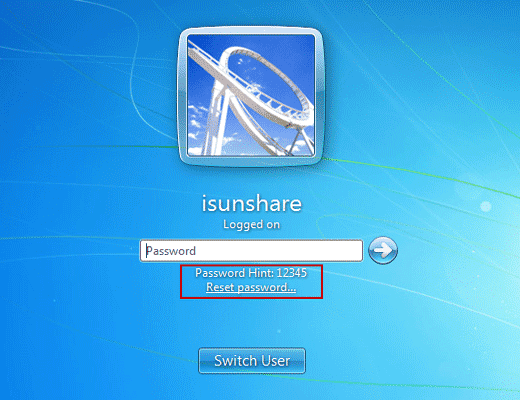
If it is created in Control Panel, just insert USB disk into your locked computer after you login Windows 7 failed. Click ÒReset PasswordÓ on Windows 7 logon screen, and Windows forgotten password reset wizard appears. Follow it and go on to set a new password for current user account.
If it is created with Windows password recovery tool, such as Windows Password Genius, you have to insert USB disk into locked Windows 7 computer. And set computer boot from USB disk. When Windows Password Genius program runs in WinPE environment, select Windows 7 system and user account to ÒReset PasswordÓ. This password recovery tool would remove forgotten Windows 7 user password.
If it is created with Windows password recovery tool, such as Windows Password Genius, you have to insert USB disk into locked Windows 7 computer. And set computer boot from USB disk. When Windows Password Genius program runs in WinPE environment, select Windows 7 system and user account to ÒReset PasswordÓ. This password recovery tool would remove forgotten Windows 7 user password.
Option 2: Reset Windows 7 Password with USB installation disk
Installation disc is used to reinstall Windows 7 or repair Windows 7, in order to remove forgotten Windows 7 password. So make sure important data has been back up previously.
- Boot from Windows 7 DVD or USB Device.
Insert Windows 7 USB installation disk into computer. And hold on pressing Del key. - Wait for Windows 7 Installation Files to Load
- Wait for Windows 7 Setup to Finish Loading
- Choose Language and Other Preferences
- Click the Install Now Button.
- Wait for Windows 7 Setup to Begin
- Accept the Windows 7 License Terms
- Choose the Type of Windows 7 Installation to Complete
- Show the Windows 7 Advanced Drive Options
- Delete the Partition Windows is installed on
- Confirm the Partition Deletion
- Delete Other Operating System Related Partitions
- Confirm Additional Partition Deletions
- Choose a Physical Location to Install Windows 7 On
After it completes successfully, you will get Windows 7 clean install. Previous Windows 7 password has been removed. Now there has been no password for Windows 7 default administrator. So now you could login into Windows 7 computer without password.
Part 2: How to Reset Windows 7 Password without USB Disk
When you donÕt have USB disk, CD disk is also available for Windows 7 password reset. Or create password reset disk with new bootable USB drive to reset Windows 7 password.
Option 1: Reset Windows 7 Password with system repair disc
- Plug the system repair disc in the CD/DVD drive of your locked Windows 7 computer. Restart the computer.
- A few seconds later, the screen displays Press any key to boot from CD or DVD. Press any key to boot the disc. If your PC still boots from the hard drive, you need to change the boot order in BIOS.
- Choose the Use recovery tools that can help fix problems starting Windows option. Click Next.
- On the next screen, youll see various system recovery tools that can used to repair your computer. Click on Command Prompt.
- In the Command Prompt window, type these commands one by one in order to replace the sethc.exe (Sticky Keys application) with the Command Prompt (cmd.exe).
c:
cd windows
cd system32
ren sethc.exe sethc.exe.bak
copy cmd.exe sethc.exe - Close the Command Prompt. Remove the system repair disc and restart your PC.
- Once you get to the Windows 7 login screen, hit the Shift key 5 times and it will open the Command Prompt window instead of the Sticky Keys application.
- Now to reset the password - just type the following command, replacing the username and password with the combination you want:
reset user isunshare 123456 - Close the Command Prompt and you should be able to log into your PC using the new password.
- After getting into Windows 7, remember to rename the sethc.exe.bak back to sethc.exe.
- Thats it Ð you have successfully reset your forgotten Windows 7 password.
Option 2: Create password reset disk with new bootable USB drive
When there is no USB disk to reset Windows password, Windows Password Genius provides you another chance to create password reset disk, which could recover Windows 7 forgotten password and add new user account in locked Windows 7 computer.
- Prepare devices what are needed to create password reset disk with USB drive.
Windows Password Genius, bootable USB flash drive, available computer. - Install Windows Password Genius on available computer and insert bootable USB drive into computer.

- Choose inserted USB drive and click ÒBegin burningÓ to burn password reset disk into USB drive. Exit it after successfully password reset disk creation.
- Plug USB password reset disk into your locked Win 7 computer, and boot computer from USB disk, you could remove Windows 7 password on Windows Password Genius program interface. After that, exit USB drive and reboot Win 7 computer.
Related Articles:
- How to reset Windows 7 password without reset disk
- How to create recovery disc for Windows forgotten admin password reset
- How to reset admin password on PC Windows 7
- How to bypass password for Acer laptop Windows 7 | forgot Windows 7 password
- How to crack administrator password in Windows 7 without CD
Go to link Download
Sunday, April 2, 2017
Solved How To Find A Computer Hard Disk Serial Number From Windows
Solved How To Find A Computer Hard Disk Serial Number From Windows
How To Find A Computer Hard Disk Serial Number From Windows?
 Hello! How are you? Hope you are very well. It is very difficult to see your laptop or desktop hard drive serial number. Because of if you want to see the HDD serial number you need to open your laptop or desktop back cover.
 What do you think if you get your hard disk serial number from windows without opening the back cover. Yes, today I am going to show you how to see your HDD serial number from your running windows. Please follow my bellow proceduresÉ.
- At first you need to open the Command Prompt (CMD)
- Now write in the Òwmic diskdrive get serialnumberÓ
- Press Enter
- After pressing Enter you will see your computerÕs HDD serial number.
- Job done
Thanks to all of my friends. If you like this please share with your friends.
Md. Manjurul Islam (Rubel)
Video Of This Tricks.
Go to link Download
Saturday, April 1, 2017
Macrorit Disk Partition Wiper Crack e Serial
Macrorit Disk Partition Wiper Crack e Serial

Se deseja limpar seus dados do seu disco r’gido, formatar ou excluir o disco n‹o Ž suficiente para evitar que as suas informa›es pessoais ou empresariais sejam recuperadas. O que voc precisa Ž de um limpador de disco profissional para apagar de forma completa e permanente os dados do disco r’gido ou da parti‹o. Macrorit Disk Partition Wiper Ž uma nova ferramenta que pode ajud‡-lo a limpar o disco r’gido interno e externo.
Recursos principais:
Novidade! Limpe o espao n‹o alocado com um algoritmo r‡pido de limpeza.
Limpe completamente o disco ou uma parti‹o separada, drive USB, disco r’gido externo, etc.
Apague dados sens’veis de forma irrevers’vel com facilidade e rapidez.
A parti‹o do sistema ou de inicializa‹o podem ser limpas diretamente sem qualquer limita‹o.
Por favor, note: a licena permite o uso em ambiente corporativo. Voc tambŽm pode baixar uma vers‹o port‡til aqui (3,83 MB).
Requisitos do Sistema:Windows XP/ Vista/ 7/ 8/ 10/ Server 2003/ 2008/ 2012 (x32/x64)
Publicado por:Macrorit Tech Development
P‡gina Oficial:http://macrorit.com/disk-partition-wiper-pro.html
Tamanho do arquivo:7.80 MB
Preo:O programa custa $29.95,mas Ž gr‡tis para os nossos visitantes por um per’odo limitado de tempo.
Instala‹o
Descompacte o download e instale o software executando Setup.exe,
em seguida, registre o software usando a chave de registro fornecido.
-------------------------------------------------- ---------------------------------
Chave de registro:
FA22044DADAA83DD68D87CB9C857C17CA695A38BF3341B2633085B
-------------------------------------------------- ---------------------------------
!!! arquivo .GCD inclu’do Ž necess‡rio para a instala‹o e ativa‹o correta. Por favor, certifique-se de extrair todos os arquivos fechados para a mesma pasta. Ap—s a ativa‹o e instala‹o bem sucedida, voc pode excluir com segurana arquivos de instala‹o do GOTD a partir do seu PC (incluindo .GCD) !!!
Tamanho: 7 MB


Download MEGA
Download MEGA :

Go to link Download
Thursday, March 30, 2017
USB Disk Security 6 0 0 126 Free Download
USB Disk Security 6 0 0 126 Free Download


USB Disk Security 6.0.0.126 Free Download
The Autorun virus is known for making use of Windows Autorun function in order to trigger the execution of malicious programs stored on removable drives, which could ultimately lead to private information leakage and data theft. Autorun, .lnk,shortcut,etc usb virus remover is one of the many tool that promise to keep your USB storage devices free of such threats, eliminating the dangers before your system gets infected. Actually, its suggestive name reveals all that from the start.The console-like interface of the application might not make it so appealing to the majority of users, but its purpose requires it to focus more on functionality and less on good looks.Your only task is to enter the drive that you want the program to scan. Please note that you shouldnt set Autorun, .lnk,shortcut,etc usb virus remover to scan the drive where your operating system is installed, since this might result in making your PC nonfunctional.
Click Here To Download

Go to link Download
Monday, March 20, 2017
Where to Get a Password Reset Disk for Windows 7 8
Where to Get a Password Reset Disk for Windows 7 8
When we have typed incorrect password to try to login in to Windows 8/7 computer, a prompt usually suggests us to reset Windows password by click ÒReset PasswordÓ button under password box. But if we have no password reset disk available, where to get one for Windows 8/7?
Generally, you could get Windows 8/7 password reset disk from two ways.
One is created when the computer is available. Turn to Control Panel Ð User Account. On the left side of window, click ÒCreate a password reset diskÓ and insert bootable USB to burn password reset disk. The other is to use password recovery tool, Windows Password Genius.
- Get Windows 7/8 Password Reset Disk in Control Panel
- Burn Password Reset Disk with Windows Password Recovery Tool
1. Get Windows 7/8 Password Reset Disk in Control Panel
For Windows 7:
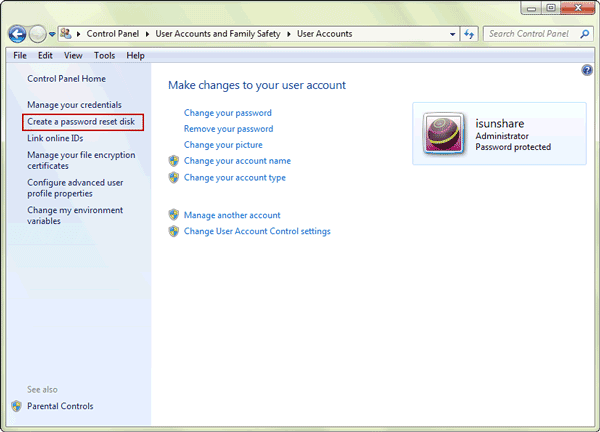
Open Control Panel from Start menu, and turn to User Accounts and Family Safety - User Accounts screen. Insert bootable USB drive and click "Create a password reset disk". Follow "Forgotten Password Wizard".
For Windows 8:
Windows 8 Control Panel is different from Windows 7. Control Panel has to be viewed by "Small icons" or "Large icons". And then User Accounts could be found.
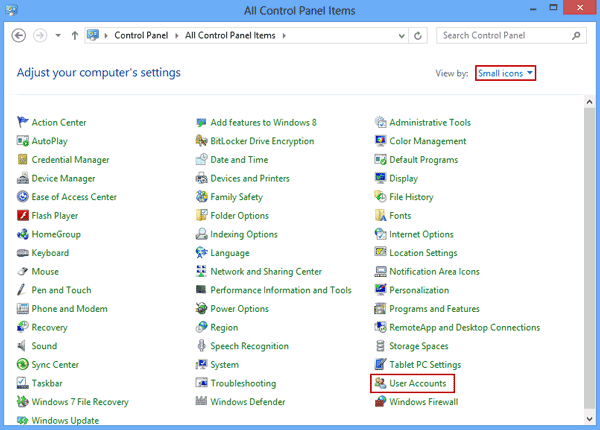
Windows 8 Control Panel is different from Windows 7. Control Panel has to be viewed by "Small icons" or "Large icons". And then User Accounts could be found.
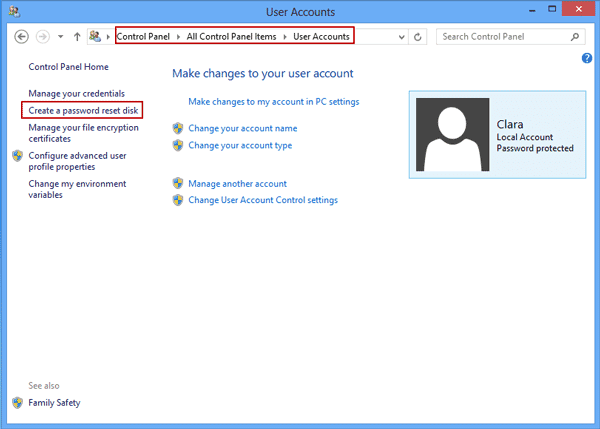
2. Burn Password Reset Disk with Windows Password Recovery Tool
Step 1: Install and run Windows Password Genius on another accessible computer.
Step 2: Prepare bootable USB or CD/DVD-ROM to burn password reset disk.
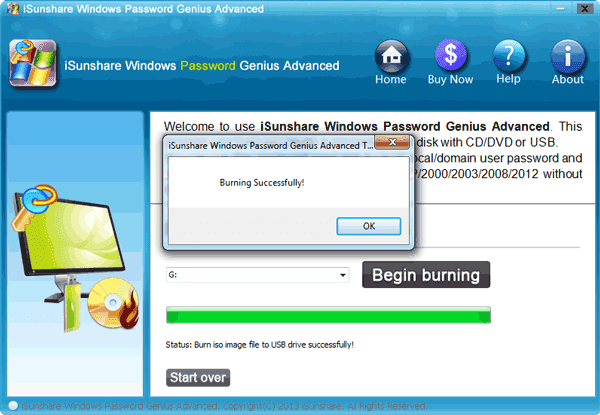
When you see "Burning Successfully" message, Windows 8/7 password reset disk has been created. Besides, such password reset disk also works for Windows Vista/XP and Windows server 2012/2008/2003/2000.
Related Articles:
- No Reset Disk- How to Reset Windows 8 Password
- How to Reset Windows Vista Password without CD or Reset Disk
- How to Change Admin Account with Windows 8 Disk
- How to Reset Windows 7 Password with or without USB Disk
- How to Make a Boot Disk for Windows 7
Go to link Download
Subscribe to:
Posts (Atom)