Showing posts with label default. Show all posts
Showing posts with label default. Show all posts
Saturday, May 27, 2017
Is There Available Default Administrator for Windows 10 Logon
Is There Available Default Administrator for Windows 10 Logon
If you remember when we forgot password to login windows 8/7/vista/xp, built-in administrator is always used to login Windows computer in safe mode. Believe you would ask whether there would be also available default administrator for Windows 10.
Q 1: Is there default administrator available in Windows 10?
To be honest, there is default administrator for Windows 10, but it is not available default. If we want it available, we have to enable it by ourselves.
Refer to: 3 Ways to Enable and Disable Built-in Administrator in Windows 10
Until default administrator is enabled in Windows 10, we can see it on logon screen and choose it to login into Windows 10 without password.
Q 2: When Windows 10 default administrator is available?
When Windows 10 default administrator can be seen even if it is not enabled manually?
It is like previous Windows systems, default administrator is available when Windows 10 is in safe mode. From the point of view, there would be another way resetting Windows 10 password after Windows 10 administrator password forgot. This way is called reset Windows 10 password in safe mode with default administrator.
Q 3: How to make full use of Windows 10 default administrator?
As soon as Windows 10 default administrator is realized and is available, what can we make it do for us during Windows 10 computer use?
- Login Windows 10 in safe mode when other user accounts are locked.
- Run programs with admin privileges.
- Reset Windows 10 user password in safe mode.
Go to link Download

Sunday, March 19, 2017
Windows Server 2008 R2 Default Administrator Password
Windows Server 2008 R2 Default Administrator Password
Windows server 2008 r2 built-in administrator is Administrator, which is created during the Windows setup process. There is no default password for Administrator, and generally it will ask you to change password at first Windows logon and allow you to log in.
Part 1:How to Set Server 2008 R2 Default Administrator Password?
1. Default Administrator password is used for Windows security. At the first Windows server logon, please change built-in Administrator password, in order to protect Administrator password being set blank default.
2. Set Administrator password during System preparation.
Complex password has to be created for all of user accounts in Windows server 2008(R2) and Windows Vista. In the process of Windows installation, installation program would remind you of setting a complex password for Administrator. And simple password would be failed.3. Auto-set password for Windows server Administrator.
Enterprise user could set password for Administrator automatically through creating answer file used together with Sysprep. This file is Microsoft-Windows-Shell-Setup | UserAccounts | AdministratorPassword.Part 2: How to reset Windows server 2008 r2 Administrator password
1. When you run Òsysprep /generalizeÓ command on Windows server 2008 or server 2008 r2, you could reset Windows server default Administrator password.
Tips: But Sysprep tool is only for clearing password on server default Administrator password, not applying for client server computer. When you boot computer next time, installation program would remind you of password hint.
2. Or boot server 2008 r2 from Windows password reset disk to reset Administrator password, which is created by Windows Password Genius Advanced when you have no other ways to reset Windows server 2008 r2 password.
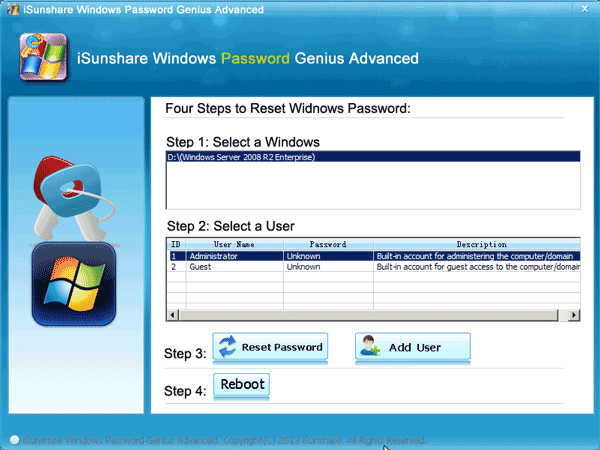
The above are ways to protect Windows server 2008 r2 safe by password. Actually we could create other system administrator and disable server 2008 r2 default administrator.
How to disable Windows server 2008 r2 default Administrator?
Similarly, for Windows server 2008 r2 system security, please disable default Administrator before taking computer to client users. Run Òsysprep /generalizeÓ command. And when you prepare to login Windows server 2008 r2 next time, default Administrator would be disabled. Or Run Ònet user administrator /active: noÓ to forbidden Administrator.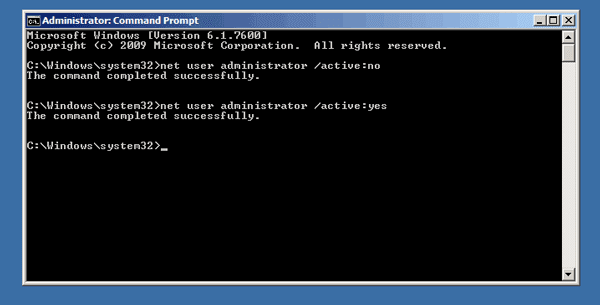
Related Articles:
- How to Reset Windows Server 2008/2012 Domain Forgotten Admin Password
- How to Find Windows Server 2008 R2 Product Key
- How to Login into Windows Computer with Default Administrator
- How to Enable or Disable Windows Built-in Administrator
Go to link Download
Saturday, January 21, 2017
How to Login into Windows Computer with Default Administrator
How to Login into Windows Computer with Default Administrator
This following passage is intended to introduce simple ways to access Windows XP/Vista/7/8/8.1 with admin privileges and rights when you have password protected login user accounts or you have forgotten Windows login password.
One: How to login into Windows XP with default blank administrator password
Steps to access Windows XP with default administrator
- Restart your computer
- Press F8before the Windows boot screen appears. Do not press F5 as used on the NT/9x versions of Windows. You will be prompted with a boot options menu.
- Select the ÒStart Windows in Safe ModeÓ option.Windows ÒWelcomeÓ screen appears only with 640x480 resolution.
You will not be able to change this mode even in Display options, while Windows is running in Safe Mode. - Find the icon for the administrator user.
- The Safe Mode Windows screen will display some other users on your system.
Login as the administrator. - Press Yes at the prompt asking if you would like to continue using Safe Mode.
- Open command prompt. Click Start Ð Run, and type in ÒcmdÓ and press Enter. Command Prompt window appears and it allows you to manage files and change settings on your computer without restricts.
- Change the password for administrator.
- Type command: net user <user name> <user password>.
- Press Enter and administrator <user name> password would be changed to be <user password>.
- Exit command shell and locked out of the administrative account. Reboot computer and login into Windows XP again with it, now type in new password you just set and press Enter.
Two: How to login into Windows 7/Vista with default administrator password?
Windows 7 built-in administrator has unrestricted access right on computer. But it is not prompted by UAC by default to provide confirmation before allowed to make any changes that require elevated administrator permissions since it is an elevated account. So you have to enable Windows 7 built-in administrator first in Local Users and Groups or Command Prompt, Local Security Policy, System Recovery (WinRE) at Boot.
1. Remove all floppy disk, CDs, and DVDs from your computer and restart your computer.
Click the Startbutton, click the arrow next to the Shut Down/Lock (Windows Vista) button, and then click Restart.
2. Do one of the following:
2. Do one of the following:
- If your computer has a single operating system installed, press and hold the F8 key as your computer restarts. You need to press F8 before the Windows logo appears. If the Windows logo appears, youll need to try again by waiting until the Windows logon prompt appears, and then shutting down and restarting your computer.
- If your computer has more than one operating system, use the arrow keys to highlight the operating system you want to start in safe mode, and then press F8.
3. On the Advanced Boot Options screen, use the arrow keys to highlight the safe mode option you want, and then press Enter. For more information about options, see Advanced startup options (including safe mode).
4. Log on to your computer with a user account that has administrator rights.
4. Log on to your computer with a user account that has administrator rights.
When your computer is in safe mode, youll see the words Safe Mode in the corners of your monitor. To exit safe mode, restart your computer and let Windows start normally.
Three: How to login into Windows 8/8.1 with default admin password
By default, the local administrator in Windows 8 is disabled. So if you want to login into Windows 8/8.1 computers with default administrator account, you have to enable Windows 8/8.1 built-in administrator in Command Prompt, Command Prompt at Boot, Local Users and Groups, Local Security Policy etc.
- Restart Windows 8/8.1 computer.
- On Windows logon screen, if you couldnÕt see administrator, click Òback arrowÓ button to select another user account. Administrator can be found there.
- Click it to choose administrator and login with it.
Once if you have set password for default administrator and forgotten or lost its password, the above ways would not help you to access Windows computer. You need other ways to bypass Windows password to login or reset Windows password before logon Windows.
Related passages or videos:
- Bypass Windows 8 Login password Ð Sign in Windows automatically
- How to Enable or Disable Windows 8 Admin Account
- How to remove Windows 7 logon password
Go to link Download
Sunday, January 1, 2017
How to Reset Your browerser setting into Default settings Urdu
How to Reset Your browerser setting into Default settings Urdu

Watch Video and Share With Your Friends.
How to Reset Your browerser setting into... by MastiComputer
How to Reset Your browerser setting into Default settings Urdu Powered By Masti Computer and More Computer Trips&Tricks,Free Software ,Computer Course Like Our Facebook Page.
Go to link Download
Subscribe to:
Posts (Atom)