Showing posts with label ipad. Show all posts
Showing posts with label ipad. Show all posts
Tuesday, April 18, 2017
How to Delete Redundant iTunes Backup for iPad iPhone iPod
How to Delete Redundant iTunes Backup for iPad iPhone iPod
Why we should delete redundant iTunes backup?
What I can think of is to save computer space. The more data on iPhone/iPad/iPod, the larger the iTunes backup is. It would occupy more and more partition. But we couldnÕt stop backup because of this. So back up iOS devices data and then delete previous useless iTunes backup periodically is wise.
When we should delete additional iPhone/iPad/iPod backup?
When you have a new backup for iOS devices and you think old iTunes backup is redundant or has taken up too much space on computer, delete it is good choice.
How can we delete iPhone/iPad/iPod backup effectively?
This passage introduces two ways, delete it in iTunes or from backup path in computer.
Way 1: Delete iTunes backup directly from file path
iTunes backup are saved in computer after you back up iPhone/iPad/iPod in iTunes. To different Windows system computer, iTunes backup location is different. Navigate to the backup file path, delete it. Generally they are in C drive.
- Windows Vista/7/8: UserAppDataRoamingApple ComputerMobileSyncBackup
- Windows XP: Documents and SettingsUser Name Application DataApple ComputerMobileSyncBackup
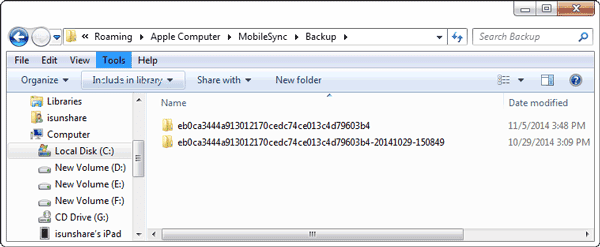
Way 2: Steps to delete additional iTunes backup in iTunes (eg. iPad)
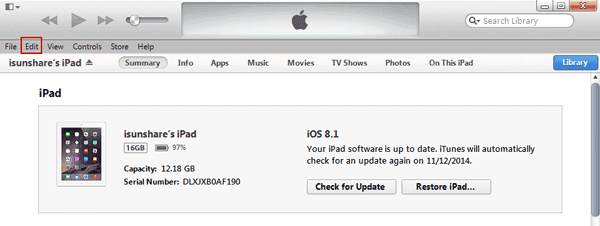
Step 1: Connect iPad to computer to make iTunes program run.
You can see your iPad name is on the right-top side of iTunes window.
Step 2: Turn to iTunes menu, and click Edit Ð Preferences.
Step 3: Choose Devices option on the top or Preferences window.
All of backups about this iPad would show in the following box.
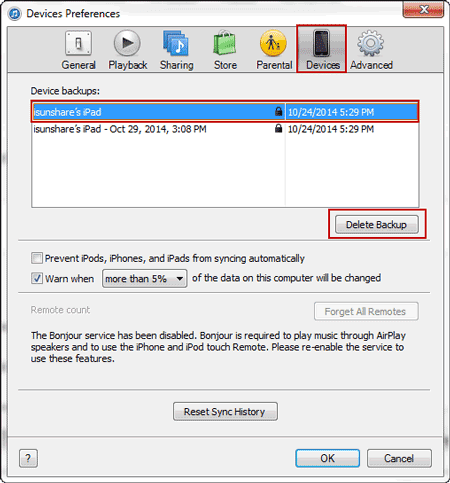
Step 4: Select the backups you want to delete, and click Delete Backup button. You will see a dialog
about confirming backup deletion, and click Delete button to make sure backup deleted.
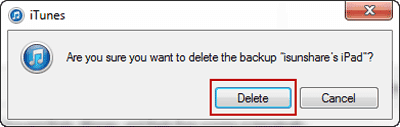
Now those iPad backups you select have been deleted from computer.
Sometimes this is used to disable iPad backup password in iTunes. But whether it is really useful, you can try it. But at most of time, disable iPad/iPhone/iPod backup passwordis in purpose of restoring iPad from iTunes backup after password forgot. So backup had better not be destroyed.
Related Articles:
- How to Recover Different Kinds of Deleted or Damaged Data
- How to Decrypt Password Protected iTunes iPhone Backup
Go to link Download

Wednesday, April 12, 2017
How to Exit Recovery Mode Easily without Data Loss from iPhone iPad iPod
How to Exit Recovery Mode Easily without Data Loss from iPhone iPad iPod
"I clicked Restore button in iTunes carelessly, and my iOS device has been in recovery mode now. But thatÕs not what I want. Apps, connections, or data saved on device will be lost or deleted. How can I do?"
If you have just created a backup before operation error, you can restore device from previous backup after exiting recovery mode. There will not be so much data lost. However, if there is no backup, or the backup has been created a long time ago, how should you do?
Can device exit recovery mode instantly without any data lost when iPhone/iPad/iPad just enters recovery mode? If there is one effective way or tool, that would be perfect.
And now I would tell you such a tool, which can easily get iOS device out of recovery mode instantly. iOSBoot Genius will be introduced in following passage about how to exit recovery mode.
Step 1: Download and install iOSBoot Genius in your computer.
Step 2: Connect device to computer or make sure device connected to computer.
Step 3: Run iOSBoot Genius, and it prompt you that device has been connected, and "Exit Recovery Mode" button is bright.

Step 4: Click "Exit Recovery Mode" button.
You will see USB cable and iTunes logo appearing in device screen. And iOS device will be out of recovery mode soon. During the process of recovery mode existence, you donÕt need to worry about data loss or damage. So if you want device to be out of recovery mode safely without any loss, just need to install and run iOSBoot Genius on computer to help put iPhone/iPad/iPod out of recovery mode.
Tips: It is worth to mention that iOSBoot Genius also can help iPhone/iPad/iPod enter recovery mode. So if there is another reason that leads to failed access recovery mode with device menu or iTunes, iOSBoot Genius can do that successfully.
Related Articles:
- How to Change iTunes Forgotten Backup Password without Data Loss
- How to Factory Reset iPad with or without iTunes
- How to Unlock Locked iPad/iPhone/iPod after Passcode Forgot
- How to Unlock iOS Device If Forgot Passcode
Go to link Download
Saturday, March 4, 2017
How to Recover iPad Deleted Files iPad File Recovery
How to Recover iPad Deleted Files iPad File Recovery
If your iPad files are deleted or lost because of iPad damage, iPad factory reset, iPad iOS upgrade etc, how can you effectively recover iPad deleted files?
I think this article could help you a lot if there are no other methods for you. Two powerful ways below would tell you how to retrieve iPad lost files from iTunes backup or your iPad.
- Way 1: Restore iPad Deleted Files from iTunes Backup
- Way 2: Recover Deleted Files from iPad with iOS Data Genius
Way 1: Restore iPad Deleted Files from iTunes Backup
With iTunes backup in hand, you could not only restore iPhone/iPad/iPod data directly from backup, but also only extract the data you want from iTunes backup with iOS Data Genius. When you have decided to recover iPad files from iTunes backup, please choose to directly make full use of iTunes backup or take iOS Data Genius with more efficiency.
Choice 1: Directly restore iPad deleted files from backup with iTunes
Step 1: Connect your iPad to computer and run iTunes.
Step 2: Click iPad on iTunes top right side to open iPad main window.
Step 3: In Backups part, click Restore Backup and choose a backup in pop-up dialog. Then click Restore to restore iPad from backup.

After backup data restored to your connected iPad, would know what have been recovered when you open your iPad to see. So selecting a right iTunes backup for iPad file recovery becomes important for you.
Choice 2: Recover iPad deleted files from iTunes backup with iOS Data Genius
Step 1: Install and run iSunshare iOS Data Genius on Windows computer.
Step 2: Choose Recover from iTunes Backup File recovery mode and tap Start Scan button.

Step 3: Preview iPad files from iTunes backup in new screen.

Step 4: Select the iPad files on the left side and click Recover button.
Then browse a folder on computer to save iPad deleted files. Until a message prompts you iPad files recovery successfully, tap OK to exit iOS Data Genius and see iPad deleted files on computer.
Compared to the first choice, believe you have realized that you could choose iTunes backup file and recover iPad data more appropriately. At the same time, you could exit iPad file recovery process and does no influence on your iPad.
Way 2: Recover Deleted Files from iPad with iOS Data Genius
iOS Data Genius will not only recover iPhone/iPad/iPod lost deleted data from iTunes backup, but also recover iOS data from iPhone/iPad/iPod. Surely, you can run iOS Data Genius to recover iPad deleted files without iTunes backup.
Step 1: Run iOS Data Genius on your computer and connect iPad to computer.
Step 2: Check "I have backed up my device with iTunes" and tap Start Scan to look through your iPad.

Step 3: Preview data after scanning iPad, and choose data on the left pane to recover.

Step 4: Save iPad data on computer and get Recover successfully message.

Undoubtedly, this way gives iPhone/iPad/iPod users hope to recover lost or deleted data, especially when they are worried or anxious about iOS data recovery.
Related Articles:
Related Articles:
- How to Restore iPad Mini Videos without Apple ID
- How to Retrieve Deleted Text Messages iPhone after Factory Reset
- How to Undelete iPod Lost Music with Four Methods
- How to Sync iPhone to iTunes after Passcode Forgot
- How to Restore Locked iPhone Lost Data without Passcode
Go to link Download
Monday, December 19, 2016
How to Decrypt iPad Air iTunes Backup
How to Decrypt iPad Air iTunes Backup
When I prepared to restore iPad Air from iTunes backup, I found it was encrypted and whatÕs worse, iTunes backup password is lost.
How can I decrypt theencrypted iPad backup?
In fact, there are many ways you can choose. But the success rates are different. For example, some educated guess probably let you find iTunes backup password, and iTunes backup password recovery tool can help you to recover iTunes backup password with 100% guarantee. Now see the possible three methods in the following, and choose one that is available for your iPad.
- Method 1: Try Guessed Password to Decrypt iPad Backup
- Method 2: Decrypt iTunes Backup with Keychain
- Method 3: Decrypt iTunes Backup with iTunes Password Recovery Tool
Method 1: Try Guessed Password to Decrypt iPad Backup
Effectiveness: Low success rate, but possible helpful
Which kind of password would be used to protect iTunes backup? Let me think. You have Apple ID, passcode, default password, or Windows administrator password. So you can try these numbers or characters to unlock iTunes backup.
If failed, keep going on to another two ways to recover iPad backup password.
Method 2: Decrypt iTunes Backup with Keychain
Effectiveness: 50% success rate
If you are using a Mac computer, lost iTunes backup password may be recovered in Keychain.
1. Run Keychain Access utility from Application Ð Utilities.
2. Enter "iPad" in the top-right search field and then look for a keychain item named "iPad Backup" of kind "application password".
If there is no such item, iSunshare iTunes Password Genius is needed for iTunes backup password recovery.
3. Double click "iPad Backup" and click on the "Show password" checkbox in the new window.
4. You will now be prompted to enter your password to show the iPad backup password.
Click Allow (once). You should now see the iPad backup password in the clear text.
Method 3: Decrypt iTunes Backup with iTunes Password Recovery Tool
Effectiveness: 100% success rate guarantee
When you couldnÕt decrypt encrypted iTunes backup password with above two methods, try this way please. With 100% success rate guarantee, iTunes backup password can be recovered easily with iTunes backup password recovery tool, such as iTunes Password Genius. But there are some tips you need to know when you use iTunes Password Genius.
- Tip 1: Choose which version of iTunes Password Genius, trial or full version
Trial version only can recover iTunes backup password less than 3 characters, while full version can recover any kinds of iTunes backup password. - Tip 2: How to select backup password recovery type
Four password types, Brute-force, Mask, Dictionary and Smart are available for iPad backup password recovery. However, password recovery rate depends on which one type you have chosen and made settings. Read more>>
Now follow the steps to decrypt iTunes backup for iPad.
Step 1: Install and run iTunes Password Genius in your Windows computer.

Step 2: Click Open button and add iTunes backup file into iTunes Password Genius.
Step 3: Choose and set password recovery type and click Start button.
In few seconds of minutes later, you will see a pop-up window showing iTunes backup password. Copy password and save it in text. Now connect your iPad Air to computer, and open it in iTunes. Click Restore backup, and you can decrypt iTunes backup for iPad with the recovered password.

Related Articles:
Related Articles:
- Lost iPod Backup Password Ð How to Use Locked iPod Normally
- How to Change iTunes Forgotten Backup Password without Data Loss
- How to Exit Recovery Mode Easily without Data Loss from iPhone/iPad/iPod
Go to link Download
Subscribe to:
Posts (Atom)