Showing posts with label options. Show all posts
Showing posts with label options. Show all posts
Sunday, April 23, 2017
10 General Secure Settings Options for Windows 8
10 General Secure Settings Options for Windows 8
Even though there are so many advanced secure settings set default in Windows 8 computer, if we want to protect it better, itÕs necessary to do basic and general settings good first for Windows 8. Now the following lists 10 secure setting options we could do.
1. Prevent malicious Ping attack
Navigate to Control Panel Ð System and Safety Ð Administrative Tools Ð Windows Firewall with Advanced Security Ð Import Policy. Choose Custom Ð All Programs option. Set protocol type parameter of this policy as ÒICMPv4Ó. And set all local ports and remote port parameter as ÒAll the portsÓ. Later, set this policy matching any IP address. At last, select Òprevent linkÓ option.
2. Type ÒregeditÓ in start search box to enter regedit list.
Choose HKEY_LOCAL_MACHINE, and find SYSTEMControlSet001ServicesSharedAccessParametersFirewallPolicyFirewallRules. Select Authority. Add account ÒEveryoneÓ, and change Òfull controlÓ permission to ÒrejectedÓ.
3. Type Ògpedit.mscÓ to run Local Group Policy Editor. Choose Computer Configuration Ð Administrative Templates Ð Windows Components Ð Internet Explorer Ð Security Features Ð Restrict File Download. Find Internet Explorer Processes in ÒRestrict File DownloadÓ option. Select ÒEnabledÓ and OK.
4. In Local Group Policy Editor, choose Computer Configuration Ð Windows Settings Ð Security Settings Ð Local Policies Ð User Right Assignment. Look for ÒAccess this computer from networkÓ and delete all the accounts list there.
5. The same in Local Group Policy Editor, choose Computer Configuration Ð Administrative Templates Ð Network Ð Network Connections Ð Windows Firewall Ð Standard Profile. Find the option ÒWindows Firewall: Protect all network connectionsÓ and make it ÒEnabledÓ.
6. In Local Group Policy Editor, select Computer Configuration Ð Administrative Templates Ð Windows Components Ð Windows Logon Options. Choose ÒDisplay information about previous logons during user logonÓ and make it ÒEnabledÓ.
7. Enter user account management interface by Òcontrol user passwords2Ó. Click ÒRequires the user to press Ctrl + Alt + DeleteÓ option and let it work.
8. Remote Setup. The remote desktop only allows computer with network level authority to be connected.
9. Run local group policy editor, choose User Configuration Ð Administrative Templates Ð Network Ð Networks. Select ÒAbility to delete all user remote access connectionsÓ. Make it work for computer.
10. Type Ògpedit.mscÓ in Start box, run Local Group Policy Editor.
Turn to Computer Configuration Ð Windows Settings Ð Security Settings Ð Local Policies Ð Security Options. Find ÒUser Account Control: Run all administrators in Admin Approval ModeÓ and make it ÒDisabledÓ.
Related Articles:
- Windows 8 Security Knowledge Ð What you should know
- Configure Windows 7 Security Settings and Deployment
- 10 New Features in Windows 8.1
- Three Major Differences between Windows 8 and Windows 7 Ð Security/Design/Version
Go to link Download

Wednesday, March 29, 2017
Top 4 Options to Unlock Forgotten Windows 8 Login Password
Top 4 Options to Unlock Forgotten Windows 8 Login Password
After a shining interface of a new system, which is fairly different from any previous system, appears to us. Most of us have bought Windows 8 computers or have updated their computers from Windows 7 to Windows 8. For the sake of numerous of hackers itÕs essential for us to set a strong password to protect our computer data. Meanwhile, some precautionary measures should also be taken in case that the password we have created on Windows 8 is forgotten or lost. However, all the Windows 8 users donÕt know and remember to take these preventive measures. If you are a green hand with Windows 8, there are still 4 common options for you to unlock forgotten Windows 8 login password.

Option 1: Unlock Windows 8 Password with Another Accessible Administrator Account.
Please click the links below according to the following sequence.
Windows 8 Control Panel>> User Accounts and Family Safety>> User Accounts>> Manage another account>> ...user you would like to change>> Change password
Enter a new password in both the first and second text boxes and then click "Change password" button. Password change operation then will be completed successfully.
Option 2: Use a Previous Created Windows 8 Password Reset Disk.
Step 1: Click ÒReset passwordÓ after it says Windows 8 password incorrect.
Step 2: After the password reset wizard appears, insert your password reset disk and click "Next".
Step 4: Select the drive where the password reset disk is located.
Step 5: Type in your new password and password hint then click "Next"
Option 3: Unlock forgotten Windows 8 Login Password with Your Microsoft Account Password Online.
Windows 8 gives you an option to sign up for a Microsoft account. If you have forgotten your Windows 8 password, you can unlock your Microsoft Account password online on any accessible computer or device, including your smart phone.
Note: If you login with something other than an email address, like your name or some other handle, then youre using a local account and this method wont work.
Option 4: Take Use of Windows 8 Password Unlocker-Windows Password Key.
Windows Password Key is a professional Windows 8 password unlocker. It is able to unlock computer passwords for local administrator and local user accounts and support all computer brands, such as HP, Dell, Acer, Lenovo, Toshiba, Asus, Samsung, Sony and so on. HereÕs how to unlock Windows 8 password with this software:
1. Download Windows Password Key in another accessible computer;
2. Run the downloaded file to install Windows Password Key;
3. Burn a boot-able CD/DVD or USB Flash Drive with Windows Password Key;
4. Unlock Windows 8 password with the burned CD/DVD or USB Flash Drive.
Have you got some advice after reading the top 4 options to unlock Windows 8 login password? As far as IÕm concerned, a password reset disk is the easiest way to unlock a forgotten Windows 8 password. But what to do if you donÕt have created a reset disk in advance. Hey! Take it easy. Windows Password Key is just intended to solve your problem.
Go to link Download
Tuesday, February 28, 2017
Six Options to Sign in Locked Windows 10 PC Laptop Tablet
Six Options to Sign in Locked Windows 10 PC Laptop Tablet
When windows 10 login password forgot or lost, how can you sign in Windows 10? Now the article summarizes six options you can choose to login Windows 10 before or after resetting Windows 10 login password?
Before resetting Windows 10 password, three sign-in options are available if you have them before locked out of Windows 10 computer.
- PIN code or picture password for Windows 10 login user.
- Another local admin account. If there is, it should appear at the bottom of Windows 10 logon screen. Just choose it and type password to enter Windows 10.
- Built-in Administrator. Unless you have enabled it, it would not be available for Windows 10 logon.

After resetting Windows 10 password, you would get more three options to sign in Windows 10 PC/laptop/tablet.
- Sign in Windows 10 without password.
- Access Windows 10 with login user and new password.
- Login Windows 10 with new administrator.
But how can we create new Windows 10 sign-in options and how to login into Windows 10 after password reset? This is a question worth to considering sincerely, especially while Windows user has no PIN code or picture password, and another administrator, and built-in administrator has not been enabled.
Now the follow three ways would answer this question about creating new Windows 10 sign-in options. And while you have no choices without resetting windows 10 password, you could only use ways below if you want to sign in Windows 10.
1. Password Reset Wizard. If password reset disk has been created, you can click "Reset Password" on Windows logon screen after typing wrong password, to run Password Reset Wizard to reset Windows 10 forgotten password. Then sign in Windows 10 without password or new password.

2. Windows password recovery tool, which can create reset disk and remove forgotten password, create new administrator, so you can sign in windows 10 without password, with new administrator after using windows password recovery tool.

3. Windows 10 installation CD and command prompt also could reset windows 10 password.
While you reboot windows 10 computer from installation cd, and replace utilman.exe with cmd.exe, you could restart windows 10 and run command prompt to reset windows 10 user password, even though windows 10 computer is locked at that time.

With command, you can remove windows 10 password, reset windows 10 password, create new administrator. So with this way, you can sign in windows 10 without password, new user password or new administrator.
Topics you may be interested:
- Windows 10 Laptop Password Reset with Three Methods
- How to Unlock Windows 10 Admin Password
- Windows 10 Remove Password on Bootup
Go to link Download
Saturday, February 18, 2017
2 Easy Options to Reset Forgotten Dell Windows 8 Password
2 Easy Options to Reset Forgotten Dell Windows 8 Password
ÒI forgot my Dell laptop password. It runs on Windows 8. What can I do? Ó Many Dell users ask the similar questions on the Internet. So what on earth can we do to deal with the Windows 8 password forgotten problems on Dell? Here I am honored to share 2 easy options to reset forgotten Dell Windows 8 password with those who need help in this case. 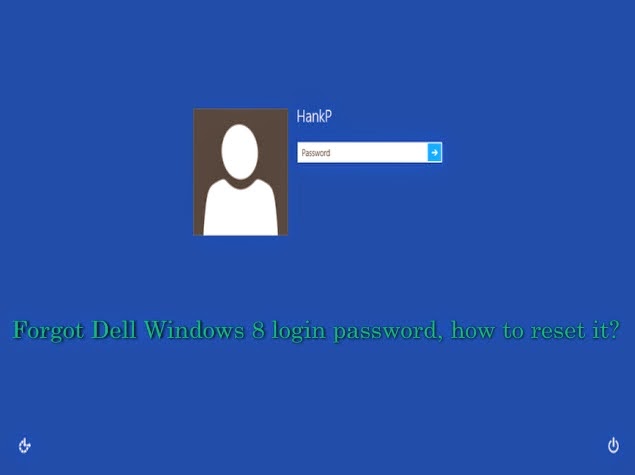
Option 1: Reset Windows 8 Password(http://www.lostwindowspassword.com/article/windows-8-password-reset.htm) on Dell with a previous created password reset disk
If you have created a Windows 8 password reset disk in advance then you can continue with this option. If not please turn to Option 2. Follow the steps below:
Step 1: Start the locked Windows 8 computer and login with a wrong password
when you type in a wrong password, you will see a message Òthe password is incorrectÓ will pop up, hit OK to try again, and then you will see Òpassword hintÓ and ÒReset passwordÓ links under the login box.
Step 2: Reset the forgotten password with your password reset disk
Insert the password reset disk to your Dell computer and hit the ÒReset passwordÓ link, then the Password Reset Wizard window will come out. Fill in the blank form in the following picture to create a new account. Thus you can reset the forgotten password and use the new account to login.

Option 2: Take Use of Windows Password Key?lostwindowspassword.com? to Reset Dell Windows 8 Password
Windows Password Key is an easy-to-use tool designed for resetting Windows local account or domain passwords on Windows 8. Passwords can be reset in 3 minutes, no matter how long and complicated your Windows 8 password is. Besides password recovery function, it can also change any local admin/user/domain admin password, and create a new administrator account via CD/DVD or USB drive. It also works with Windows 7/Vista/XP/2008/2003/2000 and etc. Detailed steps to use it are as follows:
Step 1: Create a Windows 8 password reset disk
Firstly download and run the program in a computer you have access to, and then insert a blank CD, DVD or USB flash drive to the computer. After that according to the wizard burn a Windows 8 password reset disk with the CD/DVD/USB flash drive.
Step 2: Insert the password reset disk to your locked Dell computer and reset the forgotten Windows 8 password
Power on the computer and press ÒF2Ó (or other keys) to get into bios mode. Then set the computer boot from the inserted disk. After loading files, Windows Password Key will show all your Windows 8 user accounts. Select the target account to reset the password.
Step 3: Reboot the computer
Click reboot button to re-start the computer. Remove the password reset disk when the computer reboots. Now you can logon your computer with the new password.
If you forgot Windows 8 password on Dell and want to reset it with ease then these 2 options are shortcuts to help you regain access to your locked Dell computer. Hope to help you with this post.
Go to link Download
Subscribe to:
Posts (Atom)