Showing posts with label forgotten. Show all posts
Showing posts with label forgotten. Show all posts
Wednesday, March 29, 2017
Top 4 Options to Unlock Forgotten Windows 8 Login Password
Top 4 Options to Unlock Forgotten Windows 8 Login Password
After a shining interface of a new system, which is fairly different from any previous system, appears to us. Most of us have bought Windows 8 computers or have updated their computers from Windows 7 to Windows 8. For the sake of numerous of hackers itÕs essential for us to set a strong password to protect our computer data. Meanwhile, some precautionary measures should also be taken in case that the password we have created on Windows 8 is forgotten or lost. However, all the Windows 8 users donÕt know and remember to take these preventive measures. If you are a green hand with Windows 8, there are still 4 common options for you to unlock forgotten Windows 8 login password.

Option 1: Unlock Windows 8 Password with Another Accessible Administrator Account.
Please click the links below according to the following sequence.
Windows 8 Control Panel>> User Accounts and Family Safety>> User Accounts>> Manage another account>> ...user you would like to change>> Change password
Enter a new password in both the first and second text boxes and then click "Change password" button. Password change operation then will be completed successfully.
Option 2: Use a Previous Created Windows 8 Password Reset Disk.
Step 1: Click ÒReset passwordÓ after it says Windows 8 password incorrect.
Step 2: After the password reset wizard appears, insert your password reset disk and click "Next".
Step 4: Select the drive where the password reset disk is located.
Step 5: Type in your new password and password hint then click "Next"
Option 3: Unlock forgotten Windows 8 Login Password with Your Microsoft Account Password Online.
Windows 8 gives you an option to sign up for a Microsoft account. If you have forgotten your Windows 8 password, you can unlock your Microsoft Account password online on any accessible computer or device, including your smart phone.
Note: If you login with something other than an email address, like your name or some other handle, then youre using a local account and this method wont work.
Option 4: Take Use of Windows 8 Password Unlocker-Windows Password Key.
Windows Password Key is a professional Windows 8 password unlocker. It is able to unlock computer passwords for local administrator and local user accounts and support all computer brands, such as HP, Dell, Acer, Lenovo, Toshiba, Asus, Samsung, Sony and so on. HereÕs how to unlock Windows 8 password with this software:
1. Download Windows Password Key in another accessible computer;
2. Run the downloaded file to install Windows Password Key;
3. Burn a boot-able CD/DVD or USB Flash Drive with Windows Password Key;
4. Unlock Windows 8 password with the burned CD/DVD or USB Flash Drive.
Have you got some advice after reading the top 4 options to unlock Windows 8 login password? As far as IÕm concerned, a password reset disk is the easiest way to unlock a forgotten Windows 8 password. But what to do if you donÕt have created a reset disk in advance. Hey! Take it easy. Windows Password Key is just intended to solve your problem.
Go to link Download

Tuesday, March 21, 2017
Top 5 Methods to Reset an Unknown or Forgotten Bios Password
Top 5 Methods to Reset an Unknown or Forgotten Bios Password
BIOS is a kind of software situated as a chip in the motherboard of your computer. It is necessary to create a Bios password because it is able to stop someone booting up your computer system or making changes in your computer. But you may come cross the similar problem to ÒI made a password to get into my BIOS. How do I get into my BIOS if I cant remember my password?Ó There is no need to worry. There are many known ways to reset an unknown Bios password. Here I will share 5 effective methods with you:

Method 1: Reset Lost Bios Password by Removing CMOS Battery
Removing the CMOS battery is the simplest way to remove a BIOS password. A computer will remember its settings and keep the time even when it is turned off and unplugged because these parts are powered by small battery inside the computer called a CMOS battery. If we pull out this battery, the computer will forget a lot of its hardware settings, including its BIOS password. Please follow the instructions below:
Take out the CMOS battery and wait 10 Ð 25 minutes before putting it back in. The reason for this wait is because the computer can still store power in its capacitors even though everything is unplugged. The waiting period allows enough time for them to discharge. Plug everything back in, power up the computer and enter the BIOS again. If everything went well there should be no more password. In some cases, if you get weird error messages during boot up now, you will need to go to ÒLoad BIOS DefaultsÓ in BIOS and save the changes to fix them.
If this method didnÕt work, try one of the methods below.
Note: This should not be performed on Laptops if you are not experienced working with laptop hardware. Make sure to power down the computer, unplug the power cables and unplug any USB devices if they are powered. The computer must not be able to get power from anywhere for this to work.
Method 2: Use Motherboard Jumper to Remove Forgotten Bios Password
Almost all motherboards contain a jumper that can clear all CMOS settings including the BIOS password. The location of this jumper varies depending upon the motherboard brand. You should read your motherboard manual to check its location. If you dont have the manual then look for the jumpers near the CMOS battery. Most of the manufacturers label the jumper as CLR, CLEAR, CLEAR CMOS, etc.
When you find the jumper, look carefully. There will be 3 pins and the jumper will be joining the center pin to either left or right pin. What you need to do, is remove the jumper and join the center pin to the opposite pin. e.g. if the jumper joins center pin to left pin, then remove it and join center pin to right pin. Now wait for a few seconds and then again remove the jumper and join the center pin to left pin.
Note: Make sure to turn the PC off before opening the cabinet and resetting the jumper.
Method 3: Performing the Process of Resetting Bios Password with MS DOS Command
The precondition of this method is that you can get into the system when itÕs turned on, because this method requires MS DOS.
Open Command Prompt from Programs menu and type in following commands according to the sequence below:
Debug
o 70 2E
o 71 FF
quit
After type in the commands above and restart your system. You will reset the CMOS Settings along with the BIOS password successfully.
NOTE: The first character in the above commands is English alphabet "o" and not the number Ò0Ó.
Method 4: Take Use of CMOSPwd to Reset Unknown Bios Password
CmosPwd can help us to remove the password directly from the command prompt. It works under Dos, Windows 98, Windows NT, Windows 2000, Windows XP, Windows 2003, Windows Vista, Windows 7, Windows 2008, Linux, FreeBSD, and NetBSD. Detailed steps are as follows:
Step 1: Down CmosPwd and unpack the contents of the file in C disk.
Step 2: Get into Windows Start menu, input cmd in the search box and then press enter.
Step 3: When the Dos prompt appears, type in Òc:cmospwd-5.0windowsÓ, and then press enter.
Step 4: Type ÒiopermÐiÓ and press enter.
Step 5: Now write the command Òcmospwd_win /kÓ and press enter.
Step 6: Choose the second option by pressing 2, and then enter again.
Note: This program only works with the following BIOS:
ACER/IBM BIOS, AMI BIOS, AMI WinBIOS 2.5, Award 4.5x/4.6x/6.0, Compaq (1992), Compaq (New version), IBM (PS/2, Activa, Thinkpad), Packard Bell, Phoenix 1.00.09.AC0 (1994), a486 1.03, 1.04, 1.10 A03, 4.05 rev 1.02.943, 4.06 rev 1.13.1107, Phoenix 4 release 6 (User), Gateway Solo - Phoenix 4.0 release 6, Toshiba, Zenith AMI.
Method 5: With Backdoor BIOS Password
It is said that many computer manufacturers create backdoor passwords for their own technicians to use so they can access the BIOS when the hardware is being serviced. Here are some backdoor bios passwords that have been reported:
AMI BIOS Passwords:
A.M.I.
AAAMMMIII
AMI?SW
AMI_SW
AMI
BIOS
CONDO
HEWITT RAND
LKWPETER
MI
Oder
PASSWORD
AWARD BIOS Passwords:
01322222
589589
589721
595595
598598
ALFAROME
ALLy
aLLy
aLLY
ALLY
aPAf
_award
award
AWARD_SW
AWARD?SW
AWARD SW
AWARD PW
AWKWARD
awkward
BIOSTAR
CONCAT
CONDO
Condo
d8on
djonet
HLT
J64
J256
J262
j332
j322
KDD
Lkwpeter
LKWPETER
PINT
pint
SER
SKY_FOX
SYXZ
syxz
shift + syxz
TTPTHA
ZAAADA
ZBAAACA
ZJAAADC
PHOENIX BIOS Passwords:
BIOS
CMOS
phoenix
PHOENIX
Misc Common Passwords:
ALFAROME
BIOSTAR
biostar
biosstar
CMOS
cmos
LKWPETER
lkwpeter
setup
SETUP
Syxz
Wodj
Other Manufacturer BIOS Passwords:
Biostar - Biostar
Compaq - Compaq
Dell - Dell
Enox - xo11nE
Epox - central
Freetech - Posterie
IWill - iwill
Jetway - spooml
Packard Bell - bell9
QDI - QDI
Siemens - SKY_FOX
TMC - BIGO
Toshiba - Toshiba
VOBIS & IBM - merlin
Note: All these passwords are case-sensitive and are changed from time to time by manufacturers.
You can choose one from the five methods above to reset or remove your lost bios password. Please read the notes with care before performing the instructions. If you forgot your Windows 7 login password, then you can get Windows Password Key to remove lost or forgotten Windows 7 login password.
Go to link Download
Tuesday, March 7, 2017
How to Know Forgotten Password of Lenovo Windows 10 Laptop
How to Know Forgotten Password of Lenovo Windows 10 Laptop
" I just recently upgraded from Windows 8.1 to Windows 10 today, everything was working fine until I restarted my Laptop. It kept coming up with "Incorrect Password" and asked me to reset it. So I reset my password and tried again, however it wouldnt work so I reset my password a couple more times and tried again yet it wouldnt work. I attempted logging in offline however that wouldnt work either. I looked around online for some help and found that "This is not me" helped others with their passwords, however on my laptop there is no such thing. Please help with this as I cant find any more solutions for this. "

So you forgot Windows 10 administrator password and get locked out of your PC/laptop/tablet? DonÕt worry when you are stuck at the login screen. This article will help you out. It shows some tricks on how to know forgotten password of Lenovo Windows 10 laptop. You cant miss it.
Method 1: Know Windows 10 Password with Memory
If you are sure that the password is right, but the computer keep hinting that your Windows 10 password is incorrect. At this time, you need to remember it again. Sometimes, it is possible that you type a new password but you forget it. The password is able to combine with numbers and letters. What you need to do is to remind it in specific with your memory. This is not so easy, I know. However, suppose that you remind a little clue, then it will be of great importance to help you remind the correct password again and again. Therefore, you can remind the password at first, instead of paying anything else. But of course, it will take time to do that.
Method 2: Know Password with Windows 10 Password Hint
If you have set up the password hint when you create the Windows account and password, you can activate this magic password hint within a while. This password hint is appeared while you type the wrong password. The password hint is of great significance to know your password because it is created by yourself. Whether you know the Windows 10 password or not, it depends on this password hint.
Consequently, you have to try your best to remind login password with this magic hint. It maybe your couples birthday, your family members name or other special numbers, letters or specific symbol.
Well, thats all about how to know password forgotten password of Lenovo Windows 10 laptop, but if the above methods dont work to you at all, you can actually try to remove or reset the password. You dont have to know the password in order to enter Windows 10, you can just to reset it and then use the new password to login Lenovo computer as usual. So try to use the software like Windows Password Key, it is an effective option to help with Lenovo Windows 10 login password issue. Whats more, it supports all Windows operating systems and all PC brands.

Go to link Download
Saturday, February 18, 2017
2 Easy Options to Reset Forgotten Dell Windows 8 Password
2 Easy Options to Reset Forgotten Dell Windows 8 Password
ÒI forgot my Dell laptop password. It runs on Windows 8. What can I do? Ó Many Dell users ask the similar questions on the Internet. So what on earth can we do to deal with the Windows 8 password forgotten problems on Dell? Here I am honored to share 2 easy options to reset forgotten Dell Windows 8 password with those who need help in this case. 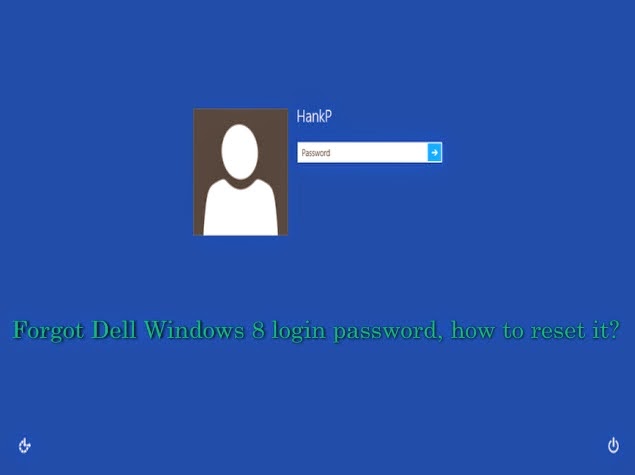
Option 1: Reset Windows 8 Password(http://www.lostwindowspassword.com/article/windows-8-password-reset.htm) on Dell with a previous created password reset disk
If you have created a Windows 8 password reset disk in advance then you can continue with this option. If not please turn to Option 2. Follow the steps below:
Step 1: Start the locked Windows 8 computer and login with a wrong password
when you type in a wrong password, you will see a message Òthe password is incorrectÓ will pop up, hit OK to try again, and then you will see Òpassword hintÓ and ÒReset passwordÓ links under the login box.
Step 2: Reset the forgotten password with your password reset disk
Insert the password reset disk to your Dell computer and hit the ÒReset passwordÓ link, then the Password Reset Wizard window will come out. Fill in the blank form in the following picture to create a new account. Thus you can reset the forgotten password and use the new account to login.

Option 2: Take Use of Windows Password Key?lostwindowspassword.com? to Reset Dell Windows 8 Password
Windows Password Key is an easy-to-use tool designed for resetting Windows local account or domain passwords on Windows 8. Passwords can be reset in 3 minutes, no matter how long and complicated your Windows 8 password is. Besides password recovery function, it can also change any local admin/user/domain admin password, and create a new administrator account via CD/DVD or USB drive. It also works with Windows 7/Vista/XP/2008/2003/2000 and etc. Detailed steps to use it are as follows:
Step 1: Create a Windows 8 password reset disk
Firstly download and run the program in a computer you have access to, and then insert a blank CD, DVD or USB flash drive to the computer. After that according to the wizard burn a Windows 8 password reset disk with the CD/DVD/USB flash drive.
Step 2: Insert the password reset disk to your locked Dell computer and reset the forgotten Windows 8 password
Power on the computer and press ÒF2Ó (or other keys) to get into bios mode. Then set the computer boot from the inserted disk. After loading files, Windows Password Key will show all your Windows 8 user accounts. Select the target account to reset the password.
Step 3: Reboot the computer
Click reboot button to re-start the computer. Remove the password reset disk when the computer reboots. Now you can logon your computer with the new password.
If you forgot Windows 8 password on Dell and want to reset it with ease then these 2 options are shortcuts to help you regain access to your locked Dell computer. Hope to help you with this post.
Go to link Download
Wednesday, October 12, 2016
How to Change iTunes Forgotten Backup Password without Data Loss
How to Change iTunes Forgotten Backup Password without Data Loss
iTunes backup password forgot. Instantly I factory reset iOS devices, and then I could set a new password for brank-new iPhone/iPad/iPod backup in iTunes. iTunes backup password is changed, but iOS devices data has been lost with iDevices factory reset. So regretful I am.
So I want to know, how can I change iTunes forgotten backup password but no data lost?
Actually, this problem just needs an effective iTunes backup password recovery tool. Recover iTunes forgotten backup password first, and then change iTunes backup password in iTunes.
Section 1: Recover Forgotten iTunes Backup Password with Tool.
Get an effective tool, iTunes Password Genius to help you. There are two versions available. You can download trial version for forgotten backup password less than 3 characters. And purchase full version for any-password-length iTunes backup password recovery.
1. Install iTunes Password Genius on computer.
Make sure you get appropriate tool, and the computer is the one where iTunes backup is saved.
2. Run it and add encrypted iTunes backup from computer.
As long as you have not deleted iTunes backup, iTunes backup is still on computer. Run iTunes Password Genius and click "Open" button. Instantly, a new window pops up with iTunes backup. Select one you think it is appropriate. And click OK. Or click Add File button to browse and add backup file from computer hard drive.

So we should know the general iTunes backup location. See it in the user guide of iTunes Password Genius.
3. Recover iTunes backup password.
Now itÕs time to make password recovery settings and click "Start" button. Forgotten iTunes backup password will be recovered in few seconds.
Section 2: Change iTunes Backup Password in iTunes.
After iTunes backup password recovery, please save backup password in a text on computer. Now begin to change iTunes backup password in iTunes.
1. Connect iDevices to iTunes on computer.
2. Click iDevices name in the top-right side of iTunes window.
There will be several options shown in window. In Backup part, there is an option "Encrypt local backup".

3. Copy iTunes backup password and uncheck "Encrypt local backup".
4. Type old backup password in pop-up dialog and set a new password for backup.
5. Click "Change Password" button at last.
Now you can unlock iTunes backup with new password, which will be used to back up iOS data to iTunes all the time until it is changed.
Related Articles:
- iTunes Backup Password Recovery No Apple ID
- How to Disable iPhone Forgotten Backup Password
- How to Exit RecoveryMode Easily without Data Loss from iPhone/iPad/iPod
Go to link Download
Thursday, October 6, 2016
Prince OF Persia The Forgotten Sands Pc Game Direct Links 100 Working
Prince OF Persia The Forgotten Sands Pc Game Direct Links 100 Working
Prince OF Persia The Forgotten Sands Pc Game

Prince of Persia: The Forgotten Sands
- Developer: Ubisoft Montreal
- Publisher: Ubisoft
- Genre: Action
- Release Date: May 18, 2010 (US)
About Prince of Persia: The Forgotten Sands
Visiting his brothers kingdom following his adventure in Azad, the Prince finds the royal palace under siege from a mighty army bent on its destruction. When the decision is made to use the ancient power of the Sand in a desperate gamble to save the kingdom from total annihilation, the Prince will embark on an epic adventure in which he will learn to bear the mantle of true leadership, and discover that great power often comes with a great cost.
Minimum System Requirements
- OS: Windows XP/Vista/7
- Processor: Intel Core 2 Duo @ 1.8 Ghz / AMD Athlon 64 X2 3600+
- Memory: 2 Gb
- Hard Drive: 8 Gb free
- Video Memory: 256 Mb
- Video Card: nVidia GeForce 6800 / ATI Radeon X1600
- Sound Card: DirectX Compatible
- DirectX: 9.0c
- Keyboard
- Mouse
- DVD Rom Drive
Recommended System Requirements
- OS: Windows XP/Vista/7
- Processor: Intel Core 2 Duo @ 2.6 GHz / AMD Athlon 64 X2 5200+
- Memory: 4 Gb
- Hard Drive: 8 Gb free
- Video Memory: 512 Mb
- Video Card: nVidia GeForce 8800 / ATI Radeon HD 2900
- Sound Card: DirectX Compatible
- DirectX: 9.0c
- Keyboard
- Mouse
- DVD Rom Drive


.jpg)

NOTE: Only Open Part One Other Parts Will Open Automatically
HOW TO DOWNLOAD CLICK HERE
Download Prince of Persia: The Forgotten Sands Ð Direct Links
Part 1
Part 2
Part 3
Part 4
Part 5
Part 6
Part 7
Part 8
Part 9
DOWNLOAD CRACK

DOWNLOAD GAME TORRENT

HOW TO DOWNLOAD CLICK HERE
Go to link Download
Subscribe to:
Posts (Atom)