Showing posts with label easy. Show all posts
Showing posts with label easy. Show all posts
Friday, March 24, 2017
2 Easy Solutions to Bypass Windows XP Password
2 Easy Solutions to Bypass Windows XP Password
"I have a second computer with only user account. But I changed its password a long time ago, and now I forgot it. So now the problem is I cannot log into the PC with other user account. I am wondering if there is a way to bypass that password. Can someone teach me please?"
Being denied access to Windows XP computer for XP password forgotten has always been a hot issue among pc users. I am sure many people have racked their brains for a few moments, trying to remember what that word combination is the exact password. Usually, to re-gain access to your PC by thinking of what the password is, is always time-consuming and in vain at last. This could never be a smart way. So, now you may want to look for an easier and quicker solution to bypass Windows XP password that wont take your hours or even days to figure out. Fortunately, there are such solutions indeed, and below are 2 such solutions to bypass XP user login password.
Solution 1: Use Windows XP built-in Administrator account.
If you are an XP user, and you have forgotten the password for your only user account on the XP machine, you may have neglected the Windows XP built-in Administrator account. You cannot see this account on your computer since it is hidden by default. But now you can easily unhide it to help you bypass XP admin password because this built-in Admin has no password protected by default, but has highest privileges over the whole PC. Follow the below steps to unhide this admin account and recover forgotten Windows XP password next:
Step1: Start your computer and press "Ctrl+Alt+Delete" twice when you see Windows Login screen.
Step2: Type Administrator in username box and leave the password column blank.
Step3: Now you have successfully gained access to your XP PC again and later you can freely change or remove your forgotten Windows XP password from: "Start->Control Panel->User Accounts".
If you are an XP user, and you have forgotten the password for your only user account on the XP machine, you may have neglected the Windows XP built-in Administrator account. You cannot see this account on your computer since it is hidden by default. But now you can easily unhide it to help you bypass XP admin password because this built-in Admin has no password protected by default, but has highest privileges over the whole PC. Follow the below steps to unhide this admin account and recover forgotten Windows XP password next:
Step1: Start your computer and press "Ctrl+Alt+Delete" twice when you see Windows Login screen.
Step2: Type Administrator in username box and leave the password column blank.
Step3: Now you have successfully gained access to your XP PC again and later you can freely change or remove your forgotten Windows XP password from: "Start->Control Panel->User Accounts".
Solution 2: Use Windows Password Recovery Enhance.
Windows Password Recovery Enhance is a professionally third-party application made for resetting any forgotten or lost Windows password on all Windows-based PCs. All you need to bypass Windows XP login password with this tool, are just 3 steps only: download the software>>burn a disk>>reset password. Below are the detailed steps:
Step1: Download, install and run Windows Password Recovery Enhance on any accessible computer.
Step2: Burn a bootable password recovery CD/DVD/USB with this software. Insert a blank CD/DVD or USB flash drive to the accessible PC and click ÒBurnÓ button in the main interface to start burning a bootable password recovery disk.
Step3: Start to reset Windows XP password. First insert the burned disk to the target computer and later set this computer boot from CD/DVD/USB in BIOS. After that, you can start to unlock the lost Windows XP password for your locked PC with 3 clicks of button only.
Windows Password Recovery Enhance is a professionally third-party application made for resetting any forgotten or lost Windows password on all Windows-based PCs. All you need to bypass Windows XP login password with this tool, are just 3 steps only: download the software>>burn a disk>>reset password. Below are the detailed steps:
Step1: Download, install and run Windows Password Recovery Enhance on any accessible computer.
Step2: Burn a bootable password recovery CD/DVD/USB with this software. Insert a blank CD/DVD or USB flash drive to the accessible PC and click ÒBurnÓ button in the main interface to start burning a bootable password recovery disk.
Step3: Start to reset Windows XP password. First insert the burned disk to the target computer and later set this computer boot from CD/DVD/USB in BIOS. After that, you can start to unlock the lost Windows XP password for your locked PC with 3 clicks of button only.
Yep, thatÕs all for the steps on how to bypass XP password. Which one should I choose? This is according to the situation you are in. If you havenÕt changed any settings for the built-in Administrator account on your PC, then solution one can be your best choice. While bypassing XP user login password with Windows Password Recovery Enhance is also a good choice since its created password recovery disk can be useful whenever you forgot or lost password.
Article source: http://www.blog.windowspasswordrecovery.net/bypass-windows-xp-password.html
Go to link Download

Monday, March 13, 2017
How to Encrypt a File or Folder with Easy Ways
How to Encrypt a File or Folder with Easy Ways
Maybe you could find several different kinds of encrypted methods for files, but whether they are helpful for you or easy to use, you donÕt know that. And it is hard to promise that. Actually, too many encryption methods are not necessary for us. What we need is easy-to-use and effective encryption ways. Now the following will show some easy ways with or without encryption software, which apply to both computer expert and newcomers.
Choice 1: Some Simple Ways to Encrypt Files without Software
Method 1: Keep You File or Folder Hidden
Right-click parameters of file or folder, and set its parameter as Hidden. And then navigate to Control Panel, open Folder Option and click View button to choose donÕt show hidden file or folder. As a result, you could not see this file or folder again until you cancel these settings.
Method 2: Name Suffix Encryption
Change the extension name of the file or folder after they are compressed. But you have to remember what kind of the file is. This method can be used when you use method 1.
Method 3: Compress File or Folder as *.winrar Encrypted Compressed Folder
Right-click the file or folder you prepare to compress, and then Add to compressed file. Choose Advanced Ð Set Password Ð Enter Password, and then make sure it. Keep other options default settings.
Method 4: Lock File with Notepad
1. Make sure which file you want to lock, for example, D:pics. Now create new notepad and type following text:
ren pics pics.{21EC2020-3AEA-1069-A2DD-08002B30309D}
pics is the name of your file, and save it as loc.bat in the same directory like file.
2. And then open another new notepad and type similar text like the following:
ren pics.{21EC2020-3AEA-1069-A2DD-08002B30309D} pics
Save it as key.bat in the same directory too.
Tips: Actually, the notepad could be named optionally. But the suffix should be .bat.
How to lock and unlock file?
1. Click loc.bat, file will be locked.
2. Click key.bat, the file will be unlocked and you can handle it.
Choice 2: Encrypt File with Software
Software 1: WinZip
WinZip is the most popular compression and decompression software, providing simple encryption function at the same time.
- First, create new compressed file without any content.
- Add file you want to compress to it.
- Choose Password command in Option, and password setting window will pop up.
- Type password you need to set in text box. When you type password, if you hope password not be seen, please select ÒMask PasswordÓ.
Software 2: WinRAR
Maybe WinRAR is more popular than WinZip. So it is necessary to learn how to use WinRAR to compress and encrypted file or folder. Encryption of WinRAR can go on with graphical interfaces and command. Click Ctrl + P or choose Password command in Option menu. A dialog Type Default Password pops up, so just type your password now to encrypt file.
Tips:
- If the "Show Password" option is forbidden, you have to type password twice to make sure the accuracy of password.
- If you have set "Encrypt File Name Option", WinRAR will not only encrypt data, but also encrypt all the sensitive area of the package including file name, size, parameters, annotation and other data. Therefore, it provides us higher safety level. Both password and file list could not be seen in the package encrypted with command. And this option is more significant when it compresses file as *rar file. If you decrypt file with default password or compress file into *.zip file, it will be ignored.
Related Article:
- How to Encrypt Archives in Computer and Some Tips
- How to ZIP a File with a Password
- How to Encrypt Files or Folders in Windows 10 Computer
Go to link Download
Saturday, February 18, 2017
2 Easy Options to Reset Forgotten Dell Windows 8 Password
2 Easy Options to Reset Forgotten Dell Windows 8 Password
ÒI forgot my Dell laptop password. It runs on Windows 8. What can I do? Ó Many Dell users ask the similar questions on the Internet. So what on earth can we do to deal with the Windows 8 password forgotten problems on Dell? Here I am honored to share 2 easy options to reset forgotten Dell Windows 8 password with those who need help in this case. 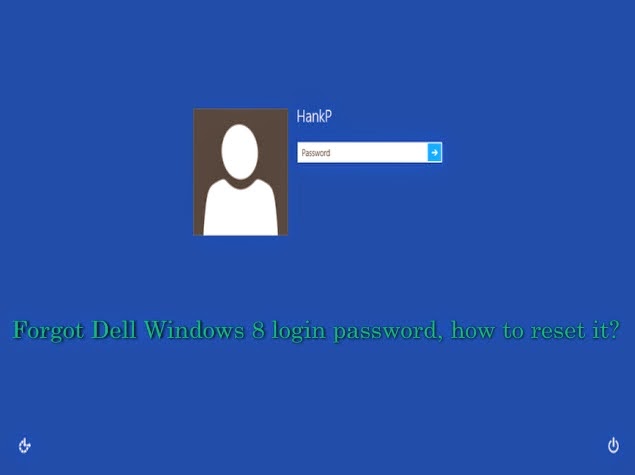
Option 1: Reset Windows 8 Password(http://www.lostwindowspassword.com/article/windows-8-password-reset.htm) on Dell with a previous created password reset disk
If you have created a Windows 8 password reset disk in advance then you can continue with this option. If not please turn to Option 2. Follow the steps below:
Step 1: Start the locked Windows 8 computer and login with a wrong password
when you type in a wrong password, you will see a message Òthe password is incorrectÓ will pop up, hit OK to try again, and then you will see Òpassword hintÓ and ÒReset passwordÓ links under the login box.
Step 2: Reset the forgotten password with your password reset disk
Insert the password reset disk to your Dell computer and hit the ÒReset passwordÓ link, then the Password Reset Wizard window will come out. Fill in the blank form in the following picture to create a new account. Thus you can reset the forgotten password and use the new account to login.

Option 2: Take Use of Windows Password Key?lostwindowspassword.com? to Reset Dell Windows 8 Password
Windows Password Key is an easy-to-use tool designed for resetting Windows local account or domain passwords on Windows 8. Passwords can be reset in 3 minutes, no matter how long and complicated your Windows 8 password is. Besides password recovery function, it can also change any local admin/user/domain admin password, and create a new administrator account via CD/DVD or USB drive. It also works with Windows 7/Vista/XP/2008/2003/2000 and etc. Detailed steps to use it are as follows:
Step 1: Create a Windows 8 password reset disk
Firstly download and run the program in a computer you have access to, and then insert a blank CD, DVD or USB flash drive to the computer. After that according to the wizard burn a Windows 8 password reset disk with the CD/DVD/USB flash drive.
Step 2: Insert the password reset disk to your locked Dell computer and reset the forgotten Windows 8 password
Power on the computer and press ÒF2Ó (or other keys) to get into bios mode. Then set the computer boot from the inserted disk. After loading files, Windows Password Key will show all your Windows 8 user accounts. Select the target account to reset the password.
Step 3: Reboot the computer
Click reboot button to re-start the computer. Remove the password reset disk when the computer reboots. Now you can logon your computer with the new password.
If you forgot Windows 8 password on Dell and want to reset it with ease then these 2 options are shortcuts to help you regain access to your locked Dell computer. Hope to help you with this post.
Go to link Download
Monday, December 12, 2016
2 Easy Ways to Remove Windows 8 Password
2 Easy Ways to Remove Windows 8 Password
"Last day, I change my Windows 8 login password, but now I cant remember the new password. Im locked out of my computer. How to remove forgotten Windows 8 password?"
Forgot Windows 8 password you put on your computer? How to remove windows 8 password?http://www.windowspasswordsrecovery.com/win8/remove-windows-8-password.html? without wiping out the hard drive? Most of us have experienced a situation where in we need to gain access to a computer which is password protected or at times we may forgot Windows password. So, if you are somewhat in a same kind of situation, here is an excellent tutorial using which you can remove Windows 8 password easily.

Method 1: Remove Windows 8 Password While Logged In
If you know the current Win 8 login password, its very easy for you to remove the password just as how you created it before. If youre trying to reset Windows password because youve forgotten it and can no longer access Windows 8, please refer to Method 2 for help.
Click on Start and then Control Panel.
Click on the User Accounts and Family Safety link.
Click on the User Accounts link.
In the Make changes to your user account area of the User Accounts window, click the Remove the password link.
In the text box on the next screen, enter your current Windows 8 password.
Click the Remove Password button to confirm that youd like to remove your password windows 8.
Method 2: Remove Lost or ForgottenWindows 8 Password
Forgot Windows 8 password and cant get into your computer? This method can help you remove Windows 8 password easily by creating a password reset bootdisk with Windows 8 password recovery tool such as Windows Password Recovery(windowspasswordsrecovery.com).(Note: win 8 password removal is able to remove Windows login password for Windows 8/7/Vista/XP, etc).
Try to remove win 8 password by following the steps:
1. Down Windows Password Recovery and run it on an accessible computer.
2. Burn a Windows 8 password CD/USB flash drive.
3. Insert newly burned Windows 8 password CD/USB flash drive, select the target account for which you want to remove password.
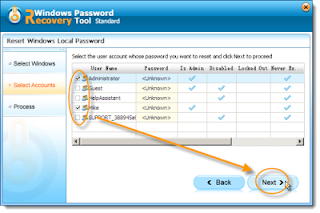
5. Remove Windows 8 password removal tool and restart your computer.
There are so many methods to solve your trouble of Windows 8 password lost, of which depends on your convenience. Indeed, it is easy simple to remove password Windows 8(http://www.windowspasswordsrecovery.com/win8/remove-windows-8-password.html) if you pick up the right way. Good luck!
Go to link Download
Sunday, December 11, 2016
Solved Easy Way To Make A UEFI Bootable USB Drive
Solved Easy Way To Make A UEFI Bootable USB Drive
Easy Way To Make A UEFI Bootable USB Drive

Hi Friends!
I am Md. Manjurul Islam (Rubel). Now a days some computer doesnÕt support legacy system, they only support UEFI. So that you cannot install windows by a legacy system USB bootable flash drive. If you want to install windows on that computer, you need to make a UEFI bootable USB drive.
Today I am going to show you how to make a UEFI bootable USB drive. If you donÕt know how to do this, please follow my bellow processÉÉ
Requirements:
- Minimum 8 GB USB flash drive.
- Windows 8/8.1/10 ISO or DVD.
Process:
- Insert USB drive into the computer.
- Go to the My Computer and backup all data from your USB Drive.
- Now right click on your USB drive and click on FormatÉ.
- From the File System Drop-down menu select FAT32 (Default).
- Click Start then Ok Then Ok.
- Now insert windows DVD into the optical drive.
- Now open DVD then copy all files and then paste into your USB drive.
- After coping all files your job is done.
- Now you can use this USB drive as a bootable USB flash drive and you can use this on legacy and UEFI boot mode.
If you think this tips can help the people, you can share this post with your friends.
Thanks
Md. Manjurul Islam (Rubel)
Video Of This Tips:
Video Of This Tips:
Go to link Download
Friday, October 28, 2016
An Easy Solution For ‰ÛÏCannot Delete File Or Folder Error‰Û On Windows!
An Easy Solution For ‰ÛÏCannot Delete File Or Folder Error‰Û On Windows!

And the truth is we really cant predict or control when that error will happen but we can solve the problem later on when we see the pop-up alert while trying to delete a file or a folder. Look the below pop-up alert windows snapshot and I bet you have seen it quite a lot if you are a regular windows user.
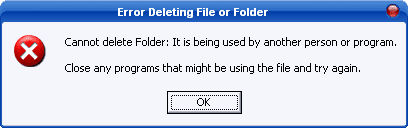
So now the question is how we can solve that error? The answer is simple and the easiest answer youll ever find on online forums or on the internet in major will be to use utility software called Unlocker, and on this special post I will show you how to download, install, and use Unlocker to get rid of that error, so letÕs roll.
- Download Unlocker software from filehippo by click here >> Download.
- After a successful downloading run the download [ .exe] file and give a complete UAC Permission and start to install the software by following the wizard instructions it will take less than a 40 seconds to install.
After installation, it integrates itself into your right-click windows explorer menu. Then when you get the dreaded Òfile is currently being used by another person or programÓ error box, just do the following to show that operating system who the real boss is:
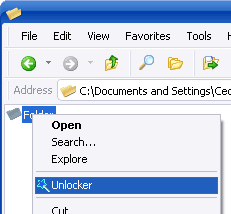
- As shown on the above image right-click on the offending file or folder and from the menu choose ÒUnlockerÓ menu item. The below box will then appear.
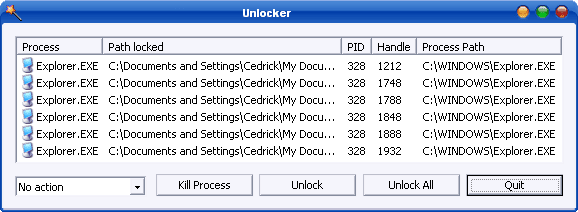
- Again as shown in the above image youll then get a list of certain system processes which represents the actual background tasks taking place on your processor in real time which are related to that offending file or folder. Just click any or all and then kill or unlock the offending processes.
- And after performing such a task on unlocker you can go back and try again to delete that folder or file and sometimes it may require a restart or reboot so give it the chance to do so and restart your computer and for sure itll that file or folder will instantly be deleted.
Unlocker is really a tiny, small, and simple utility software and it wont require any updates because it will be automatically updated as long as youve an internet connection on your computer system, so download and install one time and it will be always updated and running smoothly. And always remember itÕs an absolute dream when your Windows OS decides to start playing up and youre about to smash something in frustration. I recommend that Unlocker should be part of everyoneÕs computer set-up always and forever.
Go to link Download
Thursday, October 20, 2016
Driver Easy Professional 2016 Crack e Serial
Driver Easy Professional 2016 Crack e Serial

DriverEasy Professional 5.0.5.1928
Chega de garimpar a internet atr‡s de drivers Este excelente programa faz o trabalho pesado para voc encontrar e instalar todos os drivers do seu PC ou Notebook
A interface simples e leve do DriverEasy, que conta com poucas telas e trs bot›es, permite a instala‹o dele em qualquer computador, mesmo naqueles com poder de processamento mais baixo. Os usu‡rios n‹o encontrar‹o problema algum na utiliza‹o do DriverEasy, uma vez que o programa faz todo o trabalho praticamente sozinho.
F‡cil de usar.
Instala‹o descomplicada.
Possui mais de dez mil drivers no banco de dados.
Tamanho: 4 MB
Tamanho: 4 MB

Download MEGA
Download MEGA :


Go to link Download
Subscribe to:
Posts (Atom)