Showing posts with label in. Show all posts
Showing posts with label in. Show all posts
Wednesday, May 24, 2017
Can I Decrypt Encrypted PowerPoint File in My Laptop
Can I Decrypt Encrypted PowerPoint File in My Laptop
"ThatÕs so unfortunately. My PPT file encrypted with password couldnÕt be open, while it would be shown at afternoon. How can I decrypt this PPT file without any damage effectively and instantly?"
A tool is an effective way to solve such problems on computer. If you could find a powerful password recovery tool for encrypted PowerPoint file, it would half the work with double results for PowerPoint file decryption.
Through certification, PowerPoint Password Genius is such powerful tool to decrypt encrypted PowerPoint file, PPT file or PPTX file.
LetÕs do decrypt password protected PowerPoint file with PowerPoint Password Genius.
Step 1: Install PowerPoint Password Genius full version on computer.
A tool is an effective way to solve such problems on computer. If you could find a powerful password recovery tool for encrypted PowerPoint file, it would half the work with double results for PowerPoint file decryption.
Through certification, PowerPoint Password Genius is such powerful tool to decrypt encrypted PowerPoint file, PPT file or PPTX file.
LetÕs do decrypt password protected PowerPoint file with PowerPoint Password Genius.
Step 1: Install PowerPoint Password Genius full version on computer.
Why choose full version? The trial version only could decrypt PowerPoint file set with password less than 3 characters, while full version can decrypt any PowerPoint file which is set with any complex password.
Step 2: Browse encrypted PowerPoint file on computer and import it into password tool.
Step 2: Browse encrypted PowerPoint file on computer and import it into password tool.
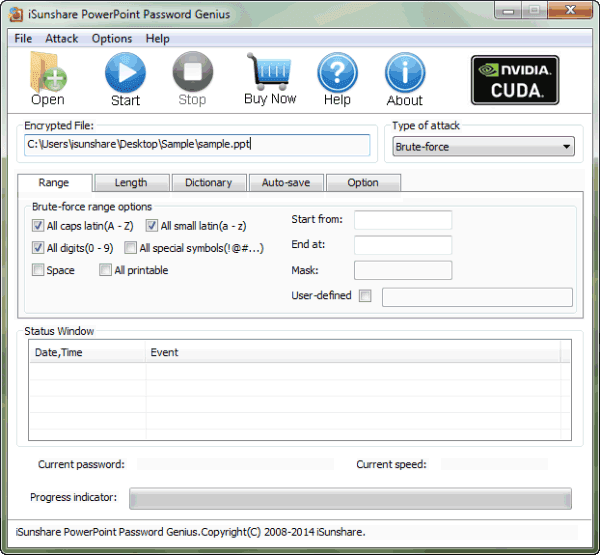
Run PowerPoint Password Genius and click "Open" button to browse encrypted PowerPoint file on your computer. And then import it into password tool. You would see it in "Encrypted File" box.
Step 3: Select PowerPoint password attack method.
Step 3: Select PowerPoint password attack method.
Brute-force, Mask, Dictionary and Smart are four password attack methods provided in PowerPoint Password Genius. Select one from them in drop-down box of "Type of attack".
Brute-force:
Brute-force:
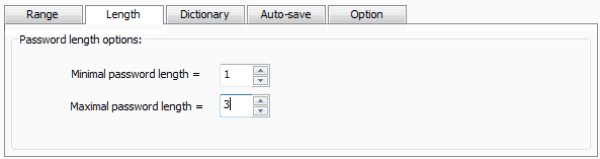
When you have no information about PowerPoint lost password, select Brute-force and set password range and length for it.
Mask:
Mask:
When you have part of PowerPoint lost password, select Mask, and set "Mask" parameter.

Dictionary:
Dictionary:
There are several common password included in Dictionary. Select it if lost PowerPoint password is common.

Smart:
Smart:
If you have no idea to choose which one, select Smart attack. But if you want to find PowerPoint password faster, select previous three attack types according to lost password.
Step 4: Click "Start" button to recover encrypted PowerPoint file password.
Step 4: Click "Start" button to recover encrypted PowerPoint file password.
After all the settings made up, click "Start" button on menu. Instantly, you could see PowerPoint password appearing in new window.
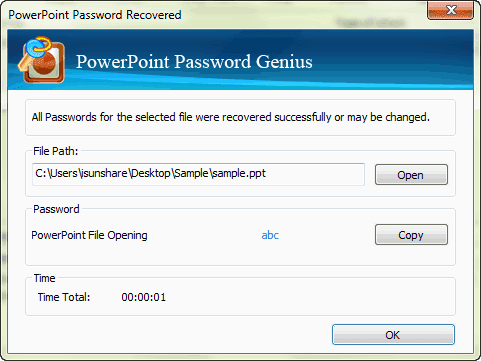 Copy it to save or open encrypted PowerPoint password. Now encrypted PowerPoint file has been decrypted.
Related Articles:
Related Articles:
- Could I Open Encrypted Outlook Data File without Password
- How to Open Password Protected Access Database without Password
- How to Open Password Protected Excel Worksheets without Password
- Tips on Office Password Encryption and Decryption
Go to link Download

Sunday, May 14, 2017
Create A System Restore Point In XP
Create A System Restore Point In XP
Create A System Restore Point In XP
Introduction:
Windows backup and restore is a system that can save your machine to a specific time and load this backup to restore your computer in exactly the same state as when you saved it.
You can use a restore point when, for example, you have been infected by a destructive virus and can no longer serve you properly on your computer. The restore point, if you did, you will regain a healthy computer and working. Well, the theory generally just practice. The time has come for you to create a restore point (Windows XP).
You should know that Windows includes a restoration software that works perfectly well. It is this software that we will use in this tutorial
Create a restore point:
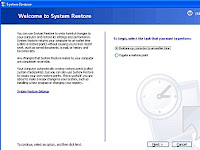
To begin, start Windows Restore: Button Start => All Programs => Accessories => System Tools => System Restore You should see a window offering you to restore your system or create a restore point. Select Create a restore point. and click nextyou must enter a description that will allow you to easily identify yours restore point.
Using a restore point:
Now that you have created you restore point, you need to know how to load.
If you clicked on the button Start, returned here on the main window of the assistant. Select Restore my computer to an earlier time. You now find yourself facing a schedule. This calendar is special; it lists all yours restore points. Thus, you should see youÕre in the right frame by clicking on the day you created.
Cancel restore:
Your system restores gone wrong? No problem, there is a simple and effective solution?
Start the Recovery Tool. You fall back on the main window (again!?). Select Undo my last restoration. Click Next. Once again, it summarizes the information you: what will change if you cancel the restoration, what restoration will be canceled ... Click Next to start the cancellation of a previous restoration. Click Cancel to cancel and exit the System Restore tool (theres still time to turn around!). Windows restarts and like magic your computer has resumed its old settings!
You May Like Also.......
(Offline) How To Install .Net Framework 3.5 On Windows 8/8.1/10
What Is The Difference Between FAT32, exFAT, and NTFS?
How To Show or Hide File Name Extensions in Windows 10/8.1/8/7/Xp
[Solved] Wifi Problem After Updating Windows 10, Limited Access or Not Connecting
Go to link Download
Saturday, May 13, 2017

Monday, May 8, 2017
‰ÛÏFree Opener‰Û Open Every Format in one Software
‰ÛÏFree Opener‰Û Open Every Format in one Software
 |
| ÒFree OpenerÓ Open Every Format in one Software |


Go to link Download
Saturday, April 22, 2017
How to Record Skype Audio Video Call in Urdu
How to Record Skype Audio Video Call in Urdu

Software Download

Watch Video and Share With Your Friend!
How to Record Skype Audio & Video Call in Urdu by MastiComputer
Go to link Download
Tuesday, April 18, 2017
PC in IE
PC in IE

PC-in-IE
Code : 15443-2
DOWNLOAD TRIAL
PURCHASE ORDER
Description : PC in Internet Explorer(PC-in-IE) is a secure and simple way to access your computer connected to the Intranet/Internet via Internet Explorer from anywhere in the world. You can read your e-mail, work on the documents and resources and retrieve important documents and data files from your home or office computer while on road. You can see the desktop of your Host-side PC and using your keyboard and mouse launch applications, read e-mails and edit documents as if you were directly working on that computer.
The entire communication between the Host and the Viewer is encrypted to ensure security during remote access.
To enable remote access,you need only download a small application and run it on your Host-side PC.Then, you can access your PC via IE just like viewing a website.
The entire communication between the Host and the Viewer is encrypted to ensure security during remote access.
To enable remote access,you need only download a small application and run it on your Host-side PC.Then, you can access your PC via IE just like viewing a website.
Feature
PC-in-IE 4.7. Get access to your remote computer via Internet Explorer. License: Shareware Updated: 2009-12-01. Category: - Servers & Networking - Remote Control Tools.,PC-in-IE 4.7. Get access to your remote computer via Internet Explorer. License: Shareware Updated: 2009-12-01. Category: - Servers & Networking - Remote Control Tools.,PC-in-IE (Popularity: ) : PC in Internet Explorer (PC-in-IE) is a secure and simple software to allow you to access your PC via Internet Explorer on another PC from ,PC-in-IE. Access remote computer via Internet Explorer. Download. Installed. Smart Install. Freegate. Access blocked web sites via anonymous proxy. Download.,PC IN IE : PC in Internet Explorer (PC-in-IE) is a secure and simple software to allow you to access your PC via Internet Explorer on another PC from anywhere in the ,PC-in-IE. Access remote computer via Internet Explorer. Download. Installed. Smart Install. Virtual Router Mana Turn any computer with Microsoft Windows ,Ive found some examples of .AVI in html on the web. But my page http://pianocheater.com/VIDEO.html is problematic. Its fine with chrome on my pc. In IE, you get ,Right click to download a show to your PC. In IE use "Save Target As". In Firefox and Chrome use "Save Link As". FEBRUARY: Topics Hosts MP3 Audio; February 23:,> PC IN IE > Multi Webcam Cast > ScreenCast Pro: Download: Purchase: Affiliate: Contact Us: Links Multi Screen ,Download and update your system drivers automatically. Drivers Update Utility updates your system with official drivers automatically with just several clicks.
Keyword
PC-in-IE,REMOTE DESKTOP,REMOTE ACCESS,REMOTE CONTROL,REMOTE,DIGITAL BEIJING
Related Seller
PC-in-IE 4.7. Get access to your remote computer via Internet Explorer. License: Shareware Updated: 2009-12-01. Category: - Servers & Networking - Remote Control Tools.,PC-in-IE 4.7. Get access to your remote computer via Internet Explorer. License: Shareware Updated: 2009-12-01. Category: - Servers & Networking - Remote Control Tools.,PC-in-IE (Popularity: ) : PC in Internet Explorer (PC-in-IE) is a secure and simple software to allow you to access your PC via Internet Explorer on another PC from ,PC-in-IE. Access remote computer via Internet Explorer. Download. Installed. Smart Install. Freegate. Access blocked web sites via anonymous proxy. Download.,PC IN IE : PC in Internet Explorer (PC-in-IE) is a secure and simple software to allow you to access your PC via Internet Explorer on another PC from anywhere in the ,PC-in-IE. Access remote computer via Internet Explorer. Download. Installed. Smart Install. Virtual Router Mana Turn any computer with Microsoft Windows ,Ive found some examples of .AVI in html on the web. But my page http://pianocheater.com/VIDEO.html is problematic. Its fine with chrome on my pc. In IE, you get ,Right click to download a show to your PC. In IE use "Save Target As". In Firefox and Chrome use "Save Link As". FEBRUARY: Topics Hosts MP3 Audio; February 23:,> PC IN IE > Multi Webcam Cast > ScreenCast Pro: Download: Purchase: Affiliate: Contact Us: Links Multi Screen ,Download and update your system drivers automatically. Drivers Update Utility updates your system with official drivers automatically with just several clicks.
Search Result
Drivers Update Utility - DGTSoft Inc.
Download and update your system drivers automatically. Drivers Update Utility updates your system with official drivers automatically with just several clicks.
Multi Screen Remote Desktop - DGTSoft.com
> PC IN IE > Multi Webcam Cast > ScreenCast Pro: Download: Purchase: Affiliate: Contact Us: Links Multi Screen
Personal Computer Radio Show -- Audio Archives
Right click to download a show to your PC. In IE use "Save Target As". In Firefox and Chrome use "Save Link As". FEBRUARY: Topics Hosts MP3 Audio; February 23:
how to embed an .AVI in html? - Stack Overflow
Ive found some examples of .AVI in html on the web. But my page http://pianocheater.com/VIDEO.html is problematic. Its fine with chrome on my pc. In IE, you get
Remote Utilities - Free download and software reviews - CNET ...
PC-in-IE. Access remote computer via Internet Explorer. Download. Installed. Smart Install. Virtual Router Mana Turn any computer with Microsoft Windows
Virtual AP - Turn your laptop into Virtual Access Point ...
PC IN IE : PC in Internet Explorer (PC-in-IE) is a secure and simple software to allow you to access your PC via Internet Explorer on another PC from anywhere in the
NoMachine - Free download and software reviews - CNET Download.com
PC-in-IE. Access remote computer via Internet Explorer. Download. Installed. Smart Install. Freegate. Access blocked web sites via anonymous proxy. Download.
Download Desktop Pinger - Test anything that replies on a ping ...
PC-in-IE (Popularity: ) : PC in Internet Explorer (PC-in-IE) is a secure and simple software to allow you to access your PC via Internet Explorer on another PC from
qeep download for pc
PC-in-IE 4.7. Get access to your remote computer via Internet Explorer. License: Shareware Updated: 2009-12-01. Category: - Servers & Networking - Remote Control Tools.
kmeye for pc - Free Software Downloads
PC-in-IE 4.7. Get access to your remote computer via Internet Explorer. License: Shareware Updated: 2009-12-01. Category: - Servers & Networking - Remote Control Tools.
Download and update your system drivers automatically. Drivers Update Utility updates your system with official drivers automatically with just several clicks.
Multi Screen Remote Desktop - DGTSoft.com
> PC IN IE > Multi Webcam Cast > ScreenCast Pro: Download: Purchase: Affiliate: Contact Us: Links Multi Screen
Personal Computer Radio Show -- Audio Archives
Right click to download a show to your PC. In IE use "Save Target As". In Firefox and Chrome use "Save Link As". FEBRUARY: Topics Hosts MP3 Audio; February 23:
how to embed an .AVI in html? - Stack Overflow
Ive found some examples of .AVI in html on the web. But my page http://pianocheater.com/VIDEO.html is problematic. Its fine with chrome on my pc. In IE, you get
Remote Utilities - Free download and software reviews - CNET ...
PC-in-IE. Access remote computer via Internet Explorer. Download. Installed. Smart Install. Virtual Router Mana Turn any computer with Microsoft Windows
Virtual AP - Turn your laptop into Virtual Access Point ...
PC IN IE : PC in Internet Explorer (PC-in-IE) is a secure and simple software to allow you to access your PC via Internet Explorer on another PC from anywhere in the
NoMachine - Free download and software reviews - CNET Download.com
PC-in-IE. Access remote computer via Internet Explorer. Download. Installed. Smart Install. Freegate. Access blocked web sites via anonymous proxy. Download.
Download Desktop Pinger - Test anything that replies on a ping ...
PC-in-IE (Popularity: ) : PC in Internet Explorer (PC-in-IE) is a secure and simple software to allow you to access your PC via Internet Explorer on another PC from
qeep download for pc
PC-in-IE 4.7. Get access to your remote computer via Internet Explorer. License: Shareware Updated: 2009-12-01. Category: - Servers & Networking - Remote Control Tools.
kmeye for pc - Free Software Downloads
PC-in-IE 4.7. Get access to your remote computer via Internet Explorer. License: Shareware Updated: 2009-12-01. Category: - Servers & Networking - Remote Control Tools.
Go to link Download
Saturday, April 15, 2017
SQL Database in Recovery after SA Password Locked Out
SQL Database in Recovery after SA Password Locked Out
Locked out of SQL Server because of SA password locked out, and couldnÕt login SQL Server with Windows Authentication mode? What can we do to make SQL database recovery or password recovery?
Once SQL database recovery is mentioned, something always impresses us. Whenever you bring a database online, SQL Server goes through a recovery process. It seems to be boring if we want to access SQL database instantly at that moment.
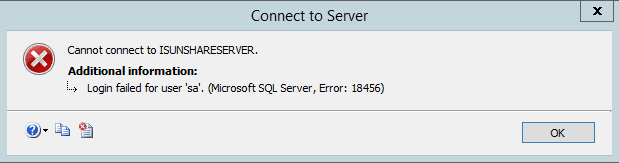
However, if SA password has been locked out, we could make SQL database in recovery to reset SA password. And then login into SQL Server with new SA password. All these just need a tool, SQL Password Genius.
SQL Password Genius is a powerful tool to reset user password for SQL database in few seconds. No matter it is SA or other users with different privileges, just select it in SQL Password Genius and, click "Reset" button, it could be set with new password.
Now letÕs go to see how this SQL password recovery tool makes SQL database/password recovery successful. This way applies to SQL Server all versions, including SQL Server 2014.
Precondition: SQL master database, SQL Password Genius, accessible computer with admin privileges.
1. Install SQL Password Genius (full version) on accessible computer.
This computer has been installed with Microsoft SQL Server 2000/2005/2008/2012/2014. And SQL master database can be found.
Once SQL database recovery is mentioned, something always impresses us. Whenever you bring a database online, SQL Server goes through a recovery process. It seems to be boring if we want to access SQL database instantly at that moment.
However, if SA password has been locked out, we could make SQL database in recovery to reset SA password. And then login into SQL Server with new SA password. All these just need a tool, SQL Password Genius.
SQL Password Genius is a powerful tool to reset user password for SQL database in few seconds. No matter it is SA or other users with different privileges, just select it in SQL Password Genius and, click "Reset" button, it could be set with new password.
Now letÕs go to see how this SQL password recovery tool makes SQL database/password recovery successful. This way applies to SQL Server all versions, including SQL Server 2014.
Precondition: SQL master database, SQL Password Genius, accessible computer with admin privileges.
Process of SQL Database in Recovery with Tool
1. Install SQL Password Genius (full version) on accessible computer.
This computer has been installed with Microsoft SQL Server 2000/2005/2008/2012/2014. And SQL master database can be found.
Why we take full version? Because trial version only could import master database, but still could not reset password for database recovery.
2. Browse master database in computer and import it into tool.
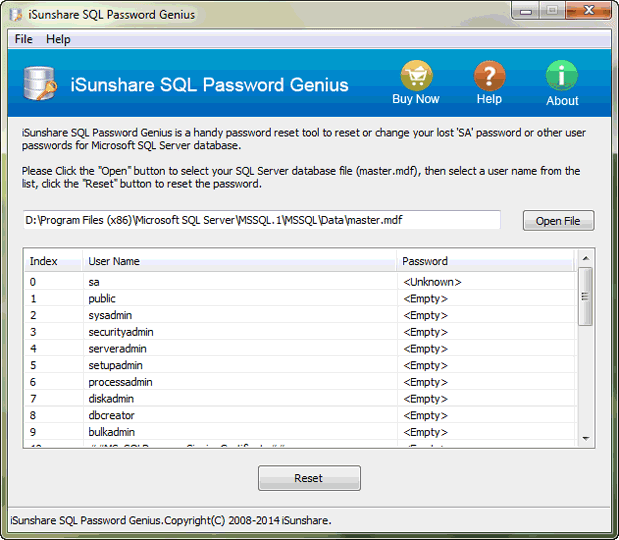
By clicking "Open File" button in tool, you would access to computer and could browse SQL master database in computer. When you find it, click "Open" button to import it into SQL Password Genius.
3. Recover SQL Server Master Database.
As soon as master database is imported, all of its users for it also appear in this tool.
How to recover SQL master database and make it accessible? Just select user, general SA account in user list, and click "Reset" button to type new login password for SA. Master database file is also recovered at the same time. Its logon user, SA password has changed.
Related Articles:
- Transaction and Commands for SA Account and Password in SQL Server
- How to Install SQL Server 2012 on Windows Server 2012 R2
- Forgot Windows 8 Password No Reset Disk
- SQL Database Password Recovery
Go to link Download
Monday, April 10, 2017
Hack Your Windows Password in Just 1 Minute
Hack Your Windows Password in Just 1 Minute
Hack Windows password without permission is illegal. However, to crack, resetir change on Windows password is definitely needed if you forgot password for your computer.
When forgetting a Windows password, people can easily figure out a way - reinstall the XP system. Actually, doing this is not smart since a large amount of data on your computer will be probably lost. Why you should take risk in losing data? Why not take other feasible ways to solve the same problem? Okay, this post will fully satisfy your needs - tell you how to crack Windows login password in just 1 minute without causing any data loss from the computer.
Hack Windows password - by removing forgotten Windows password with Windows Password Recovery Basic.
Windows Password Recovery Basic, as a professional third-party password recovery application, has successfully helped many Windows users solve the Windows 7/Vista/XP/2000/NT password forgotten problem. One of the functions of this application is supporting fast-speed recovery. With costing you less than 1 minute, you will regain access to your locked machine. Below are the detailed instructions on how to remove forgotten Windows password with this application in 1 minute.
Instructions:
Note: Things you will need: an accessible computer, an empty and writable CD or DVD.
Windows Password Recovery Basic, as a professional third-party password recovery application, has successfully helped many Windows users solve the Windows 7/Vista/XP/2000/NT password forgotten problem. One of the functions of this application is supporting fast-speed recovery. With costing you less than 1 minute, you will regain access to your locked machine. Below are the detailed instructions on how to remove forgotten Windows password with this application in 1 minute.
Instructions:
Note: Things you will need: an accessible computer, an empty and writable CD or DVD.
- Download Windows Password Recovery Basic software.
- Install and launch this app to an accessible computer.
- Quickly burn a Windows password reset CD/DVD with Windows Password Recovery Basic and the prepared CD or DVD.
- Change BIOS settings for the target/locked computer with the burned and bootable Windows password reset CD/DVD.
- After finishing BIOS settings, the locked computer will reboots, at this time, you now can start to reset your forgotten password with the burned CD/DVD in less than 1 minute.
In resetting Windows password with this method, you soon will be able to log in your computer without any password.
Hack Windows password - by changing forgotten Windows password with Windows Password Recovery Ultimate.
Windows Password Recovery Ultimate, another version of Ainorsoft Windows Password Recovery. Compared with the basic version, this ultimate version has a function to help users directly change forgotten password based on any Windows OS, such as Server 2008/2003/Win7/Vista/XP. Also, it can create a new Windows user account for any Windows OS.
Windows Password Recovery Ultimate, another version of Ainorsoft Windows Password Recovery. Compared with the basic version, this ultimate version has a function to help users directly change forgotten password based on any Windows OS, such as Server 2008/2003/Win7/Vista/XP. Also, it can create a new Windows user account for any Windows OS.
Related Article: Hack Windows 7 Password
Crack Windows 7 Password
Crack Windows 7 Password
Source: http://www.blog.windowspasswordrecovery.net/hack-windows-password.html
Go to link Download
How To Install All Software in One Click
How To Install All Software in One Click


Watch Video and Share With Your Friends.
How To Install All Software in One Click by MastiComputer
Go to link Download
Saturday, April 8, 2017
Free internet to phone calling in pakistan and worldwide
Free internet to phone calling in pakistan and worldwide

>> Yes, it is true. Now you can get 10 million minutes of free calling totally free.
>> To get this you have to register on www.pennytel.com
>> You can Make FREE calls to:
Australia^, Canada, China, Hong Kong, India, New Zealand^, Singapore, the UK^ and the USA; anytime between 20th December 2012 and 20th January 2013
WhatÕs more Ð you can call using a number of methods, including:
(1) Mobile Phone (with an App)
(2) Home Phone (with an ATA)
(3) Softphone (on your computer)
(4) IP Phone

>> For registration you have to fill up above details.
>> So enjoy free calling from internet to phone.
Go to link Download
Saturday, April 1, 2017
How to Recover Data File Password in Outlook E mail
How to Recover Data File Password in Outlook E mail
Microsoft Office Outlook password forgot? CouldnÕt open Outlook PST/OST data file? CouldnÕt access E-mail accounts in Outlook?
Have you encountered these problems? Actually, all of these problems could be solved by one way, recovering Outlook data file password. All of the e-mail accounts added to Outlook and information about e-mails, task and schedule etc are saved in Outlook data file on your local computer, or saved in E-mail server. So just recovering data file password, you would be able to access e-mail in outlook.
Through the search and comparison of different kinds of outlook password recovery tools, Outlook Password Genius is effective one for Outlook data file password recovery. Because it directly imports data file into software, and then recover data file password by password attack.
Have you encountered these problems? Actually, all of these problems could be solved by one way, recovering Outlook data file password. All of the e-mail accounts added to Outlook and information about e-mails, task and schedule etc are saved in Outlook data file on your local computer, or saved in E-mail server. So just recovering data file password, you would be able to access e-mail in outlook.
Through the search and comparison of different kinds of outlook password recovery tools, Outlook Password Genius is effective one for Outlook data file password recovery. Because it directly imports data file into software, and then recover data file password by password attack.
Only three steps and two minutes at most needed. With so high efficiency, letÕs see how to recover Outlook data file password in details?
Step 1: Install Outlook Password Genius on your computer. And click ÒOpenÓ button to import encrypted outlook data file, PST or OST file.
Get it here: http://www.isunshare.com/outlook-password-recovery.html

Step 2: Select password attack type and make settings.
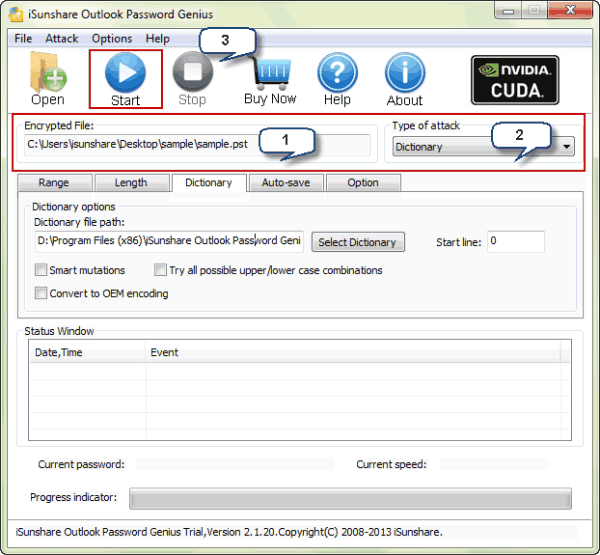
Step 3: Click ÒStartÓ button to recover imported data file password.
In new pop-up window, there is Outlook password recovered. You can copy it to access E-mail in Outlook or save it in safe place.

If you forget not only Outlook data file password, but also other Office password files, such as Word document, Excel sheet, Access database or PowerPoint file, select Office Password Genius to help you. Related Articles:
- How to Recover Different Kinds of Deleted or Damaged Data
- Principles of Hard Disk Data/File Storage and Format
- How to Setup and Delete E-mail Account in Outlook 2010
Go to link Download
Thursday, March 23, 2017
Learn C in Urdu
Learn C in Urdu
 |
| Learn C++ in Urdu |
It is very easy to understand command and tools and there rools
Go to link Download
Sunday, March 19, 2017
How to Find Lost File in Windows 7 Laptop
How to Find Lost File in Windows 7 Laptop
 Windows 7 file lost. It is not ordinary file, but system file. Does the way to recover lost system file is the same as recovering other files?
 Now letÕs see which kind of system file would lose generally, and why they lost?
DLL and EXE file are common lost system files. Why they lost? Maybe they are attacked by virus. Maybe these file lost after uninstalling programs where they use a common file. Or maybe computer or laptop restarts or shuts down abnormally.
When we meet such a problem, probably we would feel upset if we donÕt have enough computer knowledge to solve it successfully by ourselves. In fact, it is unnecessary. Even though we are not familiar with Windows system, there are still lots of tools helping us to find lost system file back in this information and technology period.
When we meet such a problem, probably we would feel upset if we donÕt have enough computer knowledge to solve it successfully by ourselves. In fact, it is unnecessary. Even though we are not familiar with Windows system, there are still lots of tools helping us to find lost system file back in this information and technology period.
For example, following different kinds of tools could help us to restore or recover lost Windows 7 system file from different angles.
1. Repair damaged DLL and EXE file with system repair tool
Some are free but some you should pay for. System repair tool would run and check out the problem you meet and file your Windows 7 system lost. After finish check, just choose to fix it instantly. This system tool would help to repair system and restore lost or damaged system file.
 These system repair tools or software you can choose: Windows Repair Kit (not free for full version), PC Repair System and System Repair Engineer (best used by experienced-to-expert users).
2. Recover damaged/deleted/formatted system file with data recovery tool
If system repair tool couldnÕt give you a perfect solution, choose data recovery tool, such as Data Genius, to recover lost data or file. No matter why system file is lost because of virus attack, disk format, or accident deletion, Data Genius always would help to recover them. WhatÕs more, it is safe for computer to recover data free.

DonÕt worry, it would run on all versions of Windows operational systems.
Step 2: Choose probable data recovery option.
Four data recovery types are provided, Deleted Recovery, Format Recovery, Raw File Recovery and Partition Recovery. Now we can choose Raw File Recovery, because it could find and recover data that cannot be found by Deleted Recovery and Format Recovery.
Click Next and choose driver or partitions where system file was stored. Then click Scan.
Step 3: Scan drive or partition and select lost system file.
Wait for Data Genius some time to scan chosen drive or partition. Few seconds or few minutes are needed according to the file size on this drive. After data scan finished, look for lost system file in them and select it.
Step 4: Recover system file.
Step 4: Recover system file.
Click Recoverbutton and choose a folder to save system file on another drive or partition. When system file is recovered successfully, Data Genius would give you a prompting message.
After lost system file is found, you could save it back on original place, in order to prevent another system problem because of this system file loss.
Related Articles:
Related Articles:
- Access Locked HP/Dell/Acer/Lenovo Laptop with System Repair Disc
- Comprehensive Analysis of Windows System Activation Methods
- Principles of Hard Disk Data/File Storage and Format
- Ways to Boot and Use HP Laptop Successfully if Lost Windows 7 Password
Go to link Download
Thursday, March 16, 2017
How to Start Windows 10 in Safe Mode When Computer Locked or Not
How to Start Windows 10 in Safe Mode When Computer Locked or Not
Windows 10 safe mode is undoubtedly good pattern to boot Windows 10, especially when we encounter some problems about Windows systems. Now please learn how to start Windows 10 computer in safe mode when computer is available or locked.
How to start Windows 10 in safe mode when computer is available
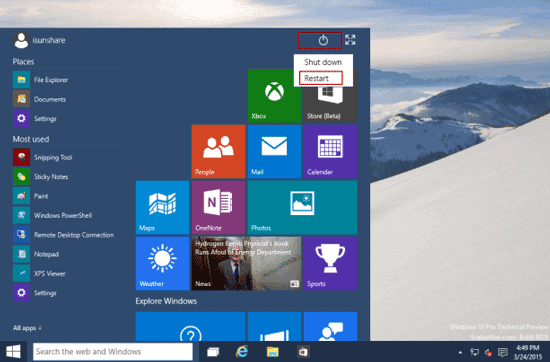
1. When your Windows 10 computer is accessible, click Start and Power icon, then press and hold on Shift key, and click Restartat the same time.
2. As a new window screen appears, choose Troubleshoot, and then select Advanced options.
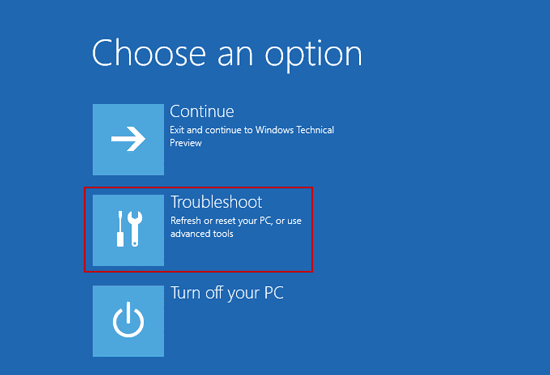
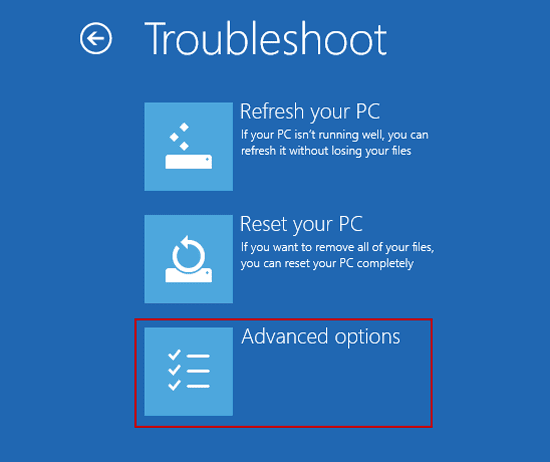
3. Choose Startup Settings under "Advanced options".
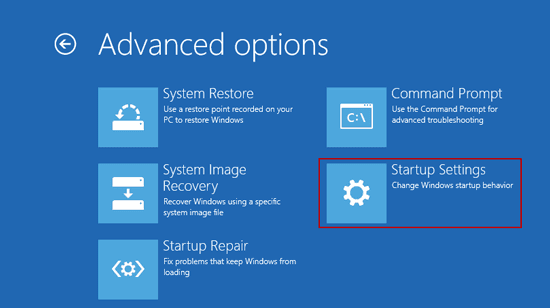
4. In Startup Settings, you can see there are several options for you to change Windows startup settings when you reboot Windows 10 computer again. So now click Restart.
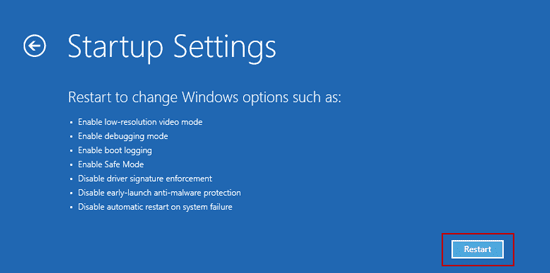
5. Once you decide to restart Windows 10 with which option enabled or disabled, press corresponding number key to make it done. Now we are going to boot Windows 10 in safe mode. So press F4and wait for Windows 10 starting in safe mode.
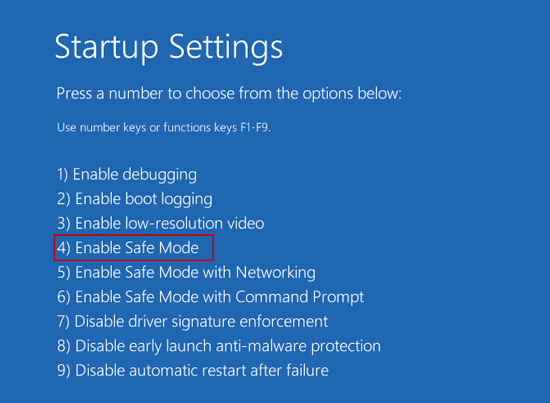
Tips: When Windows 10 reboots and before entering Windows 10 in safe mode, logon screen still asks you to type password.

Because computer is available, so just choose the available user and type password to login Windows 10 in safe mode. The following image shows Windows 10 safe mode.

How to start Windows 10 in safe mode when computer is locked
When Windows 10 password forgot and you are locked out of Windows 10, how can you boot Windows 10 in safe mode, in order to make full use of default administrator to reset Windows 10 forgotten password?
Actually, on Windows 10 logon screen, you can see Power button at the right bottom side, click it and select "Restart" button, at the same time, press and hold on Shift key.

Then Windows 10 will enter a new window, where you can choose "Troubleshoot - Advanced options". Following steps will be the same as starting Windows 10 in safe mode when computer is available.
Then Windows 10 will enter a new window, where you can choose "Troubleshoot - Advanced options". Following steps will be the same as starting Windows 10 in safe mode when computer is available.
The difference is that there is no available user for logon now when Windows 10 restarts and is going to safe mode. But, if now default administrator is enabled, you can see it in user list and login Windows 10 with it.
Refer to: How to enable or disable Windows 10 default administrator
If the methods in above referred passage are not effective for you to enable Windows 10 default administrator, please get Windows Password Genius Advanced to create a password reset disk, and then use it to boot locked windows 10 computer. You would see default administrator and could reset Windows 10 default administrator password. But only when default administrator is enabled in accessible Windows 10, can it login Windows 10 with new password. So at this moment, it might have been wiser to reset other user password or create new administrator for Windows 10 logon. Then you could enable Windows 10 default administrator or start Windows 10 in safe mode.
Related Articles:
Related Articles:
- How to Boot Windows Server 2012 in Safe Mode
- How to Enable Safe Mode on Windows 8 Computer
Go to link Download
Wednesday, March 15, 2017
Password Is Not Recognized in Windows 8 How to Fix It
Password Is Not Recognized in Windows 8 How to Fix It
Question: Password is not recognize in Windows 8, how to fix it?
ÒHelp! Windows 8 is not recognized my password. When I login to my live.com account on Windows 8 it tells me that my password is not correct. I have used the account.live.com/password/reset as directed by the login screen error many times and every time it does not accept the new password. Can you please offer me any assistance in resolving this issue? Or point me in the direction of a resolution? Are there issues with the password that my PC is checking against not updating properly?
Most of the "answers" I have seen indicate you cant help with password issues, but, obviously I am not having any issue typing in the correct password as I am logged into my account on another computer to type this, nor am I having any trouble changing the password as I have done this multiple items this morning. Sorry, but I am a little stressed that I am unable to login to my main PC since I went to bed last night. So does anyone know what to do when the password is not recognized in Windows 8? Thank you for your assistance in this matter!Ó

Answer 1:
Hi everyone -- not really an answer or solution here, but I had exactly the same problem as stated above. Microsoft clearly doesnt have any solution to this (or even a desire to help). What I had to do was the following:
1. Restore the PC from a last known good configuration: hold down "shift" while selecting "Restart" -- this brings up some start up config settings.
2. In this start up config, find the menu item "Restore" (or something similar) and perform a restore from a last known configuration. In my case, the last available restore was just a few days prior to my password problem. This took approx. 20 minutes (for me), but after it completed, I was able to log in to my administrator account with my OLD password (not my most recent Microsoft Live password).
3. Go into Setup > PC Settings > Users and deselect password for the administrator account. You will have to enter the password one last time (again, the OLD password) but when prompted for a new password, leave all the fields blank.
After doing this, I now have a local administrator profile that does not require a password. I also deselected passwords for all of the other user profiles.
Answer 2:
Hi Everyone, I Also experienced the password problem with both local account and MS ID. The problem is that Win8 changes your keyboard so if your password contains characters other than letters and number, you are most likely entering incorrect characters without knowing. Best thing to do is enter your password in the username field so you can see the characters. Then at the bottom right, change your keyboard and test again.
Go to link Download
Tuesday, March 7, 2017
How to Use or Install USB Flash Drive as Ram in Computer Windows
How to Use or Install USB Flash Drive as Ram in Computer Windows
 |
| How to Use or Install USB Flash Drive as Ram in Computer Windows |
How to Use USB Flash Drive as Ram in all computer windows.This is a good computer tipsNtricks post.In thistopic video we can practically describe it.I hope when you watch the tutorial you can use it for fun.Ram is a random access memory which stores data of software which you run.But some times we have use low GB Ram as a software run slow. Zubair Find the Solution to solve the Problem and say we can replace ram through Usb .Its Friends interest in this topic and Make a tutorial which is as follow.
How to Use USB Flash Drive as Ram in Windows... by vidhippo
Go to link Download
Tuesday, February 28, 2017
Six Options to Sign in Locked Windows 10 PC Laptop Tablet
Six Options to Sign in Locked Windows 10 PC Laptop Tablet
When windows 10 login password forgot or lost, how can you sign in Windows 10? Now the article summarizes six options you can choose to login Windows 10 before or after resetting Windows 10 login password?
Before resetting Windows 10 password, three sign-in options are available if you have them before locked out of Windows 10 computer.
- PIN code or picture password for Windows 10 login user.
- Another local admin account. If there is, it should appear at the bottom of Windows 10 logon screen. Just choose it and type password to enter Windows 10.
- Built-in Administrator. Unless you have enabled it, it would not be available for Windows 10 logon.

After resetting Windows 10 password, you would get more three options to sign in Windows 10 PC/laptop/tablet.
- Sign in Windows 10 without password.
- Access Windows 10 with login user and new password.
- Login Windows 10 with new administrator.
But how can we create new Windows 10 sign-in options and how to login into Windows 10 after password reset? This is a question worth to considering sincerely, especially while Windows user has no PIN code or picture password, and another administrator, and built-in administrator has not been enabled.
Now the follow three ways would answer this question about creating new Windows 10 sign-in options. And while you have no choices without resetting windows 10 password, you could only use ways below if you want to sign in Windows 10.
1. Password Reset Wizard. If password reset disk has been created, you can click "Reset Password" on Windows logon screen after typing wrong password, to run Password Reset Wizard to reset Windows 10 forgotten password. Then sign in Windows 10 without password or new password.

2. Windows password recovery tool, which can create reset disk and remove forgotten password, create new administrator, so you can sign in windows 10 without password, with new administrator after using windows password recovery tool.

3. Windows 10 installation CD and command prompt also could reset windows 10 password.
While you reboot windows 10 computer from installation cd, and replace utilman.exe with cmd.exe, you could restart windows 10 and run command prompt to reset windows 10 user password, even though windows 10 computer is locked at that time.

With command, you can remove windows 10 password, reset windows 10 password, create new administrator. So with this way, you can sign in windows 10 without password, new user password or new administrator.
Topics you may be interested:
- Windows 10 Laptop Password Reset with Three Methods
- How to Unlock Windows 10 Admin Password
- Windows 10 Remove Password on Bootup
Go to link Download
Wednesday, February 22, 2017
Infrastructure wifi internet hotspot in windows 7
Infrastructure wifi internet hotspot in windows 7

- Android devices doesnt support Ad Hoc by default.
- So most of android users are facing difficulties to connect their android devices with windowsPC or symbian devices. Because windows uses Ad Hoc network by default.
- To solve this problem we can use two methods 1) either you can create Ad Hoc network in android or 2) create infrastructure network in windows.
- To connect android devices with Ad Hoc network you have to root it. But it is a riskey method.
- So create infrastructure in windows is a safer way.
- To create infrastructure wifi you have to enter two commands in command promp.
>>Open command prompt as administrator.
>>Then enter command
netsh wlan set hostednetwork mode=allow ssid=testwifi key="123456789012"
>>you can change network ssid & passkey
>>This command creates infrastructure wifi
>>Now we have to run second command to connect it
netsh wlan start hostednetwork
>>now you can find and connect wifi in your android devices
Go to link Download
Saturday, February 18, 2017
How to Set Change Folder Permissions in Outlook 2010
How to Set Change Folder Permissions in Outlook 2010
Generally, we could set folder permissions in Outlook by ÒFolder PermissionsÓ option. But this becomes unavailable in Outlook 2010. Even so, we could set folder permissions for Outlook by setting password for PST file.
Three Ways provided in this passage to set or change Outlook data file permissions in Outlook 2010.
Three Ways provided in this passage to set or change Outlook data file permissions in Outlook 2010.
- Way 1: Set/Change Permissions by Outlook Account Settings.
- Way 2: Set/Change Permissions by ÒData File PropertiesÓ.
- Way 3: Set/Change Permissions through Control Panel.
Way 1: Set/Change Permissions by Outlook Account Settings.
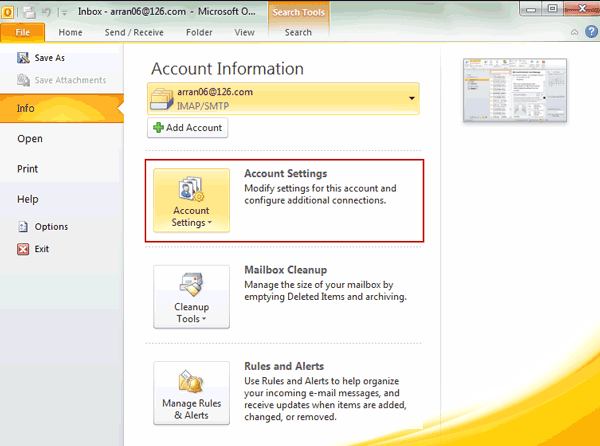
1. Click File Ð Info, and choose Account Settings on the right pane of window.
2. Click ÒData FileÓ in new window, and select the data file you want to set permissions for it.
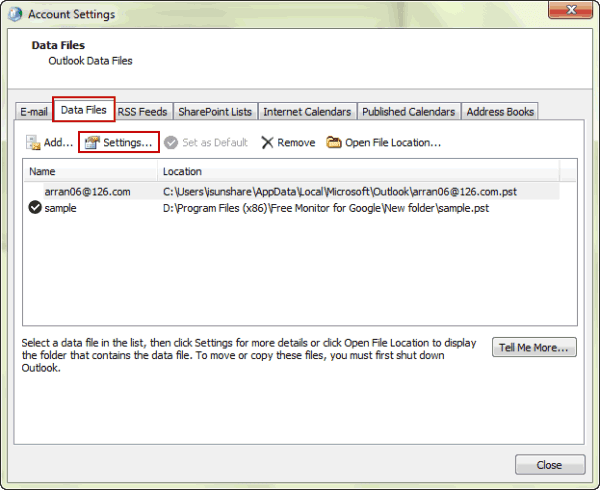
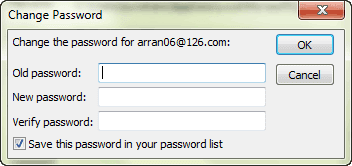
3. Click ÒSettingsÓ button on Data File menus. And then click ÒChange PasswordÓ button on new screen.
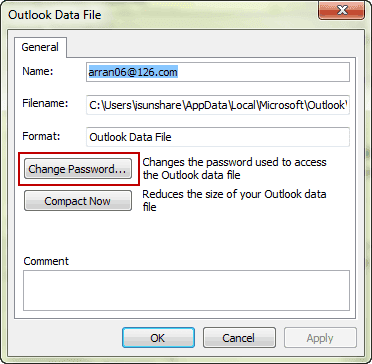
4. Type ÒOld passwordÓ, ÒNew passwordÓ and ÒVerify passwordÓ, and click ÒOKÓ. At last, click ÒApplyÓ and ÒOKÓ.
Way 2: Set/Change Permissions by ÒData File PropertiesÓ.
After you open Outlook file in Outlook 2010, follow the introduction to do.
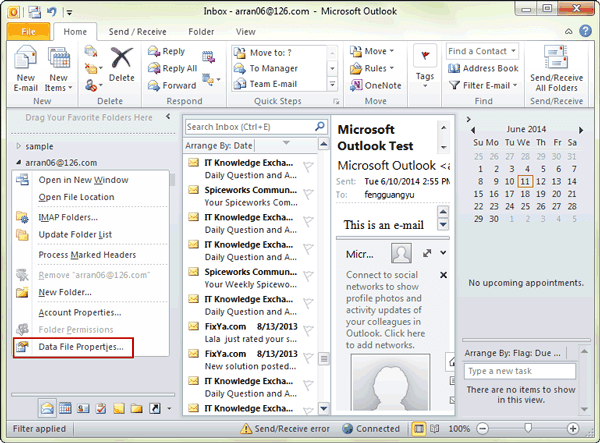
1. Right-click E-mail account and click ÒData File PropertiesÓ.
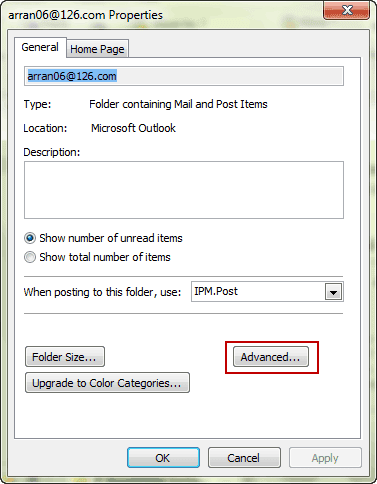
2. In E-mail account properties window, click ÒAdvancedÓ.
3. Click ÒSet Password/Change PasswordÓ button on window.
4. Type Old password, New password and Verify password. Click ÒOKÓ.
Way 3: Set/Change Permissions through Control Panel.
1. Open Control Panel in Windows 7 and then find E-mail.
2. Choose ÒData FilesÓ in pop-up window. And then Account Settings window opens.
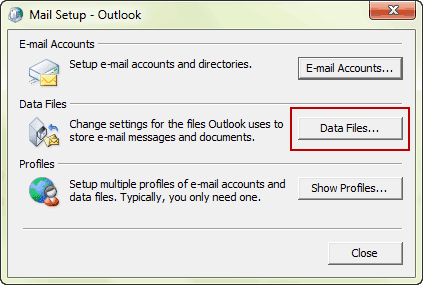
3. Select the appropriate data file and click ÒSettingsÓ to ÒSet/Change PasswordÓ in new window to set password to make permissions for Outlook file.
Related Articles:
- How to Recover Data File Password in Outlook E-mail
- How to Unlock Password Protected PST File
- How to Open Password Protected Office File without Password
- Tips on Office password encryption and decryption
Go to link Download
Subscribe to:
Posts (Atom)