Showing posts with label solutions. Show all posts
Showing posts with label solutions. Show all posts
Friday, April 28, 2017
WiFi ‰ÛÏLimited Connection‰Û or ‰ÛÏNo Internet Access‰Û 9 Solutions You Need to Know
WiFi ‰ÛÏLimited Connection‰Û or ‰ÛÏNo Internet Access‰Û 9 Solutions You Need to Know
Question 1: I need help because I have tried a lot of tricks but still canÕt connect to WiFi at all. I have been connected to my modem before but now all I see is limited connectivity which doesnÕt allow me to connect to the internet. What can I do?
Question 2: I recently ordered a new Lenovo laptop online. I got the y510p. My problem is when I connect to the WiFi it says limited connection. I have tried many "fixes" online but none have worked. I really need help. Does anyone know how to fix this?
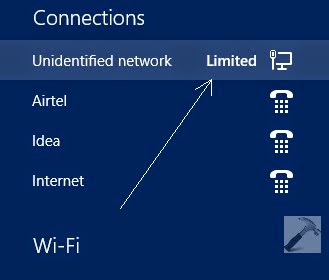 |
| WiFi Òlimited connectionÓ |
After installing Windows 8 or Windows 8.1, users frequently get into the trouble WiFi Òlimited connectionÓ or Òno Internet accessÓ. There are various reasons for that. According to the most common causes I summarize 10 solutions to cope with the trouble. Hope to help you well:
Solution 1: Examine whether your modem, adapter, router and access points are turned on and connected correctly.
- Make sure the modem, adapter and router are connected correctly and the lights are on.
- Re-seat all the cables and power cords.
- Start the computer and open the Windows Desktop. On the Windows desktop, click the Network Connection icon, then click the name of the network and click connect.
Solution 2: Reset power to router and modem
After working for a long time, your router or modem may crash temporarily. In this case you need to reset power to your router and modem. Please follow the steps below:
- Unplug the power to the wireless router and to the cable or DSL modem and wait at least 30 seconds before continuing.
- Reconnect the power to the modem and allow it to re-establish a connection to the ISP. If the modem has indicator lights, wait until the lights indicate a connection. (If using a separate wireless router, reconnect the power to the router and allow it to re-establish the connections to the modem and other components)
- After the modem and router have finished making connections, check whether your computer can connect to WiFi and have access to the Internet. If not, please refer to the following solutions.
Solution 3: Re-configuring the wireless network
- Get intoÓ Network and Sharing CenterÓ from control panel and then click ÒSet up a new connection or networkÓ.
- In the ÒChoose a connection optionÓ window, select ÒManually connect to a wireless networkÓ, and click ÒNextÓ.
- Type the required wireless network information, and then click ÒNextÓ and ÒcloseÓ.
- From the Windows desktop, click the Network Connection icon in the notification area, and then click the name of the network. Click "Connect". Enter the network password (or security key) for the selected wireless network, and then click ÒNextÓ.
Solution 4: Moving your computer closer to the router and avoid the influence of solid objects and electrical appliances
As is known to us, a wireless network router has a limited broadcast range. The further the computer is from the router, the weaker the broadcast signal. And also Solid objects such as walls, metal furniture, and electrical appliances might interfere with the signal and decrease the usable range. Thus you can move your computer closer to the router and prevent your computer form solid objects and electrical appliances.
Solution 5: Connect the computer directly to the network router with an Ethernet cable
To determine if the connection problem lies with the router settings or with the wireless signal you can follow this way. Detailed steps are as follows:
- Insert an Ethernet cable from one of the available ports on the router to the network port on the computer.
- Wait for one minute, and then check the Network Connection icon in the notification area on the Windows desktop.
- If the icon has an X in the lower corner, the connection is not working. Right-click the icon, and then click Troubleshoot problems. Windows Network Diagnostics checks for problems. If Window Network Diagnostics is not able to fix the issue, the router is not working properly. Refer to Solution 6: Resetting and reconfiguring the router
- If the icon does not have an X in the lower corner, the connection is working. Disconnect the Ethernet cable from the computer, and manually setup a new connection to the wireless network.
Solution 6: Resetting and reconfiguring the router
In case that your router is hacked and the information is changed is changed by others. This way will work. Refer to the instructions below:
- Enter the default IP addresses for the router into the URL address field on the browser. The following list provides default IP addresses for several routers.
3Com: http://192.168.1.1
D-Link: http://192.168.0.1
Linksys: http://192.168.1.1
Netgear: http://192.168.0.1 - After the home page for the router displays, type a password to perform configuration tasks. (See the User Guide for model specific information)
- When you have administrator access to the router, change the routers default name, sometimes it is called an SSID, a name that is different from other routers in your area.
- Set up Wi-Fi protected access (WPA) or wireless encryption (WEP) to prevent other computers from connecting to your home network.
- Enter a network access password, sometimes called a passphrase. Make sure to pick a password that is easy to remember, such as a phone number that you dial often or a phrase that is familiar.
Solution 7: Updating the router firmware
Outdated firmware may prevent the router from accessing the Internet or certain Web pages. Log into the home page for the router and update the routers firmware. Consult the User Guide that come with your manual for information on how to perform a firmware update.
Solution 8: Installing updated wireless LAN driver and Bios
If no network connection icon is displayed within 15 to 30 seconds after enabling the wireless network, or if a Windows Device not Found error message displays, the software driver might be missing or corrupt. To fix this, download and install the latest drivers and BIOS from the Internet. You must know the exact model number or product number for your computer. Be sure to select the correct operating system.
Solution 9: Restoring your Windows 8 system to a previous state
If the computer was able to connect to the wireless network in the past, but now cannot connect, perform a ÒMicrosoft System RestoreÓ. Make your computer return to the previous state.
With the nine solutions most people are supposed to solve their WiFi Òlimited connectionÓ or Òno Internet access problems. If the solutions above donÕt work for you donÕt hesitate to contact the manufacturer for support.
Go to link Download

Friday, March 24, 2017
2 Easy Solutions to Bypass Windows XP Password
2 Easy Solutions to Bypass Windows XP Password
"I have a second computer with only user account. But I changed its password a long time ago, and now I forgot it. So now the problem is I cannot log into the PC with other user account. I am wondering if there is a way to bypass that password. Can someone teach me please?"
Being denied access to Windows XP computer for XP password forgotten has always been a hot issue among pc users. I am sure many people have racked their brains for a few moments, trying to remember what that word combination is the exact password. Usually, to re-gain access to your PC by thinking of what the password is, is always time-consuming and in vain at last. This could never be a smart way. So, now you may want to look for an easier and quicker solution to bypass Windows XP password that wont take your hours or even days to figure out. Fortunately, there are such solutions indeed, and below are 2 such solutions to bypass XP user login password.
Solution 1: Use Windows XP built-in Administrator account.
If you are an XP user, and you have forgotten the password for your only user account on the XP machine, you may have neglected the Windows XP built-in Administrator account. You cannot see this account on your computer since it is hidden by default. But now you can easily unhide it to help you bypass XP admin password because this built-in Admin has no password protected by default, but has highest privileges over the whole PC. Follow the below steps to unhide this admin account and recover forgotten Windows XP password next:
Step1: Start your computer and press "Ctrl+Alt+Delete" twice when you see Windows Login screen.
Step2: Type Administrator in username box and leave the password column blank.
Step3: Now you have successfully gained access to your XP PC again and later you can freely change or remove your forgotten Windows XP password from: "Start->Control Panel->User Accounts".
If you are an XP user, and you have forgotten the password for your only user account on the XP machine, you may have neglected the Windows XP built-in Administrator account. You cannot see this account on your computer since it is hidden by default. But now you can easily unhide it to help you bypass XP admin password because this built-in Admin has no password protected by default, but has highest privileges over the whole PC. Follow the below steps to unhide this admin account and recover forgotten Windows XP password next:
Step1: Start your computer and press "Ctrl+Alt+Delete" twice when you see Windows Login screen.
Step2: Type Administrator in username box and leave the password column blank.
Step3: Now you have successfully gained access to your XP PC again and later you can freely change or remove your forgotten Windows XP password from: "Start->Control Panel->User Accounts".
Solution 2: Use Windows Password Recovery Enhance.
Windows Password Recovery Enhance is a professionally third-party application made for resetting any forgotten or lost Windows password on all Windows-based PCs. All you need to bypass Windows XP login password with this tool, are just 3 steps only: download the software>>burn a disk>>reset password. Below are the detailed steps:
Step1: Download, install and run Windows Password Recovery Enhance on any accessible computer.
Step2: Burn a bootable password recovery CD/DVD/USB with this software. Insert a blank CD/DVD or USB flash drive to the accessible PC and click ÒBurnÓ button in the main interface to start burning a bootable password recovery disk.
Step3: Start to reset Windows XP password. First insert the burned disk to the target computer and later set this computer boot from CD/DVD/USB in BIOS. After that, you can start to unlock the lost Windows XP password for your locked PC with 3 clicks of button only.
Windows Password Recovery Enhance is a professionally third-party application made for resetting any forgotten or lost Windows password on all Windows-based PCs. All you need to bypass Windows XP login password with this tool, are just 3 steps only: download the software>>burn a disk>>reset password. Below are the detailed steps:
Step1: Download, install and run Windows Password Recovery Enhance on any accessible computer.
Step2: Burn a bootable password recovery CD/DVD/USB with this software. Insert a blank CD/DVD or USB flash drive to the accessible PC and click ÒBurnÓ button in the main interface to start burning a bootable password recovery disk.
Step3: Start to reset Windows XP password. First insert the burned disk to the target computer and later set this computer boot from CD/DVD/USB in BIOS. After that, you can start to unlock the lost Windows XP password for your locked PC with 3 clicks of button only.
Yep, thatÕs all for the steps on how to bypass XP password. Which one should I choose? This is according to the situation you are in. If you havenÕt changed any settings for the built-in Administrator account on your PC, then solution one can be your best choice. While bypassing XP user login password with Windows Password Recovery Enhance is also a good choice since its created password recovery disk can be useful whenever you forgot or lost password.
Article source: http://www.blog.windowspasswordrecovery.net/bypass-windows-xp-password.html
Go to link Download
Saturday, November 5, 2016
4 Workable Solutions You Need to Know if Forgot Dell Password on Windows 7
4 Workable Solutions You Need to Know if Forgot Dell Password on Windows 7
I have heard that many people complain about forgetting their Dell password on Windows 7. How does this come about? This is a difficult question to answer. However you can learn to how to cope with it in time. Here I will share 4 workable solutions to reset Dell password on Windows 7 with you. But keep in mind that you must read the notes first before following the solutions below.

Solution 1: Reset Dell password with a previous created Windows 7 password reset disk
As far as IÕm concerned, a Dell password reset disk is the best way to prevent you from forgetting your password. Thus when you install a new system in your computer youÕd better to remember to create a password reset disk. If you have no password reset disk at hand, donÕt worry, you can turn to the solutions below.
1. Start your locked Dell computer. Enter the wrong password at the login box, and then Windows will display a message that the password is incorrect. Click ÒOKÓ to close the message. After that you will see ÒReset passwordÓ under the login box, click it and then insert the password reset disk you have created.
2. Follow the instructions in the ÒPassword Reset WizardÓ to create a new password.
3. After you finish the steps above you are supposed to log on with the new password.
Note: This method requires that you have created a password reset disk before you have lost the login password.
Solution 2: Logon with another administrator account to remove Dell password Windows 7
If you can log in to your Dell computer with another administrator account then you can continue in this solution.
1. Log on with another administrator account or account which has administration authority to remove Dell password on the other accounts.
2. Click the ÒStartÓ button, type Òlusrmgr.mscÓ in the Search box and then press ÒENTERÓ. ? Then you will get into ÒLocal Users and GroupsÓ.
3. Double-click ÒLocal Users and GroupsÓ, and then click ÒUsersÓ.
4. Right-click the target account which you want to remove the password for, and then click ÒSet PasswordÓ. Type and confirm the new password.
5. Assuming that you have completed the operations above then you will login with the newly created account.
Solution 3: Reset Windows 7 password on Dell from Safe Mode
As is known to us, Windows 7 system has a built-in administrator account that is created during Windows installation and disabled by default, which has no password in it. You need to enable the built-in Administrator account first. If not, you will not succeed.
Step 1: Start your computer and pressÒF8?. Choose ÒSafe Mode with Command PromptÓ with the arrow key and press ÒEnter.ÓThen your computer will get into Safe Mode with Command Prompt.
Step 2: Select the Administrator account appearing on the screen, then enter command prompt. Type: net user Ò****** 123456Ó and enter (****** is the account name and 123456 is the new password), then a messageÐÒthe command completed successfullyÓ will appear on the screen.
Step 3: Restart your win 7 computer, then you can log in as ****** with the password 123456. You can go to Control Panel to change your account password if necessary.
Solution 4: Recover Windows 7 password on Dell with Windows Password Recovery?http://www.lostwindowspassword.com/windows-password-recovery.htm?
If you have neither another administrator account nor Windows password reset disk, youÕd better to recover Windows 7 password on Dell computer with Windows Password Recovery. Just follow the steps below:
1. Download the program on any PC you have access to.
2. Run the downloaded file to install it.
3. Burn a bootable CD/DVD or USB Flash Drive and remove Windows password with the burned CD/DVD or USB Flash Drive on your locked PC.
If you have any question about using the program please refer to the video guide below:
Go to link Download
Subscribe to:
Posts (Atom)