Showing posts with label bypass. Show all posts
Showing posts with label bypass. Show all posts
Saturday, April 22, 2017
How to Bypass RAR Password to Open Encrypted RAR File
How to Bypass RAR Password to Open Encrypted RAR File
My RAR file is encrypted safely, but unfortunately I cannot open it now like other people who have no password, because I have forgotten RAR file password.
If forgot or lost encrypted RAR password, is there way to bypass forgotten password to open encrypted RAR file?
I cannot say yes to directly bypass forgotten RAR password to open encrypted RAR archive. It is not realistic. But I have tried following 4 steps, which could surely help users to open encrypted RAR file without password after they successfully do these.
- Step 1: Recover Encrypted RAR File with Two Ways in Two Situations
- Step 2: Open Encrypted RAR File with Recovered Password
- Step 3: Remove Password from Encrypted RAR File
- Step 4: Save RAR File and Bypass Password to Open It
Step 1: Two Ways to Recover Encrypted RAR File Password in Two Situations
As is known, there are lots of third-party tools that can be used to recover RAR password. Now we will only introduce two ways that we all could use to recover encrypted RAR file password according to password features.
- If RAR password consists of only digital numbers, you can recover RAR password with notepad.
- If RAR password is complex and includes different kinds of characters, you can choose RAR Password Genius to recover RAR forgotten password.
Way 1: Recover Encrypted RAR File Password with Free Notepad
1. Enter commands in notepad and save notepad as bat file.
2. Double-click bat file to run it in command prompt.
3. Enter RAR file name and path.
4. Press Enter to recover RAR password with commands saved in bat file.
5. A period of time later, RAR password will be successfully cracked if it is numeric password.
You can see RAR password appearing in command prompt window if you can successfully recover RAR file password with commands in notepad.

Details please see the article: Free Way to Find Encrypted RAR File Password
Way 2: Recover Encrypted RAR File Password with RAR Password Genius
No matter how complex password your RAR file is encrypted with, you can get RAR Password Genius to help recover RAR file password. Even though password recovery speed would be different if you choose different version of RAR Password Genius, both of them provide powerful password attack type for RAR password recovery.
Apparently, Professional version would be faster to recover RAR password than Standard version, because Professional version allows users to run password recovery client program on other computers in the same LAN at the same time. Believe you have heard that, the more CPU cores you use, the faster recovery speed you can enjoy.

About how RAR Password Genius Standard and Professional recover RAR/WinRAR password, please the details in their user guides.
- RAR Password Genius Standard User Guide
- RAR Password Genius Professional User Guide
Step 2: Open Encrypted RAR File with Recovered Password
Just open encrypted RAR file in WinRAR etc compression software, and you could type recovered RAR password to extract or open files in RAR archive.


Step 3: Remove Password from Encrypted RAR File
After you extract encrypted RAR file with recovered password, you would get a folder that saves files ever stored in encrypted RAR file. Even though you cannot remove password from encrypted RAR file, you still could create a new RAR file now without password with the folder.

And then use new RAR file instead of original one from then on. It would like you have removed open password from encrypted RAR file.
Step 4: Save RAR File and Bypass Password to Open It
Save new RAR file you just created. From now on, you could bypass password to open RAR file and open or extract files in RAR archive.
Congratulations, if you have seen this sentence! Even though you cannot bypass RAR password to open archive in one step, you have gotten RAR password with above steps and could keep it in safe place. Therefore, once you forgot RAR password one day, you can find it to open encrypted RAR file instantly.
Related Articles:
Related Articles:
- How to Lock and Unlock a Password Protected RAR File without Password
- How to Decrypt an Encrypted WinRAR File Offline and Online without Password
- How to Bypass WinZip Password after Forgot or Lost
Go to link Download

Wednesday, April 19, 2017
Top 3 Tricks about How to Bypass Windows 7 Professional Login Screen
Top 3 Tricks about How to Bypass Windows 7 Professional Login Screen
"How do I bypass the Windows 7 login password without password recovery disk? My sister has passed away & Ive been copying her pictures off of her laptop for the family & I havent finished. It logged off last night and now its asking for password & no one knows the password. Im almost positive there is a way to go around this password but I cant seem to figure it out on my own! Please help ASAP THANX."
It comes out a common sense to create a Windows 7 password for laptop protected. At the same time, a feasible advice is to create a Windows 7 password reset disk in case that you forgot password on Windows 7 laptop. But without password reset disk, how to bypass Windows 7 password? Are there any other good and convenient ways to bypass Windows 7 password? Now, its time to learn how to bypass Windows 7 professional login screen password with the following three tips and tricks.

Trick 1: Bypass Windows 7 Professional Login Screen with Command Prompt
By using this method, all you need is a copy of the Windows 7 Professional installation disk and Sticky Keys trick (an accessibility feature that allows a user to tap the Shift, Ctrl, Alt, or Windows key once to achieve the same effect as holding the key down).
Step 1. Boot your computer from the installation disk.
Step 2. After loading the setup files, select your language and click Next > click the "Repair your computer" link on the Install Windows screen > select the system to repair and click Next > click "Command Prompt" to open command prompt window.
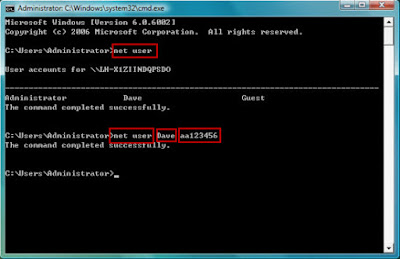
Step 3. Now you can reset the password. Just type "net user UserName Password" (replace UserName and Password with the combination you want) and press Enter key.
Step 4. Close command prompt window, restart the computer, and then you can login with new password on login screen.
By taking this method, you will lose access to encrypted files, encrypted email messages, and the stored passwords in Internet Explorer and network resources. Remember to back up your important data regularly.
Trick 2: Windows 7 password Bypass with Ophcrack
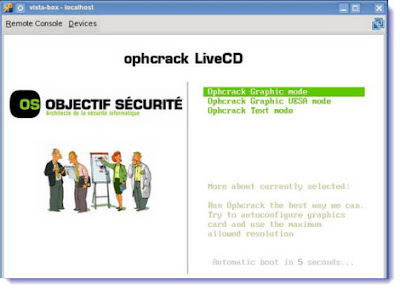
Ophcrack is a freeware that is able to bypass password in Windows 7 local login screen. As it is free, you dont need to spend any money on it. However, it is also hard to use, and some of the users feedback it doesnt work sometimes. So you can also try to use this free way. And if it is not working, get to another methods.
Trick 3:Bypass Windows 7 Admin Password with USB Drive
If you dont have an installation disk, you can use Windows Password Buster to bypass Windows 7 admin password. This software can help you reset administrator password with USB flash drive or CD/DVD. Even if you are a computer newbie, its possible for you to bypass the password in minutes.
Step 1. Download and install Windows Password Key Professinoal on an accessible computer from http://www.lostwindowspassword.com.
Note: When you are trying to run some programs, the computer will ask for the permission. So please install the software on a computer that has administrator privileges.
Step 2. Run the software to make a bootable USB flash drive.
Step 3. Boot the locked computer from the USB flash drive and bypass admin password.

Though you can bypass Windows 7 Professional login screen password and login screen through Windows Password Key, you had better create a password reset disk when you are able to login computer in case that you forget the password again.
Go to link Download
Friday, March 24, 2017
2 Easy Solutions to Bypass Windows XP Password
2 Easy Solutions to Bypass Windows XP Password
"I have a second computer with only user account. But I changed its password a long time ago, and now I forgot it. So now the problem is I cannot log into the PC with other user account. I am wondering if there is a way to bypass that password. Can someone teach me please?"
Being denied access to Windows XP computer for XP password forgotten has always been a hot issue among pc users. I am sure many people have racked their brains for a few moments, trying to remember what that word combination is the exact password. Usually, to re-gain access to your PC by thinking of what the password is, is always time-consuming and in vain at last. This could never be a smart way. So, now you may want to look for an easier and quicker solution to bypass Windows XP password that wont take your hours or even days to figure out. Fortunately, there are such solutions indeed, and below are 2 such solutions to bypass XP user login password.
Solution 1: Use Windows XP built-in Administrator account.
If you are an XP user, and you have forgotten the password for your only user account on the XP machine, you may have neglected the Windows XP built-in Administrator account. You cannot see this account on your computer since it is hidden by default. But now you can easily unhide it to help you bypass XP admin password because this built-in Admin has no password protected by default, but has highest privileges over the whole PC. Follow the below steps to unhide this admin account and recover forgotten Windows XP password next:
Step1: Start your computer and press "Ctrl+Alt+Delete" twice when you see Windows Login screen.
Step2: Type Administrator in username box and leave the password column blank.
Step3: Now you have successfully gained access to your XP PC again and later you can freely change or remove your forgotten Windows XP password from: "Start->Control Panel->User Accounts".
If you are an XP user, and you have forgotten the password for your only user account on the XP machine, you may have neglected the Windows XP built-in Administrator account. You cannot see this account on your computer since it is hidden by default. But now you can easily unhide it to help you bypass XP admin password because this built-in Admin has no password protected by default, but has highest privileges over the whole PC. Follow the below steps to unhide this admin account and recover forgotten Windows XP password next:
Step1: Start your computer and press "Ctrl+Alt+Delete" twice when you see Windows Login screen.
Step2: Type Administrator in username box and leave the password column blank.
Step3: Now you have successfully gained access to your XP PC again and later you can freely change or remove your forgotten Windows XP password from: "Start->Control Panel->User Accounts".
Solution 2: Use Windows Password Recovery Enhance.
Windows Password Recovery Enhance is a professionally third-party application made for resetting any forgotten or lost Windows password on all Windows-based PCs. All you need to bypass Windows XP login password with this tool, are just 3 steps only: download the software>>burn a disk>>reset password. Below are the detailed steps:
Step1: Download, install and run Windows Password Recovery Enhance on any accessible computer.
Step2: Burn a bootable password recovery CD/DVD/USB with this software. Insert a blank CD/DVD or USB flash drive to the accessible PC and click ÒBurnÓ button in the main interface to start burning a bootable password recovery disk.
Step3: Start to reset Windows XP password. First insert the burned disk to the target computer and later set this computer boot from CD/DVD/USB in BIOS. After that, you can start to unlock the lost Windows XP password for your locked PC with 3 clicks of button only.
Windows Password Recovery Enhance is a professionally third-party application made for resetting any forgotten or lost Windows password on all Windows-based PCs. All you need to bypass Windows XP login password with this tool, are just 3 steps only: download the software>>burn a disk>>reset password. Below are the detailed steps:
Step1: Download, install and run Windows Password Recovery Enhance on any accessible computer.
Step2: Burn a bootable password recovery CD/DVD/USB with this software. Insert a blank CD/DVD or USB flash drive to the accessible PC and click ÒBurnÓ button in the main interface to start burning a bootable password recovery disk.
Step3: Start to reset Windows XP password. First insert the burned disk to the target computer and later set this computer boot from CD/DVD/USB in BIOS. After that, you can start to unlock the lost Windows XP password for your locked PC with 3 clicks of button only.
Yep, thatÕs all for the steps on how to bypass XP password. Which one should I choose? This is according to the situation you are in. If you havenÕt changed any settings for the built-in Administrator account on your PC, then solution one can be your best choice. While bypassing XP user login password with Windows Password Recovery Enhance is also a good choice since its created password recovery disk can be useful whenever you forgot or lost password.
Article source: http://www.blog.windowspasswordrecovery.net/bypass-windows-xp-password.html
Go to link Download
Thursday, January 5, 2017
How to Bypass Password for Acer Laptop Windows 7 Forgot Windows 7 Password
How to Bypass Password for Acer Laptop Windows 7 Forgot Windows 7 Password
Forgot Acer laptop Windows 7 password for login, how can I bypass it to access Windows 7 Acer laptop?
Four methods are provided here for you to bypass Windows 7 laptop forgotten password.
- Method 1: Bypass Windows 7 Password via Administrator Account
- Method 2: Bypass Windows 7 Forgotten Password with CMD
- Method 3: Bypass Windows 7 Laptop Password in Safe Mode
- Method 4: Bypass Acer Laptop Password through Windows Password Recovery Disk
Method 1: Bypass Windows 7 Password via Administrator Account
User Account Managementpanel offers friendly UI to manage user account profile, which is easier to accept by computer beginners.
Step 1: Open User Account Management through this path.
Control PanelUser Accounts and Family SafetyUser AccountsManage Accounts
Step 2: Click the user account you want to change its password, and then a sub panel "Change an Account" is opened.
Step 3: Click "Remove the password" on the left of panel.

Step 4: When "Remove Password" panel opens, and click "Remove Password" button again to complete the password resetting operation.
Step 2: Click the user account you want to change its password, and then a sub panel "Change an Account" is opened.
Step 3: Click "Remove the password" on the left of panel.
Step 4: When "Remove Password" panel opens, and click "Remove Password" button again to complete the password resetting operation.
Method 2: Bypass Windows 7 Forgotten Password with CMD
With Net User command, you can bypass windows 7 user password easily if you can log on windows 7 with another user who has administrator privilege. Net User command is also used in windows 8/Vista/XP and Windows server 2000/2003/2008. Now, you can reset a user password in two steps below:
Step 1: Launch Command Prompt:
Start -> In search box, type in: cmd.exe -> Right click cmd.exe on search result -> Run as administrator.
Tips: If you are login windows with administrator user, you can run cmd.exe directly without "Run as administrator".

Step 2: On Command Prompt, type in: Net user <user name> <new password>.
Tips: Replace <user name> with user name, and replace <new password> with password. When get message "Command completed successfully", it means the password has been reset successfully.
Method 3: Bypass Windows 7 Laptop Password in Safe Mode
When Windows 7 was installed, a built-in account named administrator was created at the same time. The Administrator account has a blank password until you create a new password for it. So it is easier and safer to bypass Windows 7 login password in Safe Mode when forgot Windows 7 admin password. Now we try to login Windows 7 with administrator account.
Step 1: Boot or reboot your Windows 7 pc.
Step 2: Press F8 repeatedly until the Windows Advanced Options Menu screen appears.
Step 3: Select "Safe Mode" in the coming screen, and then Press Enter.
Step 4: Log in with "Administrator" account until you see login screen. Click "Start > open the control panel > users accounts", and reset any user password. Now, you have bypassed Windows 7 administrator password.

If the administrator account is inactive or set the password, we cannot use the above methods to bypass windows 7 forgotten password. We should use Method 4.
Method 4: Bypass Acer Laptop Password through Windows Password Recovery Disk
Windows password recovery disk can be created before you forgot Windows 7 login or admin password for Acer laptop. But if you have not created one, Windows Password Genius can help you to burn it into bootable USB drive or CD/DVD ROM.
1. Download and install Windows Password Genius on your another available computer. When it is installed successfully, run it and insert bootable USB drive into it.
2. Choose USB as media type and click ÒBegin burningÓ to burn a Windows password recovery disk. If it is burned into USB successfully, a message will prompt you. And then exit USB from available computer.
Now Windows password recovery disk has been created with password recovery tool, the following operations are to set laptop boot from it and remove forgotten Windows 7 password when you are locked out of Acer laptop.
3. Take USB reset disk plugging into Acer laptop, and then boot it from USB. Press F12 when you start Acer laptop and enter Boot Option Menu. And then choose USB to boot Acer laptop.
How to set computer boot from USB
4. Remove Forgotten Windows 7 password for Acer laptop
When you see Windows Password Genius runs, it means just need another step to finish Windows 7 password reset. That is to click ÒReset PasswordÓ. And Windows forgotten 7 password will be blank.

Reboot Acer laptop and exit USB, and you can sign into Windows 7 laptop bypassing password.
Now, do you still feel that bypass Windows 7 password is difficult and no way to solve it? Try these methods, and you will change your opinions.
Related Articles:
How to Reset Admin Password on PC Windows 7
Acer laptop Lost Windows 8 login password
Related Articles:
How to Reset Admin Password on PC Windows 7
Acer laptop Lost Windows 8 login password
Bypass Windows 8 Login password Ð Sign in Windows automatically
Go to link Download
Saturday, December 10, 2016
How to bypass a Windows 7 Dell computer home screen when its locked out
How to bypass a Windows 7 Dell computer home screen when its locked out
In recent years, Dell has become one of the most popular computer brands. So when you were locked out of Windows 7 Dell computer, how to bypass the password. We can see more as below to learn how to bypass Dell computer Windows 7 password easily.
Dell Computer screen lock how to enter computer again
Step1: You should cancel screensaver password: On the desktop, right-select "Properties" - In the pop-up "Display Properties" dialog box, select the "Screen Saver" - canceled "is used when a recovery password protection."
Step2: Shortcuts: is not there when you press the alphanumeric, and if it is because you open the keypad lights num, this is more common in notebook. So before you follow the steps, you should clear which situation is yours.
Dell computer Windows7 password forgot, how to fix
Step1: You need to restart the computer, after the splash screen appears immediately, press the F8 key, and then select "Safe Mode with the command line".
Step2: In the end of the process is running, the system lists the system super user "administrator" and the local user ÒJackÓ selection menu, mouse click "administrator", enter the command line mode.
Step3: On here you can type the command: "net ÒJackÓ user 123456 / add", forcing the change "Jack" users password is "123456." To this add a new user (such as: user name abcdef, password is 123456), then type "net user abcdef 123456 / add", after adding free "net local group administrators abcdef / add" command will users upgrading to system management group "administrators" of the user, and it has super powers.
Step4: Then restart the computer, running under normal mode is selected, you can use the changed password "123456" Login "Jack" user.
Of course, if you have a backup system before, then directly back to the original boot OK.
After the four steps, you can fix the trouble of Dell computer Windows 7 password forgot. However, this maybe complex for a part of Dell users to learn how to bypass Dell Windows 7 password when home screen locked out, if you feel it is hard for you, you can see more as below.
How to use Windows Password Key to bypass Windows 7 Dell computer password
Windows Password Key is one of the most popular Windows Password Recovery Tool on Google. More details about how to use Windows Password Key.
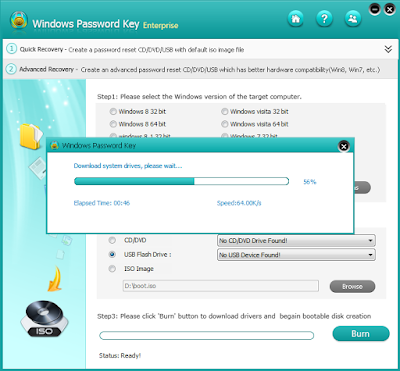
Step1: Download Windows Password Key and install it on any accessible computer.
Step2: Using a CD/DVD or USB to burn Windows Password Key on it. And then insert newly created disk on the Windows 7 Dell computer to running Windows Password Key.
Step3: Choose the Windows 7 account that you want to bypass the password. Then restart Windows 7 Dell computer. You have bypass Windows 7 password on Dell computer easily.
Only 3 simple steps to teach you how to bypass Dell computer Windows 7 password in quickest way, hope that easy blog is helpful to you. Good luck.
Go to link Download
Sunday, October 16, 2016
How to Bypass WinZip Password after Forgot or Lost
How to Bypass WinZip Password after Forgot or Lost
After WinZip password forgot or lost, the first step may be to get WinZip password. Then bypass WinZip password can be come true.
- Step 1: Get WinZip password with zip password recovery freeware or shareware
- Step 2: Bypass WinZip file simple or complex password
Now see how to use freeware or shareware to bypass WinZip forgotten or lost password.
- Method 1: Bypass WinZip simple password with some free zip password recovery tools
- Method 2: Bypass WinZip file complex password with shareware ZIP Password Genius
Method 1: Bypass WinZip password with free zip password recovery tools
If you have no freeware for winzip password recovery, in the following passage several freeware are introduced. You can choose one from them.
Tips: Free ZIP Password Recovery Tools after Lost ZIP Password
According to the detailed introductions about zip password recovery tools, choose one that is suitable for your WinZip file. After getting password with free zip password recovery tools, check whether the software you choose can help you to recover your winzip file password. If not, you should turn to Method 2.
Method 2: Bypass WinZip file password with shareware ZIP Password Genius
This shareware would be your saver when you cannot extract WinZip file without password. It helps you easily find WinZip password.
1. Prepare ZIP Password Genius and install it on your computer where WinZip file is stored.
2. Run it after complete installation. Then import WinZip file with Open button. Also, you can click File - Open File tab to open WinZip file in ZIP Password Genius.
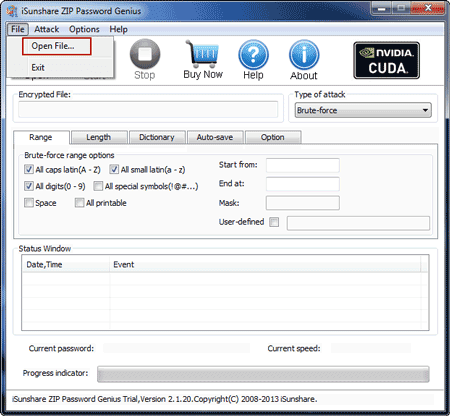

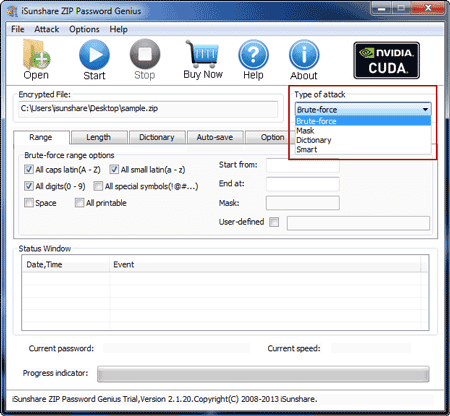
3. ItÕs time to set password recovery attack method.
Under Type of attack, Brute-force, Mask, Dictionary and Smart, these four password attack types are provided for you to recover WinZip password powerfully. According to the possible WinZip password features, Brute-force and Dictionary are best choices. Brute-force can recover WinZip password forcibly. And Mask makes full use of password possible features to recover WinZip password.
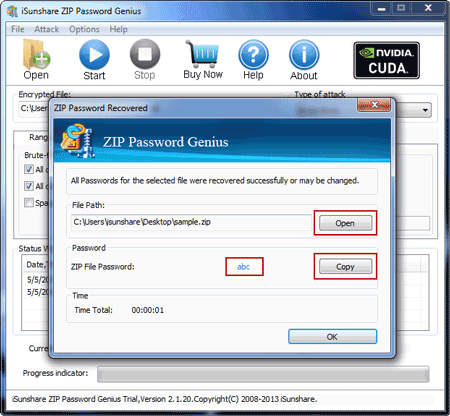
4. When all of things have been prepared, click Start button to recover WinZip password. In the pop-up window, you can copy the WinZip password to save or open WinZip file directly.
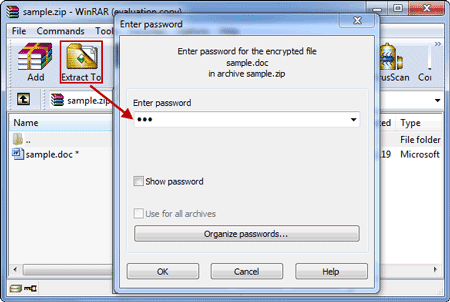
5. Extract WinZip file with recovered password in WinRAR.
6. Create new WinZip file with contents in previous WinZip file. Remember donÕt set a password to protect the new WinZip file.
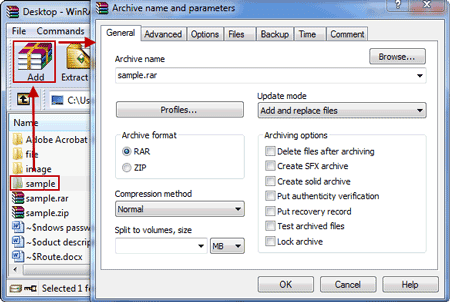
Now do you have any questions about how to bypass WinZip password after forgot or lost? If you have, you can learn more about freeware or shareware for WinZip password recovery.
Related Articles:
- How to Bypass RAR Password to Open Encrypted RAR File
- 2 Ways to Unlock Encrypted RAR/WinRAR File without Password
- How to Find RAR Password after Forgot or Lost It
- How to ZIP a File with a Password
Go to link Download
Subscribe to:
Posts (Atom)