Showing posts with label change. Show all posts
Showing posts with label change. Show all posts
Monday, May 29, 2017
How to Change Admin Account with Windows 8 Disk
How to Change Admin Account with Windows 8 Disk
We all know that we could change admin account in Control Panel via User Account Control. But if we couldnÕt access Windows 8 computer, how should we go to Control Panel and change administrator? Now this article will introduce how to change admin account with Windows 8 disk.
Maybe installation disk or recovery disk help. But here we take easy Windows 8 password reset disk into practice.
One: Change Admin Account with Created Password Reset Disk
This reset disk is created before Windows 8 computer is locked. So in Windows 8 logon screen, after you type wrong password and see a message link ÒReset PasswordÓ, click it and follow the instructions.

- Windows password reset wizard appears. Click next and insert password reset disk into computer, and click next again.
- Choose inserted reset disk as password reset key from the drop-down box.
- Click Next and type new password for forgotten user account. Or you can let it blank and click Next to finish Windows 8 password reset.
- Reboot computer and login Windows 8 with admin account which just has been reset password.
- Start the MS Explorer and enter in the address bar enter the address:
Control PanelAll Control Panel ItemsUser AccountsManage Accounts
Or you can open Windows 8 Control Panel and click on (open) Manage accounts. - Click the text ÒChange the account typeÓ in the Window ÒChange an AccountÓ.
- Change Account type to the Administrator. Or change an admin account to Standard User.
Besides, in Control Panel, you can change or remove admin account password or delete/add new administrator.
Two: Change Admin Account with Burned Password Reset Disk
This password reset disk is burned with Windows password recovery tool. Please see here learn how to create Windows password reset disk.
1. Plug password reset disk into Windows 8 locked computer.
2. Boot computer from reset disk.
Password reset disk can be burned with bootable USB or CD/DVD ROM, so you should set computer boot from USB or boot from CD ROM.
3. When computer boots from disk successfully, password recovery program runs too.
Select Windows system and user account. And then click ÒReset PasswordÓ to let forgotten account password be blank.
4. Eject disk and reboot Windows 8 computer.
5. Sign in to Windows 8 without any password. Press Windows + R and command control.exe nusrmgr.cpl and click on the text ÒManage another accountÓ.
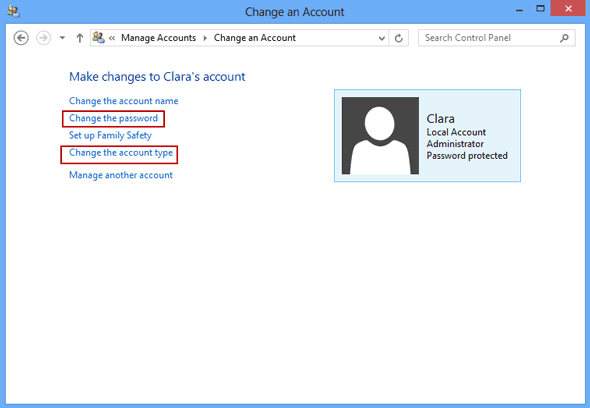
6. Choose an administrator and click ÒChange the account typeÓ or "Change the password" in new pop-up window.
6. Choose an administrator and click ÒChange the account typeÓ or "Change the password" in new pop-up window.
The last step is to change its account type to Standard user. Or do other things for it, such as ÒChange the passwordÓ, ÒCreate a passwordÓ, ÒChange the account nameÓ or ÒDelete the accountÓ.
With the ways provided above, we can change user account type including change admin account in Windows 8 computer.
Tips:
How to create or get a Windows 8 password reset disk?
Actually, Windows 8 password reset disk can be created by two ways. The first way is create it in in Control Panel when you can access computer. The second way is burn it with Windows password recovery tool.
Without disk, how to change admin account or its password? Turn to see this article.
How to reset Windows 8 password without disk
Windows Server 2012 R2 is different from previous Windows server systems. Besides the same features like other Windows server, Windows Server 2012 R2 provides more convenience on operation and safety on operating files and your business data. At the same time, computer backup archiving is available. If you are ready to use a new computer instead of an old computer, and youd like to keep the old computers backups, Windows Server 2012 R2 Essentials provides you an archiving feature.
There are new features provided by Windows server 2012 r2. But there is general question we will always encounter no matter which Windows server system we use. That is Windows login or domain admin password forgot or lost.
When you are in face of problem Windows Server 2012 R2 domain administrator password forgot, what can you do to change forgotten or lost password?
The easiest way is to change server 2012 R2 administrator password through Remote Desktop.
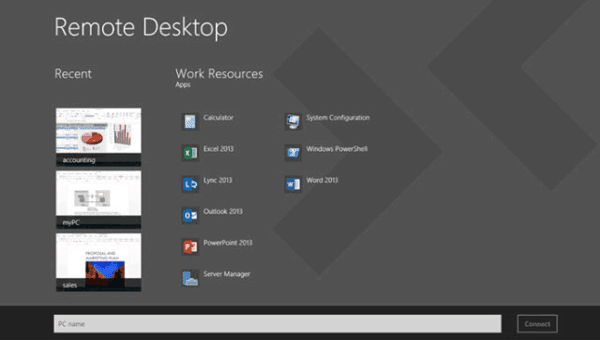
- When you couldnÕt access your Windows server 2012 R2 directly, log into server via Remote Desktop.
- Press Windows key and type Administrative Tools.
- Double click on Computer Management.
- Expand Local Users and Groups and click on Users.
- Right click on Administrator. And click on Set Password Ð Proceed.
- At last, type your new password in both fields then press OK.
However, while you donÕt have any access to login into Windows server through remote desktop, the above way would not help you to change server 2012 administrator password. Now please take Windows Password Genius Advanced to reset Windows server administrator password.
If you have decided to change Windows server 2012 r2 password with it, find another available computer and bootable USB drive to burn Windows password reset disk with it first.
- Download trial version or pay for full version from www.isunshare.com and install it on one available computer.
- Insert bootable USB drive into this computer and run Windows Password Genius Advanced.
- Choose USB device and set it as password burning media device.
- Click "Begin burning" and wait for a message pop-up "Successfully burning".
- Exit USB drive from accessible computer.
- Insert password reset USB disk into Windows server 2012 R2, and set server boot from USB drive.
- Confirm Windows Server 2012 R2 system and select administrator after Windows Password Genius Advanced program runs.
- Click "Reset Password" and click "OK" on pop-up window. And then exit USB and reboot Windows server 2012 R2.
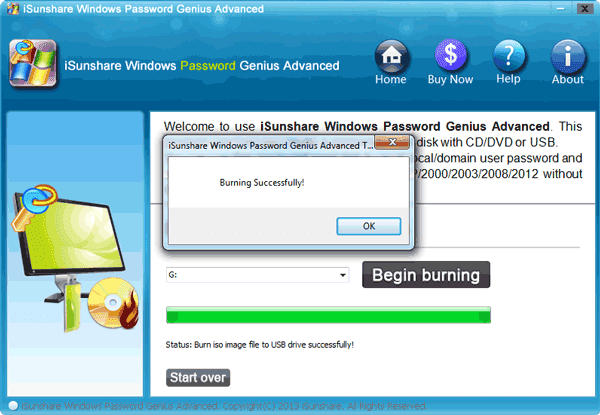
Tips:
- When you boots server from USB, Windows Password Genius Advanced will run in WinPE environment.
- All Windows systems and user accounts on this server are listed on program screen.
- Select Windows server 2012 R2 and administrator, and then click ÒReset PasswordÓ to reset forgotten password as ÒiSunshare@2012Ó.
Video to learn how to reset server password: Forgot Windows server 2012 password
Articles to provide more server password reset ways:
- Windows Server 2012 Password Reset on HP/Dell Server Raid
- Windows Server 2012 Reset Local Administrator Password
Go to link Download

Thursday, November 3, 2016
How to Change Facebook Theme Masti computer
How to Change Facebook Theme Masti computer

How to Change Facebook Theme(Masti computer) by MastiComputer
Go to link Download
Wednesday, October 26, 2016
How to Change Administrator Password Windows 8 7 without Knowing It
How to Change Administrator Password Windows 8 7 without Knowing It
While you dont know Windows 8/7 administrator password, how to change it? Following methods would make efforts on Windows 8 PC/laptop/tablet and Windows 7 PC/laptop. So if you couldnt find ways by yourself, please refer to introduction below.
1. Change Windows Administrator Password with Command Prompt
<1> Login into Windows 7 with another administrator first.
<2> Click "Start" and run "cmd.exe".
<3> Type in "net user" command to see all the user accounts set on your Windows 7 computer.
<3> Type in "net user" command to see all the user accounts set on your Windows 7 computer.
Now you can choose to change password for which administrator and other user accounts.
Type <net user> <user name><user new password>, and press Enter.
For example, you want to change password for administrator iSunshare. The command likes this: net user iSunshare 12345
For example, you want to change password for administrator iSunshare. The command likes this: net user iSunshare 12345
Note: If you want to run Command Prompt in Windows 8, just press Win + X after you enter Windows 8 computer with administrator.
2. Change Administrator Password in Windows Control Panel
Control Panel is system control center set in computer default with basic Windows operational system settings. No matter which Windows system your computer is installed with, it is always available for you to manage Windows system and change Windows system settings. Now take Windows 8 as example.
- Switch to Metro UI, select Control Panel and click it to open.
- Now in the Control Panel, navigate to "User Accounts and Family Safety" and click on "Change your Windows password".
Now click on "make changes to my accounts in PC settings" - Click on "Change Your Password":

- It will ask for current password, so enter it. After that, only you can change current user password.
- Type New Password and then click save to change Windows 8 password.

Note: Change administrator password in Windows 7 is similar to change password in Windows 8.
Control Panel Ð User Accounts and Family Safety Ð User Accounts Ð Manage another accounts, and then choose the administrator you want to change password. Type new password for administrator twice and click ÒChange passwordÓ button.
3. Change Windows 8/7 Administrator Password with Tool
Without administrator available, third-party password recovery tool would help you to change Windows 8/7 admin password without any loss or damage.

3-1 Prepare bootable USB flash disk and computer to burn a password reset disk with tool, Windows Password Genius.
3-2 Plug reset disk into Windows 8 or 7 computers. Set computer boot from USB in order to run Windows password recovery program in locked computer.
3-3 Choose Windows system what computer is installed, and select administrator account, and then click "Reset Password".
3-4 After administrator password is changed, click "Reboot" button, and exit USB reset disk, in order to access Windows 8/7 computer with new administrator password successfully.
Related Articles:
- How to Remove or Bypass Windows 8/8.1 Admin Password without Knowing It
- How to Change Admin Account with Windows 8 Disk
- How to Enable or Disable Windows 8 Admin Account
- How to Reset Admin Password in Windows 8.1 Tablet
- How to Login into Windows Computer with Default Administrator
Go to link Download
Sunday, October 23, 2016
How to Change Windows 8 Logon Way between Local Account and Microsoft Account
How to Change Windows 8 Logon Way between Local Account and Microsoft Account
Different from previous Windows operational systems, there are two main kinds of ways to login in to Windows 8, local accounts and Microsoft account.
Microsoft account is the special characteristic for Windows 8 and Windows 8.1. With it, computer user could access data and files in Windows 8 remotely. And just because of this feature, one more way is available for Windows 8 password reset.
Now this passage mainly introduces how to change Windows 8 logon way between local account and Microsoft account.
- Change Windows 8 logon way in Start Screen
- Change Windows 8 logon way in Change PC Settings
1. Change Windows 8 logon way in Start Screen
On Start Screen, you could see your account just singing into Windows 8. Click it and choose ÒSign outÓ option to turn to logon screen. Choose local user account or Microsoft account you want to login in to Windows 8 with.
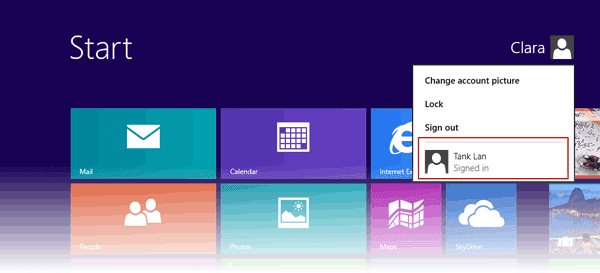 For example, you change Windows 8 logon way from local user account to Microsoft account. Choose Microsoft account, generally taken with email address. Type in password and click OK.

2. Change Windows 8 logon way in Change PC Settings
Move the mouse to the right-upper side of window, choose Settings and select ÒChange PC SettingsÓ at the bottom side of window. On the PC settings window, click Users, you would see which kind of account you have used to login into Windows 8.
If you have signed in to Windows 8 with Microsoft account, there will be an option ÒSwitch to a local accountÓ.
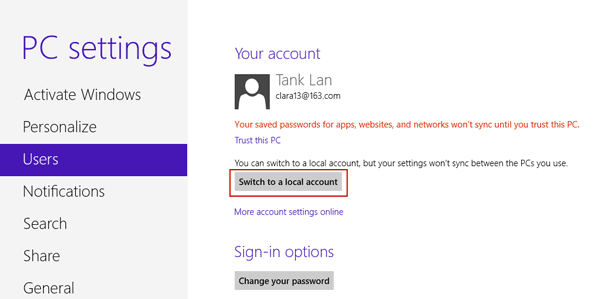
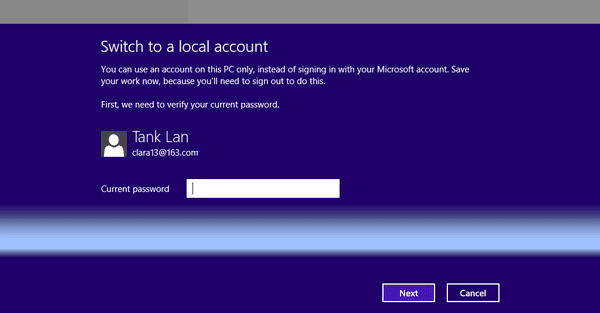
Click it and a window pops up. Current account password has to be typed in.
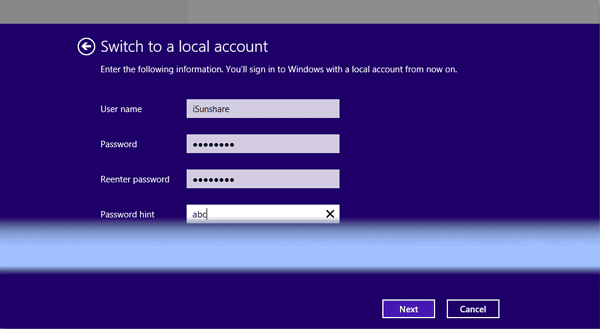
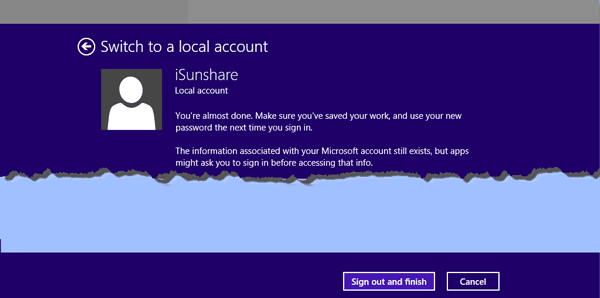
A new window pops up, and user name and password are needed. At this time, you have to create new local account actually.
- Four ways to create Windows 8 logon password and how to use
- How to enable or disable Windows 8 admin account
- How to enter Windows 8 safe mode with four effective ways
- How to find administrator password in Windows 8/8.1 laptop
- How to login into Windows computer with default administrator
- Change domain administrator password Windows server 2012 r2