Showing posts with label way. Show all posts
Showing posts with label way. Show all posts
Tuesday, March 21, 2017
I am sorry but theres no polite way to put this but
I am sorry but theres no polite way to put this but
...they are lying again. Headline and Article.
Heir to Blair indeed.
I do not have time to fisk the whole nonsense, so lets consider what would happen to the GBP if (when?) we exit. We should note that Cameron/Osborne comments are pure speculation. The numbers they cite are just fiction. (In lots of ways this sort of lunatic economic soothsaying is what has got us into this mess in the first place.)
Initially there will be uncertainty in the currency markets. (Personally I think that a lot of that is already in the price.). The markets will then take time to work out what is going on. I dont think that that will take long - financial markets being among the most efficient markets. The markets will quickly realise that we are off the hook for all our contingent liabilities to the EU. These are both massive and we have the true quantum deliberately hidden from us. They will also realise that the governments finances have been materially improved by about £9 Bn per annum. (I concede that there is a lot of uncertainty as to just how much the EU costs us). This will mean that we can repay our international debts quicker. Although it will take longer (the quangoistas will fight like Hell to hang onto their power and fat entitlements - I fully expect them to argue that now we have left the EU we need more regulation) the deadweight costs of EU created regulatory burden will be removed from the 55% of our international trade that does not go to the EU and all of it from the 90% of our GDP which is internal. Production costs in the UK will fall. (If the Government had any clue what is was doing it could immediately cut taxes on production and hence create a low tax economy which in turn would immediately cancel out the 4% to 5% external tariff on exports to the EU. Next and crucially we will be able to return to proper supervision of our banks. (As you know I hold that Bank of England is largely incompetent at this and the FCA / PRA totally useless), but we could start to address the structure of bank capital outside the constraints of the EUs agenda that is to keep itself and the Euro in being come what may, mostly by printing money. The City would profit from this. I also fully expect us to quickly become the largest offshore financial centre on the planet. (As part of this I also fully expect London land prices to carry on rising - but we know how to address this, dont we)
Overall I expect GBP to rise in relative price.
Which is good because well be able to buy Mercedes cheaper. Question, What will Mercedes do with all those lovely GBPs? Where can they spend them?
Cameron / Osborne whole scare mongering meme is based entirely on ill thought out speculation and deceit.
Go to link Download

Sunday, December 11, 2016
Solved Easy Way To Make A UEFI Bootable USB Drive
Solved Easy Way To Make A UEFI Bootable USB Drive
Easy Way To Make A UEFI Bootable USB Drive

Hi Friends!
I am Md. Manjurul Islam (Rubel). Now a days some computer doesnÕt support legacy system, they only support UEFI. So that you cannot install windows by a legacy system USB bootable flash drive. If you want to install windows on that computer, you need to make a UEFI bootable USB drive.
Today I am going to show you how to make a UEFI bootable USB drive. If you donÕt know how to do this, please follow my bellow processÉÉ
Requirements:
- Minimum 8 GB USB flash drive.
- Windows 8/8.1/10 ISO or DVD.
Process:
- Insert USB drive into the computer.
- Go to the My Computer and backup all data from your USB Drive.
- Now right click on your USB drive and click on FormatÉ.
- From the File System Drop-down menu select FAT32 (Default).
- Click Start then Ok Then Ok.
- Now insert windows DVD into the optical drive.
- Now open DVD then copy all files and then paste into your USB drive.
- After coping all files your job is done.
- Now you can use this USB drive as a bootable USB flash drive and you can use this on legacy and UEFI boot mode.
If you think this tips can help the people, you can share this post with your friends.
Thanks
Md. Manjurul Islam (Rubel)
Video Of This Tips:
Video Of This Tips:
Go to link Download
Sunday, October 23, 2016
How to Change Windows 8 Logon Way between Local Account and Microsoft Account
How to Change Windows 8 Logon Way between Local Account and Microsoft Account
Different from previous Windows operational systems, there are two main kinds of ways to login in to Windows 8, local accounts and Microsoft account.
Microsoft account is the special characteristic for Windows 8 and Windows 8.1. With it, computer user could access data and files in Windows 8 remotely. And just because of this feature, one more way is available for Windows 8 password reset.
Now this passage mainly introduces how to change Windows 8 logon way between local account and Microsoft account.
- Change Windows 8 logon way in Start Screen
- Change Windows 8 logon way in Change PC Settings
1. Change Windows 8 logon way in Start Screen
On Start Screen, you could see your account just singing into Windows 8. Click it and choose ÒSign outÓ option to turn to logon screen. Choose local user account or Microsoft account you want to login in to Windows 8 with.
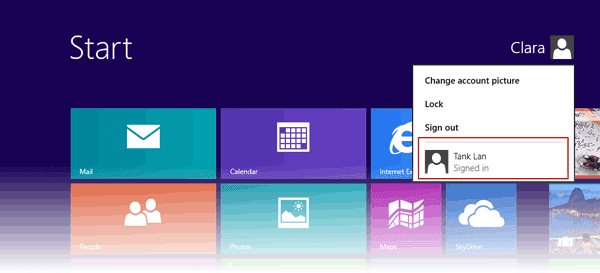 For example, you change Windows 8 logon way from local user account to Microsoft account. Choose Microsoft account, generally taken with email address. Type in password and click OK.

2. Change Windows 8 logon way in Change PC Settings
Move the mouse to the right-upper side of window, choose Settings and select ÒChange PC SettingsÓ at the bottom side of window. On the PC settings window, click Users, you would see which kind of account you have used to login into Windows 8.
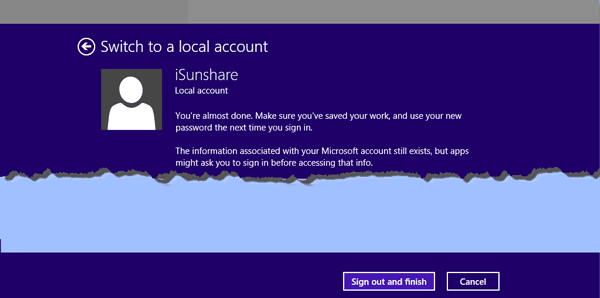
If you have signed in to Windows 8 with Microsoft account, there will be an option ÒSwitch to a local accountÓ.
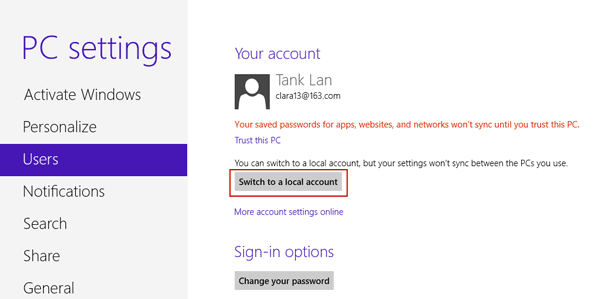
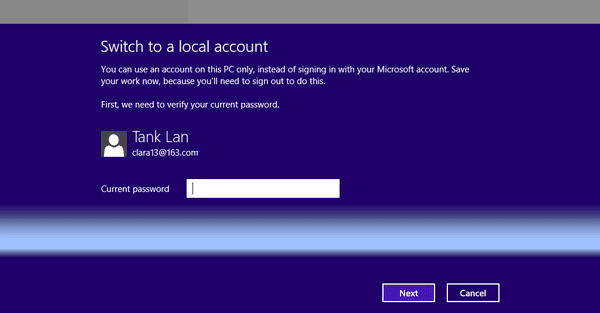
Click it and a window pops up. Current account password has to be typed in.
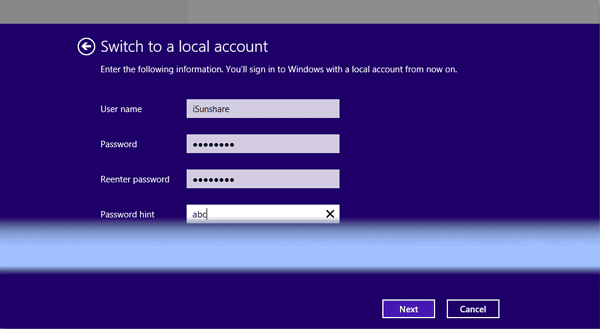
A new window pops up, and user name and password are needed. At this time, you have to create new local account actually.
- Four ways to create Windows 8 logon password and how to use
- How to enable or disable Windows 8 admin account
- How to enter Windows 8 safe mode with four effective ways
- How to find administrator password in Windows 8/8.1 laptop
- How to login into Windows computer with default administrator
- Change domain administrator password Windows server 2012 r2