Showing posts with label an. Show all posts
Showing posts with label an. Show all posts
Tuesday, March 21, 2017
Top 5 Methods to Reset an Unknown or Forgotten Bios Password
Top 5 Methods to Reset an Unknown or Forgotten Bios Password
BIOS is a kind of software situated as a chip in the motherboard of your computer. It is necessary to create a Bios password because it is able to stop someone booting up your computer system or making changes in your computer. But you may come cross the similar problem to ÒI made a password to get into my BIOS. How do I get into my BIOS if I cant remember my password?Ó There is no need to worry. There are many known ways to reset an unknown Bios password. Here I will share 5 effective methods with you:

Method 1: Reset Lost Bios Password by Removing CMOS Battery
Removing the CMOS battery is the simplest way to remove a BIOS password. A computer will remember its settings and keep the time even when it is turned off and unplugged because these parts are powered by small battery inside the computer called a CMOS battery. If we pull out this battery, the computer will forget a lot of its hardware settings, including its BIOS password. Please follow the instructions below:
Take out the CMOS battery and wait 10 Ð 25 minutes before putting it back in. The reason for this wait is because the computer can still store power in its capacitors even though everything is unplugged. The waiting period allows enough time for them to discharge. Plug everything back in, power up the computer and enter the BIOS again. If everything went well there should be no more password. In some cases, if you get weird error messages during boot up now, you will need to go to ÒLoad BIOS DefaultsÓ in BIOS and save the changes to fix them.
If this method didnÕt work, try one of the methods below.
Note: This should not be performed on Laptops if you are not experienced working with laptop hardware. Make sure to power down the computer, unplug the power cables and unplug any USB devices if they are powered. The computer must not be able to get power from anywhere for this to work.
Method 2: Use Motherboard Jumper to Remove Forgotten Bios Password
Almost all motherboards contain a jumper that can clear all CMOS settings including the BIOS password. The location of this jumper varies depending upon the motherboard brand. You should read your motherboard manual to check its location. If you dont have the manual then look for the jumpers near the CMOS battery. Most of the manufacturers label the jumper as CLR, CLEAR, CLEAR CMOS, etc.
When you find the jumper, look carefully. There will be 3 pins and the jumper will be joining the center pin to either left or right pin. What you need to do, is remove the jumper and join the center pin to the opposite pin. e.g. if the jumper joins center pin to left pin, then remove it and join center pin to right pin. Now wait for a few seconds and then again remove the jumper and join the center pin to left pin.
Note: Make sure to turn the PC off before opening the cabinet and resetting the jumper.
Method 3: Performing the Process of Resetting Bios Password with MS DOS Command
The precondition of this method is that you can get into the system when itÕs turned on, because this method requires MS DOS.
Open Command Prompt from Programs menu and type in following commands according to the sequence below:
Debug
o 70 2E
o 71 FF
quit
After type in the commands above and restart your system. You will reset the CMOS Settings along with the BIOS password successfully.
NOTE: The first character in the above commands is English alphabet "o" and not the number Ò0Ó.
Method 4: Take Use of CMOSPwd to Reset Unknown Bios Password
CmosPwd can help us to remove the password directly from the command prompt. It works under Dos, Windows 98, Windows NT, Windows 2000, Windows XP, Windows 2003, Windows Vista, Windows 7, Windows 2008, Linux, FreeBSD, and NetBSD. Detailed steps are as follows:
Step 1: Down CmosPwd and unpack the contents of the file in C disk.
Step 2: Get into Windows Start menu, input cmd in the search box and then press enter.
Step 3: When the Dos prompt appears, type in Òc:cmospwd-5.0windowsÓ, and then press enter.
Step 4: Type ÒiopermÐiÓ and press enter.
Step 5: Now write the command Òcmospwd_win /kÓ and press enter.
Step 6: Choose the second option by pressing 2, and then enter again.
Note: This program only works with the following BIOS:
ACER/IBM BIOS, AMI BIOS, AMI WinBIOS 2.5, Award 4.5x/4.6x/6.0, Compaq (1992), Compaq (New version), IBM (PS/2, Activa, Thinkpad), Packard Bell, Phoenix 1.00.09.AC0 (1994), a486 1.03, 1.04, 1.10 A03, 4.05 rev 1.02.943, 4.06 rev 1.13.1107, Phoenix 4 release 6 (User), Gateway Solo - Phoenix 4.0 release 6, Toshiba, Zenith AMI.
Method 5: With Backdoor BIOS Password
It is said that many computer manufacturers create backdoor passwords for their own technicians to use so they can access the BIOS when the hardware is being serviced. Here are some backdoor bios passwords that have been reported:
AMI BIOS Passwords:
A.M.I.
AAAMMMIII
AMI?SW
AMI_SW
AMI
BIOS
CONDO
HEWITT RAND
LKWPETER
MI
Oder
PASSWORD
AWARD BIOS Passwords:
01322222
589589
589721
595595
598598
ALFAROME
ALLy
aLLy
aLLY
ALLY
aPAf
_award
award
AWARD_SW
AWARD?SW
AWARD SW
AWARD PW
AWKWARD
awkward
BIOSTAR
CONCAT
CONDO
Condo
d8on
djonet
HLT
J64
J256
J262
j332
j322
KDD
Lkwpeter
LKWPETER
PINT
pint
SER
SKY_FOX
SYXZ
syxz
shift + syxz
TTPTHA
ZAAADA
ZBAAACA
ZJAAADC
PHOENIX BIOS Passwords:
BIOS
CMOS
phoenix
PHOENIX
Misc Common Passwords:
ALFAROME
BIOSTAR
biostar
biosstar
CMOS
cmos
LKWPETER
lkwpeter
setup
SETUP
Syxz
Wodj
Other Manufacturer BIOS Passwords:
Biostar - Biostar
Compaq - Compaq
Dell - Dell
Enox - xo11nE
Epox - central
Freetech - Posterie
IWill - iwill
Jetway - spooml
Packard Bell - bell9
QDI - QDI
Siemens - SKY_FOX
TMC - BIGO
Toshiba - Toshiba
VOBIS & IBM - merlin
Note: All these passwords are case-sensitive and are changed from time to time by manufacturers.
You can choose one from the five methods above to reset or remove your lost bios password. Please read the notes with care before performing the instructions. If you forgot your Windows 7 login password, then you can get Windows Password Key to remove lost or forgotten Windows 7 login password.
Go to link Download

Friday, October 28, 2016
An Easy Solution For ‰ÛÏCannot Delete File Or Folder Error‰Û On Windows!
An Easy Solution For ‰ÛÏCannot Delete File Or Folder Error‰Û On Windows!

And the truth is we really cant predict or control when that error will happen but we can solve the problem later on when we see the pop-up alert while trying to delete a file or a folder. Look the below pop-up alert windows snapshot and I bet you have seen it quite a lot if you are a regular windows user.
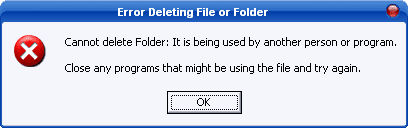
So now the question is how we can solve that error? The answer is simple and the easiest answer youll ever find on online forums or on the internet in major will be to use utility software called Unlocker, and on this special post I will show you how to download, install, and use Unlocker to get rid of that error, so letÕs roll.
- Download Unlocker software from filehippo by click here >> Download.
- After a successful downloading run the download [ .exe] file and give a complete UAC Permission and start to install the software by following the wizard instructions it will take less than a 40 seconds to install.
After installation, it integrates itself into your right-click windows explorer menu. Then when you get the dreaded Òfile is currently being used by another person or programÓ error box, just do the following to show that operating system who the real boss is:
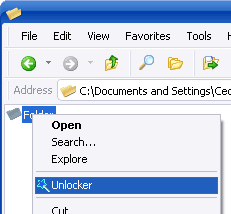
- As shown on the above image right-click on the offending file or folder and from the menu choose ÒUnlockerÓ menu item. The below box will then appear.
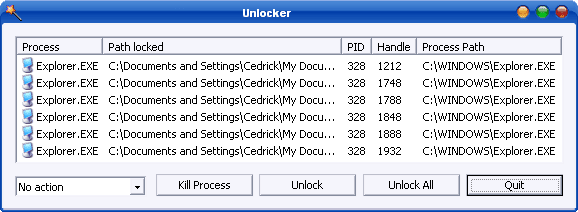
- Again as shown in the above image youll then get a list of certain system processes which represents the actual background tasks taking place on your processor in real time which are related to that offending file or folder. Just click any or all and then kill or unlock the offending processes.
- And after performing such a task on unlocker you can go back and try again to delete that folder or file and sometimes it may require a restart or reboot so give it the chance to do so and restart your computer and for sure itll that file or folder will instantly be deleted.
Unlocker is really a tiny, small, and simple utility software and it wont require any updates because it will be automatically updated as long as youve an internet connection on your computer system, so download and install one time and it will be always updated and running smoothly. And always remember itÕs an absolute dream when your Windows OS decides to start playing up and youre about to smash something in frustration. I recommend that Unlocker should be part of everyoneÕs computer set-up always and forever.
Go to link Download
Wednesday, October 12, 2016
Internet To Find An Accidentally Closed Tab
Internet To Find An Accidentally Closed Tab
 Internet: to find an accidentally closed tab
When browsing the web, sometimes you accidentally close one of the open tabs. The trick to find it and reopen it.
When surfing the internet, it can happen that you accidentally close a tab by pressing the small cross at the top right of the web page. ? How to retrieve the page that has flown to find the internet tab closed, heres a tip:
1. Press "Ctrl" and "Shift" and the letter "T" at the same time.
2. The last closed page will reopen to the right of the page youre currently viewing.
3. If this does not open the desired tab, then repeat several times. All previously closed pages will open one after the other in chronological order of their closure.
Go to link Download
Monday, October 10, 2016
Create an Empty Name invisible Facebook Profile
Create an Empty Name invisible Facebook Profile

Note: IF you have changed your name last 60 days or changed the name manytimes and crossed the limit then you will be unable to create an invisible/empty Facebook account name.To Do this you should create a Facebook account
- 1st of all you have to download and install vpngate
- 2nd open vpn gate and select an Indonesian ip address
- 3rd verify that you have successfully changed you ip by going to www.whatismyipaddress.com
- 4th clean browser cookies & history and log in to facebook go to setting change your language to Bahasa Indonesia.
- 5th Click on edit name first remove your last name and then copy name below k???k
- Now remove both k letters from this
- Give your password save or hit enter button
- Again change your language to default (English us)
Watch Video Online In Urdu&Hindi
Go to link Download
Subscribe to:
Posts (Atom)