Showing posts with label lock. Show all posts
Showing posts with label lock. Show all posts
Thursday, May 18, 2017
Break Pettren Lock For Android Mobile By Masti Computer
Break Pettren Lock For Android Mobile By Masti Computer

Lets Start.....
1.First of All ,Remove Memory Card and Power off Your Mobile or Tablet.
2.Hold Volume Buttons and Press Power Buton.

3.Move Cursor on "Restore" or "Factory Reset" and Press Power Button.
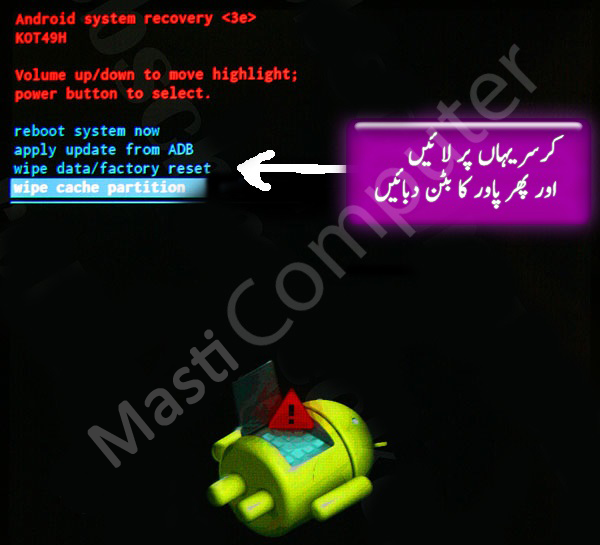
4. Your Mobile going to Power off and will Restart soon.
5.Just Wait Sometime and then Complete Your desired information.
Break Pettren Lock For Android Mobile Powered By Masti Computer and More Tips&Tricks ,Free Software,Computer Course Like Our Facebook Page.
Go to link Download

Sunday, March 26, 2017
How to Lock Word Document with Full or Segment Protection
How to Lock Word Document with Full or Segment Protection
While creating new Word even important document, we always want to guarantee it safe, preventing Word document from reading or editing.
So now please see following passage to learn how to lock Word document to give it full or segment protection.
Step 1: After completing writing on MS Office Word, click "Save As" option by clicking on the MS Office button.

Step 2: When the dialog opens, you can see the "Tools" option at the bottom of the dialog. Click "Tools".
Step 3: Select "General options" in the Tools options.
So now please see following passage to learn how to lock Word document to give it full or segment protection.
How to lock Word document with full protection?
Step 1: After completing writing on MS Office Word, click "Save As" option by clicking on the MS Office button.
Step 2: When the dialog opens, you can see the "Tools" option at the bottom of the dialog. Click "Tools".
Step 3: Select "General options" in the Tools options.
Step 4: In the "General options" dialog, there are two fields provided, "Password to open" and "Password to modify". We can type password in these fields to lock Word document.

- If you want to protect Word document from access, please type password in "Password to open" box.
- If you want to give others privileges to access Word document, but donÕt want Word document being editing, please set password in "Password to modify".
Step 5: At last, click "OK" to finish Word document lock.
Besides this way, there is another way to set open password to protect Word 2007/2010/2013 document.
Besides this way, there is another way to set open password to protect Word 2007/2010/2013 document.
Hit File Ð Info Ð Protect Document, and click "Protect Document". In the dropdown list of "Protect Document", click "Encrypt with Password". And then type password in the following pop-up dialog. Click "OK" to confirm Word document password protection.

How to lock Word document with segment protection?
In addition to setting password for full text of Word document, segment or part text in Word document also could be protected with password. Now letÕs check it out in details.
Step 1: Open MS Word document.
Step 2: Move to "Review" option in menu.
Step 3: Click "Protect - Restrict Editing" option.

Step 4: A drop-down list is shown. There is an option "Editing restrictions".
Step 5: Select "Allow only this type of editing in the document" to enable it. And select "No changes (Read only)" in the dropdown box of "Editing restrictions".
Step 6: Move over to the text section and select the part you do not want to protect. And you can choose scattered segment by Control key while selecting. Note that the unselected parts would be protected.
Step 7: If you want to protection from everyone, select "Everyone" from exception section.
Step 8: Click on final step "Yes, Start Enforcing Protection".
Step 9: A dialog pops up with asking for password. Type password and hit "OK".

Thus, now besides the selected segment, other text in Word document is locked.
Related Articles:
- How to Unlock Word 2013 Document without Password
- Tips on Office Password Encryption and Decryption
- How to Open Password Protected Office File without Password
- How is Conversion between Microsoft Word 2013 and PowerPoint/PDF
Go to link Download
Sunday, March 12, 2017
Lock Your Computer Screen By Creating A Shortcut
Lock Your Computer Screen By Creating A Shortcut
 Hello friend!
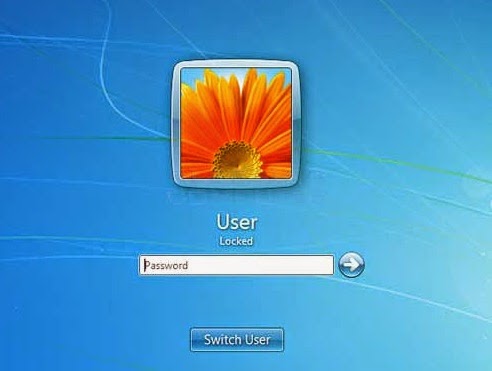
How are you? Hope you are very well. For locking the computer screen we use two options (logoff and sleep). Today I am going to show you an easy way how to lock your computer, creating by a shortcut.
Anyway if you want to know this tricks, please follow my proceduresÉÉ
Right click on your desktop --> From the New --> Click Shortcut. Now will open a new window like the bellow image.
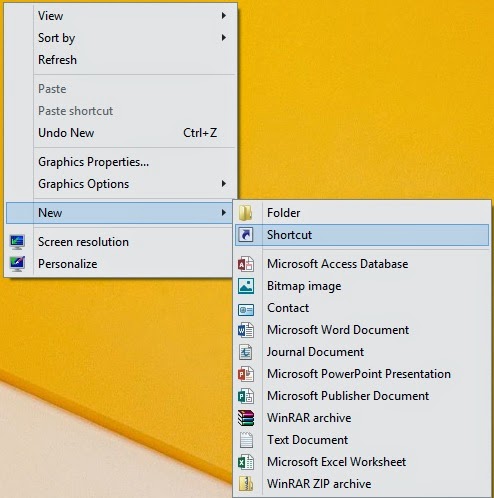
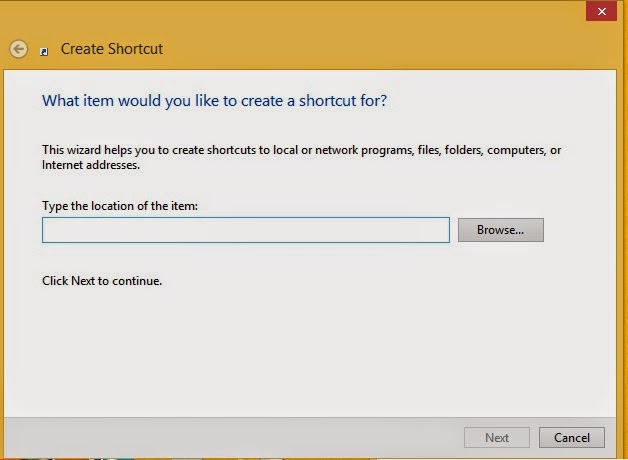
Now type this code in the Òrundll32 user32.dll,LockWorkStationÓ then click next. Type the name of this shortcut (ItÕs not necessary, you can use default name) then click finish.
Your work is finished. Now double click on your created file and look your computer screen is locked.
Video Of This Tutorial:
If you think this article is helpful for you please share with your friends.
Thanks to all of my friends,
Md. Manjurul Islam (Rubel)
You may like also.....
How to Protect Your Secret Files From Others
How To Create Password On Windows 8.1
How to backup/Import Microsoft Outlook Mail
Go to link Download
Saturday, March 4, 2017
How to Lock Google Search Engine Home Page
How to Lock Google Search Engine Home Page
Since Google server has been moved from China, computer users in China mainland always couldnÕt use www.google.comto search. And it redirects to www.google.com.hk. Besides, when search results from Google search, some keywords are filtered and the results are not stable. All of these make our work and life inconvenient. Compared to www.google.com.hk, www.google.com brings us more accurate results. So, how to lock www.google.com as default search home page, in order to get better results?
Follow the below methods to do:
Previously, we type in www.google.comin the address bar. Now we just need to add ÒncrÓ command following home page address.
Method 1: Lock Google Search Home Page with command ÒncrÓ
Previously, we type in www.google.comin the address bar. Now we just need to add ÒncrÓ command following home page address.
http://www.google.com/ncr
It will not redirect to www.google.com.hk. But the previous default search address has to be
www.google.com.hk.
Method 2: Lock Google Search Address with VPN
Before you search on Google home page, make your computer link to network with VPN. And then type in www.google.comin address bar directly and press Enter. It will not redirect similarly.
These two methods are common but they are temporary. They only work after you set them for Google search engine following above introduction.
Tip? If you donÕt like to set anything every time when you use www.google.com successfully, you have to do more things to make it work.
First, take www.google.com/ncrinto use. And enter Options Ð Manage Search Engine, add a new Google search address.
http://www.google.com/search?hl=zh_cn&q=%s
If you want to use English search screen default, take this instead.
If you want to use English search screen default, take this instead.
http://www.google.com/search?q=%s
Second, set this search as default search engine.
Second, set this search as default search engine.
For example set www.google.comas default search address in Chrome.
- Open Chrome, and right-click address bar.
- Choose ÒEdit search enginesÓ, and a new window pops up.
- Fill the followings in ÒAdd a new search engineÓ, ÒKeywordsÓ, ÒURL with %sÓ, and then make it done.

- Add a new engine: Google
- Keywords: www.google.com
- URL with %s: http://www.google.com/search?q=%s
Go to link Download
Friday, October 21, 2016
How to Lock a Folder or Hard Drive with Password Masti Computer
How to Lock a Folder or Hard Drive with Password Masti Computer

Learn how to lock a folder or hard drive with a password.Make your own files encrypted with a password. An vide. Download folder Treasury program for free.You can hard disk your confidential files and lock it.For this trick, you can easily lock your private folder Any hard drive without any difficulty.This is a small program to lock any of your files or folders in seconds.Each person has a private in his computer files, and using This can easily password protected folder.
Learn How to Lock a Folder/Drive
1.Download Folder Locker Software From Link Given Below.
Click Here To Download Software
2.Install Folder Locker in Your System.
3.After installing open Folder Locker and set master Password For Locker.
4.Now You Can Lock File ,Folder,Drive With this Locker.

Go to link Download
Saturday, October 1, 2016
How to Personalize Windows 10 Lock Screen
How to Personalize Windows 10 Lock Screen
Do you think default Windows 10 lock screen is what you want? Is it shown as you like?
If the answer isnÕt sure, itÕs time to personalize your Windows 10 lock screen with customized settings. In order to introduce more in details, we will talk about it in in two parts.
Part 1: Customize Windows 10 lock screen background
Generally, Windows 10 lock screen shows Windows default background. Do you want to customize your Windows 10 lock screen? Regardless of the default one, you can choose to display a picture you like, and Microsoft supplies several new background images for the lock screen.
Summary: Go to Settings - Personalization, you can switch from Windows Default to a custom picture or slideshow.
Step 1: Sign in Windows 10 with administrator. Click Start menu at the Windows left bottom side and choose Settings.

Step 2: Select Personalizationin Settings window.

Step 3: In Personalization window, you can see Windows default background on lock screen preview. Now if you want to customize Windows 10 lock screen with another picture or slideshow. Browse Background drop-down list and choose "Picture" or "Slideshow". Then go on with following detailed introductions.

1. Customize Windows 10 lock screen with a picture
1-1 Select "Picture" from Background drop-down list.

1-2 Several pictures will show under "Choose your picture". So just select one from them and picture will show in lock screen preview. Or if all of them donÕt meet your requirements, click "Browse" button to select another image from other folders in Windows 10 computer.
2. Customize Windows 10 lock screen with slideshow: Enable alternate lock screen background
2-1 Select "Slideshow" in Background drop-down list.

2-2 There will be a folder Pictures. Choose Pictures for slideshow and make more detailed settings by clicking "Advanced slideshow settings".

Part 2: Add apps to show quick or detailed status on Windows 10 lock screen
In Windows 10 Personalization window, you also can see there is an option for choosing apps to show quick status and choose an app to display detailed status.
Step 1: Click app under "Choose an app to display detailed status". And you can see several apps in pop-up apps list, select one from them and it will be shown on lock screen with detailed settings.

Step 2: Under "Choose apps to show quick status", if there have not been 7 apps, click "Add key" to select app you want to show quick status. Or if there have been 7 apps there, but you want to show other apps on Windows 10 lock screen, click the app you want to remove from app list and choose one you want to show instead of removed one.

Related Articles:
- Is There Available Default Administrator for Windows 10 Logon
- 2 Ways to Hide and Show App Notifications on Lock Screen
- 3 Ways to Lock Windows 10 Computer
- How to Encrypt Files or Folders in Windows 10 Computer
Go to link Download
Subscribe to:
Posts (Atom)