Showing posts with label lost. Show all posts
Showing posts with label lost. Show all posts
Monday, May 22, 2017
Lost iPod Backup Password ‰ÛÒ How to Use Locked iPod Normally
Lost iPod Backup Password ‰ÛÒ How to Use Locked iPod Normally
My iPad is locked. I want to restore iPad with backup. But I have never imagined that iPod backup password is lost. So now how can I do to use locked iPod normally?
If your iPod is just locked with passcode, please try some possible passcodes you may use. This step is important and worth to try. When one of them allows you to access iPod, you can try way.
However, while you try them but they donÕt work, you will need to find other ways. For example, factory reset iPod or restoring iPod after backup password is recovered, that can work.
- Way 1: Factory Reset iPod and Set it as a New Device
- Way 2: Restore iPod from Backup after Backup Password Recovery
Way 1: Factory Reset iPod and Set it as a New Device
If iTunes can work in computer, you can connect iPod to computer, and restore it. After you see a new screen appears to ask you "Set up as new iPod" or "Restore from this backup". Choose first one. And then iPod will restarts. Now take your finger to slip "Slide to set up" on iPod, and make iPod settings step by step.

If your iPod cannot be connected to computer in iTunes, get iOSBoot Genius to enter iPod recovery mode and restore iPod to factory settings.
Way 2: Restore iPod from Backup after Backup Password Recovery
There are also two possibilities when you try to restore iPod from encrypted backup.
- Situation 1: Restore iPod from iTunes Backup after iTunes Backup Password Recovery
- Situation 2: Restore iPod from iCloud Backup after Factory Reset iPod without iTunes
Situation 1: Restore iPod from iTunes Backup after iTunes Backup Password Recovery
Step 1: Take iTunes Password Genius and install it on computer.
Step 2: Recover iTunes backup password for iPod in computer.

Step 3: Connect iPod to computer and open iTunes.
Step 4: Restore iPod from iTunes Backup.
Click "Restore iPod" button and after you see a screen appears in iTunes, choose "Restore from this backup". Click "Continue". When a new dialog pops up to ask you a password, type it you just recover in Step 2 to unlock iPod backup, and click OK. iPod will restore from this backup and restart successfully.
Situation 2: Restore iPod from iCloud Backup after Factory Reset iPod without iTunes
After you restore iPod to factory settings, sign into your Apple account, restore iPod from iCloud backup.
Step 1: Navigate to Settings > General > Reset in iPod, then tap "Erase all content and settings".

Step 2: In the Setup Assistant, proceed to "Set up your device", tap Restore from Backup, then sign in to iCloud with Apple account.
Step 3: Proceed to Choose backup, then choose from a list of available backups in iCloud.
Step 4: Restore iPod from iCloud backup.
We cannot judge which way is better at once before we analyze the real situation of iPod. Each way has its availability. So if you donÕt care anything will lose in iPod, factory reset iPod is OK. After that, just set it as a new device. However, if you care about the data on iPod, restoring iPod with backup will be better. DonÕt worry about backup password lost, iTunes Password Genius can help you recover it.
Related Articles:
Related Articles:
- How to Exit Recovery Mode Easily without Data Loss from iPhone/iPad/iPod
- How to Delete Redundant iTunes Backup for iPad/iPhone/iPod
- How to Change iTunes Forgotten Backup Password without Data Loss
- How to Unlock iPod Backup If Password Lost
Go to link Download

Sunday, March 19, 2017
How to Find Lost File in Windows 7 Laptop
How to Find Lost File in Windows 7 Laptop
 Windows 7 file lost. It is not ordinary file, but system file. Does the way to recover lost system file is the same as recovering other files?
 Now letÕs see which kind of system file would lose generally, and why they lost?
DLL and EXE file are common lost system files. Why they lost? Maybe they are attacked by virus. Maybe these file lost after uninstalling programs where they use a common file. Or maybe computer or laptop restarts or shuts down abnormally.
When we meet such a problem, probably we would feel upset if we donÕt have enough computer knowledge to solve it successfully by ourselves. In fact, it is unnecessary. Even though we are not familiar with Windows system, there are still lots of tools helping us to find lost system file back in this information and technology period.
When we meet such a problem, probably we would feel upset if we donÕt have enough computer knowledge to solve it successfully by ourselves. In fact, it is unnecessary. Even though we are not familiar with Windows system, there are still lots of tools helping us to find lost system file back in this information and technology period.
For example, following different kinds of tools could help us to restore or recover lost Windows 7 system file from different angles.
1. Repair damaged DLL and EXE file with system repair tool
Some are free but some you should pay for. System repair tool would run and check out the problem you meet and file your Windows 7 system lost. After finish check, just choose to fix it instantly. This system tool would help to repair system and restore lost or damaged system file.
 These system repair tools or software you can choose: Windows Repair Kit (not free for full version), PC Repair System and System Repair Engineer (best used by experienced-to-expert users).
2. Recover damaged/deleted/formatted system file with data recovery tool
If system repair tool couldnÕt give you a perfect solution, choose data recovery tool, such as Data Genius, to recover lost data or file. No matter why system file is lost because of virus attack, disk format, or accident deletion, Data Genius always would help to recover them. WhatÕs more, it is safe for computer to recover data free.

DonÕt worry, it would run on all versions of Windows operational systems.
Step 2: Choose probable data recovery option.
Four data recovery types are provided, Deleted Recovery, Format Recovery, Raw File Recovery and Partition Recovery. Now we can choose Raw File Recovery, because it could find and recover data that cannot be found by Deleted Recovery and Format Recovery.
Click Next and choose driver or partitions where system file was stored. Then click Scan.
Step 3: Scan drive or partition and select lost system file.
Wait for Data Genius some time to scan chosen drive or partition. Few seconds or few minutes are needed according to the file size on this drive. After data scan finished, look for lost system file in them and select it.
Step 4: Recover system file.
Step 4: Recover system file.
Click Recoverbutton and choose a folder to save system file on another drive or partition. When system file is recovered successfully, Data Genius would give you a prompting message.
After lost system file is found, you could save it back on original place, in order to prevent another system problem because of this system file loss.
Related Articles:
Related Articles:
- Access Locked HP/Dell/Acer/Lenovo Laptop with System Repair Disc
- Comprehensive Analysis of Windows System Activation Methods
- Principles of Hard Disk Data/File Storage and Format
- Ways to Boot and Use HP Laptop Successfully if Lost Windows 7 Password
Go to link Download
Friday, February 24, 2017
How to Unlock iPod Touch Backup If Password Lost
How to Unlock iPod Touch Backup If Password Lost
If we couldnÕt unlock iPod Touch backup, what we will lose? What kind of situation we would face just because of backup password lost? If I want to keep away from this situation, how can I do? How to unlock iPod Touch or unlock iPod Touch backup?
These questions are usually asked when people encounter such iPod Touch problems, such as forgot or lost iPod backup password when it is needed, iPod locked but donÕt know the reasons.
However, as long as you get available iPod Touch backup, you can solve these issues by restoring iPod to early backup point, so you can protect iPod Touch without important data loss.
Therefore, you can take unlocking iPod Touch backup as the first and effective method to solve our problems now. And what we should do is to look for one powerful way to unlock iPod Touch backup. If you have not found one, try following ways please.
Way 1: Guess and Try Possible iPod Backup Password
 If you donÕt care whether this way really helps you successfully find out iPod backup password at last, it is worth trying. At least, it can be used conveniently, because they are probably the Apple ID, passcode, default password or Windows administrator password. And we just try them.
In addition, according to the Apple research, most Apple users are likely to use simple numbers to unlock their device even backup file.
After having a try, as long as one of them is the same to backup password, the time you have used to guess is worth. Even though all of them donÕt work, it is still can be the first step of you plan, unlocking iPod Touch backup. So no matter how it works for you at last, it is still worth to have a try.
Of course, if you are seeking an effective way that can promise to recover iPod backup password and then unlock it, iTunes Password Genius is a good choice.
Way 2: Recover iPod Touch Backup Password and Unlock iPod Backup
You can unlock encrypted iPod backup with following three steps.
Step 1: Preparation.
- Download, install and run iTunes Password Genius trial version or full version on Windows computer.
- Import iPod backup from computer with Open button.
The software provides an automatic program to help you find iPod backup on computer. So once you click "Open" button, a window will pop up and show iPod backup on computer, just select it and click OK to add it into iTunes Password Genius. So convenient and effective it is to import iPod backup into iTunes Password Genius.
3. Select one available password attack type for encrypted iPod backup.
Brute-force, Mask, Dictionary and Smart are four password attack types for iTunes backup password recovery. Now if you can choose one according to your iPod backup situation. For example, if you just can limit the password length and range, choose Brute-force, and it will recover iTunes backup password for iPod quickly. If you have any impression on iPod backup password, Mask is better, but you have to set parameter Mask. About how to set it, details are introduced in iTunes Password Genius user guide. Another two attack types, they are not used usually. But if Brute-force and Mask cannot recover backup password in short time, Dictionary and Smart still can be tried.

Step 2: Recover iPod Backup Password.
Click Start button and then you just have to wait. About few minutes even seconds later, a new window will prompt you iPod backup password is recovered and password appears there.
Step 3: Unlock iPod backup.
3. Select one available password attack type for encrypted iPod backup.
Brute-force, Mask, Dictionary and Smart are four password attack types for iTunes backup password recovery. Now if you can choose one according to your iPod backup situation. For example, if you just can limit the password length and range, choose Brute-force, and it will recover iTunes backup password for iPod quickly. If you have any impression on iPod backup password, Mask is better, but you have to set parameter Mask. About how to set it, details are introduced in iTunes Password Genius user guide. Another two attack types, they are not used usually. But if Brute-force and Mask cannot recover backup password in short time, Dictionary and Smart still can be tried.
Step 2: Recover iPod Backup Password.
Click Start button and then you just have to wait. About few minutes even seconds later, a new window will prompt you iPod backup password is recovered and password appears there.
Step 3: Unlock iPod backup.
Now connect your iPod to computer, and open it in iTunes. Click iPod name at the top right side of iTunes window, and turn to iPod home screen, and then click Restore backup button. You will be asked to unlock iPod backup. Type iPod backup password you just recovered and click OK. Now iPod backup has been unlocked. It is time for you to do what you want with iPod backup.
Related Articles:
- Lost iPod Backup Password Ð How to Use Locked iPod normally
- How to Unlock Locked iPad/iPhone/iPod after Passcode Forgot
- How Do I Unlock My iPad Air 2 without iTunes
- Locked out of iTunes Backup Ð How to Reset iTunes Backup Password
Go to link Download
Monday, January 9, 2017
Lost Windows 8 1 Admin Password and No Disk
Lost Windows 8 1 Admin Password and No Disk
I believe most of Windows 8.1 users have known the new features about Windows 8.1. Actually, there are no big changes on Windows accounts and password. So, besides the new general secure settingsset on Windows 8.1, it is necessary to set powerful logon password for administrator. But sometimes we probably lose it and couldnt think of it suddenly.
At this moment, if no disk are available, such as system recovery disk, password reset disk or system repair disk, how to reset Windows 8.1 forgotten admin password?
So in this passage, letÕs talk about how to take Windows 8.1 PIN code, Microsoft account, installation CD and password recovery utility into use for Windows 8.1 admin password reset.
First, choose PIN code to login into Windows 8.1.
It is probably the most direct and easiest way to login into Windows 8 when you donÕt know account password, because it is displayed below password input box, we just need to click "Sign-in Options".
Click PIN code icon, a message will prompt you to type PIN code in password input box. PIN code is consist of four numbers, so it is easy for us to remember.

If you have typed a right one PIN code, press Enter and you could access Windows 8.1 successfully and do what you want, such as change Windows 8.1 lost admin password.
Second, make full use of Microsoft account.
In Windows 8.1 computer, Microsoft account is the same as local account. On Windows logon screen, you can change logon account type and choose it just like select other local account to login computer. But it is required that Microsoft account has to be set for Windows logon previously.
With privileges of Microsoft account, change or reset Windows 8.1 password from another machine is allowed.
Third, take Windows Installation CD into Use.
When you have not prepared a password reset disk or system recovery or repair disk, installation CD is still can be taken into use.
1. Insert installation CD into your computer and boot computer from it.
2. Select Repair Windows and Get into Command Prompt.
When your computer boots from the CD, you should click repair your computer option, then choose Command Prompt from various options.
3. Recover Windows 8.1 Password with Commands
3-1 Type: copy c:windowssystem32sethc.exe c:
3-2 Type: copy /y c:windowssystem32cmd.exe c:windowssystem32sethc.exe
3-3 Exit installation CD, and reboot your PC.
3-1 Type: copy c:windowssystem32sethc.exe c:
3-2 Type: copy /y c:windowssystem32cmd.exe c:windowssystem32sethc.exe
3-3 Exit installation CD, and reboot your PC.
4. Reset Windows 8.1 Admin Password
While Windows login screen appears, press the Shift key 5 times to bring up the command line interface. Now type net user your name your new password. For example, net user iSunshare 12345
It means that the password of account iSunshare will be set as 12345. Password reset has finished so far. But sethc.exe has been covered. Now use the command c:sethc.exe file back to c:windowssystem32sethc.exe to restore the original sethc.exe file.
While Windows login screen appears, press the Shift key 5 times to bring up the command line interface. Now type net user your name your new password. For example, net user iSunshare 12345
It means that the password of account iSunshare will be set as 12345. Password reset has finished so far. But sethc.exe has been covered. Now use the command c:sethc.exe file back to c:windowssystem32sethc.exe to restore the original sethc.exe file.
Fourth, look for an effective password recovery tool.
Thats no doubt the the previous two ways are easy, but unfortunately not everyone has created PIN code, Microsoft account, not everyone could use installation CD for Windows 8.1 lost password reset. So if there is an effective and easy way to choose, many people would select it. Now let me talk about one powerful password recovery tool, Windows Password Genius.
Step 1: Install password recovery tool on your available computer and create a password reset disk with it. Before you run tool to burn a reset disk, you have to prepare bootable USB drive and insert it into computer.

Step 2: When password recovery disk is created successfully, plug it into Windows 8.1 computer. Set computer boot from USB.
After it completely starts from USB, Windows Password Genius program will run. On the program screen, make sure Windows system and choose administrator. And then click ÒReset PasswordÓ to remove Windows 8.1 unknown administrator password.
Which way is available for you? Believe you could find an effective one after browsing the above introduction.
Related Articles:
- How to Reset Windows 8 Password without Disk
- Windows 8.1 Password Reset When Forgot it
- How to Find Windows 8.1 Activation Key
- How to Reset Admin Password in Windows 8.1 Tablet
- How to Change Admin Account with Windows 8 Disk
Go to link Download
Friday, December 23, 2016
Windows 8 1 Administrator Password Incorrect How to Recover Lost Password
Windows 8 1 Administrator Password Incorrect How to Recover Lost Password
Microsoft released its long-awaited Windows 8.1 upgrade as a free download from Oct, 18. Obviously, it addresses some of the gripes people have had with Windows 8, the dramatically different operating system that attempts to bridge the divide between tablets and PCs. Well, I was one of them.

Last week, I updated my Windows 8.0 to Windows 8.1 and Im trying to install new app from the app store. There asks me for admin password, I typed it in but it said it was incorrect. I tried it multiple times and it kept saying my password is incorrect. I just changed my password and tried to get the app again, but it still said my password is incorrect. Im using the same password to log onto my computer and to log onto my email, which is my Microsoft account. What should I do?
It is really a tricky thing to meet such admin password incorrect problem on Windows 8.1. The quickest solution is to refer to pro Windows 8.1 Password Recovery Tool to remove such tricky password from Windows 8.1 laptop.
How to recover lost Windows 8.1 password with Windows 8.1 Password Recovery Tool?
Step 1, Get Windows 8.1 Password Recovery Tool from site: http://www.windowspasswordsrecovery.com , install it on an accessible Windows computer.
Step 2, Insert a blank CD/DVD/USB into the pc with tool installed. Then run the tool to burn its iSO image file into a chosen media for creating password reset disk by following the step-by-step guide.
Step 3, Set BIOS for the pc with wrong admin password. Then get the pc booted from burned password reset disk to remove administrator account password.
Step 4, Restart pc and login Windows 8.1 without password.
With Windows 8.1 Password Recovery Tool, we can solve password recovery problem at ease! Watch video to get detailed procedures:
While Win 8.1 wonÕt make everyone happy, itÕs fixed most of our original complaints about Windows 8. The apps are slowly improving and the Photos app, in particular, has now become one of the best tools for browsing images in Windows. Many users will be glad to have the Start button back on their desktop, but the change is more cosmetic than functional.
Clearly, Microsoft still has touchscreen users in mind, which is hardly surprising given consumer demand for touchscreen devices. The ability to run two apps side-by-side is a definite plus to anyone who uses the Start screen regularly, and the refined search tool also makes life much easier. We found that working with Windows 8.1 on our touchscreen all-in-one felt much more natural.
Windows 8.1 is an ideal opportunity to upgrade to a secure, up-to-date operating system. Windows 8.1 will cost £75 for most, but is a free upgrade for existing Windows 8 users. YouÕll be able to upgrade via the Windows Store, assuming youÕre logged in with your Microsoft account. YouÕll also need your original product key to complete the process. However, itÕs well worth the time it takes to upgrade.
Go to link Download
Thursday, December 15, 2016
How to Find RAR Password after Forgot or Lost It
How to Find RAR Password after Forgot or Lost It
- I just downloaded a RAR file from Internet. However, when I began to open it, I found it is encrypted.
- I have ever encrypted my RAR file, but I forgot its password when I want to open it.
- RAR file is protected with password and saved in my computer safely, also the RAR file password. But it is strange that, I cannot find RAR file password on where I have ever saved. RAR file password lost.
From the above cases, we can see that RAR file cannot be opened because of password forgot or lost. So how can we find RAR forgotten or lost password?
First, try to find RAR password in RAR archive or from where you got.
If your RAR archive is gotten from Internet, turn back to where you got it, probably password is provided there, but you have never noticed. Or RAR password is saved in a text document of the folder you downloaded. It is there all the time but never opened. So why not first check the RAR archive carefully or website you receive the RAR file?
If RAR password cannot be found with above tries, then it should be found with other more effective ways or tools, such as RAR Password Genius. You wonÕt have to consider anything, just need to prepare RAR archive and RAR Password Genius. And follow steps below to do.
Second, find RAR password after forgot or lost with effective RAR Password Genius.
Step 1: Run RAR Password Genius after successful installation on computer.
When you take cost into consideration, you had better choose trial or full version according to the possible RAR password. Trial version is free, and it supports no more than 3-characters password. Full version should be paid, but it supports any forgotten RAR password find regardless of password length or complexity.

Step 2: Add encrypted RAR archive to RAR password finder tool.
With Open button on toolbar, or File - Open File menu, you can easily browse all your computer hard drive and look for RAR archive you want to open. When you see it, select it and add it to rar password finder, RAR Password Genius. If there is no problem, it should be in Encrypted File box.

Step 3: Choose recovery method to find RAR password.
In RAR Password Genius, there are four password recovery methods in all. Everyone has its features. Therefore, before you make password recovery settings for recovery method you choose, think about which one is better for finding RAR archive password. Select it from drop-down list of "Type of attack".

At last, click "Start" button to find forgotten RAR password.

Related Articles:
At last, click "Start" button to find forgotten RAR password.
Related Articles:
- Free Way to Find Encrypted RAR File Password
- 2 Ways to Unlock Encrypted RAR/WinRAR File without Password
- How to Extract Encrypted RAR File with or without Password
- How to Bypass WinZip Password after Forgot or Lost
- Free ZIP Password Recovery Tools after Lost ZIP Password
Go to link Download
Sunday, December 4, 2016
Steps to retrieve lost data from external hard drive
Steps to retrieve lost data from external hard drive
Best data recovery software to retrieve deleted files from hard drive
Files deleted from external disk will not be moved to recycle bin, so you can only use external hard disk data recovery software to retrieve deleted files. In order to prevent the deleted files from being overwritten, it is highly recommended you not to write new files to the external hard disk after deleting. And then you sould use a data recovery.
Best data recovery software for retrieving formatted data from external hard drive
Mistaken formatting is a quite common cause for external hard disk data loss. If you want to get back all lost files after formatting, the first thing you should do is to stop writing new data to the formatted external hard disk. Then, you can rely on H-Data external hard disk data recovery software to perform data recovery.
Whats more, your external hard disk might be crashed if it cannot be recognized. As long as the external hard disk is not physically damaged, you are able to restore data with help of external hard disk data recovery software even if the external hard disk cannot be recognized or detected by PC.
As the best data recovery software for external hard drive. This powerful software offers direct solutions to help tackle with compex data cases like Western Digital external drive file recovery or how to recover external hard drive easily with only three simple steps.
Steps to retrieve lost data from external hard drive
Step1: Download and install external hard drive data recovery to your PC / laptop

Step2: Run Data Recovery and Select proper recovery modes
Connect the external hard disk to your computer and run the software on Windows OS. (Windows 8.1/8/7/Vista/XP...). Select "USB Disk/Card Recovery".
If partition lost, please seletect "partition damaged/lost".

Step3: Scan deleted files or lost data on formatted crashed not recognized external hard drive
After you select recovery mode, press "Next" to start scanning for recoverable photos, videos, and music files.
Step4: View deleted files and recover lost hard disk data
After the program finish scanning all files, you can preview the files you wanted. Then mark the files you need. Click the ÒRecoverÓ button to recover deleted data on htc one.
With the best data recovery software, you can also restore all lost contents from USB, SD card, Android phone, etc.
View more: Recover Files from Formatted USB Drive or USB with Not Formmated Error
Vist more posts:
Get back a folder of photos from emptied Windows Recycle Bin
Recover files and folders keeping original file name on Windows Computer
H-Data Windows File Recovery - Windows 8/8.1 Permanently Deleted Files Recovery
Go to link Download
Saturday, November 26, 2016
Western Digital External Hard Drive Lost Data Recovery
Western Digital External Hard Drive Lost Data Recovery
Nowadays, Western digital external hard drive is used popularly to backup data because its mini size as well as huge data storage capability. So when lost Western external hard drive data, it is necessary to find the reason first in order to get appropriate data recovery method.
Why Western digital external hard drive data lost?
From various cases of data loss from internal or external hard drive, there are mainly these reasons.
1. External Hard Drive Format
This happens usually, because when external hard drive is connected to computer, a message popping up and asking whether you want to format external hard drive. Once we couldnÕt see it clearly, external hard drive is probably to be formatted by us. In result, all of data on this external hard drive are lost.
2. Virus Infections
When WD external hard drive is connected to other devices, such as computer, virus on this computer will probably infect the data on external hard drive. Once your computer is attacked with virus, not only system performance would slow down, but also devices connected to computer would be infected. So data lost because of virus often happens too.
3. Accidental Files Deletion
While we are operating data on WD external hard drive, such as copy and paste using right-click menu, sometimes data would probably be delete accidently too if we donÕt pay much attention to what we done. Unfortunately, data deleted from external hard drive cannot be found in Recycle Bin. Therefore, accident data deletion from external storage devices will lead to data loss too.
How to choose data recovery tool for Western digital external hard drive data recovery?
Even though it seems to be terrible after Western digital external hard drive data lost, there is nothing we cannot do. For example, iSunshare Data Genius can help to free recover lost data from WD external hard drive.

Steps:
- Connect Western digital external hard drive to computer.
- Download, install and run Data Genius.
- Select data recovery option and click Next.
- Choose Western digital external hard drive and click Scan button.
- After all the files are scanned successfully, preview them on window, check them and click Recover button to save them on computer hard drive after WD external hard drive data recovery.
- Recover Data from a Damaged Seagate External Hard Drive
- SanDisk USB Flash Drive Data Recovery with Three Tools after Deletion
- How to Recover Filesfrom Broken Toshiba External Hard Drive
Go to link Download
Tuesday, November 22, 2016
How to Restore Locked iPhone Lost Data without Passcode
How to Restore Locked iPhone Lost Data without Passcode
While iPhone is locked because of passcode forgot, how can I restore iPhone lost data?
After connecting iPhone to computer and trying our best to restore iPhone data from iTunes backup, the iTunes prompts that I have to type in passcode to unlock iPhone first, otherwise I cannot restore iPhone data from backup in iTunes.
How should I do for iPhone data recovery when there is iTunes backup in hand?
Maybe you need an iPhone data recovery tool. What you should do is to get such data recovery software, and prepare to install and run it on your computer. If you could not find a powerful one for restoring iPhone data, please follow the steps below to restore locked iPhone lost data with iOS Data Genius.
Step 1: Search and get iOS Data Genius on Windows computer.
You can search iSunshare iOS Data Genius directly in Google to open its webpage. Learn about its detailed information and download trial version to have a try. Then install it on Windows computer.
Step 2: Choose iPhone data recovery mode.
When iSunshare iOS Data Genius runs on computer, please click Recover from iTunes Backup File and select this data recovery mode. Then choose right backup file in backup list for your iPhone.

Step 3: Scan iPhone iTunes backup file to preview data.
Tap Start Scan button after selecting iTunes backup file for iPhone. About few seconds later, iPhone iTunes backup scanning is finished. Now in new interface, you can preview data in backup file one by one.

Step 4: Restore iPhone data from iTunes backup file.
While you can confirm which data you want to restore, check the data and click Recover button. Then these backup data would be restored and saved on computer. At this moment, you have successfully recover iPhone data from iTunes backup file with iOS Data Genius. You can view lost iPhone data on computer now. Or transfer data from computer to iPhone.


Summary:
Without passcode, how to restore iPhone lost data?
- Restore iPhone to factory settings and then recover data from iCloud backup.
- Recover iPhone data from iTunes backup file with iOS Data Genius.
Related Articles:
- How to Restore iOS Device Data from iCloud and iTunes
- How to Transfer Data on PC to iOS Device
- How to Recover iPad Deleted Files | iPad File Recovery
Go to link Download
Sunday, October 16, 2016
How to Bypass WinZip Password after Forgot or Lost
How to Bypass WinZip Password after Forgot or Lost
After WinZip password forgot or lost, the first step may be to get WinZip password. Then bypass WinZip password can be come true.
- Step 1: Get WinZip password with zip password recovery freeware or shareware
- Step 2: Bypass WinZip file simple or complex password
Now see how to use freeware or shareware to bypass WinZip forgotten or lost password.
- Method 1: Bypass WinZip simple password with some free zip password recovery tools
- Method 2: Bypass WinZip file complex password with shareware ZIP Password Genius
Method 1: Bypass WinZip password with free zip password recovery tools
If you have no freeware for winzip password recovery, in the following passage several freeware are introduced. You can choose one from them.
Tips: Free ZIP Password Recovery Tools after Lost ZIP Password
According to the detailed introductions about zip password recovery tools, choose one that is suitable for your WinZip file. After getting password with free zip password recovery tools, check whether the software you choose can help you to recover your winzip file password. If not, you should turn to Method 2.
Method 2: Bypass WinZip file password with shareware ZIP Password Genius
This shareware would be your saver when you cannot extract WinZip file without password. It helps you easily find WinZip password.
1. Prepare ZIP Password Genius and install it on your computer where WinZip file is stored.
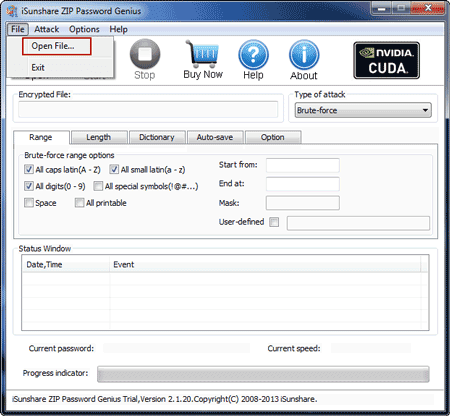
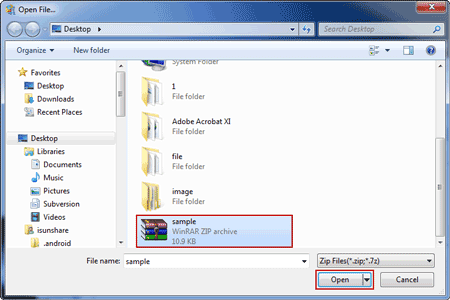
2. Run it after complete installation. Then import WinZip file with Open button. Also, you can click File - Open File tab to open WinZip file in ZIP Password Genius.
3. ItÕs time to set password recovery attack method.
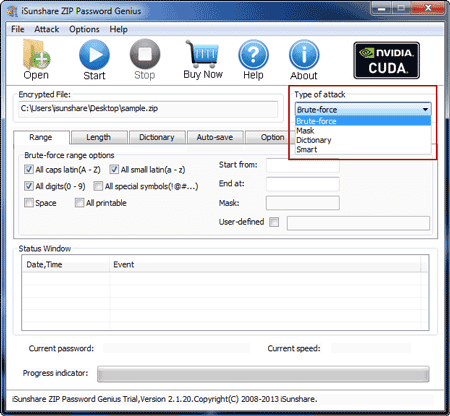
Under Type of attack, Brute-force, Mask, Dictionary and Smart, these four password attack types are provided for you to recover WinZip password powerfully. According to the possible WinZip password features, Brute-force and Dictionary are best choices. Brute-force can recover WinZip password forcibly. And Mask makes full use of password possible features to recover WinZip password.
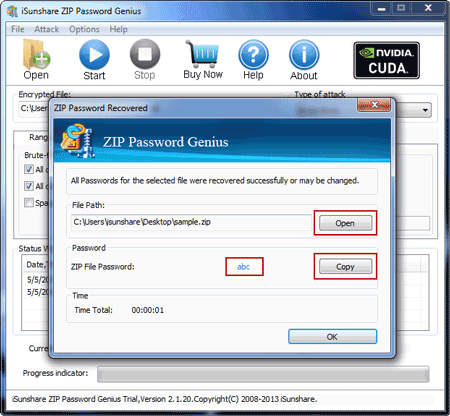
4. When all of things have been prepared, click Start button to recover WinZip password. In the pop-up window, you can copy the WinZip password to save or open WinZip file directly.
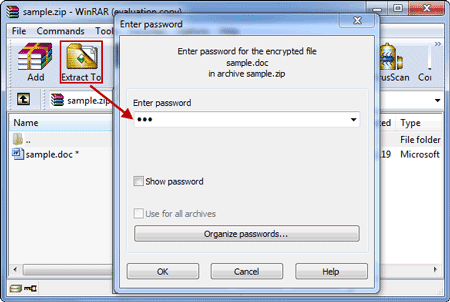
5. Extract WinZip file with recovered password in WinRAR.
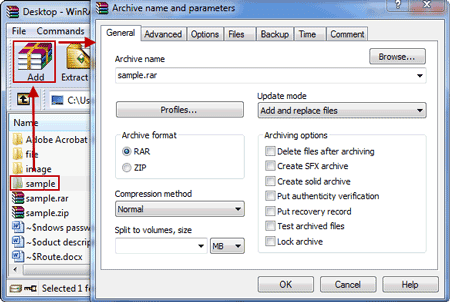
6. Create new WinZip file with contents in previous WinZip file. Remember donÕt set a password to protect the new WinZip file.
Now do you have any questions about how to bypass WinZip password after forgot or lost? If you have, you can learn more about freeware or shareware for WinZip password recovery.
Related Articles:
- How to Bypass RAR Password to Open Encrypted RAR File
- 2 Ways to Unlock Encrypted RAR/WinRAR File without Password
- How to Find RAR Password after Forgot or Lost It
- How to ZIP a File with a Password
Go to link Download
Wednesday, September 28, 2016
How to Change Windows 10 Microsoft Account Password after Lost
How to Change Windows 10 Microsoft Account Password after Lost
After Windows 10 Microsoft account lost password for computer logon, whether we can reset or change Microsoft account password and then sign in Windows 10 computer with new password?
Surely we can. Just like the passage, it has introduced how to change Windows 10 Microsoft account password with Microsoft service.
Change Windows 10 Lost Password on Microsoft Account Password Reset Page
Step 1: Open Microsoft account password reset page.
Step 2: Choose the reason why you cannot sign in Windows 10 computer, such as "I forgot my password". Click Next.

Step 3: Enter your Microsoft account (email or phone number) used for Windows 10 login and type verification code. Click Next.

Step 4: Choose the way how you would like to get security code, generally the email. Click on "Send code" button.

Step 5: Enter e-mail you use to receive security code. And you would see a email from Microsoft. Browse the email to get code.

Tips: If you donÕt recognize the Microsoft account you typed, you can remove email address from that account.
Step 6: Go to Microsoft account verification page, and enter security code you get, and click Next button.

Step 7: Type a new password and confirm it to use for Windows 10 Microsoft account logon. Tap next.

Step 8: Your Microsoft account password has been changed. You can now use new password to login into Microsoft account or login Windows 10 with Microsoft account and new password.

Or enable two-step verification and then sign in Microsoft account with new password.
Related Articles:
- How to Reset Windows 10 Forgotten Password
- How to Reset Windows 8 Microsoft Account Password
Go to link Download
Subscribe to:
Posts (Atom)