Showing posts with label remove. Show all posts
Showing posts with label remove. Show all posts
Tuesday, May 9, 2017
How to Remove Hard Drive Password on Acer Laptop
How to Remove Hard Drive Password on Acer Laptop
A utility is provided in some laptops to lock a hard disk with a password. But these passwords are not the same as BIOS passwords sometimes. Maybe you can remove BIOS password just by moving battery from motherboard. However, the same way is not available for removing hard disk password because of these reasons:
- Hard disk password is stored in the hard disk firmware and moves with the hard disk.
- If you add a new (unlocked) hard disk to a locked machine, it may lead to new hard disk to be locked.
- Note that hard disk lock passwords cannot be removed by reformatting the disk, formatting disk or any other software procedure (since the disk will not allow and reads or writes to the disk, it cannot be reformatted.)
So how to remove hard drive password? Take Acer laptop as an example according to two different situations.

There is one possibility that BIOS password and hard disk lock passwords are set the same by a user and we can recover the BIOS password directly from the laptop security chip (after it is removed from the system board.) However, it is possible that the BIOS password and hard disk lock passwords may be set different. In this case the BIOS password will not unlock the hard disk. You can test to confirm if your hard disk is locked by attempting to access it in another laptop.
There is one possibility that BIOS password and hard disk lock passwords are set the same by a user and we can recover the BIOS password directly from the laptop security chip (after it is removed from the system board.) However, it is possible that the BIOS password and hard disk lock passwords may be set different. In this case the BIOS password will not unlock the hard disk. You can test to confirm if your hard disk is locked by attempting to access it in another laptop.
At this time, you should only remove HDD password with some password cracker when you have forgotten HDD password. If you still remember hard disk password, or you remember bios password is the same as hard drive password, follows the below to remove it.
- Start your Acer laptop and hold on pressing F2
- Few seconds later, you will enter BIOS Setup Utility
- Press Page Up and Page Down key to choose Security option from menu
You would see there are three password settings choices, Set Supervisor Password, Set User Password, Set HDD Password and Password on Boot.

4. Choose Set HDD Password, and a dialog window pops up.
5. Enter current password, and keep ÒEnter New PasswordÓ and ÒConfirm New PasswordÓ blank at the same time.

6. Click F10 to save these changes.

7. Reboot Acer laptop again, you will find you can enter computer and access hard disk freely.
Related Articles:
- ResetHP Elitebook BIOS and Administrator Password
- Reset Windows Forgotten Password on Acer Laptop
- Remove Administrator Password with HBCD in Windows 7 Starter
- How to Remove Remindful CMOS Password on Laptop
Go to link Download

Friday, April 28, 2017
RAR Password Remover Easily Remove Encrypted RAR File Password
RAR Password Remover Easily Remove Encrypted RAR File Password
WinRAR does not give users the option to change or remove a password once one has already been applied to a RAR archive. The user must create a new RAR archive without a password. But the precondition is that users have the password to extract encrypted RAR file. Otherwise, they would not create new RAR archive with the same files saved in encrypted RAR file.
Now this article would intend to introduce how to remove encrypted RAR file password with RAR password remover after RAR password forgot or lost.
Step 1: Prepare RAR password remover tool.
One of the RAR password remover tools I have ever used is RAR Password Genius. It helps to recover forgotten RAR password safely and effectively with a computer or in Local Area Network. If you have more than one available computer, you can select its Professional edition for faster RAR password recovery in LAN. If not, choose its Standard edition please to recover RAR password with four powerful password attack types.
Install and run RAR Password Genius Professional now on computer, because Professional edition also works on one computer to recover RAR password. This feature is the same as Standard edition.

Step 2: Prepare RAR password recovery client program.
With Professional main program, it would be easy for everyone to create client programs to run on other computers in the LAN.
First, click Make Peer button to create installation file of client program iSunshare RAR Peer.

Second, install iSunshare RAR Peer on all other computers in LAN with its installation exe file.

Third, run iSunshare RAR Peer after complete installation.

Step 3: Add encrypted RAR file and make settings for probable password range/length.
1. Click on Open button on main program to browse and select encrypted RAR file you want to recover password. Then it would appear in Encrypted File box.
2. Under Range Options and Length, you can check the probable characters the encrypted RAR file password includes, and minimal/maximal password length to shorten RAR password recovery time.

Step 4: Recover encrypted RAR file password with RAR Password Genius Professional.
After all above have been done, it is time for you to click Start button to make RAR Password Genius Professional and its client programs begin to work on password recovery.

- On main program, you can view the recovery speed and how many client programs join in password recovery.
- On client program, you can see whether it is work and how fast it is running to recover RAR password.

The more computer CPUs you use, the faster recovery speed you will enjoy. Generally about few seconds later, you would see RAR password popping up in new dialog.

Step 5: Extract encrypted RAR file with recovered password.
1. Copy recovered password, and click Open button to open encrypted RAR file in WinRAR etc default compression software.
2. Click Extract to button on WinRAR toolbar, click OK and enter password asked in pop-up dialog. Click OK at last to extract encrypted RAR file successfully. You would get a folder having the same name as encrypted RAR file, such as "sample".

Step 6: Create new archive without password to remove encrypted RAR file password.
1. Right click "sample" folder and choose Add to archive option in context menu.

2. In Archive name and parameters dialog, confirm Archive name and Archive format RAR under General tab, then click OK to create new archive without password.

3. Take the new archive instead of original encrypted RAR file from then on. It means that you have successfully removed RAR password from encrypted RAR file.
Related Articles:
- 2 Ways to Unlock Encrypted RAR/WinRAR File without Password
- How to Bypass RAR Password to Open Encrypted RAR File
- How to Bypass WinZip Password after Forgot or Lost
- WinZip Password Recovery - Easily Recover WinZip Forgotten Password
Go to link Download
Thursday, March 9, 2017
How to Remove Windows XP Password
How to Remove Windows XP Password
ÒI forgot my XP password. How can I reset it or get my password back?! My charger broke a while back and I just got a new one and I just canÕt remember my password! So please help!Ó
1. You can remove Windows XP password with Ophcracka.
What youÕll need?
* OPhcrack
* CD/DVD and CD burner
* A PC that you can run as administrator.
b. WhatÕs Ophcrack?
Ophcrack is the most popular Windows password remover that can get back your forgotten password. It retrieve lost Windows password based on the rainbows developed by the inventor of this method. Best of all, itÕs a free and open source tool.
c. How long it will take to remove xp password?
It depends.
d. How to remove Windows XP password?
Step 1. Download Ophcrack LiveCD iso image file in computer.
Step 2. Burn the Ophcrack iso image file to a CD with a CD burner.
Step 3. Boot from the burned CD and retrieve Windows XP password
2. Remove Windows XP password with Windows Password Recovery Tool
a. What youÕll need?
* Widnows Password Recovery Tool
* A USB drive or CD/DVD
* A PC that you can run as administrator
b. WhatÕs Windows Password Recovery Tool?
It is the most popular utility allows you to easily and quickly remove forgotten Windows XP administrator and other user passwords. 100% secure and 100% password reset rate. It also works for Windows 7/Vsita/2008/2003/2000.
c. How long it will take to remove XP password?
4 minutes or so, regardless of the password strength. This program is designed for both novice and advanced users.
d. How to remove Windows XP password?
Step 1. Download and install Windows Password Recovery Tool in any PC that you can run as administrator.
Step 2. Burn a bootable password reset disk with CD/DVD or USB drive in seconds.
Step 3. Boot the PC you want to reset password of from the burned disk and reset forgotten windows XP password.
Step 4. Get back in your target Windows XP laptop without password.
Source: http://www.resetwindows-password.com/remove-windows-xp-password.html
Go to link Download
Saturday, March 4, 2017
How to Remove Remindful CMOS Password on Laptop
How to Remove Remindful CMOS Password on Laptop
In laptop, CMOS password is saved in password chip or Flash ROM. So even you refresh BIOS, you still couldnÕt crack CMOS password. If you really have forgotten password, you could send it to computer repair shop. But there is such principle said that, donÕt repair laptop when password forgot.
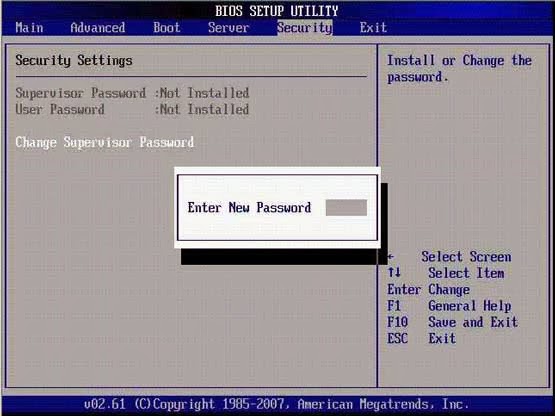
Now the passage mainly introduces that, how to remove laptop CMOS password when you still remember supervisor password, user password and hard disk password. Now take ASUS M2N laptop as example, start laptop and press F2 to enter CMOS setting program. Now it will ask you to type in supervisor password before CMOS setting program interface appears. Move to ÒSecurityÓ menu option with direction key.
1. Remove Hard Disk Password
Turn to ÒPrimary Master HD PasswordÓ option with direction key, press Enter and ÒEnter PasswordÓ dialog pops up. Now donÕt type in any characters and press Enter directly. ÒPassword UninstalledÓ message prompts you and then press Enter again to clear hard disk password.
2. Clear User Password
Move to ÒClear User PasswordÓ option, and press Enter. Click ÒOKÓ on pop-up dialog and press Enter to remove user password. At this time, you would see in this screen, ÒUser PasswordÓ option shows with ÒNot InstalledÓ. You would find that, even though you forget Windows user password, you still could enter CMOS to clear user password with supervisor password.
3. Remove Supervisor Password
Go to ÒChange Supervisor PasswordÓ option, press Enter. DonÕt type any characters in pop-up ÒEnter New PasswordÓ dialog. Press Enter directly until ÒPassword UninstalledÓ prompting message appears. Press Enter at last, and supervisor password would be removed. Now you could find that ÒSupervisor PasswordÓ option is showing ÒNot InstalledÓ.
Tips:
If you are using Toshiba laptop, password forgot problem could be solved with password service floppy disk, which is created when you set or modify open password every time.
Insert password service floppy disk into floppy drive and press reset button. Hold on pressing F key to make sure to boot from floppy drive and then press Enter. A prompting would appear, ÒSet Pass Again? (Y/N)Ó. Press ÒYÓ to run TSETUP program and set new password. Press N to restart laptop.
Related articles:
Insert password service floppy disk into floppy drive and press reset button. Hold on pressing F key to make sure to boot from floppy drive and then press Enter. A prompting would appear, ÒSet Pass Again? (Y/N)Ó. Press ÒYÓ to run TSETUP program and set new password. Press N to restart laptop.
Related articles:
- Notice on HDD password set reasonably for ThinkCentre M
- How to Remove Hard Drive Password on Acer Laptop
- How to Set CMOS Password Opportunely for Laptop
Go to link Download
How to Remove Shortcut Virus USB By Masti Computer
How to Remove Shortcut Virus USB By Masti Computer

How to Remove Shortcut Virus in USB or Flash Drive With an easy and Latest Trick of 2014-15.By this You Can Clean Your USB From Shortcut With a min Virus Remover tool .By this You Can easily Deleted Virus From Your Pendrive .This is the Best Shortcut virus remover Software and Provides You foolproof Security From Viruses. So lets Start our article.

Steps to Remove Shortcut Virus USB!
You jus have to Download this Few KBs Free Software and to Ran
this Software to Remove this Virus From any Drive of Your Computer.
Click Here To Download

Go to link Download
Monday, February 13, 2017
Remove Administrator Password with HBCD in Windows 7 Starter
Remove Administrator Password with HBCD in Windows 7 Starter
I get a Dell laptop with Windows 7 Starter, but no password gotten to login into it. I wish to get full privileges to do everything on this laptop, so how to remove unknown administrator password in Windows 7?
Probably, you know CMD or other ways that could reset Windows 7 administrator password when you can access to computer. But now any user password for Windows 7 login is not known, it would become different. So take free and powerful HirenÕs BootCD to help you.
HirenÕs BootCD is a powerful tool, which looks small but contains a number of diagnostic programs such as data recovery tools, MBR tools, BIOS tools etc. And there is Password/Key Tools program that could reset administrator password on generic brand laptops or bypass Windows login password.
Follow the steps to remove Windows 7 administrator password with HBCD:
1. Download HirenÕs BootCD from here: http://www.hirensbootcd.org/download/
2. Burn it into bootable CD ROM.
Burn media is chosen according to your PC, laptop or notebook situations.
3. Insert HirenÕs BootCD into your Windows 7 computer. And set computer boot from it.
Tips:
You would see these programs for Windows password reset or remove.
Probably, you know CMD or other ways that could reset Windows 7 administrator password when you can access to computer. But now any user password for Windows 7 login is not known, it would become different. So take free and powerful HirenÕs BootCD to help you.
HirenÕs BootCD is a powerful tool, which looks small but contains a number of diagnostic programs such as data recovery tools, MBR tools, BIOS tools etc. And there is Password/Key Tools program that could reset administrator password on generic brand laptops or bypass Windows login password.
Follow the steps to remove Windows 7 administrator password with HBCD:
1. Download HirenÕs BootCD from here: http://www.hirensbootcd.org/download/
2. Burn it into bootable CD ROM.
Burn media is chosen according to your PC, laptop or notebook situations.
3. Insert HirenÕs BootCD into your Windows 7 computer. And set computer boot from it.
Tips:
- How to Boot Computer from CD ROM
- How to Boot Computer from USB Device
You would see these programs for Windows password reset or remove.
- Offline NT/2000/XP/Vista/Vista/7 Password Changer: Windows Password Reset
- Kon-Boot:Windows (any/blank password) and Linux (kon-usr) Login without a password

Now we intend to reset Windows 7 password, so choose Offline NT/2000/XP/Vista/Vista/7 Password Changer or Kon-Boot, and press Enter.
Reset Windows 7 Administrator Password with Offline Password Changer
Select Offline Password Changer and press Enter again to boot password recovery program. There are several steps to go through if you prepare to reset Windows password with it.

- Step 1: Disk selection with optional loading of disk drivers
- Step 2: PATH select, where the Windows systems files stored
- Step 3: File select, what parts of registry we need
- Step 4: Then finally the password change or registry edit itself
If changes were made, write them back to disk.
Step 1: Select disk where the Windows installation is - Select [1]

Step 2: Select PATH and registry files - Press Enter and Select [1]

Step 3: Select ÒPassword resetÓ and press Enter

Step 4: Select ÒEdit user data and passwordsÓ

Step 5: Type administrator name and press Enter

Step 6: Select ÒClear (blank) user passwordÓ.
Administrator password will be successfully cleared to be blank.

Remove Windows 7 Logon Password with Kon-Boot
Kon-Boot is one tool which could boot from BIOS and change contents of Windows kernel and let you login Windows system without password temporarily. And when you restart computer next time, original password will be asked again to access Windows.

1. Select Kon-Boot and press Enter to run it.
You would see a white screen will pop up.
2. Press any key and a black screen will popup showing the process of hooking BIOS functions.

After a few more seconds the computer will start to boot normally.
3. When Windows logon screen appears, simply type anything is the password box, or leave the password field blank.
It is easy and good way to bypass Windows password to logon. But it is known that not every computerÕs BIOS will allow Kon-Boot to work, but the majority will be fine if the operating system is compatible.
Tips:
What it can work for: 32 bit version of Windows 7/XP/Vista and Windows server 2000/2003/2008.
What free Kon-Boot couldnÕt work for?
- It doesnÕt work with 64-bit Windows.
- It is not compatible with any versions of Windows 8.
These two password recovery tools in HBCD surely could solve could solve Windows 7 logon problem. But it maybe look a little more difficult for computer novice. Every step to reset Windows password is described with only words in program, so we need to read them carefully and then make a decision. Compared to them, Windows Password Genius provides more user-friendly interface and fewer steps to reset all of Windows system password for all the generic computers.
Related Articles:
Related Articles:
- How to Crack Administrator Password in Windows 7 without CD
- How to Make a Boot Disk for Windows 7
- Recovery Disc for Windows 7 Home Premium Admin Password Reset
Go to link Download
Friday, January 20, 2017
How to Remove Dell Windows 7 Administrator Password
How to Remove Dell Windows 7 Administrator Password
I cant remember the password for my Dell Inspiron Windows 7 PC, how to change or remove the forgotten password?
I recently dug my Dell PC with Windows 7 out of my closet so I could give it to my father to use. I havent used it or turned it on about two years. After it booted up, I remembered I had to input a password. I dont remember it. I tried just about everything I might have used 2 years ago but they were all wrong. All I can think about are the passwords I use now and none of them are right. Since Im the only one who ever used the computer and my account is the Administrator and the only one on there so I cant even log into a separate account to change the password. I need some help. Anyone have any ideas? Thanks.

I followed the Microsoft guideline on how to reset Dell Windows 7 password, but because I do not know my password, none of them work.
I also do not have an installation disk, which rules other methods of resetting the password.
I cannot find out how to access the root/administrator account to get the equivalent privileges to remove/change the password.
Im hoping someone knows of a method of resetting/removing my password without logged in.
Finally, Ive looked online and can seem to download random program to reset my password.
I tried Windows Password Recovery Tool with quick steps and removed password in minutes! The following are procedures:
Procedure 1, Download and install the Windows 7 Password Recovery Tool from my now surfing computer via site: http://www.windowspasswordsrecovery.com
Procedure 2, Run the tool and burn iSO image file into a blank USB Flash Disk (Blank CD/DVD is also OK.) for creating a Windows 7 password reset disk.
Procedure 3, Do BIOS setting on locked Dell Windows 7 computer and set it start from burned USB disk.
Procedure 4, At last, restarts Dell pc and remove Windows 7 administrator password within clicks.
Well, it is really miraculous to delete my Dell Win 7 admin password with this Windows Password Recovery Tool quickly!
I like Dell pc and will always support it! I also hear that Dell will be presenting three new tablets; the already seen 8? plus two 10.8? tablets.
The three devices and specs are:
1) 8? 1280 x 800 screen, Intel Bay Trail CPU, 8 hours battery life, 2 GB RAM, 32 GB SSD. Office Home and Student 2013 will be bundled. This is the one that was seen at IDF in San Francisco.

2) 10.8? 1920 x 1080 screen, ARM Qualcomm CPU, 10 hours battery life, 2 GB RAM, 32 GB SSD. Office Home and Student 2013 will be bundled.
3) 10.8? 1920 x 1080 screen, Intel Bay Trail CPU, 10 hours battery life, 2 GB RAM, 64 GB SSD, 4G / LTE built-in.
Do you interest in the above 3 types of Dell Windows 8 Tablets? Well, I do! And I will never worry about lost Dell Windows 8 Tablet password as I have great experience with Windows Password Recovery Tool!
Get tips on how to reset Dell Windows 8 password: http://resetdellpassword.blogspot.com/2013/07/reset-dell-password-windows-8.html
Go to link Download
Tuesday, December 20, 2016
How to Remove Password Protection from Access 2016 ACCDB Database
How to Remove Password Protection from Access 2016 ACCDB Database
If you remember Access 2016 database password, it would be easy to remove password protection from Access 2016 ACCDB database.
If you forgot Access 2016 database password, probably it would be difficult to remove Access 2016 database password protection while you cannot find forgotten database password.
But donÕt worry about that, even though you couldnÕt recover access database password with the ways you have used, there is also one access password recovery tool Access Password Genius that can easily recover forgotten or lost access MDB/ACCDB database password.
Steps to remove Access 2016 database password protection
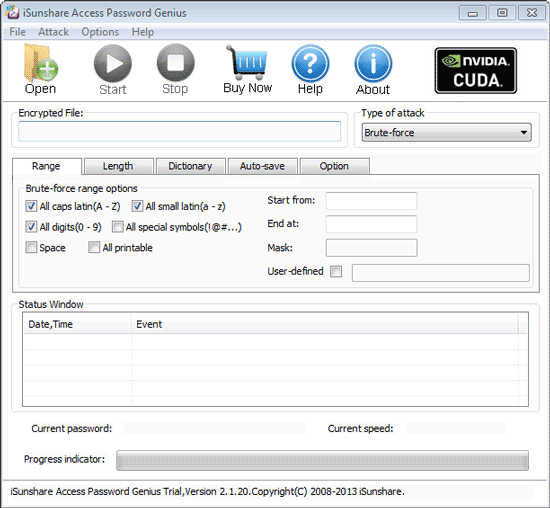
Step 1: Get iSunshare Access Password Genius and install.
Prepare Access Password Genius trial or full version first according to database password length you forgot or lost. Generally, if the forgotten access password contains no more than 3 characters, trial version is OK and free for you to choose. If not, only full version could help to successfully recover Access database password.
Step 2: Add access 2016 database into Access Password Genius.
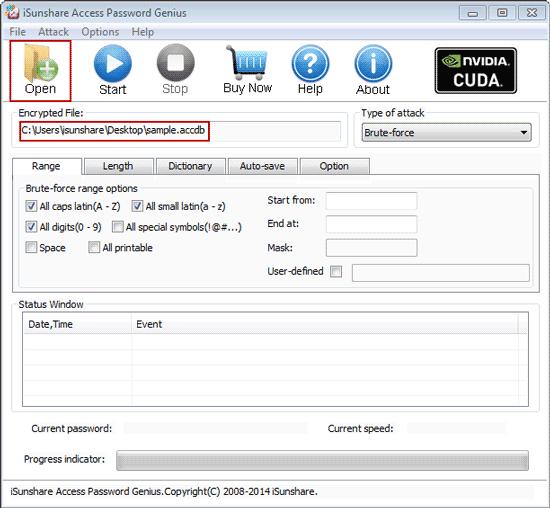
Tap on Open button after launching Access Password Genius, and browse computer to search encrypted Access 2016 database you want to remove password protection.
While you find it, select and click open button to import into Encrypted File box.
Step 3: Set password recovery options and recover Access 2016 database password.
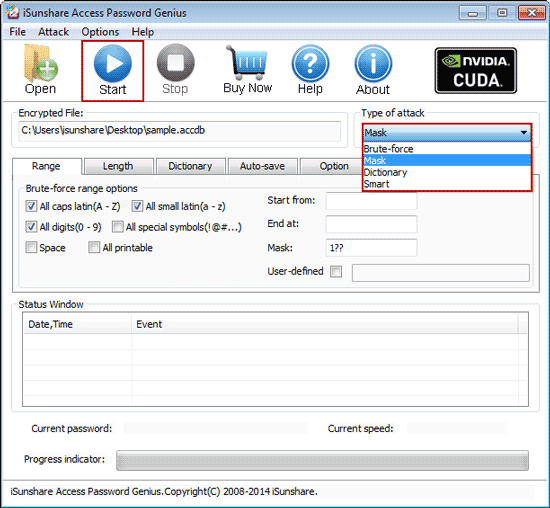
1. Click Type of attack and select one appropriate password attack type from drop-down list.
2. Under "Type of attack", set different kinds of password recovery options, including password range, length, Mask, Dictionary path etc. Surely not all of them just only password attack type related options are needed to set.
3. Tap on Start button to begin recovering Access 2016 database password.
If there is no settings wrong above, instantly imported Access 2016 database password will be recovered successfully, about few seconds later.
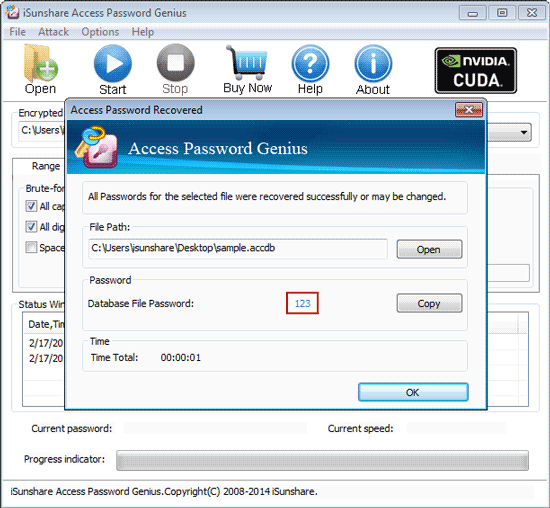
On pop-up dialog with Access 2016 database password, click Copy and Open button, and you can open Access 2016 database password with recovered password.
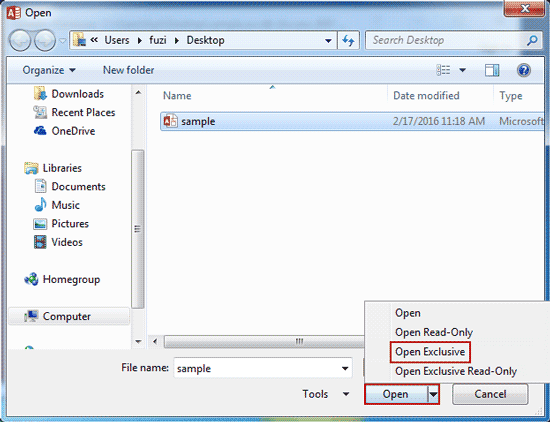
However, if you remove password protection from Access 2016 database right now when you open it, it would be failed. Only Access database is open with Open Exclusive mode, can you successfully remove database password or unset access database password.
So the right way to remove Access 2016 database password protection should be like this.
1. Copy and save access database password after recovering with Access Password Genius.
2. Run Access 2016 and click File > Open > Browse to search encrypted access 2016 database on computer.
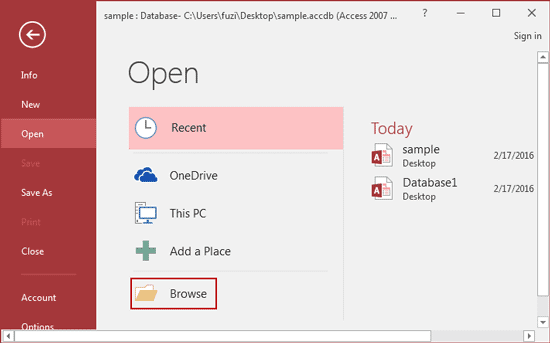
3. Select access 2016 database and open mode Open Exclusive in Open window.
4. Type recovered password while Access 2016 asks.

5. Click File > Info > Decrypt Database, and type recovered password again on Unset Database Password dialog and click OK.
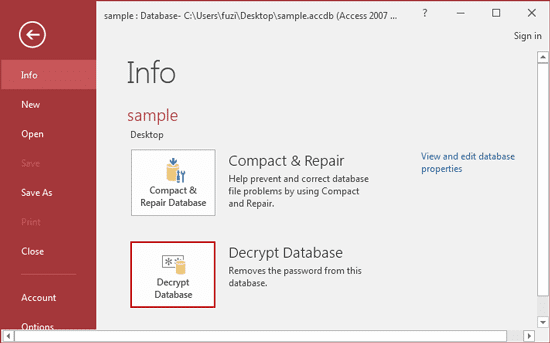
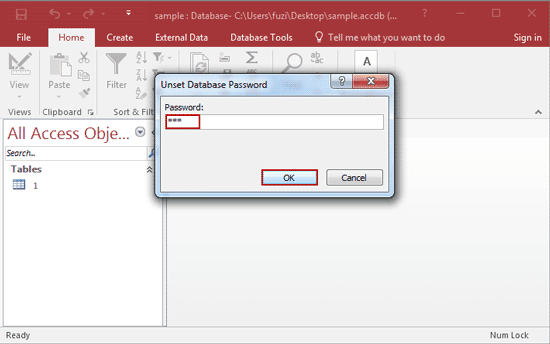
If there is no message prompting you, it means that you have successfully removed password from Access 2016 database.
Tips:
It is worth mentioning that, Access Password Genius also helps to recover Access 2013/2010/2007/2003 database password. So if you want to remove password protection from Access 2003-2016 database, no matter it is .mdb or .accdb file, you could use Access Password Genius.
Related Articles:
- How to Open Password Protected Access Database without Password
- How to Open Password Protected Excel Worksheets without Password
- Could I Open Encrypted Outlook Data File without Password
- Failed to Encrypt or Decrypt Access 2007-2016 Database
Go to link Download
Subscribe to:
Posts (Atom)