Showing posts with label hide. Show all posts
Showing posts with label hide. Show all posts
Saturday, May 20, 2017
Hide the screen very quickly
Hide the screen very quickly

Hide the screen very quickly
Every person have some privacy, thats why they dont wanna show their work policy with another person. When you working and if someone enters the room and you want to hide your computer screen? A keyboard shortcut allows you to do very simply.
Simultaneously press the Windows key and D and all the windows disappear. To find them, press the same key combination.
Go to link Download

Sunday, April 9, 2017
Hide or Show Search Box on Taskbar using Registry Editor
Hide or Show Search Box on Taskbar using Registry Editor
How do you hide or show search box on taskbar in Windows 10 computer? In this article, youÕll learn how to make it through changing the related value data in Registry Editor.
Step 1: Access Registry Editor.
Sub-step 1: Press Windows+R to launch Run, type regedit and tap OK.

Sub-step 2: Choose Yes in the User Account Control dialog.

Step 2: Open the value named SearchboxTaskbarMode.
In detail, it is located in HKEY_CURRENT_USER/SOFTWARE/Microsoft/Windows/CurrentVersion/Search.

Step 3: Change the value data.
1. To hide search box, input 0 in the value data box and click OK.

2. To display search box, type 2 in the value data box and hit OK.

Step 4: Restart the computer.
Tap the bottom-left Start button on the desktop, click Power and select Restart.

Related Articles:
Related Articles:
- Hide and Show Search Box on Taskbar in Windows 10
- 2 Ways to Disable Delete Confirmation Dialog in Windows 10
- A Brand New Way to Open Settings in Windows 10
Go to link Download
Monday, December 19, 2016
How To Show or Hide File Name Extensions in Windows 10 8 1 8 7 Xp
How To Show or Hide File Name Extensions in Windows 10 8 1 8 7 Xp
How To Show or Hide File Name Extensions in Windows 10/8.1/8/7/Xp

Hello friend!
How are you? Hope you are very well. In windows default settings every file name extension is not shown. In this tutorial I am going to show you how to show file extensions after the file name. For Example: Simple.txt, Simple.exe.
So please letÕs see how to do thisÉÉÉÉÉÉ
1) Double click on My Computer.
2) Click View tab
3) Click Options.
4) Now will open a new window which name is Folder Options.
5) From that window click View tab.
6) From the Advanced Settings scroll down.
7) And uncheck Hide Extension for Known File Types.
8) Click Apply Then Ok.
After doing the above procedures your job is done. Enjoy yourself. And donÕt forget to share this with your friends.
Thanks,
Md. Manjurul Islam (Rubel)
Go to link Download
Monday, October 31, 2016
How To Hide A Drive From Your Computer Without Any Third party Software
How To Hide A Drive From Your Computer Without Any Third party Software
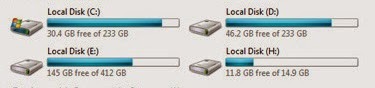
How are you? Hope you are very well. There are many software is available for hiding any local drive. But there are too expensive for us. Some people use crack /patch for that software but any crack/patch software is not reliable for us.
Anyway today I am going to show you a simple, easy and new way, how to hide any drive from your computer without any third-party software. If you want to hide your computerÕs drive just follow my bellow procedures.
Right click on my computer-->Click Manage--> Now will open a new wizard which name is Computer Management. From the left side click on Disk Management. Now from the right side chose any drive, which one you want to hide from your computer. Now right click on that --> then click on Change Drive Letter and PathsÉ--> Now you will see a new wizard and here is three options (Add, Change, Remove). Click the Remove button then click Yes. Close the Computer management wizard. Now go to my computer and see your one drive is vanished.
If you want to show your drive, right click on my computer --> Click Disk Management --> Now right click on that drive which one you have to hide. Click Change Drive Letter and PathsÉ --> Click Add --> Then click OK. Now close the Computer management wizard and go to my computer and see your drive is there which one you hide before. Enjoy yourselfÉÉ.
Video Of This Tutorial:
If you like this article and if you think these tricks are helpful, please share with your friends.
Thanks to all of my friends,
Md. Manjurul Islam (Rubel)
Go to link Download
Subscribe to:
Posts (Atom)