Showing posts with label sql. Show all posts
Showing posts with label sql. Show all posts
Sunday, April 23, 2017
How to Retrieve SQL Server User Password
How to Retrieve SQL Server User Password
Not only SQL SA password is lost, but also users with systemadmin privileges are locked. And now Windows authentication mode is unavailable too. So terrible!
When you are in such situations, undoubtedly you would like to escape from it instantly. Even though original SQL Server user password couldnÕt be retrieved, if we can retrieve a new user password for SQL, it will make us feel good.
However, how to get a tool to help recover SQL Server user password effectively and safely?
During choosing an effective tool or software, we can take these factors into consideration.
- Software function meets your requirements.
- Concise and user-friendly software interface and operation tips provided.
- Software is safe, legal publisher and powerful technology for data protection.
If there is one tool meeting these conditions, then we can take it to reset SQL Server user password.
With selection and comparison, we would find SQL Password Genius is such powerful but easy-to-use tool for SQL Server user password reset.
Now download and install it on computer. Get it from here: http://sql-password-genius.en.softonic.com/.
Two versions are available, trial version and full version. You can download trial version directly from website, while it only could show SQL Server user. Full version needs payment, resetting SQL Server password with one click.
Step 1: Run SQL Password Genius on computer.
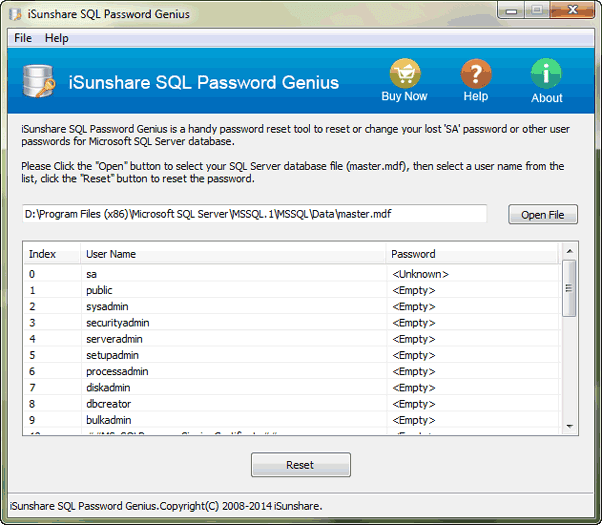
Step 2: Click "Open File" button to browse master database file and import it into recovery tool.
Step 3: Select SA account or other users shown in this tool, click "Reset" button and type new password in pop-up dialog for it.
If it doesnÕt successfully reset user password, probably this tool is trial version or SQL Server service has not been closed before SQL Password Genius runs.
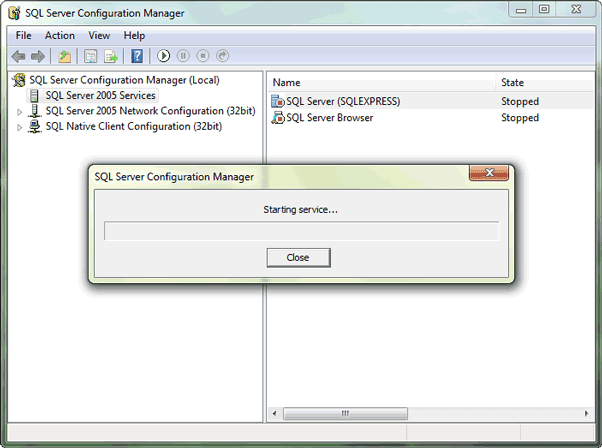
Step 4: Exit SQL Password Genius, start SQL Server services, and you could login SQL Server with recovered SA account and password.
How is it? Does it do for you? If you want to try more other ways, see four ways to change SQL SA password.
Related Articles:
How is it? Does it do for you? If you want to try more other ways, see four ways to change SQL SA password.
Related Articles:
- Transaction and Commands for SA Account and Password in SQL Server
- How to Open Password Protected Access Database without Password
- Forgot Windows 8 Password No Reset Disk
- Why Surface Pro is Locked & How to Unlock It
Go to link Download

Saturday, April 15, 2017
SQL Database in Recovery after SA Password Locked Out
SQL Database in Recovery after SA Password Locked Out
Locked out of SQL Server because of SA password locked out, and couldnÕt login SQL Server with Windows Authentication mode? What can we do to make SQL database recovery or password recovery?
Once SQL database recovery is mentioned, something always impresses us. Whenever you bring a database online, SQL Server goes through a recovery process. It seems to be boring if we want to access SQL database instantly at that moment.
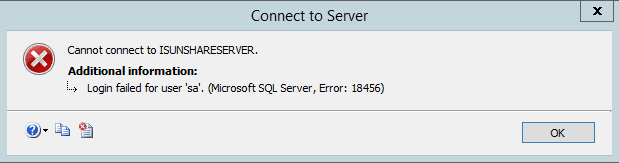
However, if SA password has been locked out, we could make SQL database in recovery to reset SA password. And then login into SQL Server with new SA password. All these just need a tool, SQL Password Genius.
SQL Password Genius is a powerful tool to reset user password for SQL database in few seconds. No matter it is SA or other users with different privileges, just select it in SQL Password Genius and, click "Reset" button, it could be set with new password.
Now letÕs go to see how this SQL password recovery tool makes SQL database/password recovery successful. This way applies to SQL Server all versions, including SQL Server 2014.
Precondition: SQL master database, SQL Password Genius, accessible computer with admin privileges.
1. Install SQL Password Genius (full version) on accessible computer.
This computer has been installed with Microsoft SQL Server 2000/2005/2008/2012/2014. And SQL master database can be found.
Once SQL database recovery is mentioned, something always impresses us. Whenever you bring a database online, SQL Server goes through a recovery process. It seems to be boring if we want to access SQL database instantly at that moment.
However, if SA password has been locked out, we could make SQL database in recovery to reset SA password. And then login into SQL Server with new SA password. All these just need a tool, SQL Password Genius.
SQL Password Genius is a powerful tool to reset user password for SQL database in few seconds. No matter it is SA or other users with different privileges, just select it in SQL Password Genius and, click "Reset" button, it could be set with new password.
Now letÕs go to see how this SQL password recovery tool makes SQL database/password recovery successful. This way applies to SQL Server all versions, including SQL Server 2014.
Precondition: SQL master database, SQL Password Genius, accessible computer with admin privileges.
Process of SQL Database in Recovery with Tool
1. Install SQL Password Genius (full version) on accessible computer.
This computer has been installed with Microsoft SQL Server 2000/2005/2008/2012/2014. And SQL master database can be found.
Why we take full version? Because trial version only could import master database, but still could not reset password for database recovery.
2. Browse master database in computer and import it into tool.
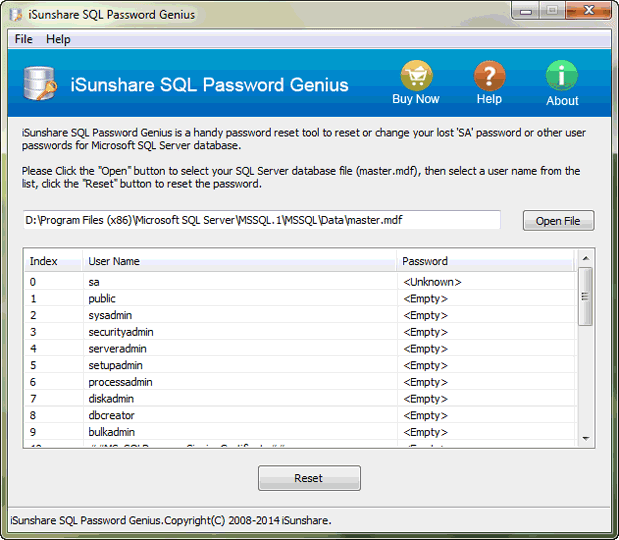
By clicking "Open File" button in tool, you would access to computer and could browse SQL master database in computer. When you find it, click "Open" button to import it into SQL Password Genius.
3. Recover SQL Server Master Database.
As soon as master database is imported, all of its users for it also appear in this tool.
How to recover SQL master database and make it accessible? Just select user, general SA account in user list, and click "Reset" button to type new login password for SA. Master database file is also recovered at the same time. Its logon user, SA password has changed.
Related Articles:
- Transaction and Commands for SA Account and Password in SQL Server
- How to Install SQL Server 2012 on Windows Server 2012 R2
- Forgot Windows 8 Password No Reset Disk
- SQL Database Password Recovery
Go to link Download
Monday, March 13, 2017
How to Reset SQL Server Password without Access
How to Reset SQL Server Password without Access
Two authentication modes are available to access SQL Server, Windows Authentication mode and SQL Server Authentication mode. When you forgot or lost SQL Server SA password, if you have Windows Built-in Administrator privileges for SQL Server, you can access SQL Server using Windows Authentication mode first. And then reset SQL password.
But if you always couldnÕt login into SQL Server with Windows Authentication mode successfully, how do you reset forgotten SA password for SQL Server?
Now, we have to make use of third-party software and Command Prompt.
But if you always couldnÕt login into SQL Server with Windows Authentication mode successfully, how do you reset forgotten SA password for SQL Server?
Now, we have to make use of third-party software and Command Prompt.
- Reset SQL Password with SQL Password Genius
- Reset Forgotten SQL Password with Command
Way 1: Reset SQL Password with SQL Password Genius
SQL Password Genius full version could help to reset all user passwords set for SQL database file, master file. Just with master.mdf file and SQL Password Genius, SQL password could be reset or changed.
1. Get SQL Password Genius and install it on your computer.
Tips: Please remember to stop SQL Server Service before SQL Password Genius resets SA password.
2. Run it and open SQL Server master file in it.
2. Run it and open SQL Server master file in it.
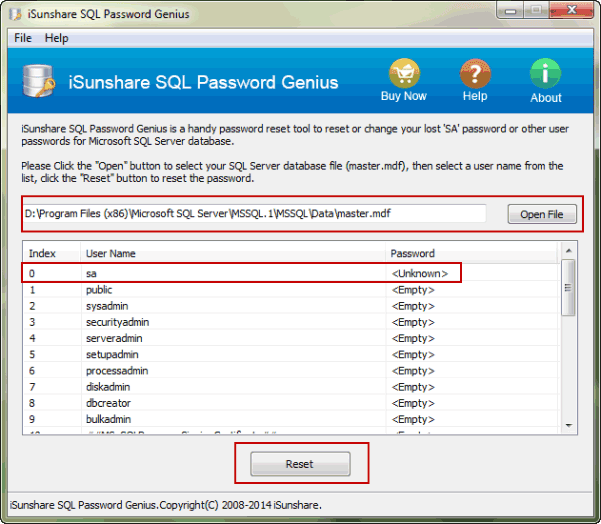
Click ÒOpen FileÓ button on password software, to browse master file on your computer. Open it and it would appear in this software. At the same time, all the users for master file are listed.
3. Reset SQL SA Password.
3. Reset SQL SA Password.
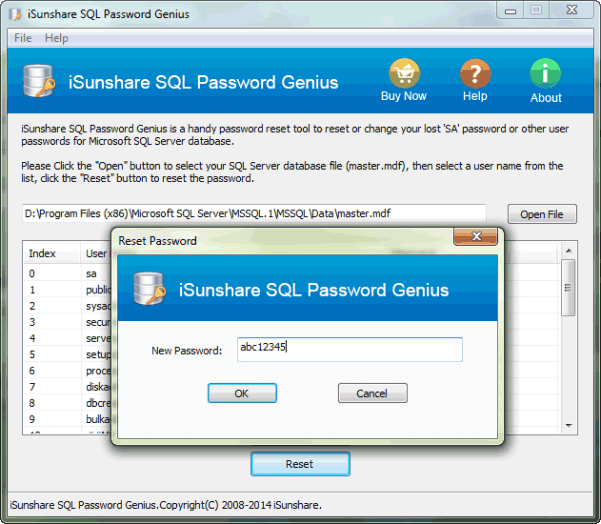
Select the user you want to reset password and whose password is unknown. Now, we select ÒsaÓ account and click ÒResetÓ button. Instantly, a window pops up with a box. Type a new password in box and click ÒOKÓ.
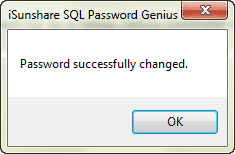
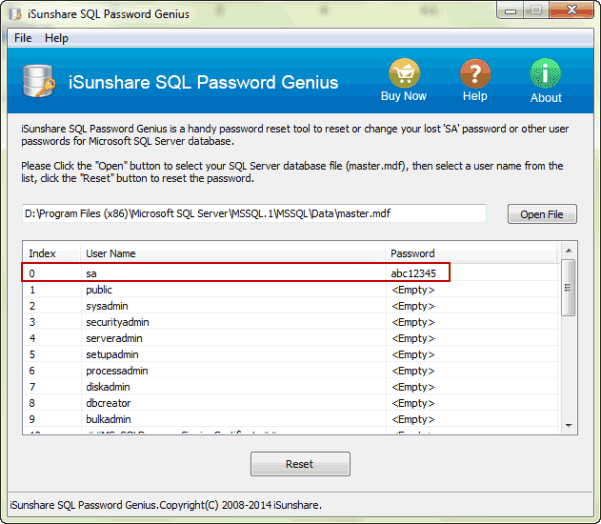
Message ÒPassword successfully changedÓ would tell you SA password has been reset. And then you can see it in user list.
After SA password is reset, exit SQL Password Genius and start SQL Server Service. And then turn to open SQL Server Management Studio to login with SA account and new password.
Message ÒPassword successfully changedÓ would tell you SA password has been reset. And then you can see it in user list.
After SA password is reset, exit SQL Password Genius and start SQL Server Service. And then turn to open SQL Server Management Studio to login with SA account and new password.
Way 2: Reset Forgotten SQL Password with Command
1. Click Start Ð Run, and then type ÒcmdÓ in Run box. Press Enter to run Command Prompt.
2. Type following commands, and press Enter after each command line.
Osql CS yourservername CE
1> EXEC sp_password NULL, yourpassword, sa
2> GO
Above commands could help you to reset SA password in SQL Server. But if you donÕt have Windows administrator privileges, you couldnÕt reset SQL password with commands.
2> GO
Above commands could help you to reset SA password in SQL Server. But if you donÕt have Windows administrator privileges, you couldnÕt reset SQL password with commands.
Go to link Download
Sunday, March 5, 2017
How to Import Existing Access or SQL Database into Access
How to Import Existing Access or SQL Database into Access
SQL Server and Access are undoubtedly two important database services. So import and export data between them are usual. In this passage, we will mainly talk about something about data import, for example, how to import access or sql database into Access.
- Part 1: Import existing access database into new Access database
- Part 2: Import SQL database into Access
Part 1: Import existing access database into new Access database
When you are using database in Microsoft Access 2000/2002/2003/2007/2010/2013 etc, you can import tables, queries, and macros from that database into a Microsoft Office Access 2007/2010/2013 database (.accdb). We also can say import data from MDB database file into ACCDB database file.
Step 1: Click the Microsoft Office button, and then click Open.
Step 2: In the Open dialog box, select and open the access database that you want to import the tables, queries, or macros into.

Step 3: On the External Data tab, in the Import or Import & Link group, click Access.

Step 4: Click Browsebutton to specify the source of access database in Get External Data window. Click OK.

Step 5: In Import Objects window, tab Tables, Queries, Forms, Reports, Macros and Modules. Select what you want to import into opening access database. Then click OK.

To make additional settings, click Options to specify them.
Step 6: You will instantly get a message "All objects were imported successfully".

Click Close directly or check "Save import steps" to save the process of importing access database into Access database. So you can follow the import steps to import data more quickly when you want to import access database again.
After that, you can open and edit import datasheet now in current access database.

After that, you can open and edit import datasheet now in current access database.
Part 2: Import SQL database into Access
Besides access database, there is no doubt that SQL Server database data also can be imported into Access desktop database or Access apps. Now please see how to import sql database into Access desktop database.
Step 1: Open Access desktop database you want to import SQL database in Microsoft Access.
Step 2: On External Data tab, click ODBC Database.

Step 3: When you see "Get External Data" wizard, check "Import the source data into a new table in the current database". Click OK.

Step 4: In pop-up Select Data Source window, if you can find .dsn file, select the file in the list. If not, it will be necessary to create a new .dsn file.

Follow introductions show how to create a new DSN file in details.
1. Click New and go to Create New Data Source.
2. Select "SQL Server" in the driver list and click Next.

3. Type a name for .dsn file and click Browse to save the file in computer.

4. Click Next, review the data source information, then click Finish to complete creation wizard.

Then you can see a new dialog "Create a New Data Source to SQL Server". The "Description" is optional. But we have to set the SQL Server we want to connect to.

5. Type the SQL Server or select one from Server drop-down list. Click Next.
6. Confirm the authenticity of the SQL Server login ID.
7. If you want to connect to a specific database, ensure that the Change the default database to check box is selected. Then select the database that you want to work with, and then click Next.
8. Click Finish.
9. Review the summary information and click Test Data Source.
10. Review the test results, and then click OK to close the dialog box.
Step 5: Click OK to close the Select Data Source dialog box.
Step 6: In Import Objects dialog box, tab Tables, and click each table or view what you want to import into Access database. Click OK.
Step 7: If the Select Unique Record Identifier dialog box appears, select the field or combination of fields that is unique for each row, and then click OK. If you are not sure, contact to the administrator of SQL Server database.
Step 8: Click Close under Save Import Steps in the Get External Data - ODBC Database dialog box. Access finishes the import operation and displays the new table or tables in the Navigation Pane.
Or check "Save import steps". If you plan to repeat the import operation later, you can check it and easily rerun the same import steps later.
Related Articles:
Related Articles:
- How to Encrypt and Decrypt Access Database
- SQL Server Forgot SA Password
- How to Open Password Protected Access Database without Password
- Access Database Password Reset
Go to link Download
Tuesday, January 24, 2017
Transaction and Commands for SA Account and Password in SQL Server
Transaction and Commands for SA Account and Password in SQL Server
SA account is default administrator for SQL Server. No matter Transaction-SQL or Commands, they provide ways to take operations on SA account and its password. And in this passage, we mainly pay attention to how to verify, change, clear SA password with Transaction and commands.
1-1 Verify SA account and its password:
1. Transaction-SQL for SA password
1-1 Verify SA account and its password:
Select * from my usertable where text=ÕsaÕ and password =Password
1-2 Change SA password:
Exec_password Ôold_passwordÕ, Ônew_passwordÕ, ÔsaÕ
1-3 Clear SA password:
Exec_password NULL, ÔsaÕ
This way asks for SQL Server logon, no matter using Windows Authentication mode or SQL Server Authentication mode. But generally, when we remember SA password to login into SQL Server, we would not like to do these. And if you try to access SQL Server with Windows Authentication mode, but failed, turn to this article to find reasons and solutions if necessary:
Why cannot login into SQL Server with Windows Authentication
Why cannot login into SQL Server with Windows Authentication
2. Commands to change/reset SA password:
Osql ÐE
EXEC sp_password NULL, yourpassword, sa
Go
For more ways to change SA password, turn to article Four Effective Ways to Change SQL Server SA Password.
Related Articles:
Related Articles:
- How to Change SQL Server Login Password
- How to Reset SQL Server Password without Access
- Lock and Unlock Record in SQL Server Database
Go to link Download
Monday, November 21, 2016
How to Install SQL Server 2012 on Windows Server 2012 R2
How to Install SQL Server 2012 on Windows Server 2012 R2
Now I have gotten SQL Server 2012 Enterprise version, but how can I install it on computer or server?
First, letÕs see which Windows system SQL Server 2012 installation requires. And install SQL Server 2012 on that Windows system. Besides, we have to pay attention to the preparation needed for SQL Server 2012 installation.
From the description of Microsoft support, we know that SQL Server 2012 Enterprise, not only 32-bit, but also 64-bit, has to be installed on Windows Server 2012 Essentials 64-bit.
And now I have to install Windows Server 2012 Essentials 64-bit on VMware. LetÕs take a try with following introductions.
1. Windows system requirement
From the description of Microsoft support, we know that SQL Server 2012 Enterprise, not only 32-bit, but also 64-bit, has to be installed on Windows Server 2012 Essentials 64-bit.
And now I have to install Windows Server 2012 Essentials 64-bit on VMware. LetÕs take a try with following introductions.
2. Steps to install SQL Server 2012 on Windows Server 2012 R2
Because what we get is SQL Server 2012 ISO file, so we have to add it to virtual disk on Virtual Machine first. And then open SQL Server 2012 ISO file in virtual disk, so we could run SQL Server setup program.
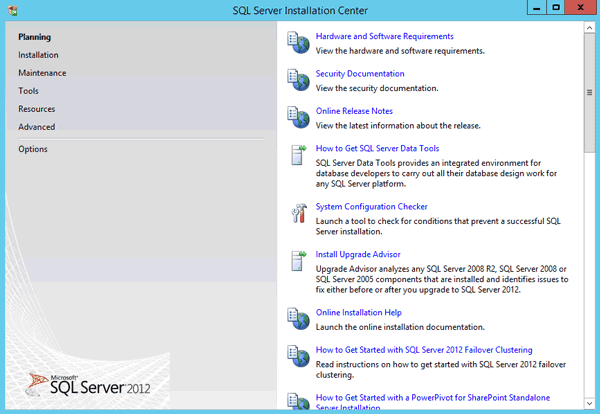
Step 1: SQL Server Installation Center runs.
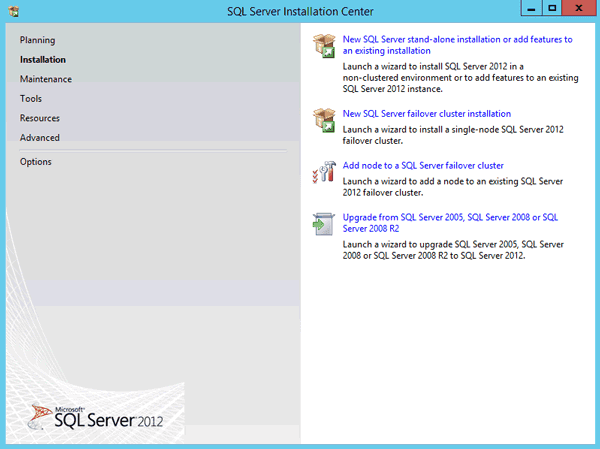
Step 2: Select ÒInstallationÓ option and click ÒNew SQL Server- stand-alone installation or add features to an existing installationÓ.
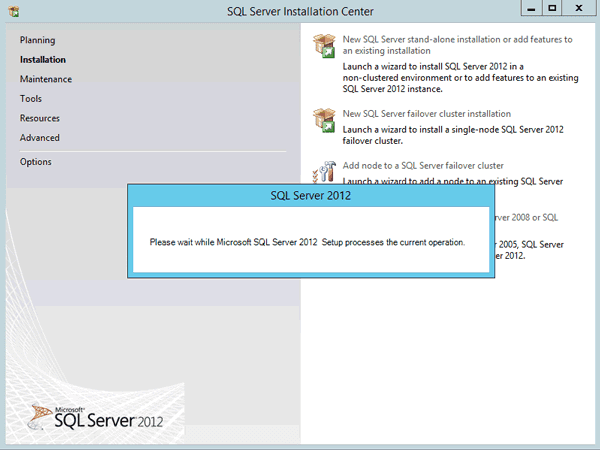
Step 3: Wait a minute when Microsoft SQL Server 2012 Setup processes the current operation.
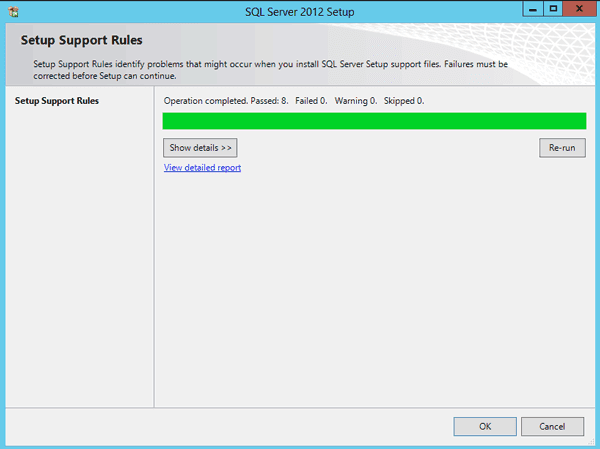
Step 4: SQL Server 2012 Setup Support Rules identity problems that might occur when you install SQL Server Setup support files. Failures must be corrected before Setup can continue. Click ÒOKÓ.
Step 5: Specify a free edition or ÒEnter the product keyÓ for SQL Server 2012.
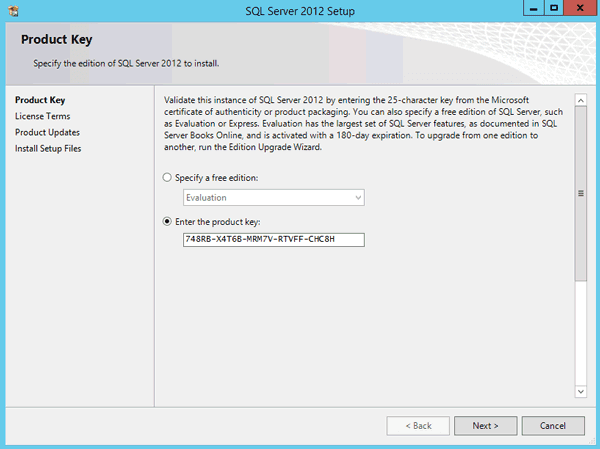
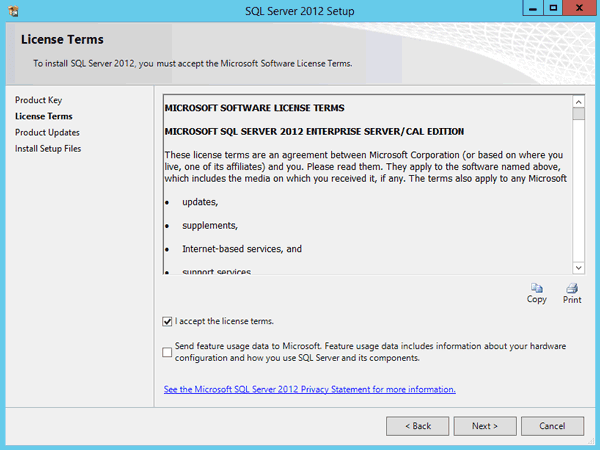
Step 6: Accept the license terms and click ÒNextÓ.
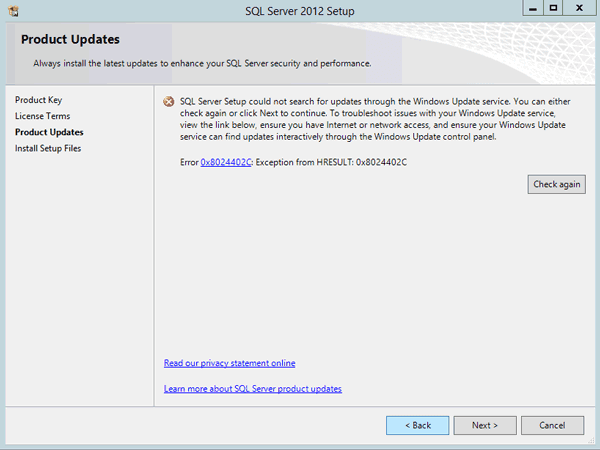
Step 7: Click Next after Product Updates.
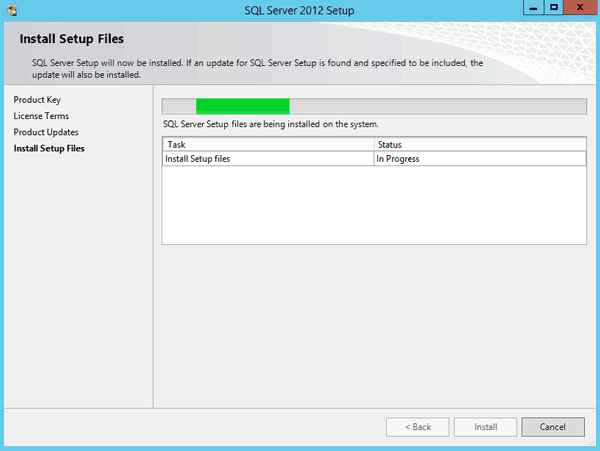
Step 8: Install Setup Files.
Step 9: Setup Support Rules again and their status is listed.
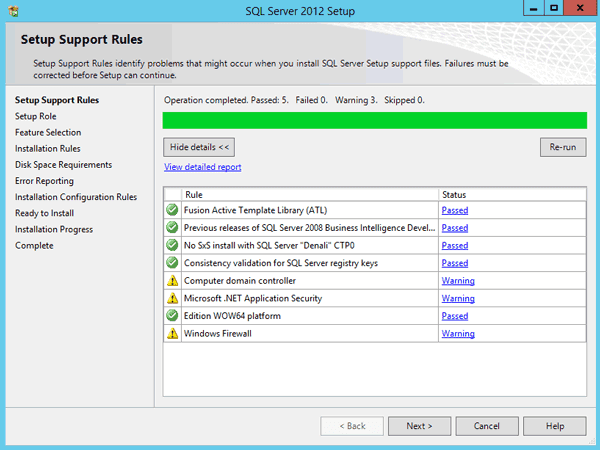
Tips: If the warning is not so important to influence SQL Server 2012 installation, we can ignore it and click ÒNextÓ. If it would make SQL Server installation failure on feature you need to install, solve the problem first and then begin to install SQL Server 2012.
For example, .Net Framework 3.5 would make SQL Server manage tools installation failed, so we have to make sure it has been installed successfully in Windows system or turned on. But unfortunately, .Net Framework 3.5 could not been turned on like other Windows features in Windows Server 2012 (R2) or Windows 8/8.1. So if you have any question on .Net Framework 3.5 installation, please turn to Microsoft support: http://support.microsoft.com/kb/2734782
Or get details here to install it when you have Windows Server 2012 R2 installation disc:
How to install .Net Framework 3.5 in Windows Server 2012 R2
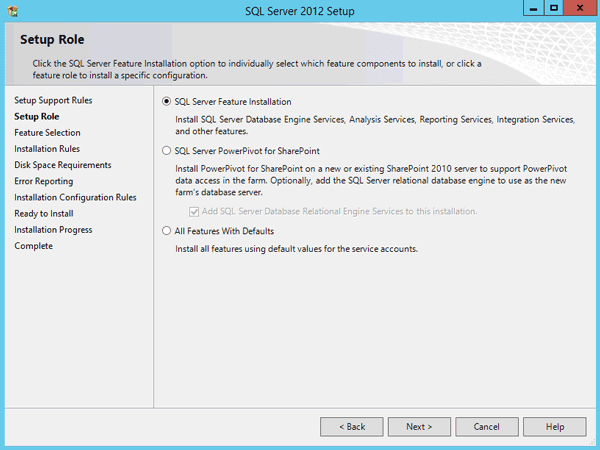
Step 10: Select ÒSQL Server Feature InstallationÓ in ÒSetup RoleÓ and click ÒNextÓ.
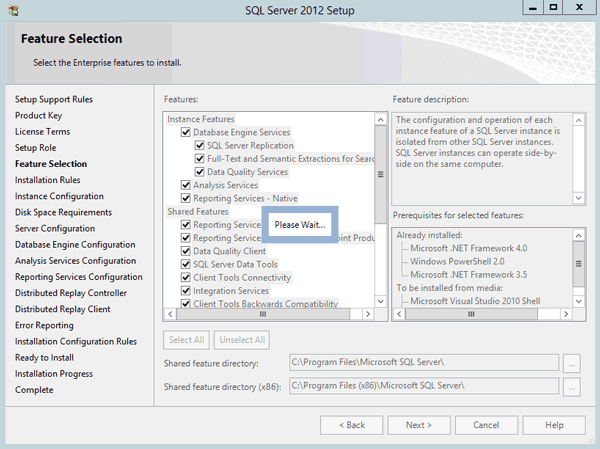
Step 11: Select the SQL Server Enterprise features to install.
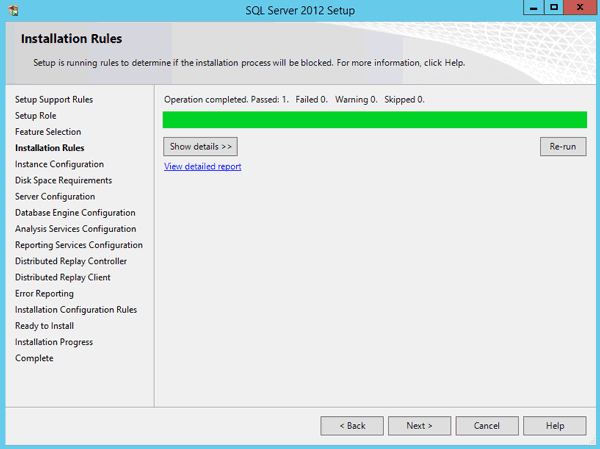
Step 12: Run rules to determine if the installation process will be blocked. Click Next.
Step 13: Specify the name and instance ID of the instance of SQL Server.
Step 11: Select the SQL Server Enterprise features to install.
Step 12: Run rules to determine if the installation process will be blocked. Click Next.
Step 13: Specify the name and instance ID of the instance of SQL Server.
Instance ID becomes the part of the installation path.
Step 14: Server Configuration. Specify the service accounts and collation configuration. Click ÒNextÓ.
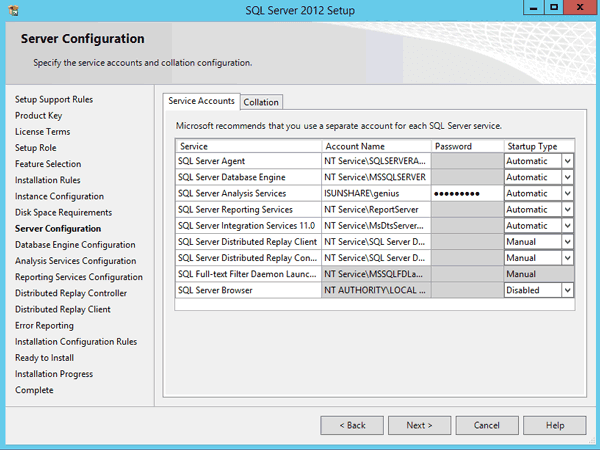
Step 15: Specify Database Engine authentication security mode, administrators and data directories. Click Next.
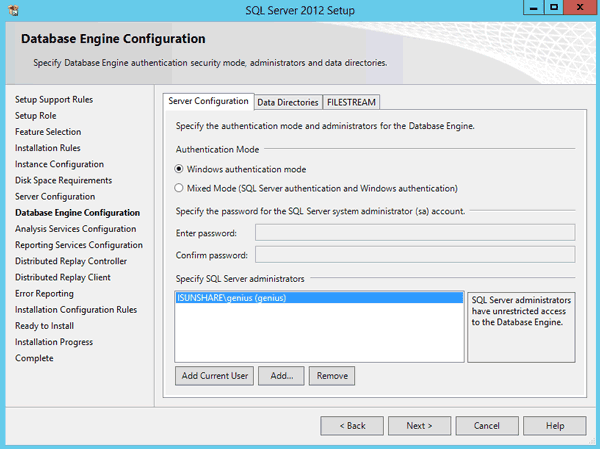
Step 16: Specify Analysis Services server modes, administrators, and data directories. Click Next.
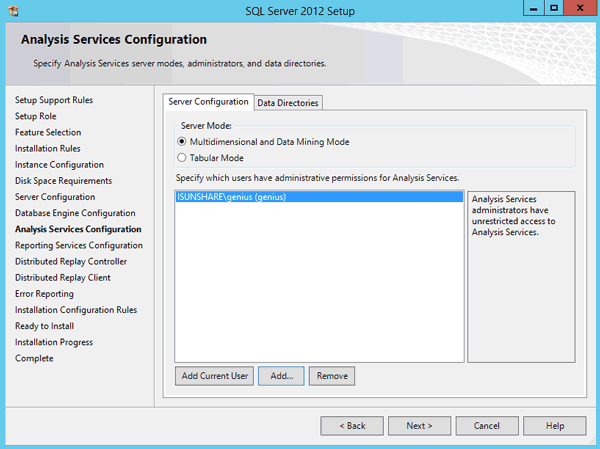
Step 17: Specify the corresponding controller and data directories for Distributed Replay Client, including Working Directory and Result Directory. Click Next.
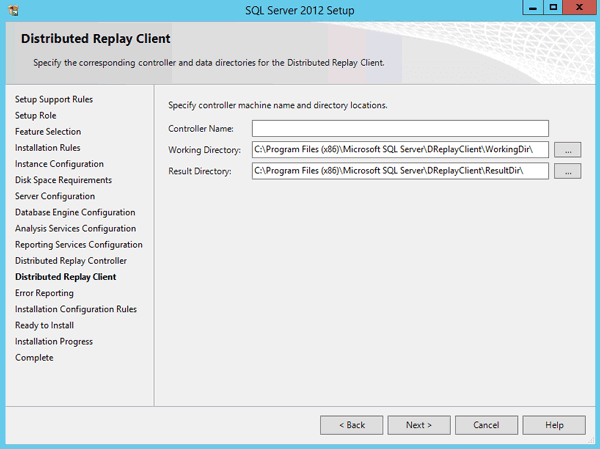
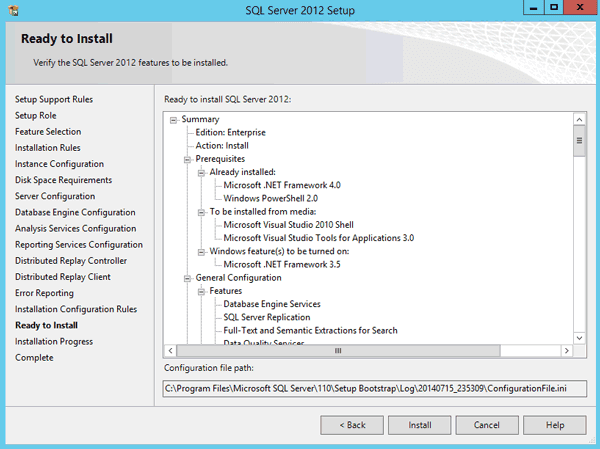
Step 18: Verify the SQL Server 2012 features and click ÒInstallÓ to install them on Windows Server 2012 R2.
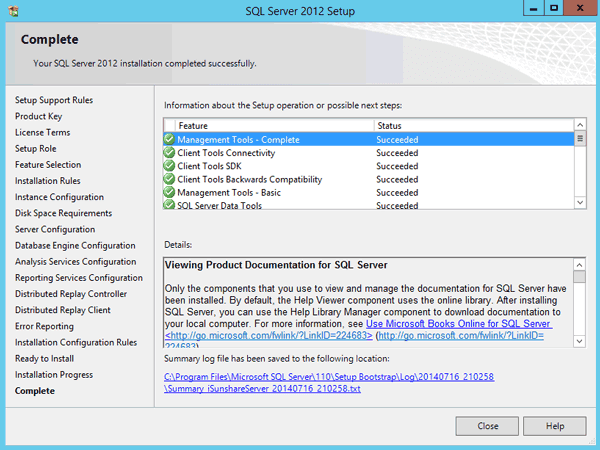
Step 19: And then you would get a message which SQL Server features you selected has been installed successfully. Click ÒCloseÓ and then run SQL Server 2012 on Windows Server 2012 R2.
Step 14: Server Configuration. Specify the service accounts and collation configuration. Click ÒNextÓ.
Step 15: Specify Database Engine authentication security mode, administrators and data directories. Click Next.
Step 16: Specify Analysis Services server modes, administrators, and data directories. Click Next.
Step 17: Specify the corresponding controller and data directories for Distributed Replay Client, including Working Directory and Result Directory. Click Next.
Step 18: Verify the SQL Server 2012 features and click ÒInstallÓ to install them on Windows Server 2012 R2.
Step 19: And then you would get a message which SQL Server features you selected has been installed successfully. Click ÒCloseÓ and then run SQL Server 2012 on Windows Server 2012 R2.
3. Something in installation we should pay attention:
.Net Framework 3.5 is needed in SQL Server 2012 installation, but it could not be added into Windows system just by turning on such Windows features. The easiest way is to specify source file when you try to install it in Windows system.
Related Articles:
Related Articles:
- How to Install Windows Server 2012 R2 on VMW
- How to Create Virtual Drive in Windows Server 2012
- SQL Server 2012 SA Password Reset
Go to link Download
Thursday, October 13, 2016
SQL Database Password Recovery with SQL Password Genius
SQL Database Password Recovery with SQL Password Genius
Forgot SQL database open password, how to recover SQL Server database password? Now get one powerful password recovery tool for SQL database password recovery.
SQL Password Genius is one of the powerful tools to recover SQL password. With one in your hand, you would donÕt need to worry about that whether SQL database user password could be recovered.
Step 1: Download and install SQL Password Genius
1. Turn to www.isunshare.com or search ÒSQL Password GeniusÓ on Google, you would find SQL Password Genius. Download trial version or purchase full version. But please pay attention to this only full version could recover all user passwords for locked SQL database.
2. Double-click program you have gotten, and install it like other programs on your computer, such as on server, PC or laptop, generally where SQL database file is.
Step 2: Recover SQL Server Database Password.
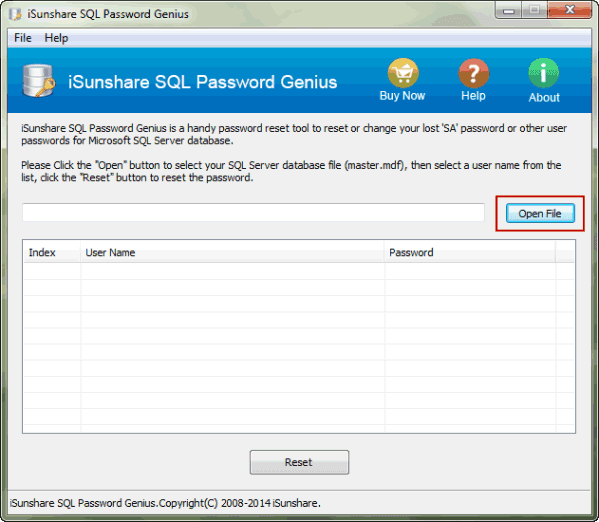
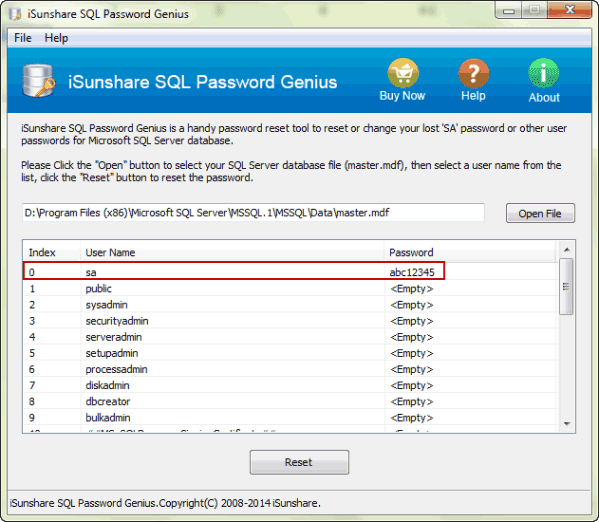
1. Find SQL Server database file in computer. Click ÒOpen FileÓ button on program and look for SQL database file. Generally, it is located at C:Program FilesMicrosoft SQL ServerMSSQL.1MSSQLData
When find it, click ÒOpenÓ button to import it into SQL Password Genius.
2. Choose database user whose password is unknown.
2. Choose database user whose password is unknown.
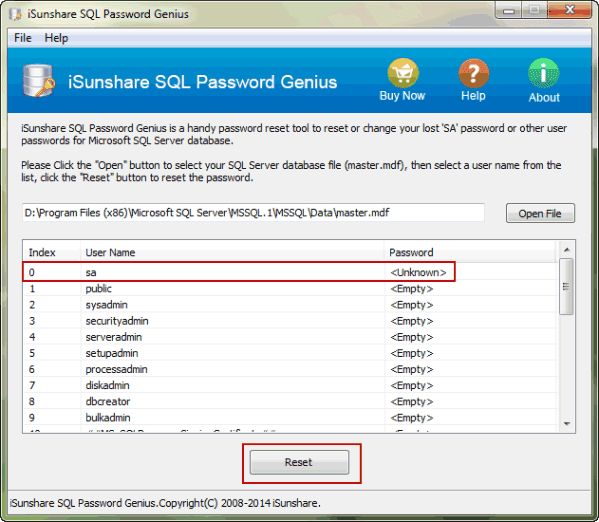
When SQL database is imported into SQL Password Genius, all the users for database are listed. And their password status is shown there. If the user password status is ÒUnknownÓ, select the user and click ÒResetÓ button. For example, if SA password is unknown, select ÒsaÓ account.
3. Recover a new password for database user.
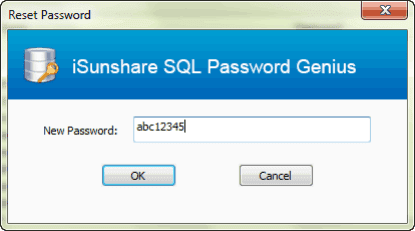
Type new password for user in pop-up dialog, click ÒOKÓ and instantly a message ÒPassword successfully changedÓ prompts you SQL database password recovered successfully.
After SQL password recovery, exit SQL Password Genius and then restart SQL Server Services, because SQL Server Services has been stopped when SQL Password Genius is running.
Tips: How to Start/Stop/Pause/Restart SQL Server Service
But SQL Server Services needs to be started if we want to access SQL Server. So restart it in SQL Server Configuration Management. And then start SQL Server and login into it with SA user and new password.
Related Articles:
3. Recover a new password for database user.
Type new password for user in pop-up dialog, click ÒOKÓ and instantly a message ÒPassword successfully changedÓ prompts you SQL database password recovered successfully.
Step 3: Restart SQL Server Services and access SQL database.
After SQL password recovery, exit SQL Password Genius and then restart SQL Server Services, because SQL Server Services has been stopped when SQL Password Genius is running.
Tips: How to Start/Stop/Pause/Restart SQL Server Service
But SQL Server Services needs to be started if we want to access SQL Server. So restart it in SQL Server Configuration Management. And then start SQL Server and login into it with SA user and new password.
Related Articles:
- Transaction and Commands for SA Account and Password in SQL Server
- Dell PC Locked Out of Windows 8 Ð Password Recovery without Administrator
- Windows Server 2012 R2 Activation Key Recovery Finder
- Password Utility/Genius for Windows server Password Recovery
Go to link Download
Sunday, October 9, 2016
How to Change SQL Server Login Password
How to Change SQL Server Login Password
When we try to login SQL Server 2014/2012/2008/2005 with SA account and password, system prompts us that this user account password is incorrect. How to change previous SQL Server login password for successful access?
Now letÕs divide it into two parts to discuss how to change SQL Server login password.
Now letÕs divide it into two parts to discuss how to change SQL Server login password.
- One is login into SQL Server with Windows Authentication mode and then change SQL Server login user SA password in SSMS.
- The other is when you couldnÕt login into SQL Server with Windows Authentication mode, change SQL Server login password with SQL Password Genius or user command.
- Part 1: Change SQL Server Login Password in SSMS
- Part 2: Change SQL Server Login Password out of SSMS
Part 1: Change SQL Server Login Password in SSMS
When we could login into SQL Server with Windows Authentication mode, turn to SQL Server Management Studio and change SQL login user SA password.
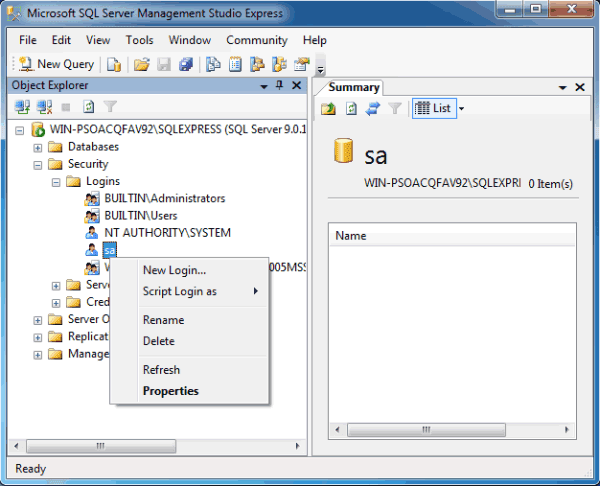
1. Unfold Security Ð Logins Ð sa, right click sa and choose Properties.
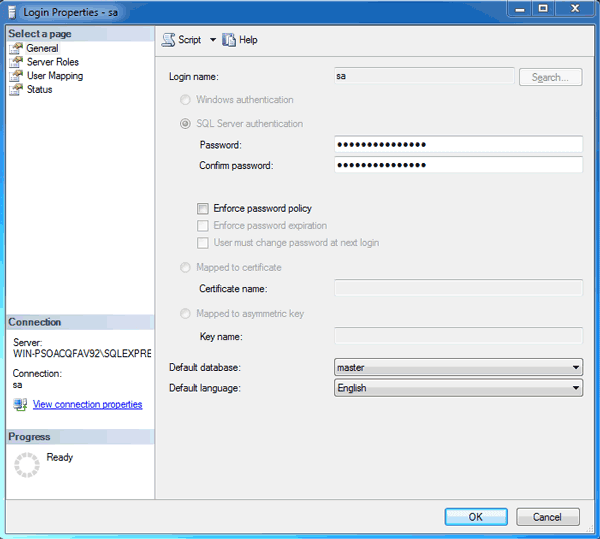
2. In Login Properties window, you would see the login user is sa. Retype new password in ÒPasswordÓ and ÒConfirm passwordÓ box. And click ÒOKÓ.
Part 2: Change SQL Server Login Password out of SSMS
When we couldnÕt login into SQL Server with Windows Authentication mode, we have to change login user password out of SSMS for SQL Server. Take SQL Password Genius to help you or using user command.
SQL Password Genius is one effective recovery tool to reset SQL Server password even though you are locked out of SQL Server. Something we should pay attention to are:
- Import correct SQL Server Database Master.mdf file locked with user password.
- Close SQL Server Service before SQL Server user password reset with SQL Password Genius.
- Restart SQL Server Service after changing SQL Server user password.
Besides, user command is another way to change SQL user password.
- Press Windows + R to run Open box in Win 7 computer. And then type cmd in box and press Enter to run the command prompt.
- Type in command prompt osql Ð L
- Copy full name of SQL Server and type. OSQL -S <insert_servername_here> -E
- Execute following query. sp_password NULL, Ô<insert_new_password_here>Õ, ÕsaÕ
Now SQL Server SA account original password has been changed, and set with new password.
Related Articles:
- Acer laptop Lost Windows 8 Login Password
- How to Change Windows 8 Logon Way between Local Account and Microsoft Account
Go to link Download
Subscribe to:
Posts (Atom)