Showing posts with label make. Show all posts
Showing posts with label make. Show all posts
Tuesday, May 23, 2017
How to Make Windows 7 Security Settings on UAC
How to Make Windows 7 Security Settings on UAC
Most of us probably have confronted with such situation. That is no matter which kind of user account we login Windows with, system administrator or local standard user, UAC prompting message always pops up when we prepare to install software on Windows 7 or change Windows system settings.
Actually, it protects our computer sometimes, but sometimes it disturbs operations on Windows 7 computer. So some impatient computer users may want to close UAC for convenience directly. However, it is really suitable to close UAC at our will?
It is surely not and it is not necessary. Because compared to Windows Vista, the UAC on Windows 7 has made a progress on work principles and level settings. With the active defense function provided by Windows 7 UAC, malicious software can be forbidden running automatically in the Windows system background. And we can make simple settings on Windows 7 UAC to let it work according to our intention, and protect Windows system at the same time.
Now, letÕs see how to make Windows 7 security settings on UAC step by step.
Step 1: Create Windows User Account on UAC
Step 2: Set Password for User Account on UAC
Step 3: Monitor Computer Usage with Parental Controls
Step 1: Create Windows User Account on UAC
Step 2: Set Password for User Account on UAC
Step 3: Monitor Computer Usage with Parental Controls
Step 1: Create Windows User Account on UAC
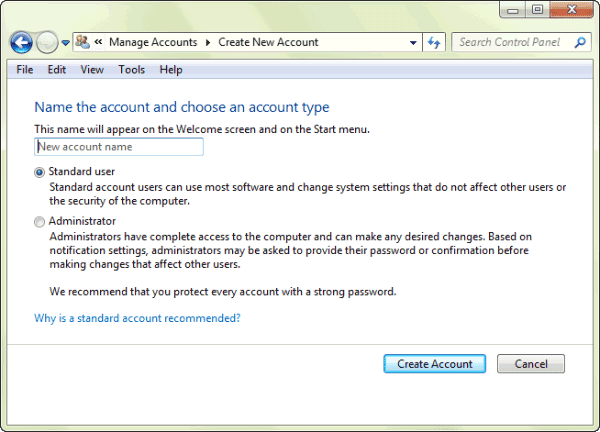
Open Control Panel Ð Add or remove user accounts, and a dialog pops up. Click ÒCreate a new accountÓ. Type a name for user account and choose an account type. At last, click ÒCreate AccountÓ button.
Step 2: Set Password for Windows 7 User Account
Click the Standard User to open User Account control window, and select ÒCreate a passwordÓ. Type new password twice for this user account, and click ÒCreate passwordÓ button.
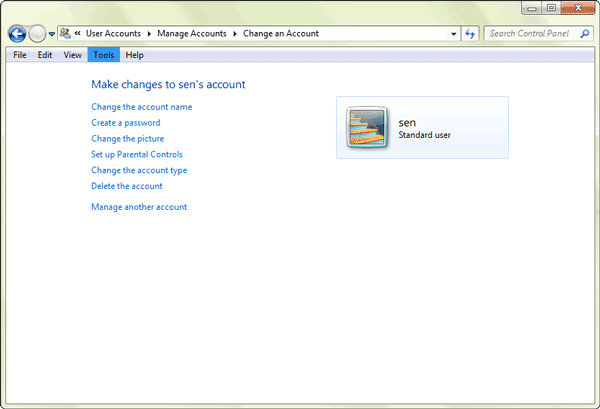
Set password for every account on Windows with this method. And then when we login Windows every time, password would be needed to type in.
Tips: How to Set Windows 7 Password
Tips: How to Set Windows 7 Password
Step 3: Monitor Computer Usage with Parental Controls
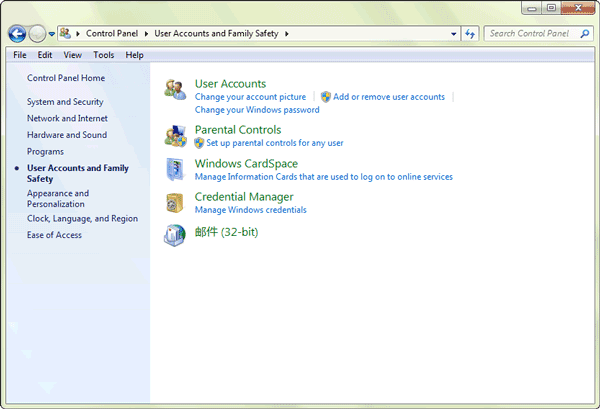
Open Control Panel Ð User Accounts and Family Safety, and click ÒParental ControlsÓ. Select Standard User, and system would prompt you that set password for administrator if you have never set for them. If you have set administrator password, it would directly enter Parental Controls window.
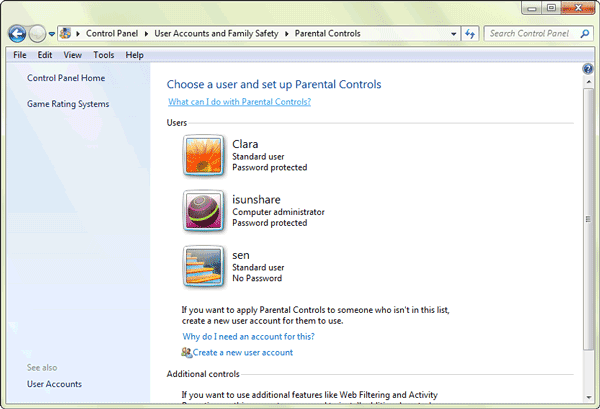
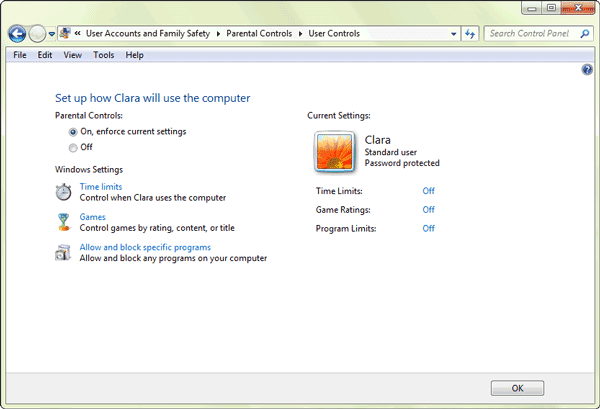
Click ÒTime limitsÓ to open Time Restrictions window, here you could set time when this standard user can or canÕt use computer. At last, click ÒOKÓ to complete user time restrictions settings.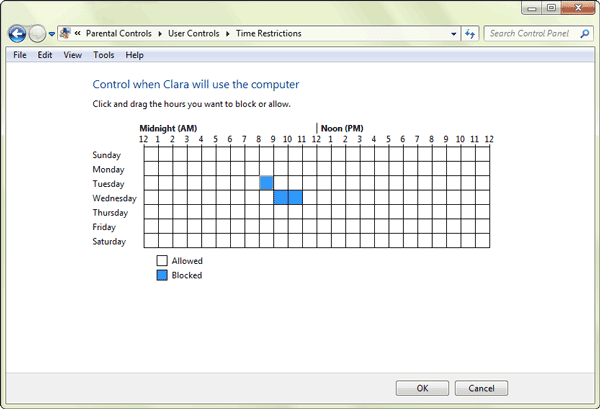
Click ÒAllow and block specific programsÓ, to open Application Restrictions. There are two options for selection. Generally, select Ò* can only use the programs I allowÓ. And tap the programs in the box that you want to set available for this user account. If the programs you want to set available are not listed, click ÒBrowseÓ to add them to this list first and then choose them. At last, click ÒOKÓ to finish setting application restrictions.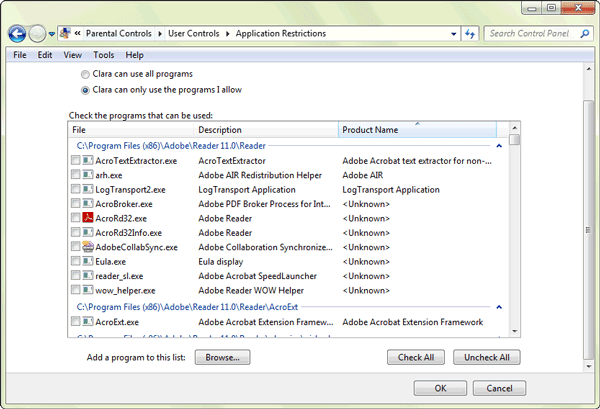
From then on, when this user accesses to Windows 7 and want to run the blocked programs, system will prompt user that ÒParental Controls has forbidden this programÓ. At this time, if this user wants to get privileges to run this program again, please click the button ÒPlease Ask Administrator for PrivilegesÓ and type administrator password to run it.
Tips: How to Lock Apps on PC with Windows 7
From then on, when this user accesses to Windows 7 and want to run the blocked programs, system will prompt user that ÒParental Controls has forbidden this programÓ. At this time, if this user wants to get privileges to run this program again, please click the button ÒPlease Ask Administrator for PrivilegesÓ and type administrator password to run it.
Tips: How to Lock Apps on PC with Windows 7
Besides the usual settings on Windows UAC, there are much more UAC options for Windows 7 security, such as ÒChange User Account SettingsÓ and settings for making UAC filter Windows system file and work for applications only.
1. Change User Account Control Settings:
There are four levels on user account control settings. You can move the slider to one of the levels, in order to choose appropriate control settings.
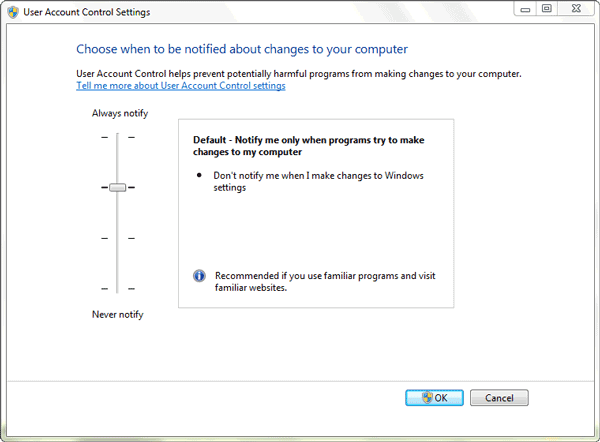
- Always notify me when
- Default Ð Notify me only when programs try to make changes to m computer:
- Notify me only when programs try to make changes to my computer (do not dim my desktop)
- Never notify me when: It is not suggested.
2. Set UAC only work for applications:
Search ÒSecpol.mscÓ in the menu search box in computer, to open Local Security Policy Ð Security Options. Look for ÒUser Account Control: Behavior of the elevation prompt for administrators in Admin Approval ModeÓ in the right side of window.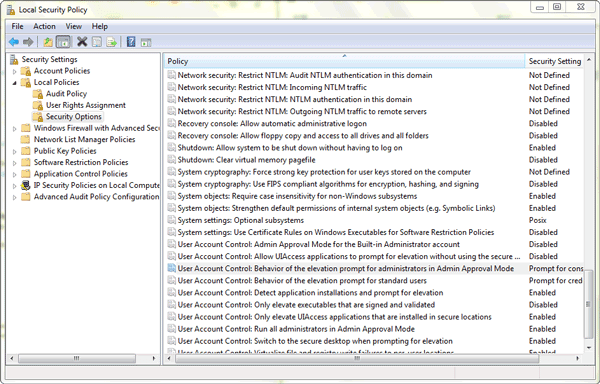
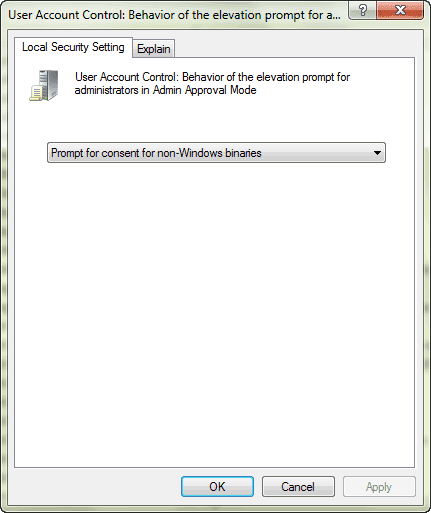 Double click it and six modes are provided. Select one from drop-down box under ÒLocal Security SettingÓ according to your intention. To speak of, the ÒPrompt for consent for non- Windows binariesÓ could filter Windows system file and make UAC only work for applications.
Related Articles:
Related Articles:
- How to Improve Windows 8 Picture Password Security
- Three Major Differences between Windows 8 and Windows 7 Ð Security/Design/Version
- Configure Windows 7 Security Settings and Deployment
Go to link Download

Saturday, May 13, 2017
Make Your Laptop Run Faster
Make Your Laptop Run Faster
There is nothing more frustrating than your computer locking up, freezing, or just being pokey, especially if the client is patiently waiting for the presentation or the paper is due. Laptops are extremely accessible to everyone, yet if only the knowledge to keep them optimized was that easy to come by.
These 10 tips are simple things you can do to make your laptop run faster.
- Start with a disk cleanup. There are several ways to access this, but one is to click on the Start Program>All Programs>Accessories>System Tools>Disk Cleanup. This will allow you to delete temporary Internet Files, Offline Files, the recycling bin, and other types of unnecessary files.
- Through the Control Panel, go to Internet Tools and delete cookies and history. This can take several minutes if it hasnÕt been done in awhile.
- Disk Defragment. You can access this the same way as a disk cleanup, but select disk defragmenter instead. Many programs allow you to schedule a time to do this application, as it can take several minutes or several hours depending on how much work is to be done.
- Malware or Spyware are big offenders of slowing down laptops. Installing and running an anti-malware or anti-virus program and running it regularly will often times make a tremendous difference.
- Check your power management by accessing the Control Panel. Select power management and then Maximum or Best Performance. If you use your battery pack rather than being plugged in it will drain quickly, but will give you optimal speed.
- From the Control Panel, go to Add or Remove programs. Remove programs that you know you are not using. This can be a daunting task, since some programs affect others, and therefore you may want to know whatÕs important before you remove it.
- Check the memory usage of your computer. You may need to add more random access memory (RAM) to store memory, rather than using disk space that is slower in all cases.
- Consider using registry software cleaner or repair program. There are many good ones out there such as ccleaner.com or registryfix.com. These will identify and repair problems within the registry.
- New computers that use Windows Vista can be slowed down by excess animation. It is possible to turn it off by going to the Control Panel>System and Maintenance>Performance Information and Tools>Advanced Tools. Then select Adjust the Appearance and Performance of Windows. The Performance Options box will prompt, and if you select Custom, then uncheck Animate Windows when Maximazing and Minimizing. You can consider other options as well, but this definitely pep it up.
- Use an external hard drive to store all music, photos and games. It can be unplugged and used with multiple computers, and will save valuable space.
These ten tips are proven ways to get that computer moving and prevent untimely frustration. By utilizing some or all, you will be optimizing your system and working efficiently.
Article by : http://sumobackup.hubpages.com
Go to link Download
Friday, April 28, 2017
How to Make a Boot Disk for Windows 7
How to Make a Boot Disk for Windows 7
I want to reinstall Windows 7 but no installation disk. How do I get or make Windows 7 boot disk free by myself?
For Windows 7, you could create Windows USB installation disk and Windows CD/DVD disk with Finalbooster. Finalbooster is powerful install tool, which could create Windows installation disk with ISO image file. And then you could boot computer from it and install Windows operational system on computer, such as Windows 8/7/Vista and Windows server 2012/2008.
So now create Windows 7 boot disk with Finalbooster in two ways, bootable USB drive and CD/DVD-ROM.
- Create Windows 7 Boot Disk with Bootable USB Drive
- Make a Boot Disk for Windows 7 with CD/DVD-ROM
Step 1: Get Finalbooster and install it on accessible computer.
Step 2: Run it after installation, you would see following in screen.
Step 2: Run it after installation, you would see following in screen.
- Select an ISO image file
- Burn ISO image file to CD/DVD disc
- Burn ISO image file to USB flash drive

Step 3: Click ÒBrowseÓ button to import Windows 7 ISO image file.
And then prepare bootable USB flash drive or CD/DVD-ROM and insert it into computer.
Step 4: Burn Windows 7 ISO image file into USB flash drive or CD/DVD-ROM.

1. Create Windows 7 boot disk with USB drive
1. Create Windows 7 boot disk with USB drive
After insert USB flash drive into computer, choose it from drop-down box of ÒBurn ISO image file to USB flash driveÓ. And then click ÒBurn to USBÓ.
2. Make a boot disk for Windows 7 with CD/DVD-ROM
After insert CD/DVD device into computer, select it from drop-down box of ÒBurn ISO image file to CD/DVD discÓ. And then click ÒBurn to CD/DVDÓ.
Step 5: When the Progressbar becomes full, it means ISO image file has been successfully burned into USB drive or CD/DVD-ROM.

The method of making Windows installation disk or boot disk above applies to Windows 7/8/Vista/2008/2012. And the most important is that you could burn Windows boot disk with Finalbooster free and easily. So donÕt worry about no Windows installation or boot disk.
Related Articles:
- Ways to Boot and Use HP Laptop Successfully if Lost Windows 7 Password
- How to Boot Dell Windows 7 Computer Successfully Forgot Password
- How to Get a Windows 7 Reset Disk without Access Ð Windows 7 Administrator Password Reset
- How to Reset Windows 7 Password with or without USB Disk
- How to Reset Windows Vista Password without CD or Reset Disk
- How to Change Admin Account with Windows 8 Disk
- Password Reset Disk Creation on Windows 8 or 8.1 PC
- Forgot Windows 8 Password No Reset Disk
- How to Reboot Computer If We Forgot Password in Windows 8
- What Matters Needed Attention if Reinstall Windows 7 after Forgot Password
Go to link Download
Monday, March 6, 2017
World Top 15 Best Websites that can make you a Web Designer
World Top 15 Best Websites that can make you a Web Designer
http://m14hackersworld.blogspot.com
World Top 15 Best Websites that can make you a Web Designer

It is very easy to say that i want to make my own website but Friends its a very difficult job if you dont know about programming and such famous languages HTML,JavaScript,Css are the basic building of a webpage.ÊIf you want a real and good web designer and also want a ful Grip on web designing so have a good knowledge of this languages which names is mentioned above. This article is for those who wants to learn how to make a website, all the websites listed below have very accurate information and you can easily learn web designing step by step.
Read more È
Go to link Download
Sunday, March 5, 2017
How To Make a Single Name Facebook
How To Make a Single Name Facebook

How To Make a Single Name Facebook
How To Make a Single Name Facebook by MastiComputer
Go to link Download
Monday, January 2, 2017
How to make free calls from PC to mobile phone
How to make free calls from PC to mobile phone

You can make a free call from your personal computer (PC) to mobile phones at any where in the world. To make a free call you need to have an earphone with mike and internet connection with yahoo or Skype software installed. Just follow the below instructions to make free calls and it is not applicable for United States. If you donÕt have Skype or Yahoo messenger then download and install the latest version of it from Google.
Step 1: Sign into your yahoo messenger or Skype using yahoo id and password and configure your earphone and headset if you have installed a fresh yahoo or Skype software.
Step 2: Inside your Yahoo messenger dial +18003733411 and press enter (As shown in the below figure)
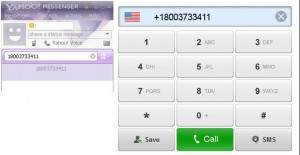
Step 3: A pop-up window will appear.
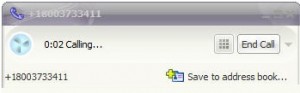
Step 4: Now a recorded welcome message greets you along with an advertisement. It will ask you to select one of the Free411 service. Just listen to the options until the last one as ÒFree CallÓ. After hearing the last option donÕt press any number in key board. Then say ÒFree callÓ loudly on your microphone connected to your PC.
Step 5: After this, they will run a short advertisement of their sponsor and make sure you donÕt press any number at this time.
Step 6: Wait until you here a beep sound after the following message ÒPlease dial the phone number country code first, donÕt forget to dial 1 for North AmericaÓ. After hearing message, dial the destination number of your choice immediately along with the country code. (E.g. for North America itÕs 1 and for Pakistan itÕs 92).
Step 7: Now your call will get connected and you can talk up to 7 minutes for free. After 7 minutes the call will disconnect. Repeat the same procedure to talk again.
There is no limit to make free calls. So enjoy this trick to make free international and local calls. It even works to make free local mobile calls in India.
ENJOYÉ
Go to link Download
Friday, December 30, 2016
How To Make A Password On Windows 10
How To Make A Password On Windows 10
 Hello friend!
How are you? Hope you are very well. Everyone have some important files, which files we donÕt want to share with another person. ThatÕs why we need to install a strong password.
Windows 10 is a new operating system. So that maybe you canÕt operate it easily. Today I am going to show you how to make a password on windows 10. If you want to make a password on windows 10 please follow my bellow procedures.
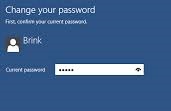
Click start menu ---> From the top corner click on your computer user name ---> Now click on Change account settings. Now will open a new window which name is Settings. From the left side click on Sign-in Options. From the right side, under the Password click Add. Now enter your new password then re enter same password and give a hint. Click Next then click Finish.
Video Of This Tutorial:
Thanks to all of my friends.
Md. Manjurul Islam (Rubel)
Go to link Download
Saturday, December 24, 2016
EvaPhone How to Make a Phone Call Free of Cost By Masti Computer
EvaPhone How to Make a Phone Call Free of Cost By Masti Computer

Profile. Prices in India how to make free and Pakistan and international calls at low prices a phone call. Free calls with VoIP and evaphone.com online. Many friends in all countries of the world mobile phone to make free calls over the Internet to tell how they are applied. This is the most affordable call system in the world. Its a way to work 100% and tried several times.
- First Of All Go To www.call2friends.com
- Than Enter Phone Number and Press Green Dial Button as Shown Below.

- Thats How You Can Make Free Calls.

Enjoy Free Calls and More Computer Tricks&Trips ,Free Software ,Free Computer CoursesFree Enjoy Like Our Facebook Page
Go to link Download
How to Make Windows Computer Faster or Perform Better
How to Make Windows Computer Faster or Perform Better
Question: How to make Windows computer faster or perform better?
Believe that to run Windows faster is the hope of every computer user. It makes work and entertainment smoothly. If you have ever used one computer more than years and have not done any Windows optimization, you could feel how important fast Windows operational system is.
Believe that to run Windows faster is the hope of every computer user. It makes work and entertainment smoothly. If you have ever used one computer more than years and have not done any Windows optimization, you could feel how important fast Windows operational system is.
Be positive and optimize Windows system by yourself every once in a while. It is not as difficult as you think.
Answer: There are some general optimization options for Windows operating systems, such as Disk Cleanup, Disk Defragment etc. Even though they are, we should have different and effective Windows optimization for different Windows system according to their system features.
- Optimize Windows 7 to run faster
- Optimize Windows 8 to run faster
So in the following passage, letÕs see the general and basic Windows optimization we could do.
1. Disk Cleanup
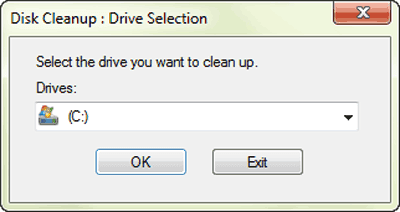
Disk Cleanup would delete files in Windows you donÕt need. This is the most familiar option we could make our Windows run faster. Click ÒStart Ð All ProgramsÓ, and find ÒAccessories Ð System Tools Ð Disk CleanupÓ. Select the drive you want to clean up and click ÒOKÓ. Choose ÒDelete FileÓ in the pop-up dialog. The selected file would be deleted in Windows.
Tips: This applies to Windows 7. There would be some differences in operation in Windows Vista/8/8.1.
http://windows.microsoft.com/en-us/windows/delete-files-using-disk-cleanup#delete-files-using-disk-cleanup=windows-7
2. Disk Defragmenter
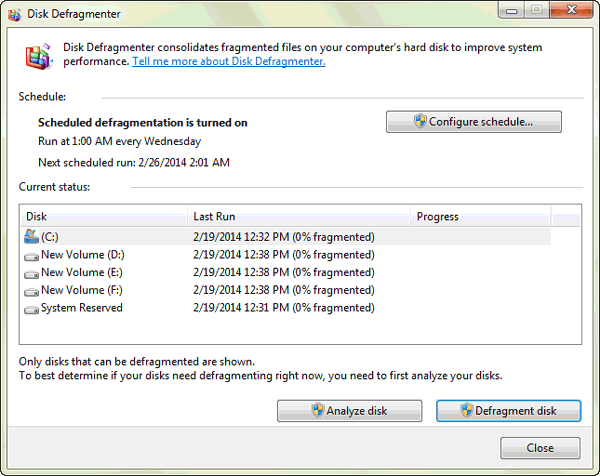
Disk Defragmenter is to defragment the fragment created during computer use. The main purpose is to free more disk space and improve computer performance and running speed.
The operation of Disk Defragment is similar to Disk Cleanup. When you find ÒSystem ToolsÓ in the menu, choose Disk Defragment. And then select the drive you prepare to recombine. Click ÒOKÓ and ÒAnalyze diskÓ button. A dialog would pop up to ask you whether you want to defragment it. Click ÒOKÓ to go on. If you have never recombined disk, it would take about several hours, but if you do this often, about ten minutes is enough.
3. Other Windows Optimization Methods
Besides above two basic Windows optimization options, other small options also are effective for making Windows faster. For example, clear system temporary files, clear Internet temporary documents, and clean boot options to speed up the boot and shutdown could let programs run faster in Windows 8/7.
Articles related to hard disk:
- How to Partition Disk for Windows 8 with Disk Management
- How to Create, Delete or Format Disk Partition in Windows 8 Computer
- Principles of Hard Disk Data/File Storage and Format
Go to link Download
Sunday, December 11, 2016
Solved Easy Way To Make A UEFI Bootable USB Drive
Solved Easy Way To Make A UEFI Bootable USB Drive
Easy Way To Make A UEFI Bootable USB Drive
Hi Friends!
I am Md. Manjurul Islam (Rubel). Now a days some computer doesnÕt support legacy system, they only support UEFI. So that you cannot install windows by a legacy system USB bootable flash drive. If you want to install windows on that computer, you need to make a UEFI bootable USB drive.
Today I am going to show you how to make a UEFI bootable USB drive. If you donÕt know how to do this, please follow my bellow processÉÉ
Requirements:
- Minimum 8 GB USB flash drive.
- Windows 8/8.1/10 ISO or DVD.
Process:
- Insert USB drive into the computer.
- Go to the My Computer and backup all data from your USB Drive.
- Now right click on your USB drive and click on FormatÉ.
- From the File System Drop-down menu select FAT32 (Default).
- Click Start then Ok Then Ok.
- Now insert windows DVD into the optical drive.
- Now open DVD then copy all files and then paste into your USB drive.
- After coping all files your job is done.
- Now you can use this USB drive as a bootable USB flash drive and you can use this on legacy and UEFI boot mode.
If you think this tips can help the people, you can share this post with your friends.
Thanks
Md. Manjurul Islam (Rubel)
Video Of This Tips:
Video Of This Tips:
Go to link Download
Tuesday, October 11, 2016
How to make Free Phone Call using Gmail
How to make Free Phone Call using Gmail
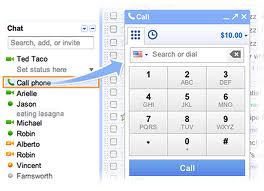
Click Chat and Select Options
Once your browser comes back, simply navigate to Gmail and youÕll be automatically taken to their ÒChatÓ settings. Select the microphone and speakers youÕd like to use, and make sure theyÕre functioning by seeing the sound levels jump. Adjust any of the other options below to your liking and click save changes.
Make a Phone Call
When you wish to make a call with Gmail, simply click Òcall phoneÓ to bring up the phone plug-in. Now just key in the number and hit ÒcallÓ and Gmail will connect you to your contact.
Using this feature you can call in US or Canada for free & other countries for very nominal charges.
Google voice:
Download Now
Go to link Download
Subscribe to:
Posts (Atom)