Showing posts with label solved. Show all posts
Showing posts with label solved. Show all posts
Friday, May 12, 2017
Solved Error Code 0x80072f8f When Activating Windows 7 Professional
Solved Error Code 0x80072f8f When Activating Windows 7 Professional
 Hello friend!
How are you? Hope you are very well. Today I am tired to activating windows 7 32bit professional on a hp probook 4320s. When I am activating windows 7 with the product key then I got an error message Òerror code 0x80072f8fÓ. But everything is fine.
After few munities later I found my mistake. It is a very simple mistake, my laptop date and time is not correct.
After correct the date and time I retry to activating windows 7 professional and I success to activating the windows.
How To Activate Windows 7:
For activating the windows 7, right click on my computer --> Click Properties --> Now click on Change Product Key. Now will open a new window. Enter your windows 7 license key and click next. Now will start activating your windows. It take some moment. Please wait until it finished. After finishing this process your job done.


Thanks to all of my friends.
Md. Manjurul Islam (Rubel)
Go to link Download

Sunday, April 2, 2017
Solved How To Find A Computer Hard Disk Serial Number From Windows
Solved How To Find A Computer Hard Disk Serial Number From Windows
How To Find A Computer Hard Disk Serial Number From Windows?
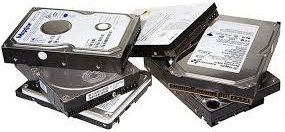 Hello! How are you? Hope you are very well. It is very difficult to see your laptop or desktop hard drive serial number. Because of if you want to see the HDD serial number you need to open your laptop or desktop back cover.
 What do you think if you get your hard disk serial number from windows without opening the back cover. Yes, today I am going to show you how to see your HDD serial number from your running windows. Please follow my bellow proceduresÉ.
- At first you need to open the Command Prompt (CMD)
- Now write in the Òwmic diskdrive get serialnumberÓ
- Press Enter
- After pressing Enter you will see your computerÕs HDD serial number.
- Job done
Thanks to all of my friends. If you like this please share with your friends.
Md. Manjurul Islam (Rubel)
Video Of This Tricks.
Go to link Download
Thursday, February 16, 2017
Solved Wifi Problem After Updating Windows 10 Limited Access or Not Connecting
Solved Wifi Problem After Updating Windows 10 Limited Access or Not Connecting
![[Solved] Wifi Problem After Updating Windows 10, Limited Access or Not Connecting](https://blogger.googleusercontent.com/img/b/R29vZ2xl/AVvXsEg56qupAcjSZyzI6lzTXaCyE12W9hhdqG4PdW7Ob04aho9sNgLr_T9P-RN4MmVx-uvrjGtr4nEinqT9oMNR1k8iZEKFkZYTbNiLtRpW_y5uJGeytF6VdZVJH-FW65tpygua9LPgOeM6aQvP/s1600/Wifi+Problem.png "[Solved] Wifi Problem After Updating Windows 10, Limited Access or Not Connecting")
[Solved] Wifi Problem After Updating Windows 10, Limited Access or Not Connecting.
Hello friend!
How are you? Hope you are very well. Today I am going to show you after updating windows 10 how to solve wifi problem (Limited Access)?
There are two methods to solve this problem. If first method is failure, then we can try 2nd method. I hope one of them will work for you.
Method-1:
1) Write in the search box CMD.
2) Right click on Command Prompt.
3) Click Run As Administrator.
4) Click Yes.
5) Now will open Command Prompt.
6) Enter the following command in the command prompt Ònetsh int ip resetÓ and press Enter.
7) Now restart your computer for finishing the first method.
If first one is failure to fix your wifi problem, please follow the second methodÉÉ
Method-2:
1) Write in the search box CMD.
2) Right click on Command Prompt.
3) Click Run As Administrator.
4) Click Yes.
5) Now will open Command Prompt.
6) Enter the following command in the command prompt Ònetsh int tcp set heuristics disabledÓ and press Enter.
7) Write another New command Ònetsh int tcp set global autotuninglevel=disabledÓ press Enter.
8) Write another New command Ònetsh int tcp set global rss=enabledÓ press Enter.
9) Write another New command Ònetsh int tcp show globalÓ press Enter.
10) After enter the above four command, close the command prompt and restart your computer.
Hope your problem is solved.
Video Of This Article:
Video Of This Article:
Thanks to all of my friendsÉÉ
Md. Manjurul Islam (Rubel)
You May Like Also......
How To Create A Video From Your MS PowerPoint
How To Install A Display Language On Windows 8.1
(Solved) How To Solve HP Pavilion 14-ab012TU WIFI Driver Problem
After Updating Windows 10, How To Delete Windows.old (Previous Windows)
Go to link Download
Sunday, December 11, 2016
Solved Easy Way To Make A UEFI Bootable USB Drive
Solved Easy Way To Make A UEFI Bootable USB Drive
Easy Way To Make A UEFI Bootable USB Drive

Hi Friends!
I am Md. Manjurul Islam (Rubel). Now a days some computer doesnÕt support legacy system, they only support UEFI. So that you cannot install windows by a legacy system USB bootable flash drive. If you want to install windows on that computer, you need to make a UEFI bootable USB drive.
Today I am going to show you how to make a UEFI bootable USB drive. If you donÕt know how to do this, please follow my bellow processÉÉ
Requirements:
- Minimum 8 GB USB flash drive.
- Windows 8/8.1/10 ISO or DVD.
Process:
- Insert USB drive into the computer.
- Go to the My Computer and backup all data from your USB Drive.
- Now right click on your USB drive and click on FormatÉ.
- From the File System Drop-down menu select FAT32 (Default).
- Click Start then Ok Then Ok.
- Now insert windows DVD into the optical drive.
- Now open DVD then copy all files and then paste into your USB drive.
- After coping all files your job is done.
- Now you can use this USB drive as a bootable USB flash drive and you can use this on legacy and UEFI boot mode.
If you think this tips can help the people, you can share this post with your friends.
Thanks
Md. Manjurul Islam (Rubel)
Video Of This Tips:
Video Of This Tips:
Go to link Download